






Windows 11 KB5074105 is now rolling out, and it’s a feature-packed update for version 25H2 or 24H2. With today’s update, you can now finally disable or enable Smart App Control (SAC) without reinstalling the OS, among other changes. In addition to Windows Update, Microsoft has posted direct download links for KB5074105 offline installers (.msu).
KB5074105 is an optional update, and it won’t download or install automatically unless you head to Windows Updates, check for updates, and manually select the “Download & Install” button. On my PC, this update showed up immediately as “2026-01 Update (KB5074105) (26200.7705),” but it does not download on its own.
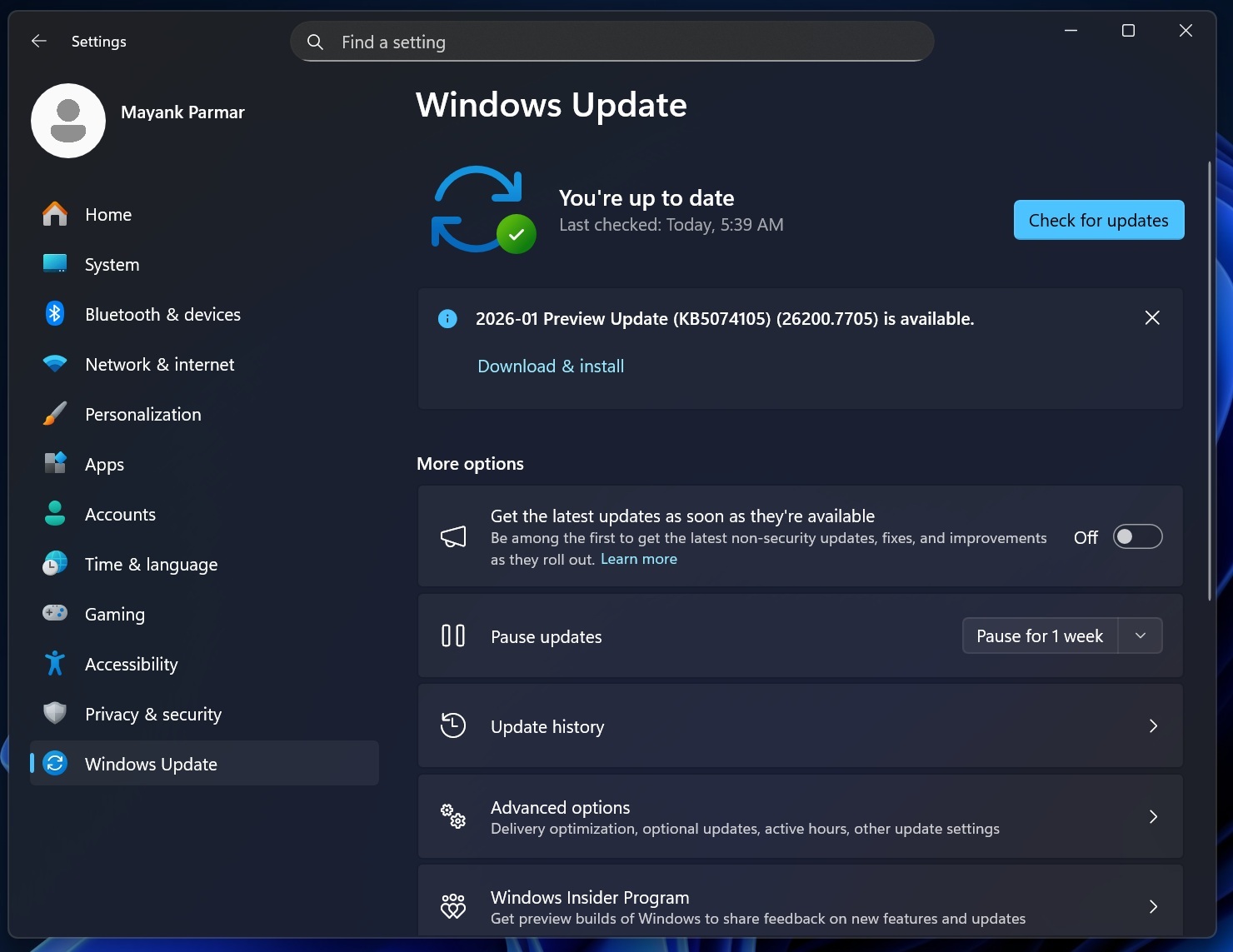
However, when the toggle that reads “Get the latest updates as soon as they’re available” is turned on, Windows Update will automatically download all optional updates, including today’s KB5074105. If you choose to install it, Windows 11 25H2 will advance to Build 26200.7705. On version 24H2, it bumps the OS to Build 26100.7705.
Download Links for Windows 11 KB5074105
Windows 11 KB5074105 Direct Download Links: 64-bit and ARM-64 | Update Catalog is best used when Windows Update is failing, or you really need the offline installers (.msu). If Windows Update is running, you don’t have to bother using Update Catalog.
Regardless, you just need to click ‘Download’ next to the supported update package, and then click the URLs that appear in the next pop-up.
January 2026’s optional update is still a huge update in terms of size. And it doesn’t look like Microsoft is listening to our feedback at all. For those unaware, the reason why Windows Updates’ offline installers (.msu) are above 4GB is that Microsoft bundles the AI models for everyone. That means even non-AI PCs need to download these AI models, but they don’t apply to PCs without an NPU.
| Build Number | Size | OS Version | Architecture |
|---|---|---|---|
| 26200.7705 | 4434.4 MB | Windows 11 25H2 | x64-based |
| 26200.7705 | 4137.9 MB | Windows 11 25H2 | arm64-based |
| 26100.7705 | 4434.4 MB | Windows 11 24H2 | x64-based |
| 26100.7705 | 4137.9 MB | Windows 11 24H2 | arm64-based |
Windows 11 Build 26200.7705 takes about 15 minutes to download at a 200 Mbps internet connection and install. You’ll be asked to reboot your computer to finish applying changes. Unlike Patch Tuesday updates, if you run into problems after installing KB5074105, you can uninstall it at any time (no deadline or lockout).
So far, I haven’t observed any problems, but we’ve only installed it on some devices and are testing it across our 100+ machines. We’ll share details from our lab soon.
What’s new in Windows 11 Build 26200.7705 (25H2) / Build 26100.7705 (24H2)?
New features are rolling out gradually, so they won’t show up even if you run Build 26200.7705 (25H2) / Build 26100.7705 (24H2).
1. Windows 11 is copying the iOS-like Cross Device Resume feature and adding support for more apps and devices
In our tests, Windows Latest observed that Windows 11 KB5074105 finally makes the “Resume” feature useful in Windows 11.
For those unaware, Microsoft has been testing an iOS-like Handoff feature for Windows called “Resume.” Most of you might not be aware, but if you go to Settings > Apps > Resume, you’ll find the toggle. As the settings page says, you can use Resume to “Start something on one device and continue on this PC.”
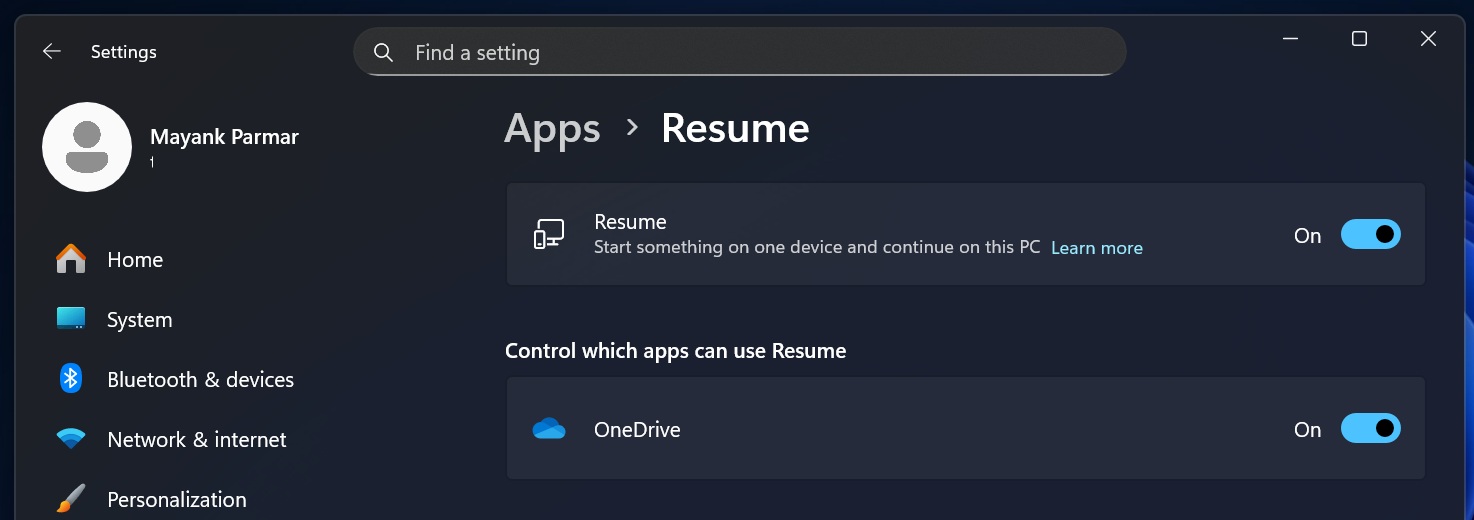
This feature is turned on by default and is always running. If you open Task Manager, you might find CrossDeviceResume.exe running in the background and hogging RAM on odd days.
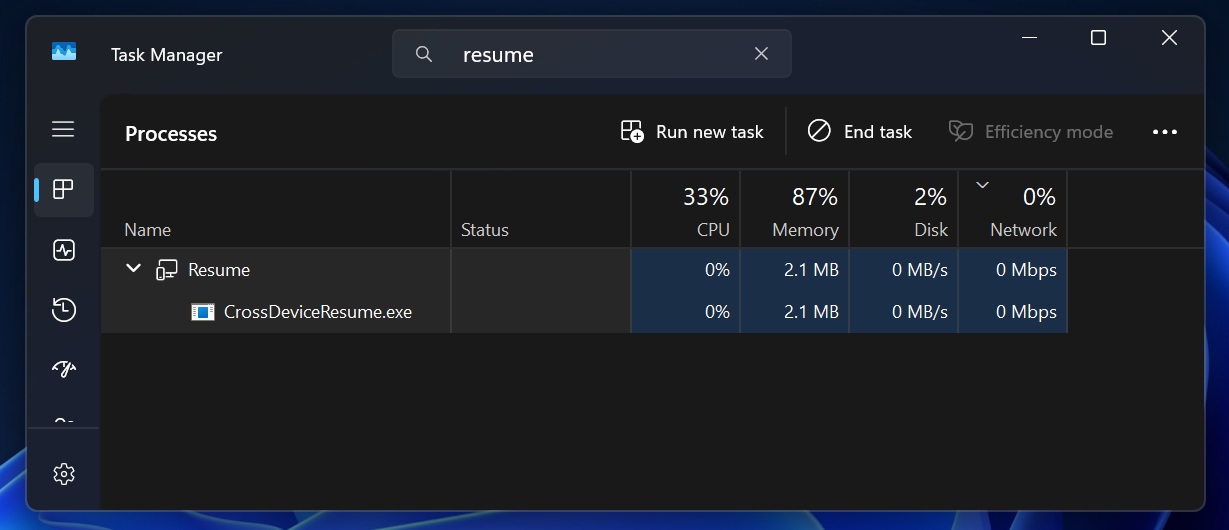
Resume “CrossDeviceResume” allows you to resume the app activity that you left off on Android. For example, if you were working on a document on an Android phone, and you open your PC, you can resume editing the document instantly.
Until now, the feature was restricted to just OneDrive, and it didn’t really work as well as you’d expect it to. With Windows 11 KB5074105, Microsoft is adding support for apps like Spotify. For example, if you were listening to a song on Spotify on your phone, you can now resume it instantly on your desktop.
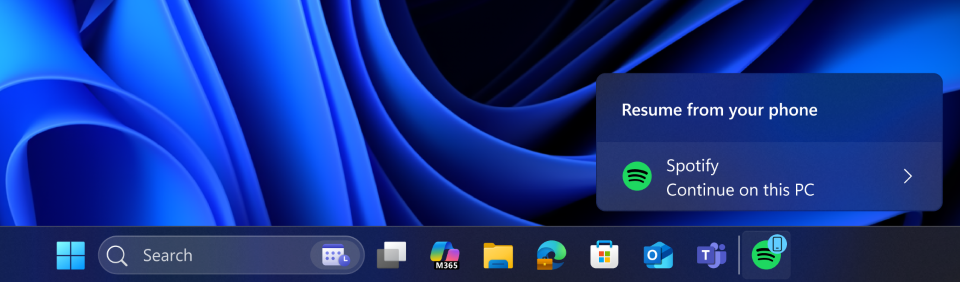
The Windows taskbar shows an alert to resume the Spotify song on the PC.
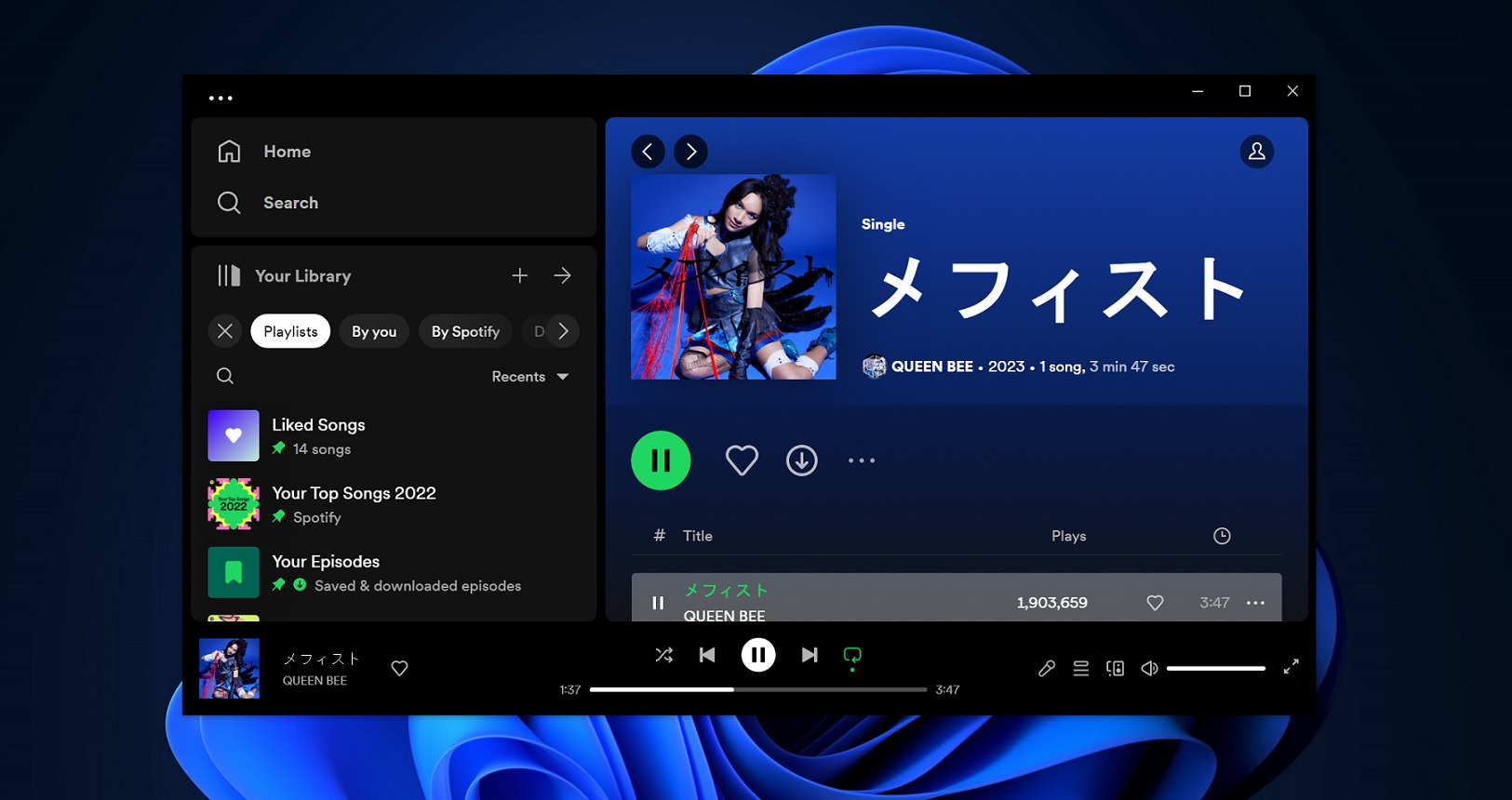
Likewise, if you edit a document in Word, Excel, or PowerPoint on your phone, you can now hand off the task to the desktop. All thanks to Resume, which also works with third-party browsers.
For example, if you own a Vivo phone with the Vivo browser, you can now continue browsing the web on the desktop from where you left off on your phone.
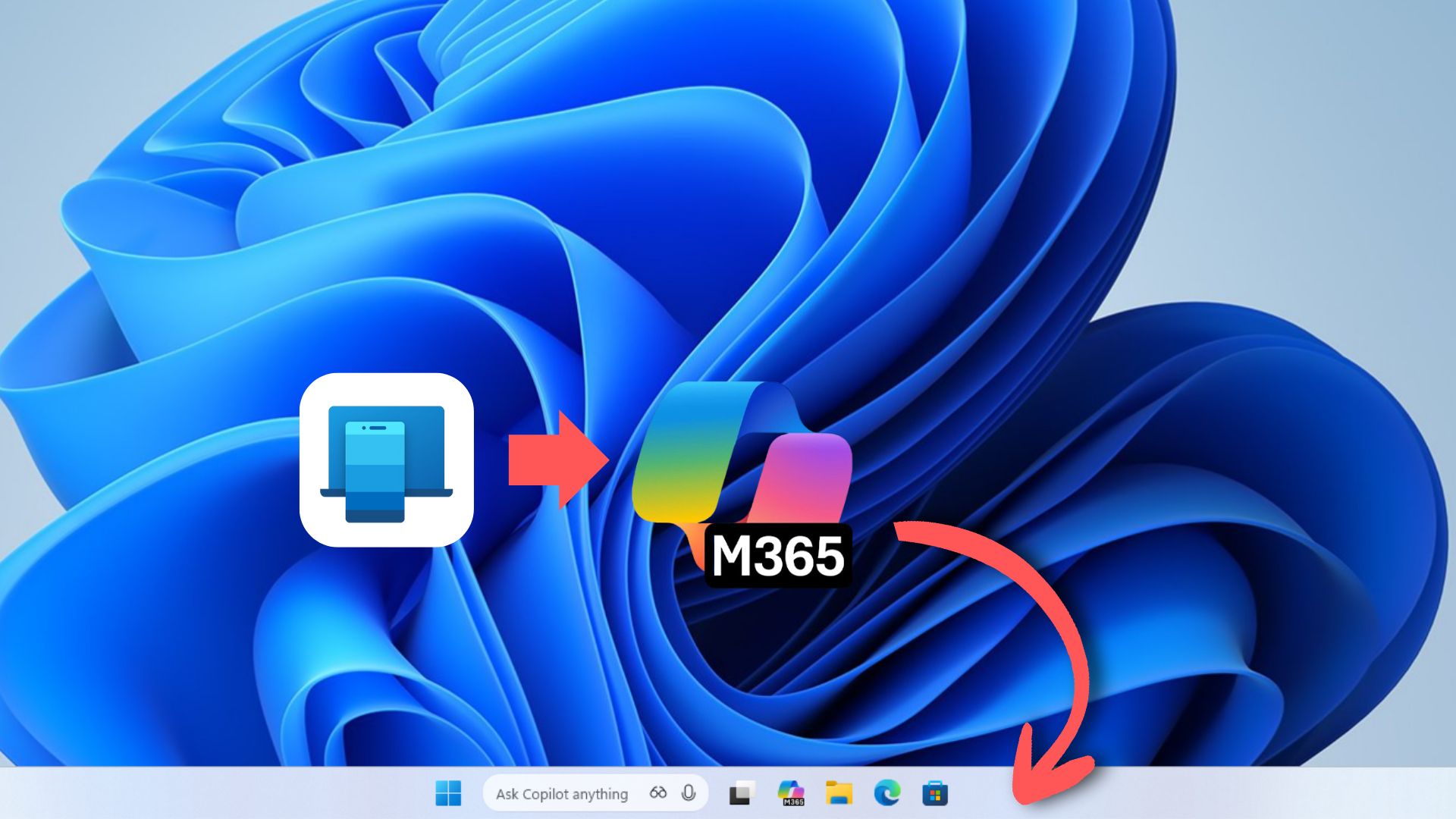
Windows 11’s Cross Device Resume also works with the Microsoft 365 Copilot app. That means if you open a file like a PDF in Microsoft 365 Copilot on Android, then keep your mobile device aside and unlock your PC, you’ll get a notification to resume reading the document in the Microsoft 365 Copilot app for Windows 11.
However, if you don’t have the app, your default browser will open the document on the Microsoft 365 Copilot web app.
Microsoft warns that Resume for OneDrive and Microsoft 365 Copilot do not support offline files stored on your phone.
2. Windows MIDI Services improved on 25H2 and 24H2
Windows MIDI Services is Microsoft’s newer MIDI system for Windows that helps music apps communicate with MIDI devices more cleanly and quickly. For regular users, most USB MIDI 1.0 devices can work without third-party drivers, multiple apps can use the same MIDI device at the same time, and more.
With Windows 11 KB5074105, Microsoft is improving MIDI and adding support for MIDI 1.0 and MIDI 2.0 upgraded versions. This means you can share MIDI ports across apps and rely on the built-in translation. Moreover, Windows Latest observed that MIDI is now faster and less buggy than the original release.
3. You can now disable or enable Smart App Control without reinstalling Windows 11
Windows 11 has a built-in security feature called Smart App Control that protects users from running untrusted or potentially unwanted Windows apps. While it’s supposed to block dangerous code on Windows 11, it also blocks legit apps, such as ASUS Armoury Crate.
Previously, if you turned on Smart App Control or it was turned on by default by your OEM, Windows required you to reinstall the operating system or perform a clean install to disable the feature.
Now, you can open the Windows Security app and toggle off Smart App Control without clean installing Windows 11. This was previously grayed out, but that’s no longer the case with Windows 11 KB5074105.
For those unaware, it was also not possible to turn on Smart App Control if it was disabled by default.
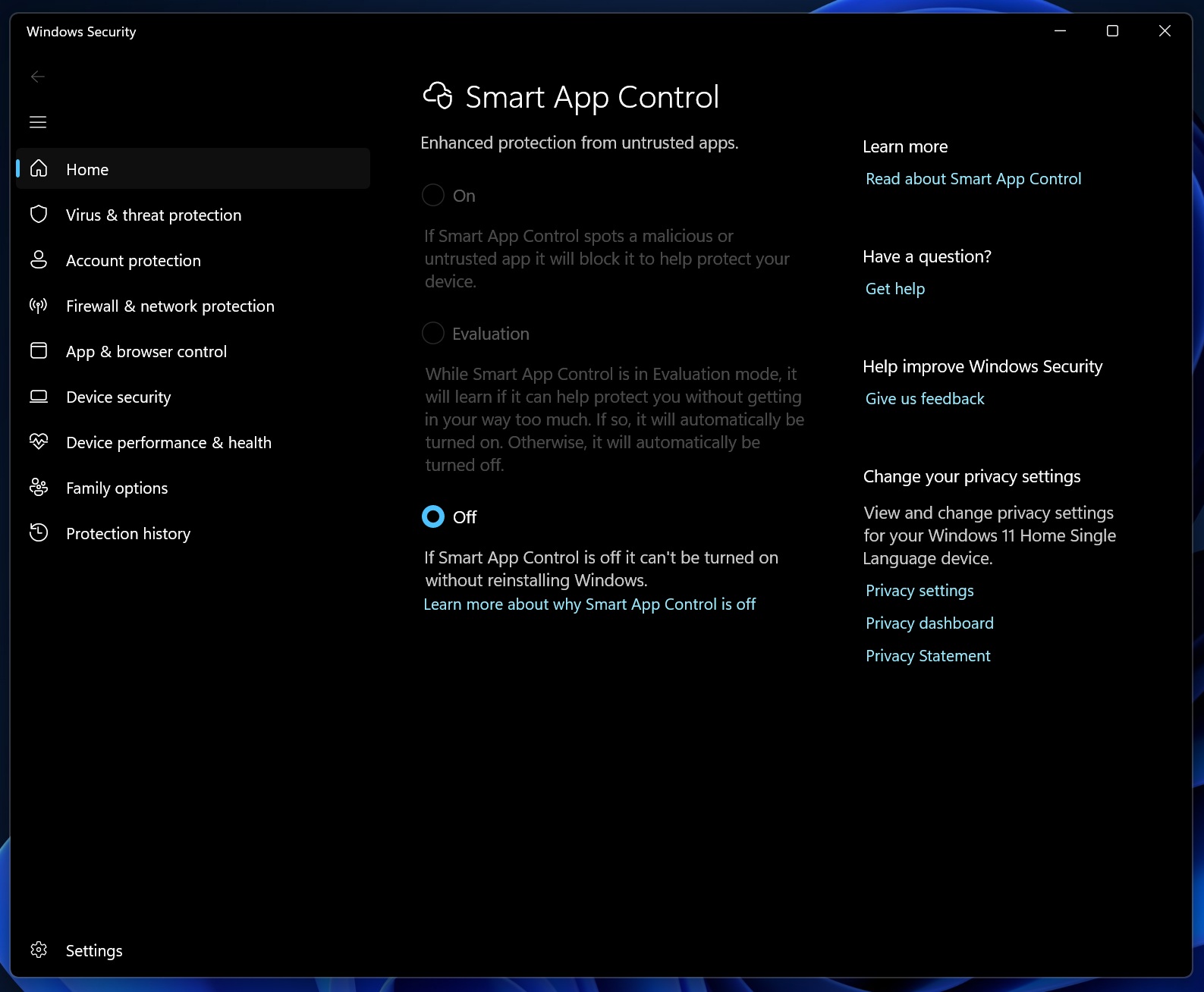
As you can see in the above screenshot, Windows required users to reinstall the OS to turn on Smart App Control. After the update, it’s now possible to turn on the feature without a clean OS install.
4. Settings Home gets a “Device” card
Settings Home page layout is card-based, where each card shows certain information. We have a card for Microsoft 365, and also a card to personalize your device (change the theme or wallpaper). Now, Windows 11 KB5074105 adds a new Device Card.
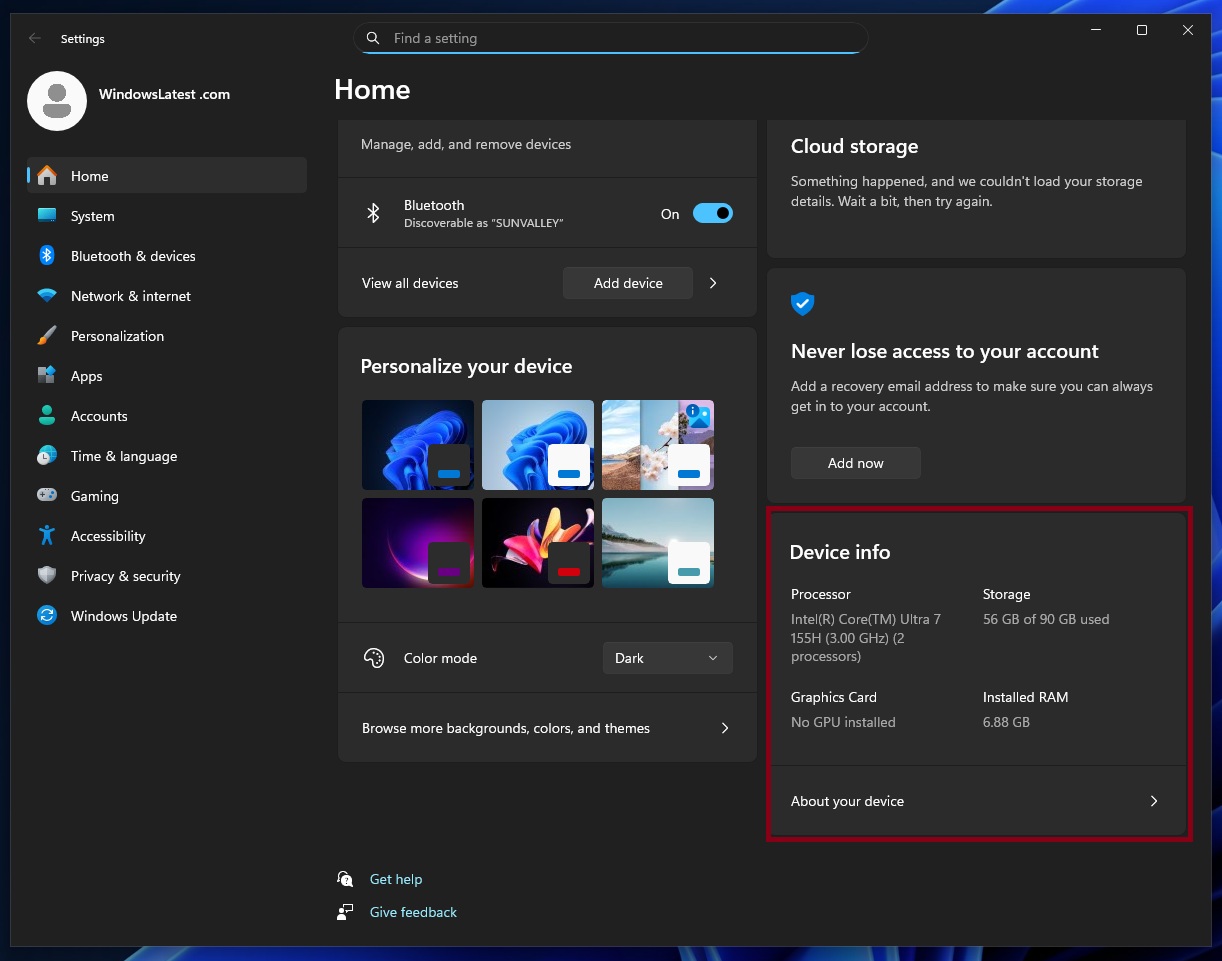
This Device Card on the Settings home page shows specifications and usage details for your computer, such as the storage. You can go to Settings > System > About for detailed specs.
5. Peripheral fingerprint sensors now work with advanced Windows Hello features
Windows 11 has a feature called Windows Hello Enhanced Sign-in Security (ESS). This feature provides additional security over the existing Windows Hello protection via fingerprint. ESS uses Virtualization Based Security (VBS) and Trusted Platform Module to protect your biometric and authentication data.
Until now, ESS has not worked with Peripheral fingerprint, as it only supported built-in fingerprint sensors. Today’s optional update rolls out ESS to all fingerprint sensors, including peripherals.
6. A bug that makes Windows unresponsive has been fixed
After you sign in to your PC, Windows starts all necessary processes, including explorer.exe, which powers the taskbar and desktop. However, explorer.exe stopped responding, and Windows would hang due to a bug in a recent update.
Today’s update fixes explorer.exe issues, including a bug where the taskbar does not appear, especially if certain apps are set as startup apps.
7. File Explorer, black screen, and all other January 2026 Update issues fixed today
This year’s first Windows update (KB5074109) caused issues with customization in File Explorer, particularly if you use desktop.ini to set custom folder names. The issue was never acknowledged by Microsoft, but Windows Latest spotted it in our tests and shared the findings with the public.
Today, Microsoft admitted that it accidentally broke desktop.ini. For those unaware, desktop.ini is particularly useful in enterprise use cases because you can use LocalizedResourceName to set a custom folder name when the original folder name remains the same.
With Windows 11 KB5074105, Microsoft fixed an issue where LocalizedResourceName setting in desktop.ini is ignored.
In addition, Windows Latest exclusively reported that the January 2026 Update causes a black screen. Microsoft never acknowledged it, but today’s optional update officially patches a rare bug where users encounter a “black screen.”
Here’s the full list of fixes and improvements:
- A bug has been fixed that causes KERNEL_SECURITY_CHECK_FAILURE error (Black Screen of Death, BSOD). This issue was linked to dxgmms2.sys, and it affected certain GPUs.
- A bug has been fixed where clicking “hide this pane” in the Start menu does nothing.
- A bug has been fixed where dialog or pop-ups in the Start menu get cut off at the edge, and it’s not possible to read the full message.
- Microsoft fixed an issue where the Windows lock screen becomes unresponsive.
- A bug has been fixed where desktop icons move when you interact with files or rename them.
- Windows Sandbox 0x800705b4 error has been fixed.
Is there any known issue in Windows 11 KB5074105?
Microsoft is still investigating an issue where the password icon disappears from the Windows login screen. This issue was spotted in August 2025, so it’s not exclusive to today’s optional update, but it also means the issue is still not patched. Microsoft says it’s working on a fix and it’ll share details soon.
Microsoft is not aware of any critical issues beyond the password bug, which affects all Windows updates anyway.
We’re testing Windows 11 KB5074105, and we’ll share more details soon.