






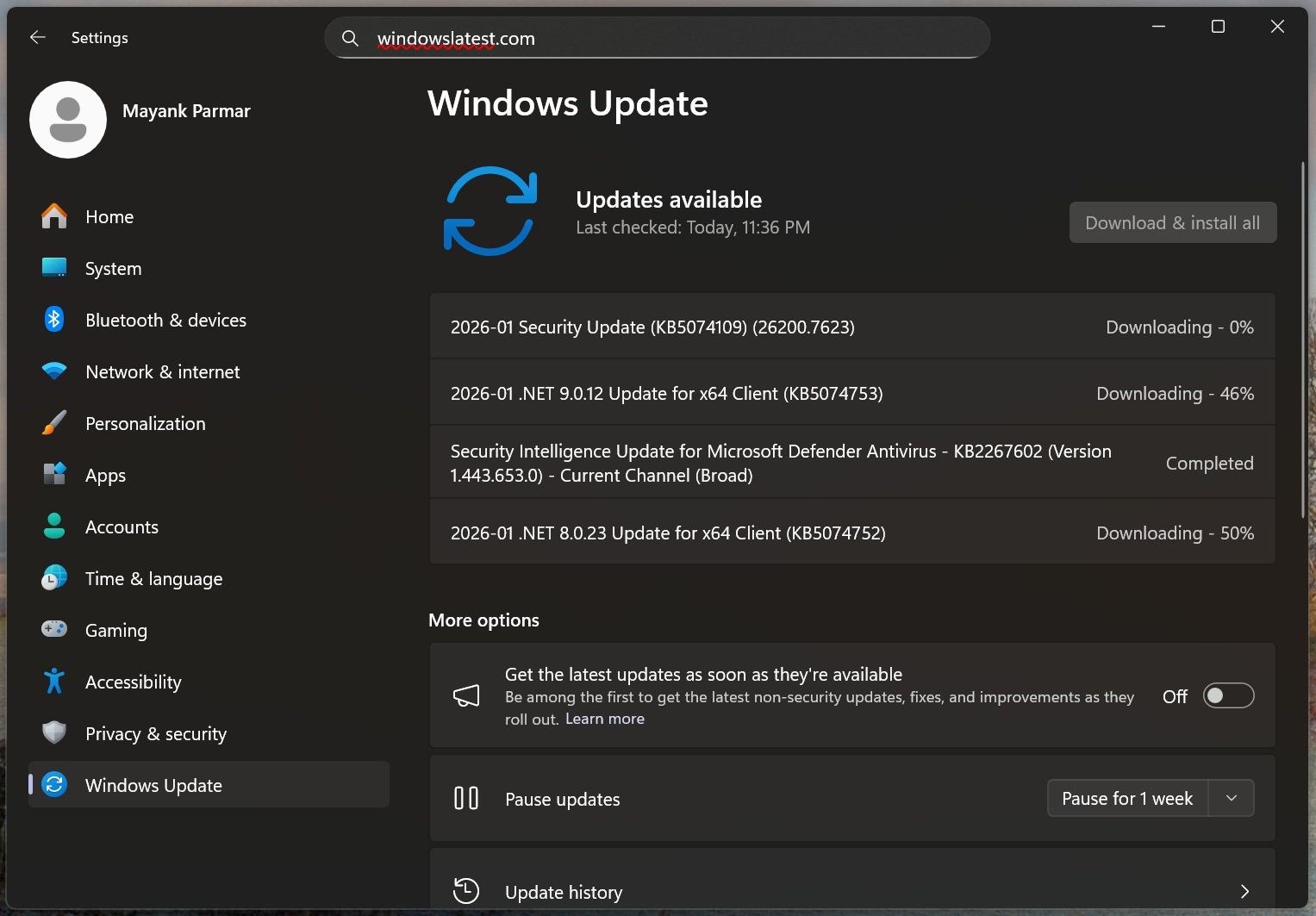
This year’s first mandatory Windows 11 update (KB5074109, bumps to Build 26200.7623) is a mess. Windows Latest first reported a black screen, a broken Outlook Classic, and desktop.ini issues in File Explorer, which make it a bit difficult to customize. Now, we’re seeing reports of other issues, including a sleep problem (S3), third-party remote apps not working, among others.
Microsoft has already confirmed three issues, including a bug that broke Outlook Classic for POP accounts, and rolled out fixes for two other issues (Remote Desktop failure and shutdown issues in older Windows versions). But it doesn’t look like there were only three issues that needed Microsoft’s attention.
Users keep reaching out to Windows Latest to share their nightmare experience after installing Windows 11 KB5074109. For those unaware, this update is a mandatory security patch, so it’s going to attempt installation whether you like it or not. For most users, it’s a decent release, but for others, there are several issues.
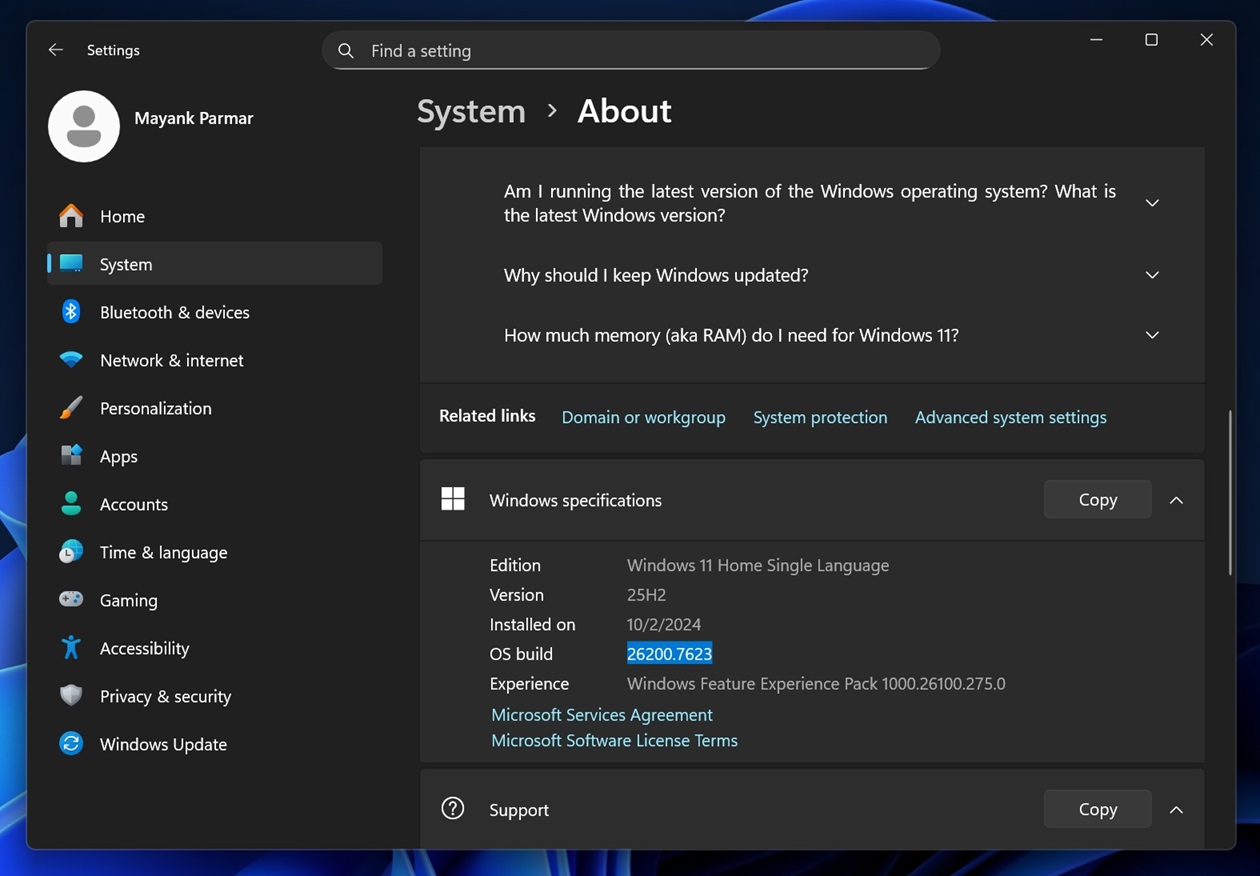
To verify if the January 2026 Update is installed on your PC, open Settings > System > About. Under Windows specifications, check the OS Build number. If it’s 26200.7623 or 26100.7623, you’re already running on January 2026 Patch Tuesday.
I reached out to Microsoft for a statement, but the company told me it had nothing to share at the moment. Only three issues (Outlook POP crashes, Remote Desktop failure, and shutdown bug in older Windows versions) have been acknowledged.
When I searched Feedback Hub, I noticed that Microsoft added a “looking into it” label to issues with the desktop.ini, so there’s a chance Microsoft is aware of additional bugs, and we might see a fix in the next cumulative update scheduled for February 10, 2026.
KB5074109 breaks the Sleep function (S3) on some PCs
Multiple users told Windows Latest that Windows 11 KB5074109 has a problem with sleep mode, specifically S3. For those unaware, S3 is the original or classic ‘Sleep’ state in Windows, where Windows saves your open work in RAM and powers off to maintain battery backup or save power.
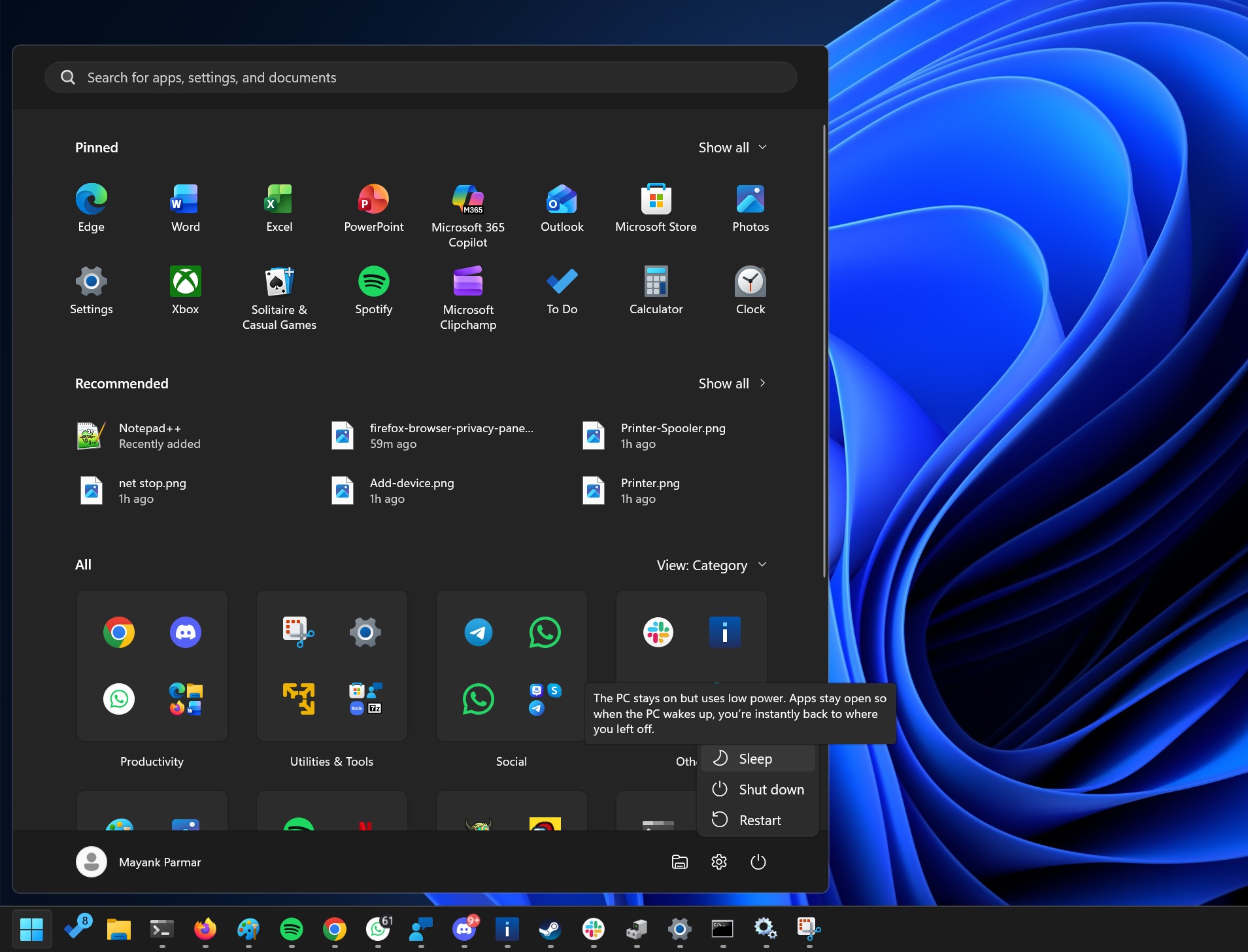
S3 also works on desktops, so when you use it (either your PC enters sleep mode), the fans and screen are both turned off. However, after Windows 11 KB5074109, the S3-based sleep method no longer works, which means it’s impossible for some older PCs to enter the sleep state.
“After installing KB5074109, the sleep function does not work. On going to Power and pressing Sleep, the screen goes blank, but the PC does not power down. The only way to get the PC to restart is to do a hard restart, i.e, hold the power button down on the PC until it turns off, and then restart. This happens every time I go into Sleep mode,” one user told Windows Latest.
“It’s happening on 3 PCs that I have, all running Windows 11. Two are Windows 11 Pro and one is Windows 11 Home. If I uninstall the update, the Sleep function works perfectly. If I reinstall the update, the Sleep function malfunctions again. The problem is definitely related to the KB5074109 update.”
In a Feedback Hub post, one user pointed out that Sleep mode (S3) specifically does not work when there’s a USB camera attached, so if you remove the camera and try to enter Sleep mode, it’ll start working again. This issue also affects desktops with a webcam.
Windows Latest understands that there’s a regression bug in Windows 11 25H2 on the desktop S3 sleep path. Even with hybrid sleep and wake timers disabled, the system-level Maintenance Activator (SystemEventsBroker) does not properly clear the maintenance wake context after the first wake, causing the second sleep to wake immediately.
In another Feedback Hub post, one user with a fairly new CPU, the B760 14th-generation platform, reported similar issues.
Users on Reddit and Windows Latest’s X account are also reporting sleep issues with the January 2026 Update.
Most newer PCs do not use S3 power state, but if you’ve issues, can you verify if it’s due to S3 or something else?
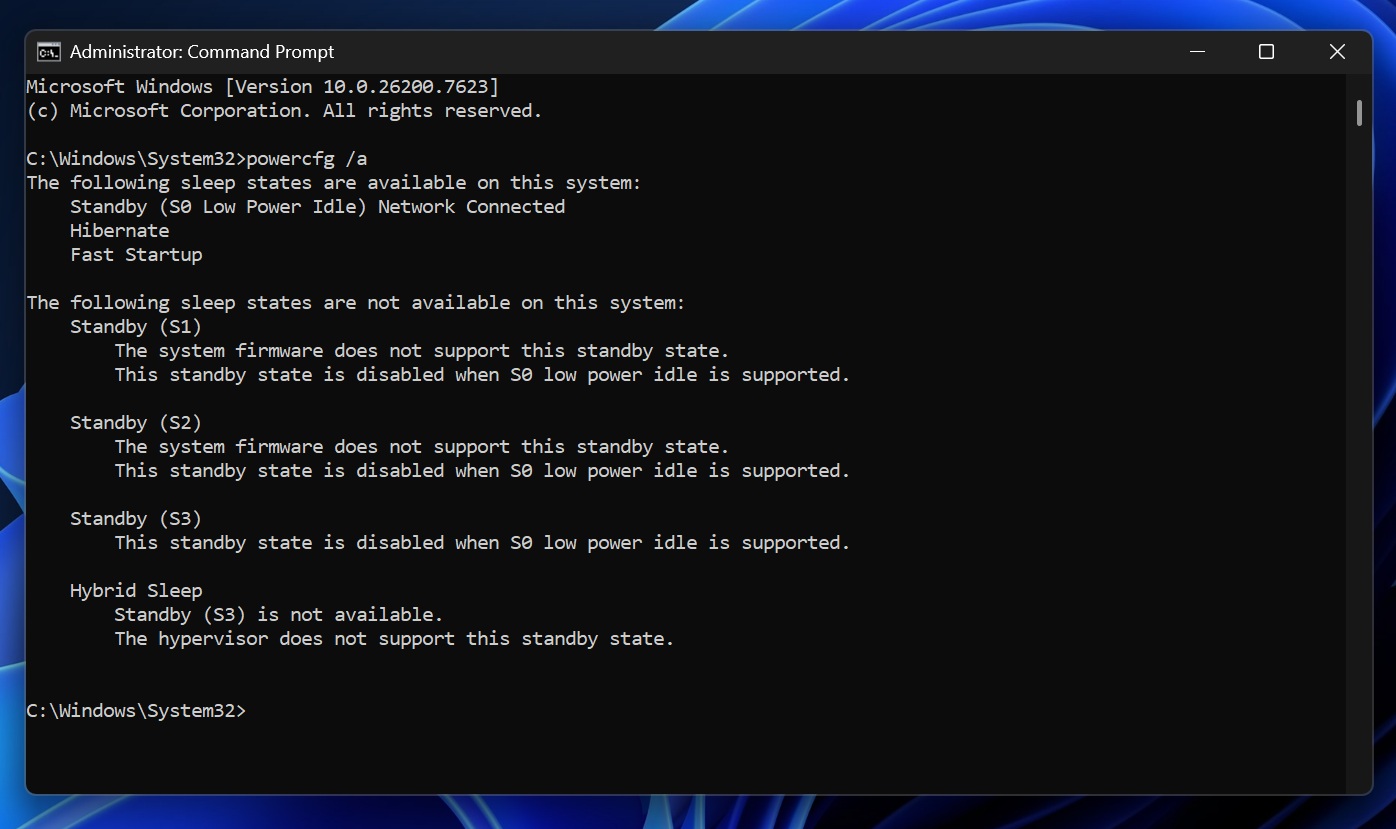
To verify, run powercfg /a in Command Prompt. This lets you find out whether your PC uses S3 or not. In my case, I’ve enabled the modern standby feature, so S3 is turned off by default.
Citrix Director issues confirmed with Windows 11 KB5074109
After the January OS patching, Citrix Director shadowing can fail when Windows 11 KB5074109 is installed. The Director still generates and downloads the invite file (.msrcincident), but when Windows tries to open it, the launch fails with an error that the file “could be corrupted.”
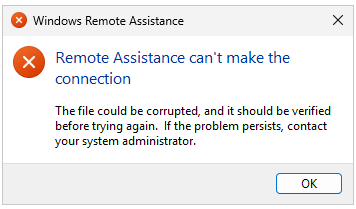
In Event logs, you will see how Remote Assistance started with the invite file as a parameter, immediately showing the error, and then ending.
In a support document, Citrix says it’s investigating, and it recommends switching to HDX Screen Sharing, which is Citrix’s newer, native, low-latency shadowing method.
“Citrix shadowing functionality is affected after the recent Microsoft OS patching. The invite file cannot be launched from the Windows 11 machine with security update 5074109 installed. The update contains the fix for vulnerability CVE-2026-20824: Windows Remote Assistance Security Feature Bypass Vulnerability,” the company noted.
In addition, we’re also seeing reports of Hyper-V / virtualization hosts getting stuck during reboot after the same patching window. In one case, multiple Windows Server 2019 Hyper-V VMs (running on Server 2019) reportedly hung at the end of shutdown during the reboot sequence.
We’re monitoring reports of other problems in the January 2026 update, including a bug where the keyboard and mouse do not work correctly. The list of reported issues keeps growing, which is concerning, as Windows 11 had more than 20 major problems in 2025 with just 12 security updates.