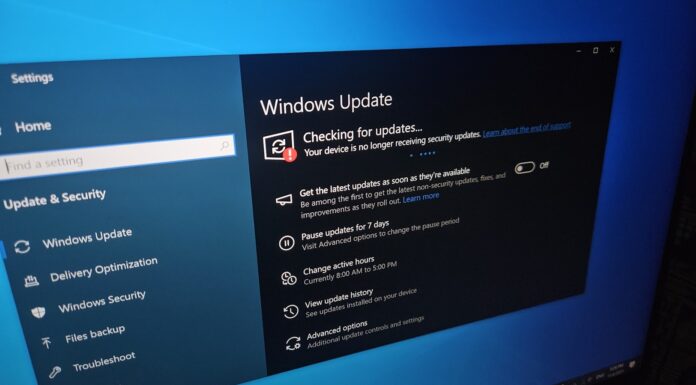








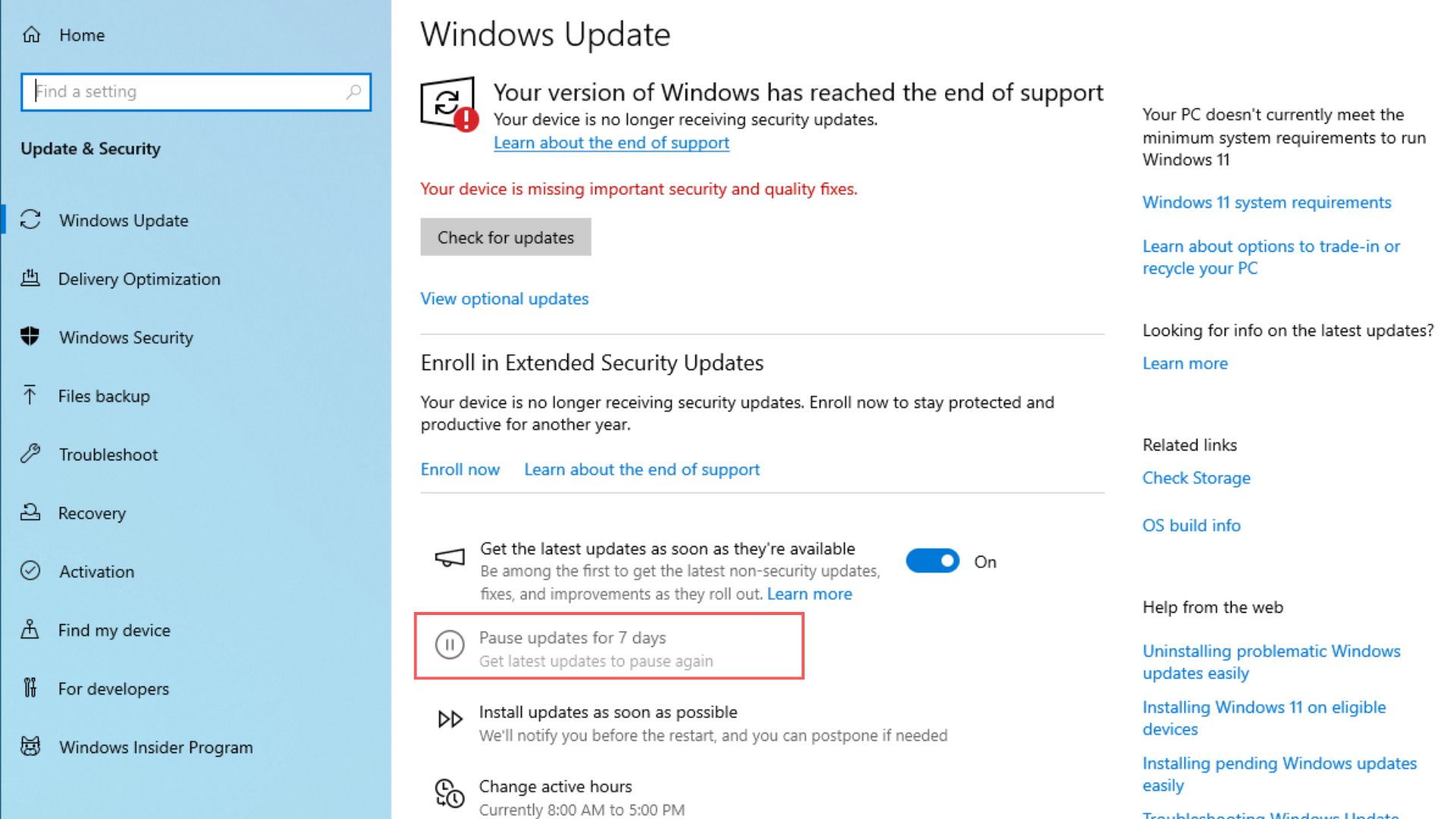
Windows 10 PCs that aren’t enrolled in the Extended Security Updates (ESU) scheme are, weirdly enough, no longer capable of pausing updates. The “Pause updates for 7 days” option appears to be faded. This also happens when you accidentally start the Windows 11 upgrade. You can’t cancel it because the pause option is grayed out. But to be absolutely clear, Microsoft is not forcing a Windows 11 upgrade.
For context, the option to pause updates will become unusable only if you have paused updates several times before, or if your organization prevents you from pausing updates using “Group Policy”. I haven’t paused any updates as such, and I use a Windows 10 VM, so there is no reason for my PC to remove the option to pause updates.
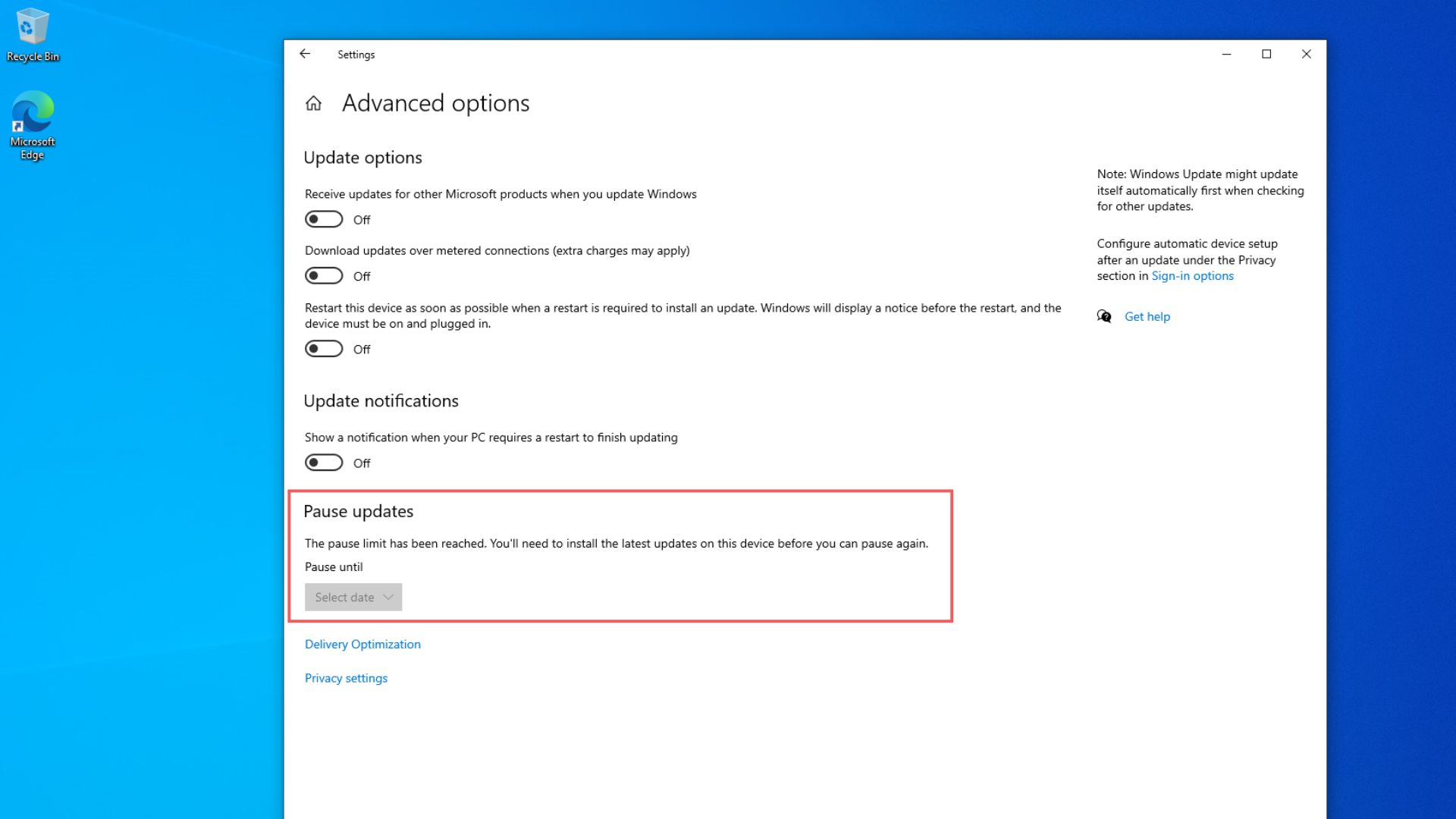
However, I haven’t enrolled in the Windows 10 ESU program, and this could be Microsoft’s way of punishing me for that. Clicking on the Advanced options shows that my PC has reached the “pause limit”, which is odd.
Windows 10 PCs can’t pause updates unless enrolled in the ESU program
Windows 10 reached the end of support on October 14, 2025, and only ESU-enrolled PCs continue receiving monthly security patches until October 2026.
In fact, if your PC is already enrolled in ESU, here is a new Windows 10 KB5068781 Cumulative Update for your PC. You won’t see this security update if you haven’t signed up for the ESU program.
Speaking of things that you won’t get if your PC is not enrolled in ESU, the ability to pause updates for 7 days now appears to be inaccessible, and in typical Microsoft fashion, there is no word on whether this is intentional or if it is a bug. However, we have reasons to believe that this is likely a bug.
In our Windows 10 PC, which has not enrolled in ESU for testing purposes, we now see a “Install updates as soon as possible” option below the faded “Pause updates for 7 days” option.
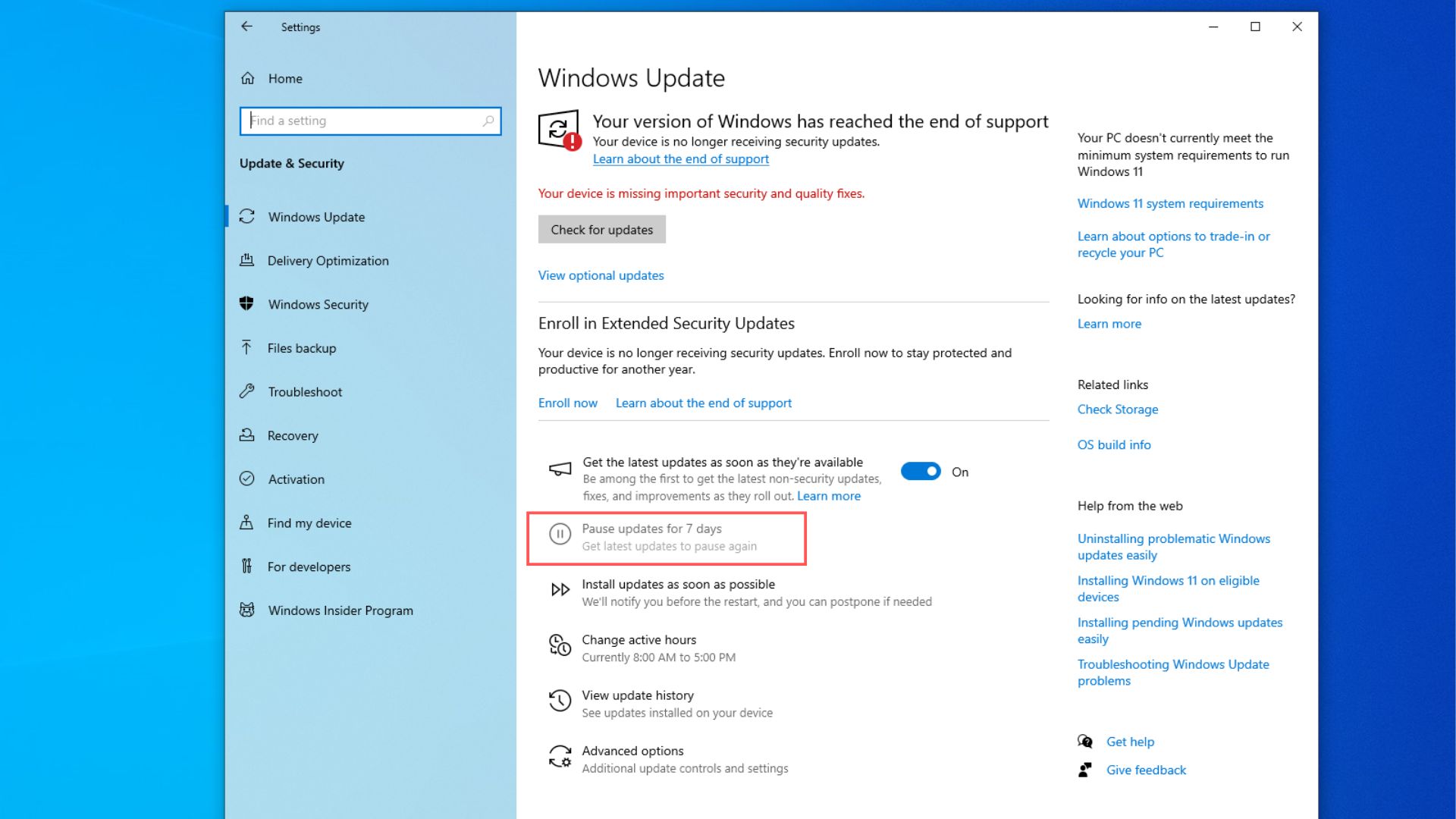
“Pause updates for 7 days” has always been one of the few controls Windows 10 users could rely on when Microsoft pushed out an update that had feature(s) that users didn’t like or if it was sure to have some bugs.
The feature lets Windows 10 Home and Pro users temporarily stop installing new updates for up to seven days. Microsoft expanded pause support to the Home edition back in 2019.
While clicking the Advanced option, we are told by Microsoft that our PC has reached the pause limit and that we’ll have to install the latest updates in order to get back the ability to pause Windows 10 updates again.
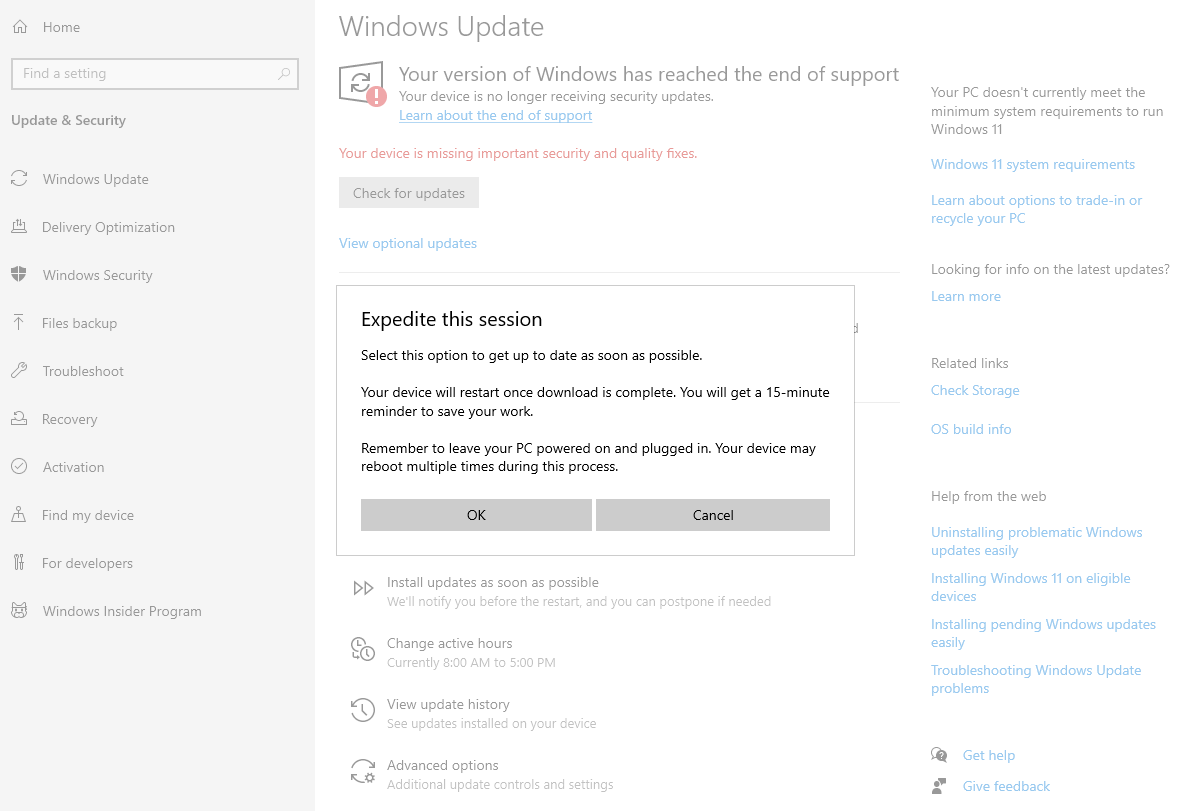
Clicking “Install updates as soon as possible” opens a pop-up that asks us to “Expedite this session”. Clicking OK will download the latest update, install it, and automatically restart your PC. Microsoft says that you’ll get a 15-minute reminder to save your work before the restart happens.
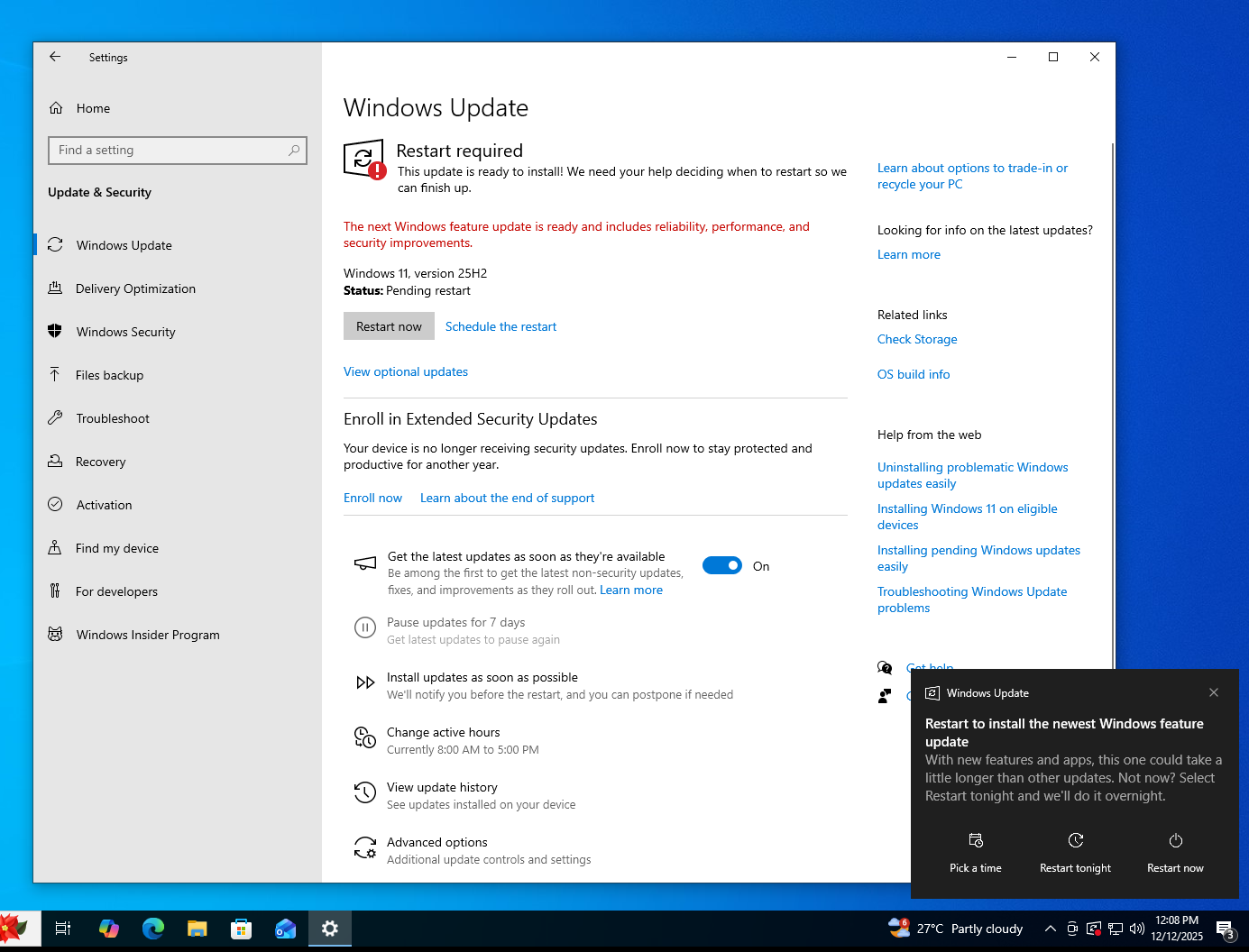
We clicked OK on our PC, which still isn’t enrolled in ESU, and then it went to the Windows Update page. The “Install Updates as soon as possible” option is now replaced with “Don’t restart as soon as possible”.
The system also started checking for updates, but since the previous security updates failed to install multiple times, I didn’t receive any new updates either
Interestingly, the “Enroll in Extended Security Updates” option, which was just below the Check for updates button, changed its position to the top right corner, and in its place, I now got the prompt to “Download and install” Windows 11, version 25H2.
Installing Windows 11 on Windows 10 PCs not enrolled in ESU cannot be paused
About a month ago, Windows Latest reported that Windows 10 now directly installs 25H2 instead of 24H2 or 23H2 if you choose to upgrade instead of opting for ESU. This was Microsoft making Windows 11 25H2 available for more users.
I clicked the “Download and install” option for Windows 11, after which there is no option to pause the update. I clicked “Don’t restart as soon as possible” option, which looked like it did nothing, but after the download was complete, my PC didn’t restart and instead showed me a notification to restart my PC in order to complete the update to Windows 11 25H2.
At this point, it is hard to believe this behaviour is intentional. When Windows removes the Pause button, it usually happens only under two conditions. The first is when the user has genuinely exhausted the pause window, and the second is when a work or school policy disables it. Neither applies here.
What is far more likely is that Windows Update’s internal assessment system has placed some PCs into the wrong update state after the ESU rollout.
Windows 10 uses a background evaluation process that constantly checks update readiness and flags devices that need to install updates before continuing. If that system misinterprets your device as being “past due” for required updates, it can disable the pause option and push the device into an expedited update mode.
That is why we saw “Install updates as soon as possible” instead of the normal pause window, even without any past pauses or restrictions.
Also, Windows 10 now has new logic to differentiate between ESU and non-ESU devices, decide who gets security updates, and determine when an update becomes mandatory. If any of that logic backfires, Windows Update can behave as if your PC must install something immediately, removing your ability to delay updates.
To put it simply, Microsoft might have accidentally created a scenario where Windows 10 PCs that are not enrolled in ESU are pushed into a forced-update state, even though nothing in Microsoft’s documentation suggests that pausing updates should be disabled for non-ESU users.
Of course, it’s your choice to prevent your PC from updating to a newer build, but Windows 10 is now officially retired, and there is no reason to expect Microsoft to fix this issue.
Either way, if you’re currently on Windows 10 and you haven’t enrolled in the Extended Security Updates, we highly suggest you do so, as there is no reason why you shouldn’t. You’ll get one year of security updates from Microsoft for a 10-year-old OS that has been retired.
How to enroll in Windows 10 ESU
The good news is that Microsoft has made the Consumer ESU program available to regular users, not just enterprises.
Microsoft made the process of enrolling in Windows 10 ESU as simple as possible. Open Settings > Update and Security > Windows Update and click Enroll now.


Home users get three paths. The most common is the free method, which requires signing in with a Microsoft account and backing up your PC settings. If you have already used that Microsoft account on another Windows device, the system marks you as eligible for free ESU instantly.
If you do not want to back up your PC, you can redeem 1,000 Microsoft Rewards points for ESU. And if you insist on sticking with a local account, Microsoft charges 29.99 USD for a one-year ESU license.
You still need to sign in temporarily with a Microsoft account to make the purchase, but once the license is activated, you can switch back to your local account from Settings > Accounts.
If you’re still holding out on updating to Windows 11 because you like the way Windows 10 performs better in games, well, Microsoft has recently said they are committed to making Windows 11 better for gaming in 2026 with a new Performance Fundamentals philosophy that optimizes how your PC behaves during gaming.
But if you aren’t updating to Windows 11 to avoid the AI race, then all the more reason to enroll in Windows 10 ESU and get security updates till October 2026, as Microsoft’s AI boss doesn’t understand why people aren’t as obsessed with AI as the company is.