






You can finally remove “AI Actions” from File Explorer’s right-click menu, as Microsoft has caved in to the demands to make this feature completely optional in Windows 11. Until now, “AI Actions” appeared in the context menu even when the feature itself was turned off. However, that’s no longer the case.
AI Actions is one of those “AI” features that add little or no value. I am not saying it because I am an ‘anti-AI person.’ I am not. In fact, I regularly use Claude Code for my workflow, as it adds value. However, AI Actions is really a bloat, and it’s not useful like most of Microsoft’s AI ideas on Windows.
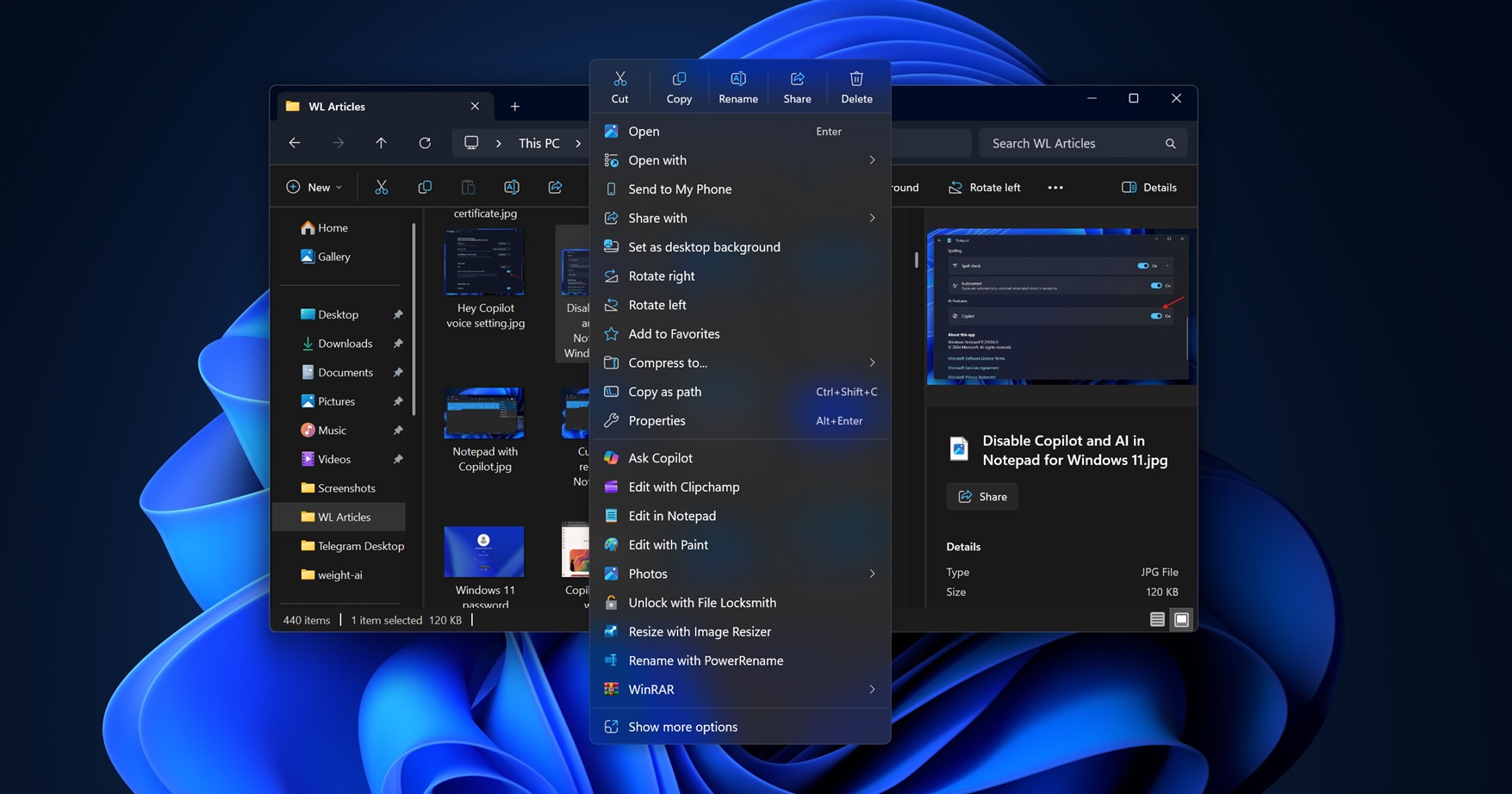
If you have not tried it, here’s how it works. When you select an image, right-click, the context menu populates with several options under “AI Actions” that let you blur an image, remove objects from the image, perform a visual search with Bing, and remove the background from the selected image.
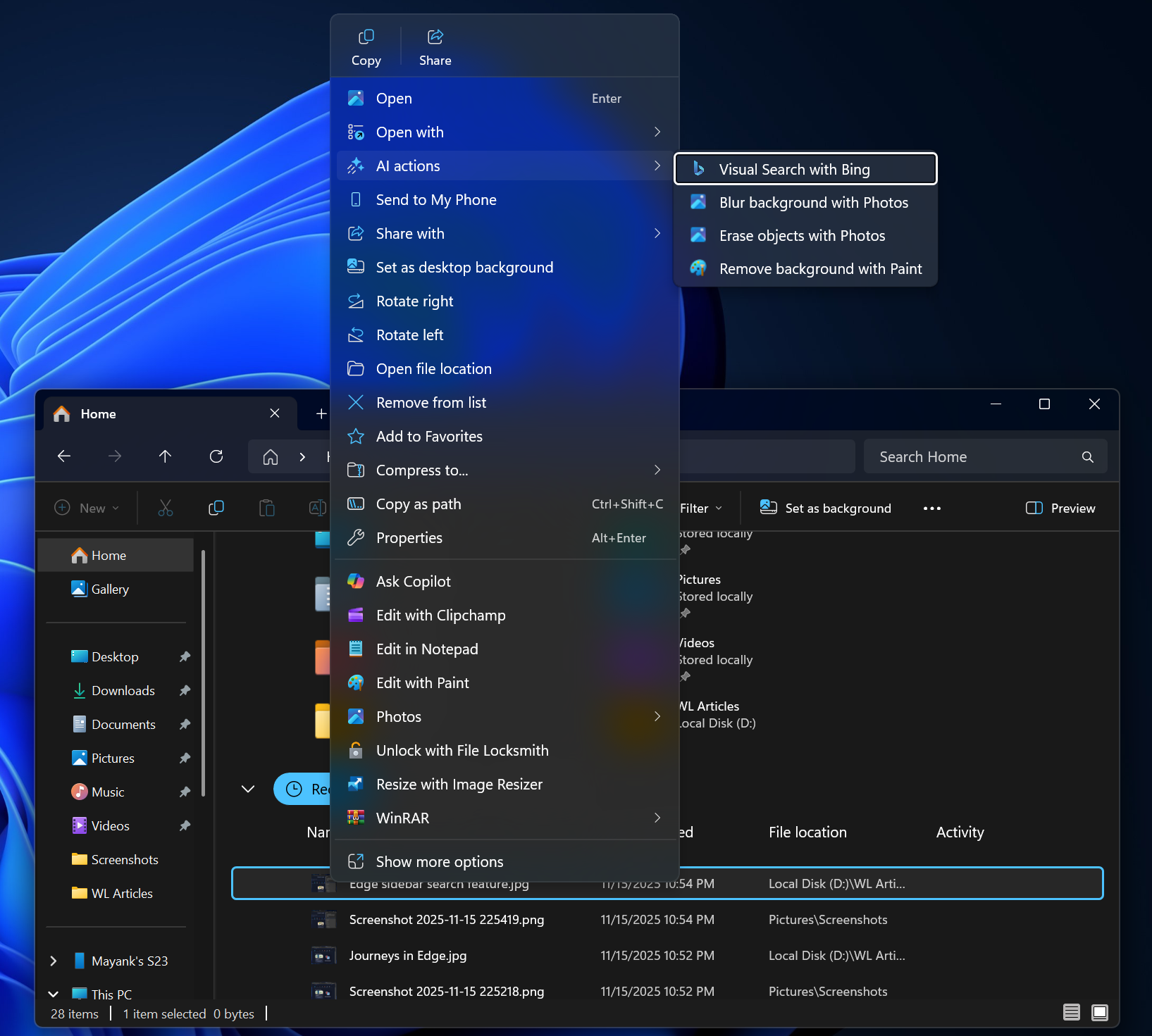
That sounds like a neat idea at first glance, as you might think context menu takes care of the “AI processing,” and you don’t have to open apps like Photos or Paint, right? WRONG! This “AI Action” menu just redirects you to one of the apps, such as Photos or Paint, depending on the option you choose.
You can always click “Edit in Paint” or select “Photos” and easily perform the four tasks it has listed. Why do we need a separate option, “AI Actions,” that just lists a couple of first-party apps with AI features? Also, we already have ‘Ask Copilot” in the context menu, which can be used to call these apps using Copilot Actions (an upcoming feature).
In its current state, AI Actions is not worth populating the already bloated context menu, and you’ll be able to remove the option in the next update. To remove “AI Actions,” just open Settings > Apps > Actions, and uncheck all options, such as Paint, Photos, Teams, Microsoft 365 Copilot, etc.
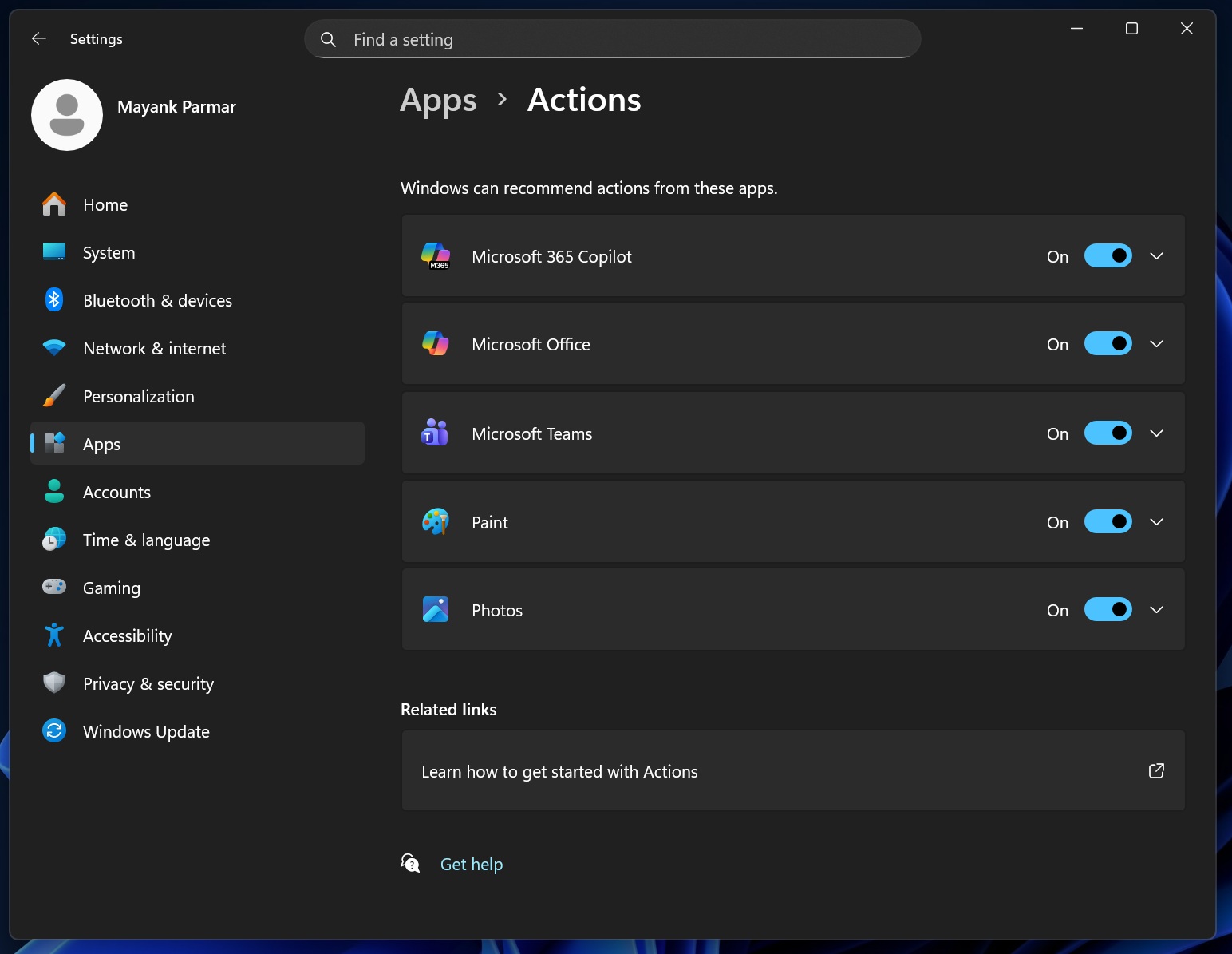
Right now, if you uncheck these options, AI Actions still shows in the menu, but the nest-menu (the second menu inside it) is empty, so it just eats up space. This is now being fixed.
“If there are no available or enabled AI Actions, this section will no longer show in the context menu,” Microsoft noted in the release notes of Windows 11 Build 26220.7344, rolling out to testers at the moment.
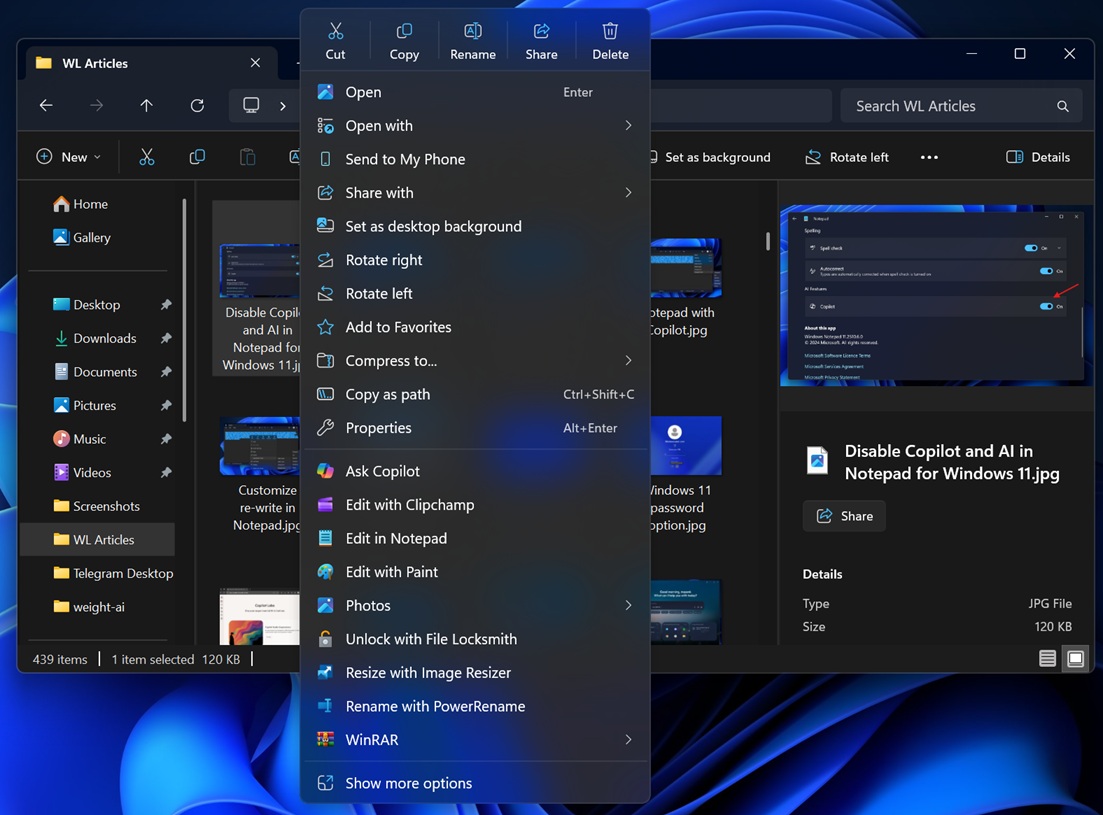
Microsoft says it’ll reduce clutter in the context menu, as making the “AI Actions” option is just the start
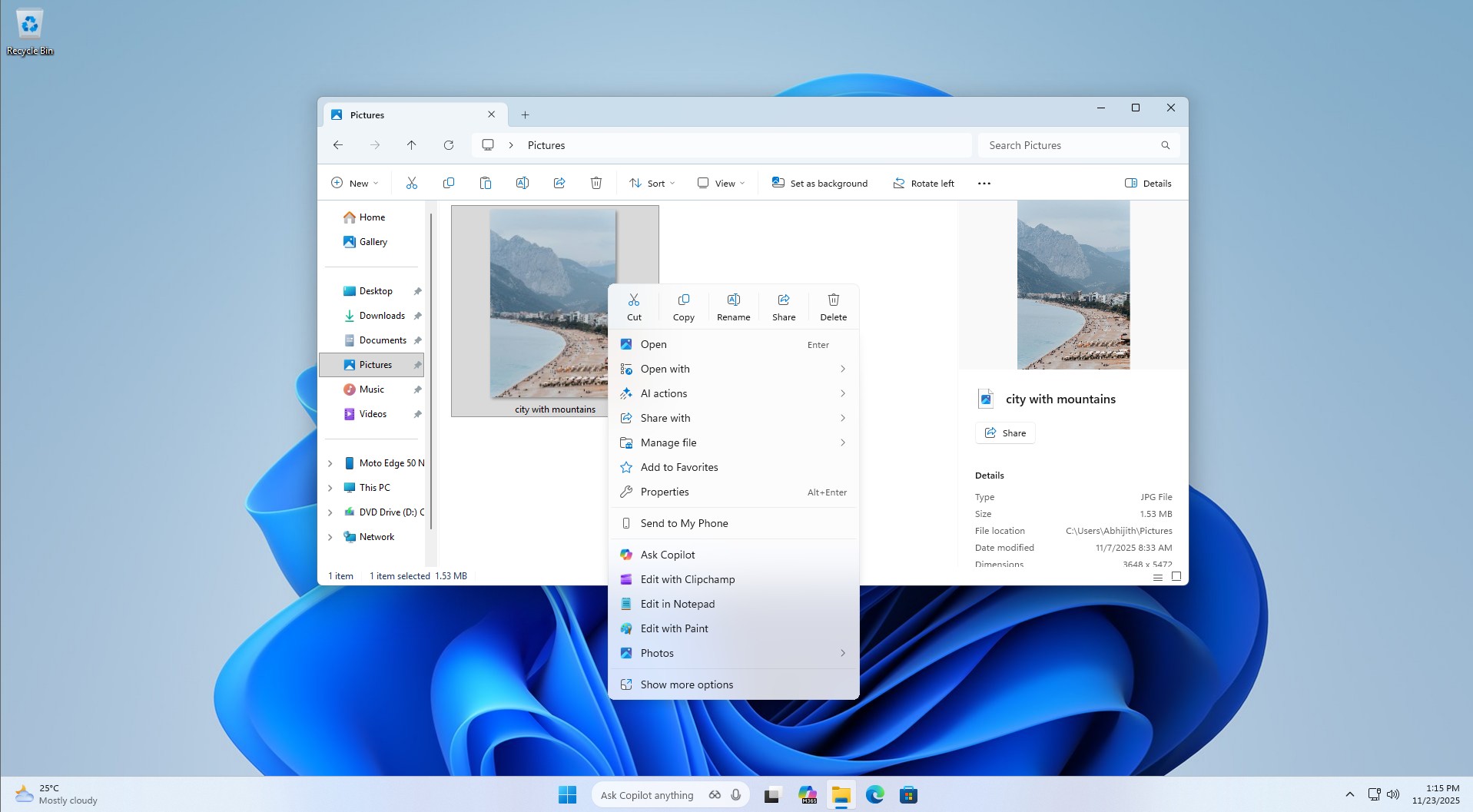
In addition to making AI Actions optional, Microsoft is testing a simpler context menu (right-click menu).
Microsoft is moving options like “Compress to… and “Copy as path” to a new sub-menu called “Manage file.” It also has options like TAR, RAR, ZIP, etc. The result is surprisingly good, as the clutter has been reduced and the context menu looks smaller than before.
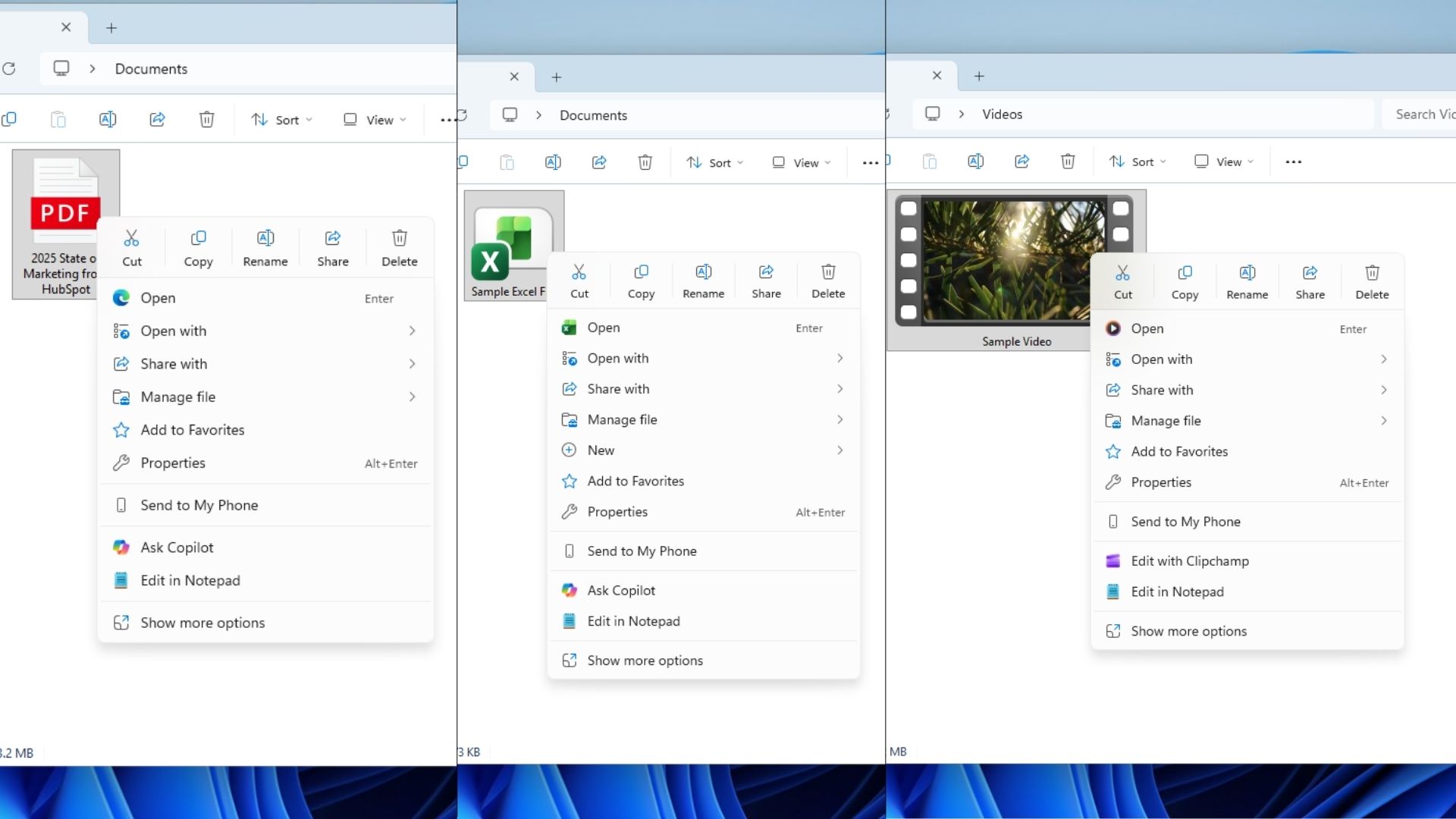
Microsoft has also consolidated OneDrive-related options inside just “OneDrive. This means options like “Always Keep on this Device” and “Free Up Space” now appear inside the OneDrive option.
I’d call these baby steps, but I am glad Microsoft is trying to make the context menu less cluttered in Windows 11, especially the ability to hide “AI Actions.” However, the right-click menu’s happy ending is a far-fetched dream unless Microsoft adds a feature that allows us to customize the options that appear in the menu. What do you think?