






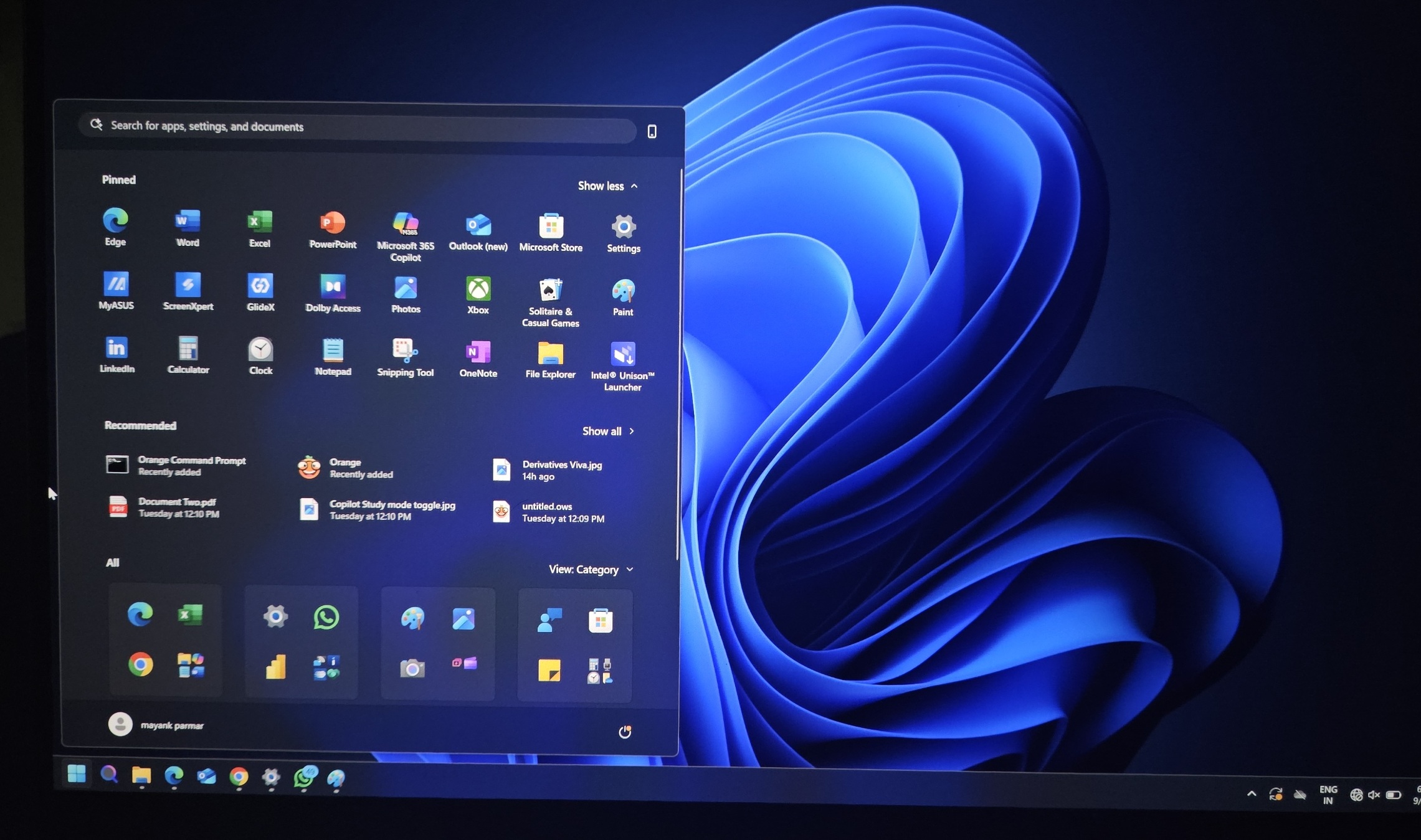
Windows 11 KB5070311 is November 2025’s optional update that shipped a bit late, and while it has some quality of life improvements, there are also rough edges. For example, this update can fail to install due to errors like 0x80070306. But if the update does apply, it will break dark mode in File Explorer and also cause problems with Intel Arc GPU drivers.
“The new update for 2025-11 Pre-Update Update KB5070311 (26200.7309) is giving ERROR 0X80070306. I usually update everything, but I don’t know why it’s giving an error. I have already paused and enabled updates, but it keeps happening. Does anyone else have the same problem, or will Windows release a new update to fix it?” one user wrote.
However, Windows updates often fail, so I wouldn’t make a fuss about it. If you do run into issues when installing Windows 11 KB5070311, you should just skip this release. First, it’s an optional update, and it’s also labelled “preview,” so it is supposed to have issues, even though it’s not an Insider technical preview build.
Microsoft confirms the update breaks dark mode
After installing Windows 11 KB5070311, some of you will see white flashes when you open File Explorer or open a new tab in File Explorer. However, it’s actually worse than what Microsoft says, as we have run into white flashes when switching to any page in File Explorer, including folders, if we are on the Home page.
Let’s say you’re in the Program Files folder, and then you click the Details panel. This will also cause a white flash. You’ll experience flashes in File Explorer when switching between Home, Gallery, and other pages.
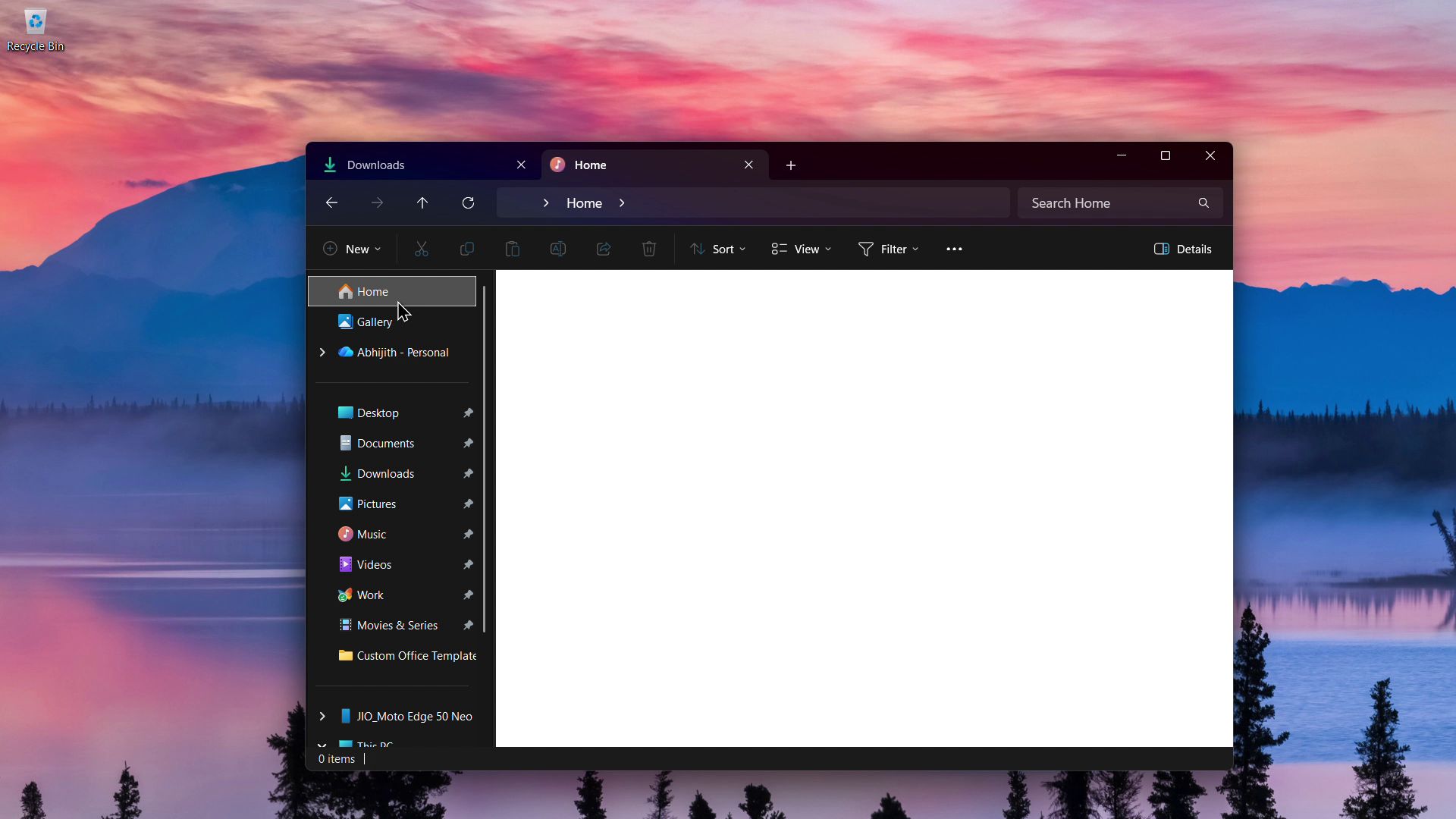
It’s not a big deal unless you use dark mode in Windows 11, but it’s certainly very annoying, and I recommend holding off on the update.
Windows lockscreen login ‘password icon’ invisible issue
If you use Windows Hello, you can no longer find the password icon when you choose to select the “Sign-in with other options” button. This button shows up when the default mode of sign-in is the Windows PIN. And this “Sign-in with other options” has options like fingerprint, camera (iris), and password login.
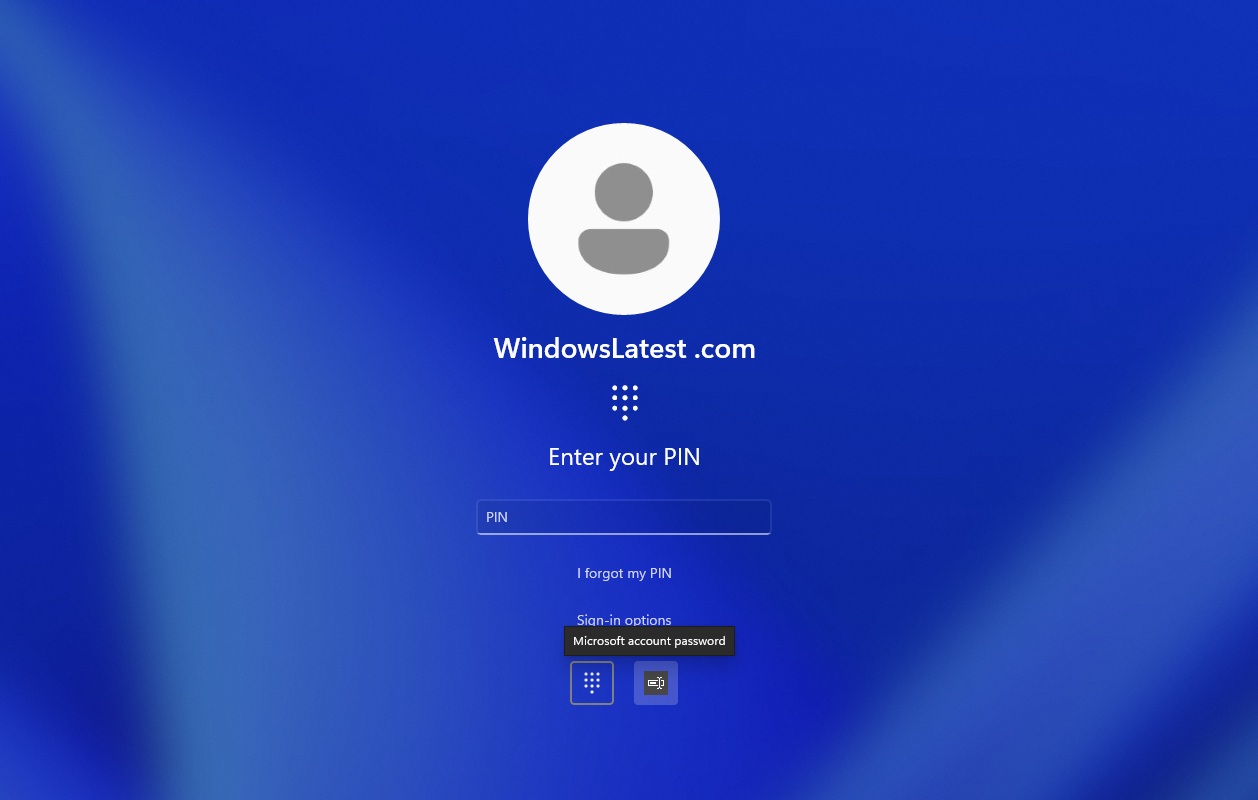
After the update, the ‘password’ option will be hidden. This issue affects everyone, including those who use a local account. However, the password icon is not broken, as it’s just hidden (invisible), so if you just hover around and somehow click the right spot, you should be able to access the password field again.
“If you hover over the space where the icon should appear, you’ll see that the password button is still available. Select this placeholder to open the password text box and enter your password. After entering your password, you can sign in normally,” Microsoft noted.
I personally don’t think the Windows lockscreen password bug is a problem as long as you don’t forget your Windows PIN. If that happens and you don’t have a fingerprint or camera/Iris set up, you need to access the password field, which can be triggered using the password button, but that is now invisible.
Microsoft is investigating this issue in Windows 11 KB5070311 and some older updates, but a fix is expected to be included in the December 2025 Patch Tuesday.
KB5070311 issues with Intel Arc GPU
Windows Latest spotted a Reddit thread where testers are saying the Windows 11 KB5070311 update is breaking their PCs, especially with the Intel Arc B580 GPU. For some, the update causes blue screens, so they can’t even reach the desktop once the newer Arc driver is installed. On the other hand, some see a black screen with a mouse cursor.
In Device Manager, the Arc B580 sometimes shows a warning icon, and some users say they can’t play most of their games anymore unless they stay on an older 6252 driver that Windows installs automatically.
If you run into this issue, you should uninstall the update once the desktop shows up.
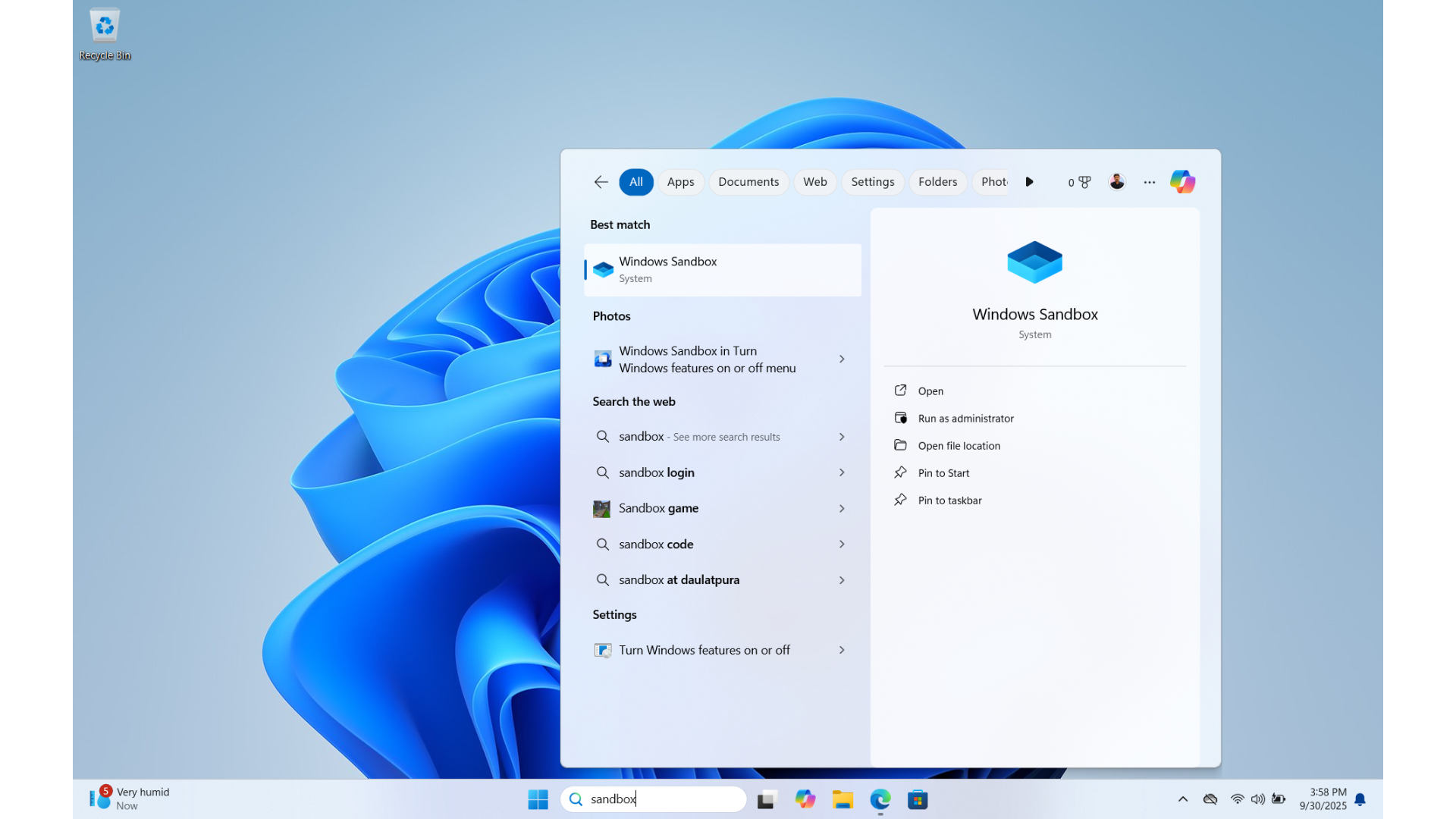
But if you run into error 0x800F0825 when removing the update, first try to disable Windows Sandbox and reboot the PC. This will work.