






The Microsoft Phone Link app is turning off the ability to view Photos from your phone’s gallery, as the feature is being moved to File Explorer. Microsoft told me that it does not make sense to show photos from mobile in two places. Originally, the Phone Link app was the only way to view mobile photos, but the feature also arrived in File Explorer last year.
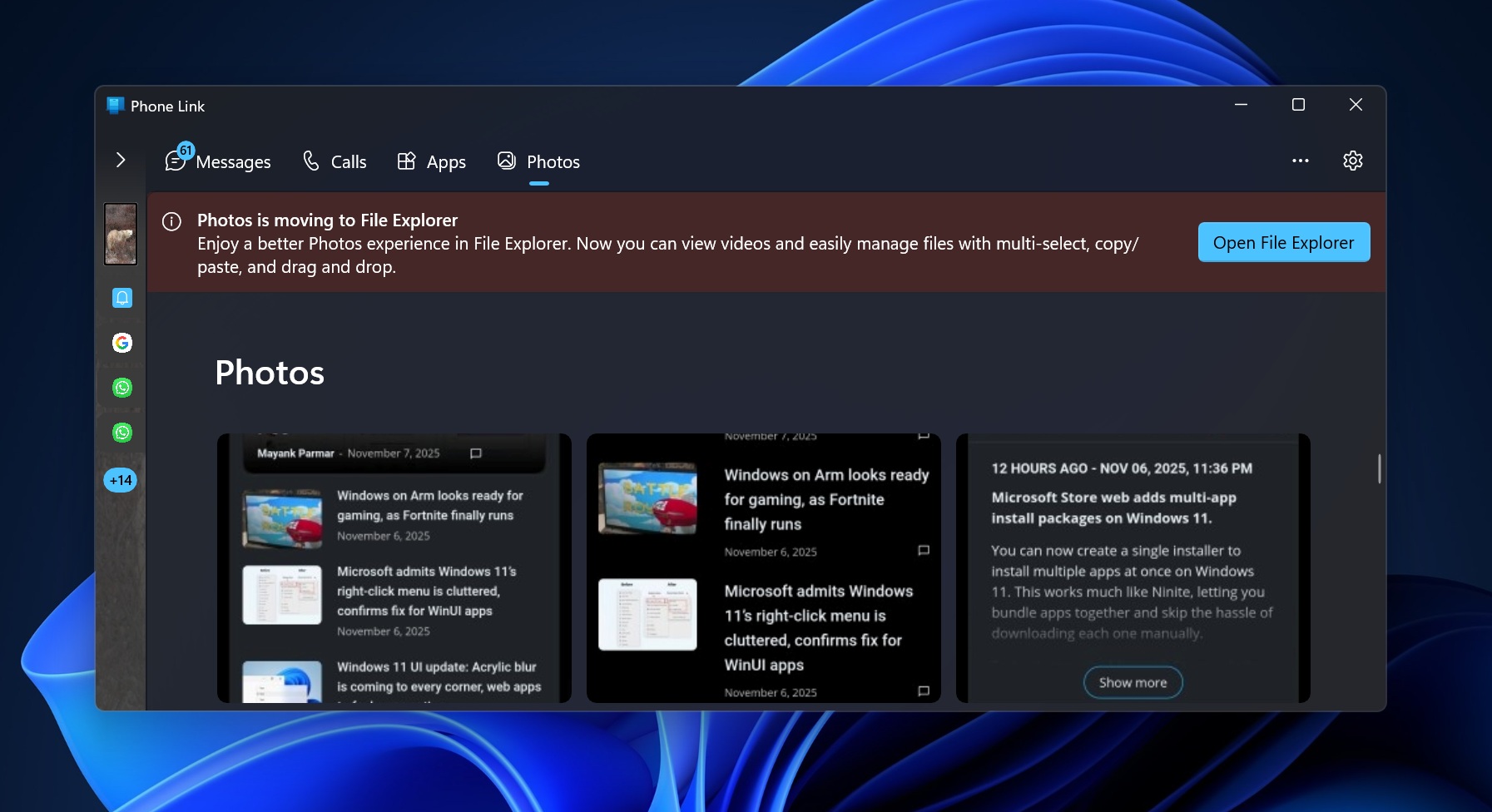
As first spotted by Windows Latest, when you open the Phone Link app and go to the “Photos” section, you will see an alert. The alert warns that “Photos” is moving to File Explorer, and Microsoft calls it an upgrade because File Explorer offers a better photo-viewing experience with multi-select, copy and paste, and even drag and drop.
“Photos is moving to File Explorer. Enjoy a better Photos experience in File Explorer. Now you can view videos and easily manage files with multi-select, copy/ paste, and drag and drop,” Microsoft noted in an alert displayed within the Phone link app.
Microsoft now wants to use Android integration in File Explorer
Microsoft added support for wireless Android storage integration to File Explorer in October 2024. Unlike Phone Link’s Photos section, File Explorer pulls your entire mobile storage, which means you can also view your videos.
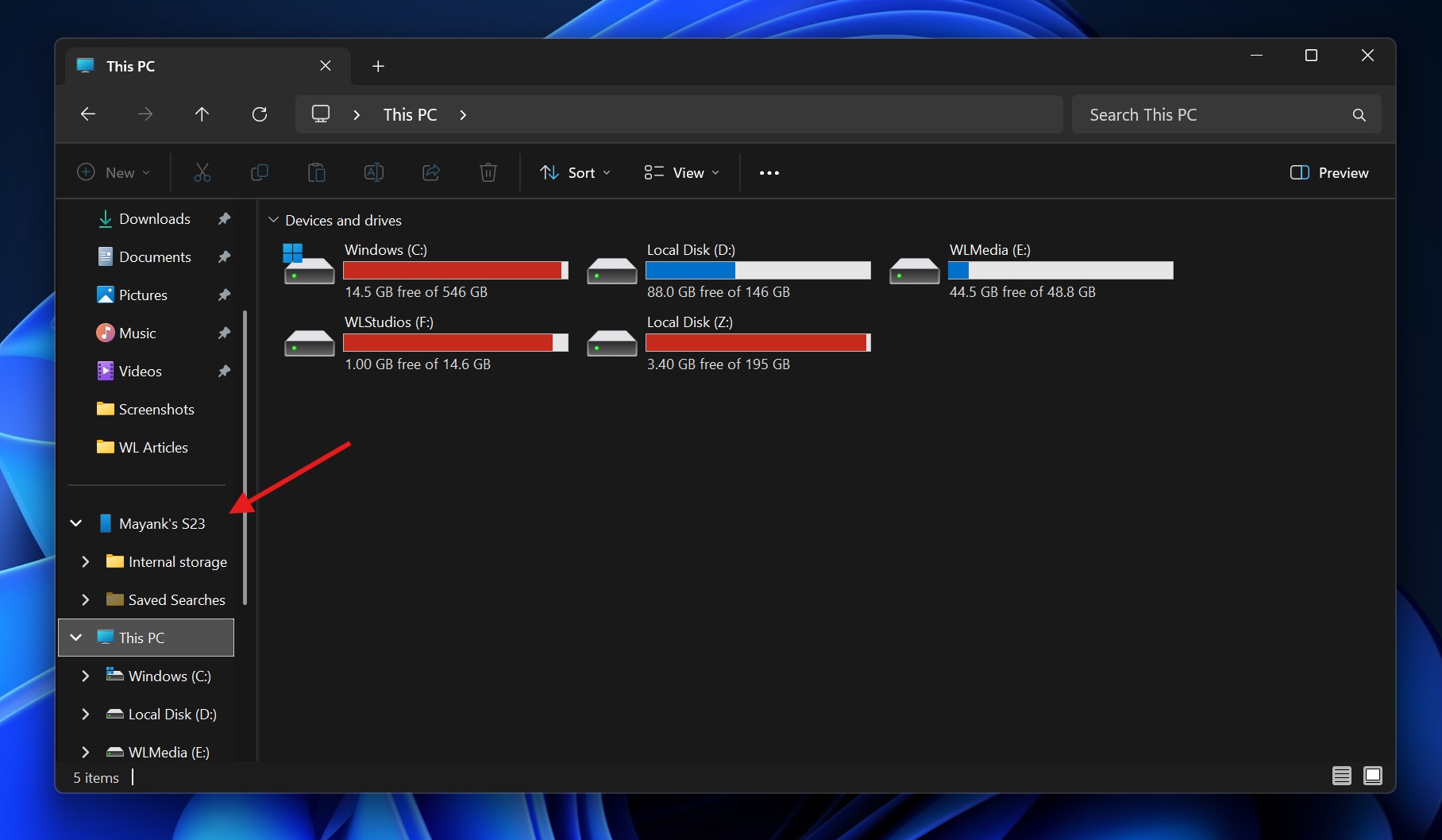
Right now, you cannot view videos in the Phone Link app’s Photos section or the other storage folders on your mobile. These features are not available in Phone Link’s Photos section.
If you don’t see your mobile device storage in File Explorer, you can turn it on by following these steps:
- Open Windows Settings and go to Bluetooth & devices.
- Now, open Mobile devices and select Manage devices.
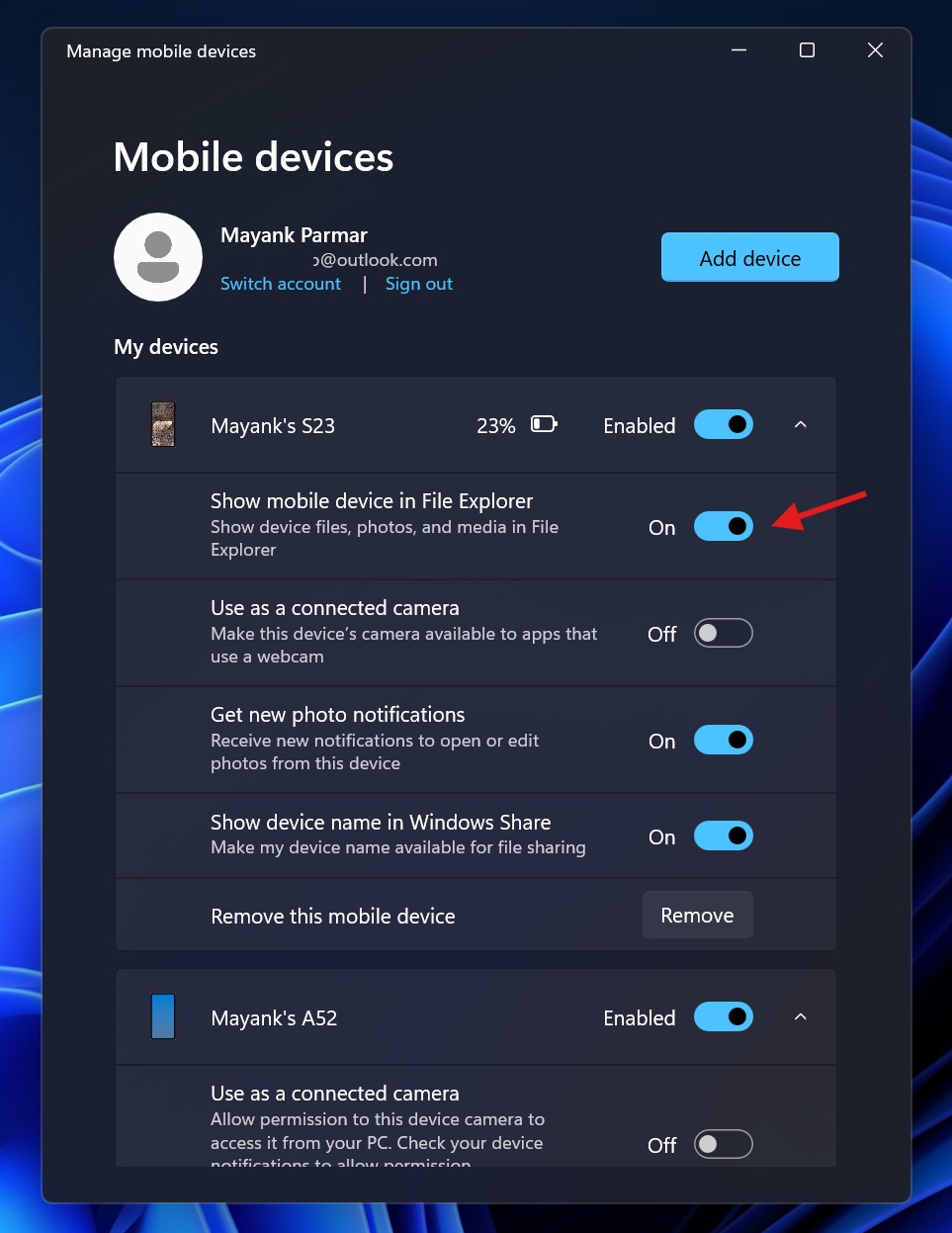
- In the Manage devices pop-up, turn on “Show mobile device in File Explorer” and close the pop-up.
Now, you can view your phone’s entire storage in File Explorer, including photos, videos, documents, etc.
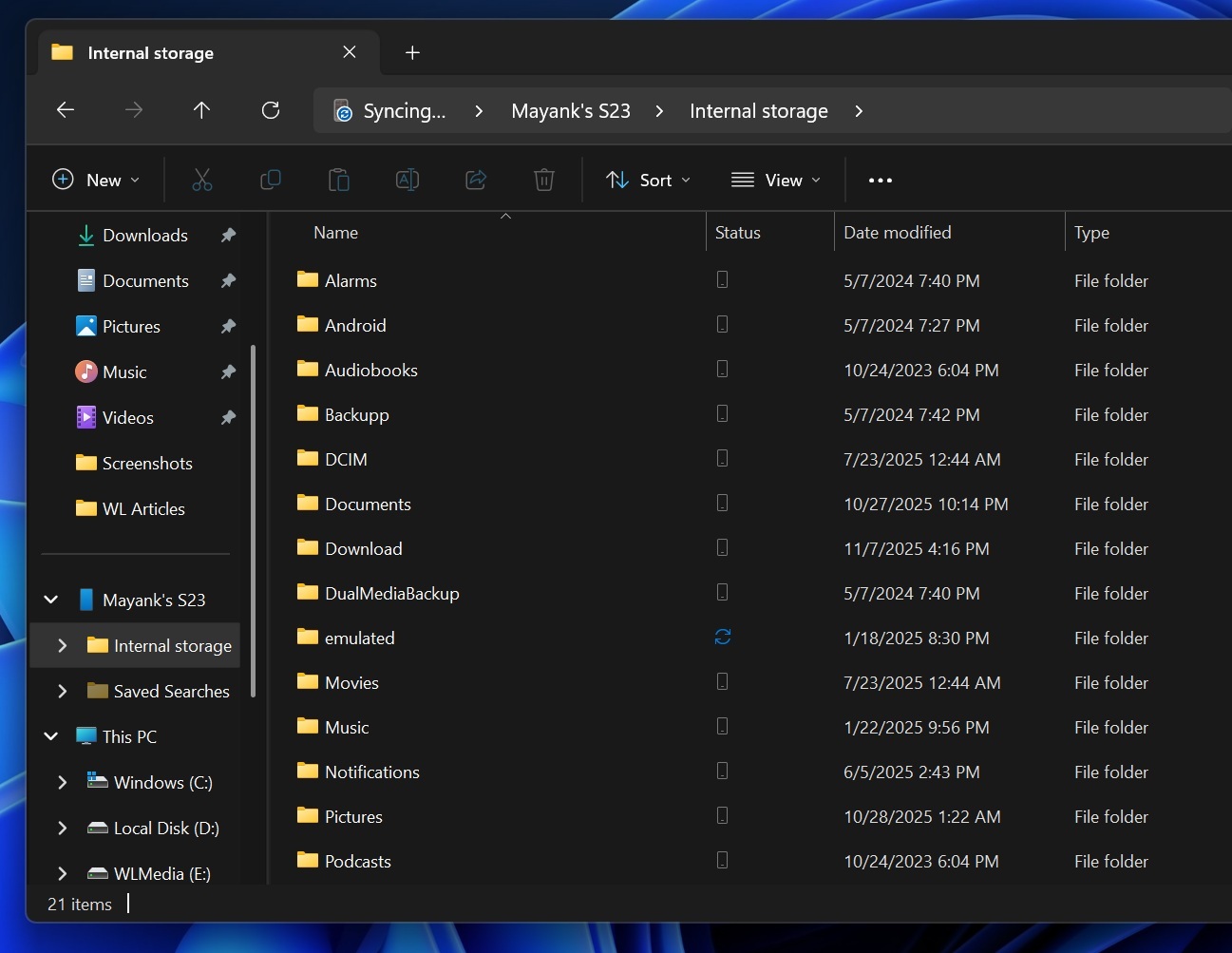
As you can see in the above screenshot, I have my S23’s entire internal storage right inside the File Explorer. I have folders like Alarms, Movie, Music, Download, and DCIM (has all pictures).
File Explorer’s mobile integration is a different game, and I am not sure if it really offers a Phone Link-like experience
In our tests, Windows Latest observed that Windows 11 adds your paired phone to File Explorer as a virtual shell location provided by the Cross-Device Experience Host.
When you click it, File Explorer calls Cross-Device Experience Host on Windows 11, which pulls data from the mobile device. Then Windows translates file actions (list folder, read or write file, rename, delete, etc) into remote requests to the “Link to Windows” side on your phone.
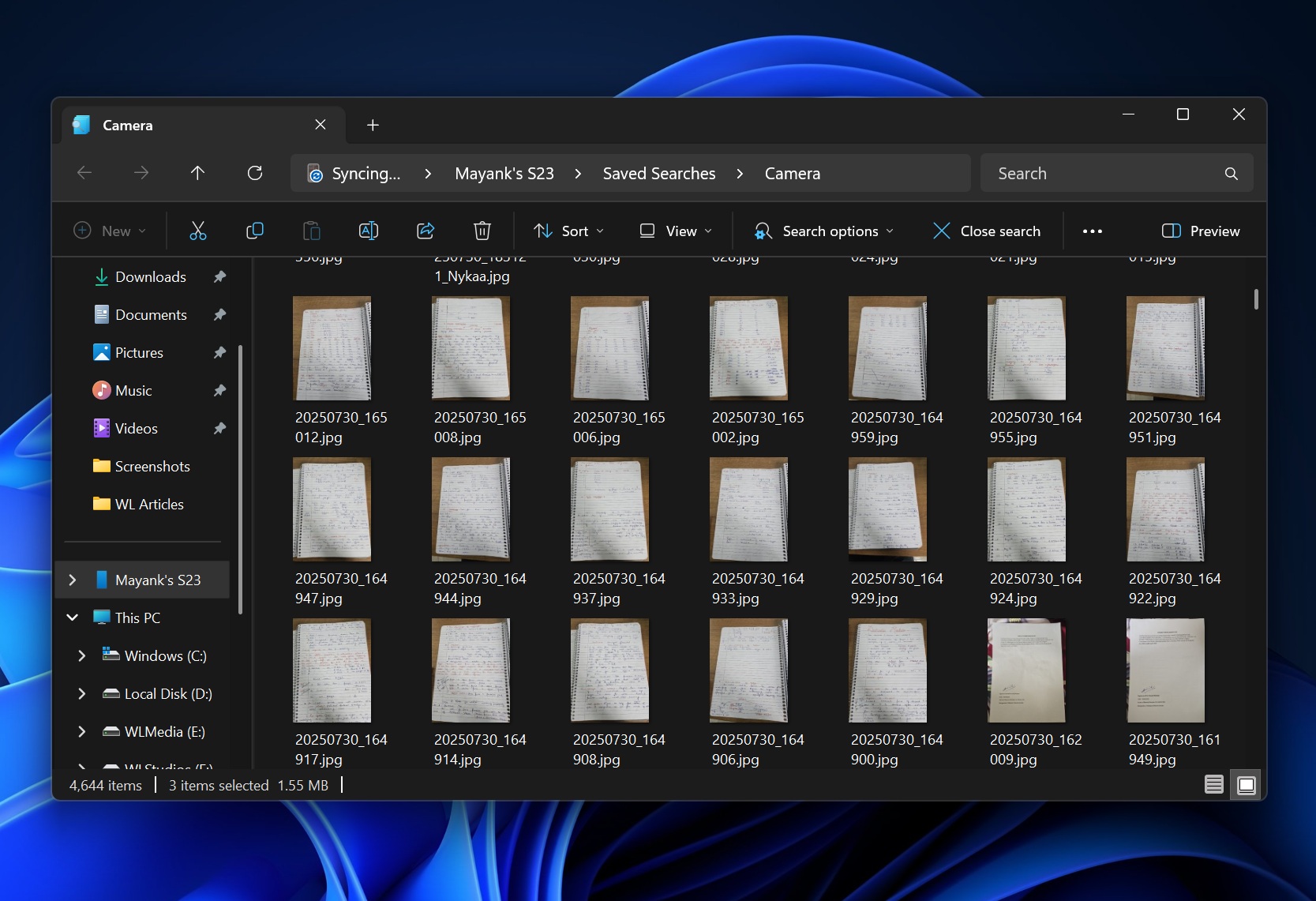
After new update, Phone Link app’s Photos section redirects me to File Explorer, where my phone’s camera folder is opened:
C:\Users\thema\CrossDevice\Mayank's S23\Saved Searches\Camera.search-ms
The above path in File Explorer for my mobile storage shows all photos I captured on my phone using the camera app, including third-party apps. I don’t have any problem with this UX. I can edit, delete, rename and drag and drop files between apps and my mobile storage.
However, the catch is that Phone Link’s Photos section is different by design and I prefer it over File Explorer for quick access. For example, the Phone Link app shows me an app-level gallery. This means it queries Android’s MediaStore for recent media, which includes my screenshots or other pictures, including camera captures.
In File Explorer, if I want to view my mobile screenshots or images other than my Camera gallery, I need to go back into the directory and look for the screenshot folder. Phone Link app made this easier by showing all my images in one place, similar to the gallery app I have on my Samsung phone.
Sadly, Phone Link will no longer allow you to view your mobile photos, and you will need to get used to File Explorer, which is powerful but complicated.
What about you? Do you prefer File Explorer-powered UI for managing mobile photos or Phone Link’s Photos view? Let me know in the comments below.