






Windows 11 is getting a new “Feature Flags” page in the Settings app that can be used to manually enable or disable new features in the OS. Previously, you had to rely on third-party tools like ViVeTool, or wait for Microsoft’s Controlled Feature Rollout (CFR) to eventually bring it to your PC. Ironically, Feature Flags is currently hidden in build 26300.8155, and isn’t enabled yet.
Popular Windows watcher phantomofearth spotted a new Feature Flags option in the Windows Insider Program page just below “Choose your Insider settings”
In a statement to Windows Latest, Microsoft confirmed it’s testing ways to make it easier for Windows Insiders or enthusiasts to try out features early. The company told us it’ll share more details soon, and it’s fully committed to making Windows truly exciting. It’s just one of the changes coming to Windows based on feedback from testers.
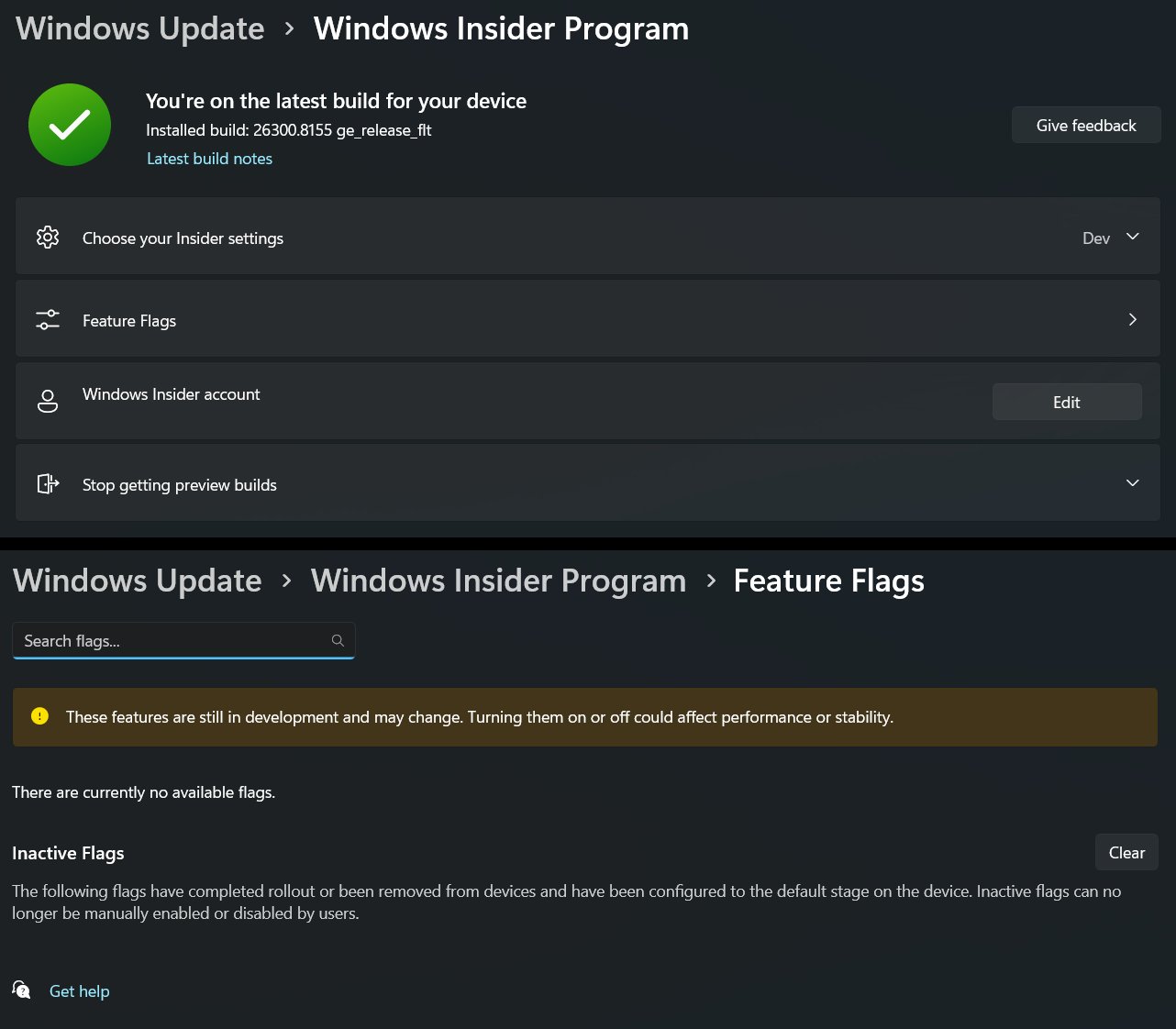
As you can see in the above screenshot, if you click on “Feature Flags,” it would open a new Feature Flags page. Here, you’ll see a Search flag option, followed by a list of currently available flags and an Inactive Flags section, which includes features that have already completed rollout to the device.
Microsoft also includes a warning that says turning these features “on or off could affect performance or stability”, which is understandable because the whole point of the company’s CFR and A/B testing was to isolate the impact of distinct features and lessen the risk of widespread system instability.
Microsoft is adding Feature Flags to Windows Insider Program settings
Ever since Microsoft implemented their Controlled Feature Rollout scheme, I have always found myself in the unfortunate group that never gets the new features, and I would always take a considerable amount of time trying to find the IDs and manually enabling them with ViVeTool, just to test those features.
And this always confused me because the concept of being a Windows Insider lies in the fact that I want to test new features in Windows 11, even if they have a chance of breaking my PC.
So, Microsoft bringing the ability to manually turn on or off new features in Insider builds is a very welcome change in my books. However, we are still not sure if the company is planning to add all new “flags” to the Feature Flags list or if there will be a preliminary A/B testing or CFR before a device gets access to all new available flags.
But I digress, as a warning sign that says “These features are still in development and may change. Turning them on or off could affect performance or stability” may mean that Microsoft will likely add all new features in a new Insider build to the Feature Flags list, and users can manually enable or disable them, unless Microsoft has already completed rollout or removed from devices, in which case, they will be added to the Inactive Flags list.
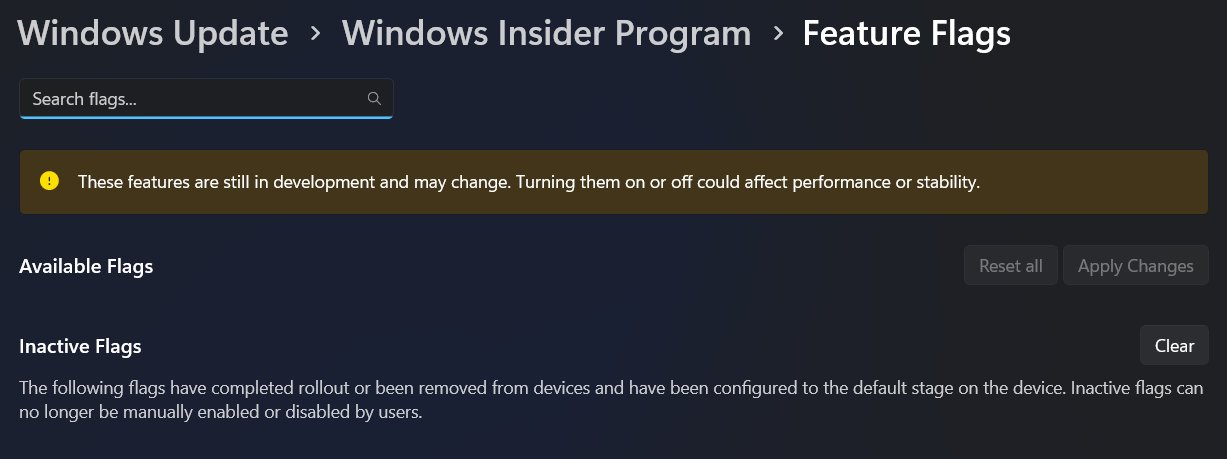
Under Available Flags, phantomofearth also found two greyed-out buttons to Reset all flags and Apply Changes. The Inactive Flags section only has a Clear button, based on the screenshot.
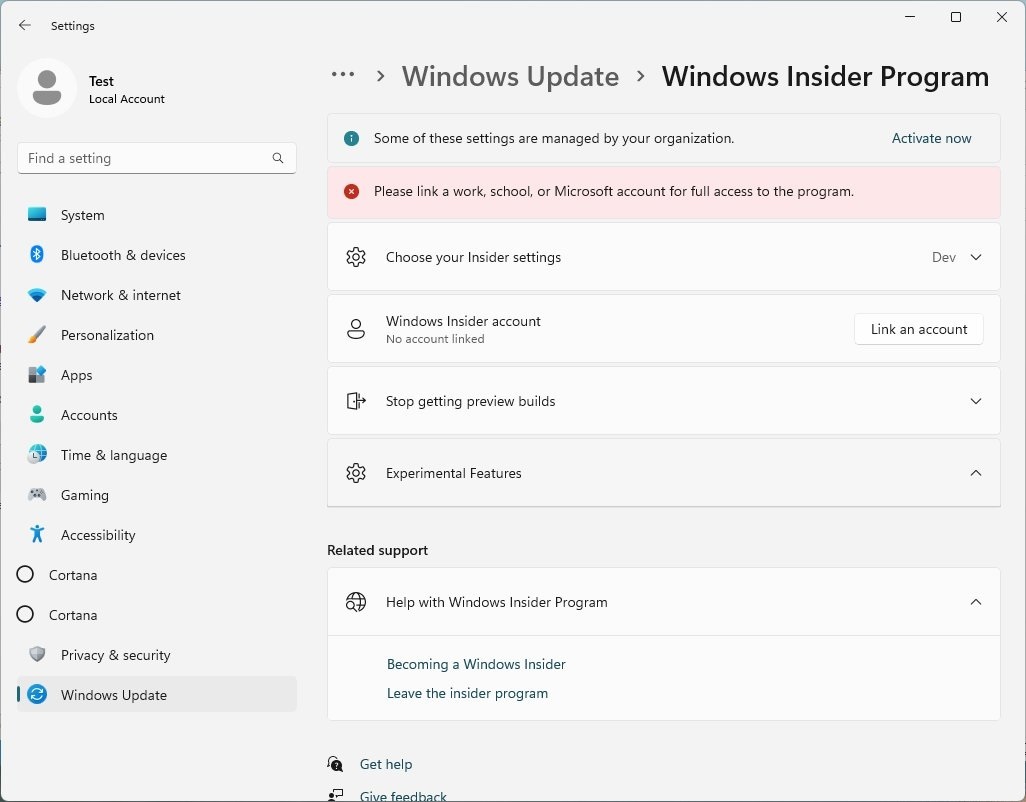
About two years ago, Microsoft had a similar “Experimental Features” option in the Windows Insider Program settings page, but that never surfaced beyond certain internal builds, as the company ultimately standardized on CFR.
Now that Microsoft is gearing up to add long-requested features and fixes to Windows 11, it makes sense for them to give the community what we want and avoid friction for us to find and test new features coming to the OS.
Marcus Ash, the Design and Research lead for Windows and Devices, replied under the post by phantomofearth, saying that they are “Excited to share more about WIP settings next week”, which likely means Feature Flags are coming to Windows Insider builds in the second week of April, as the feature is still hidden even in the latest builds.
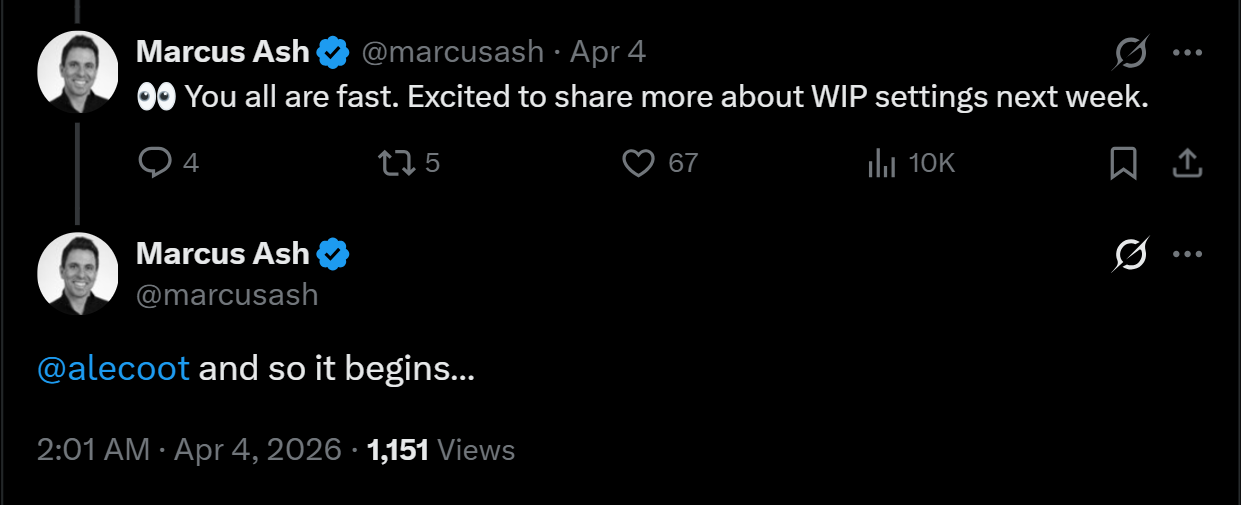
Marcus also tagged Alec Oot, who is the PM working on Windows Updates and the Windows Insider Program, marking a new era for Windows 11…
This is the best time to be a Windows Insider
Back in the days of the Windows 10 Insider Program, which started in 2014, we had the Fast ring, Slow ring, and Release Preview, which had a clear ideology when it came to adding new features.
While there was the Canary Ring internally used by the Windows engineering team, Fast Ring was the first public group to receive the newest features, and was expectedly the most unstable. The Slow Ring received builds only after they were proven stable in the Fast Ring, which was usually 1 to 2 weeks later.
Release Preview was the final stage for builds that were nearly ready for the general public.
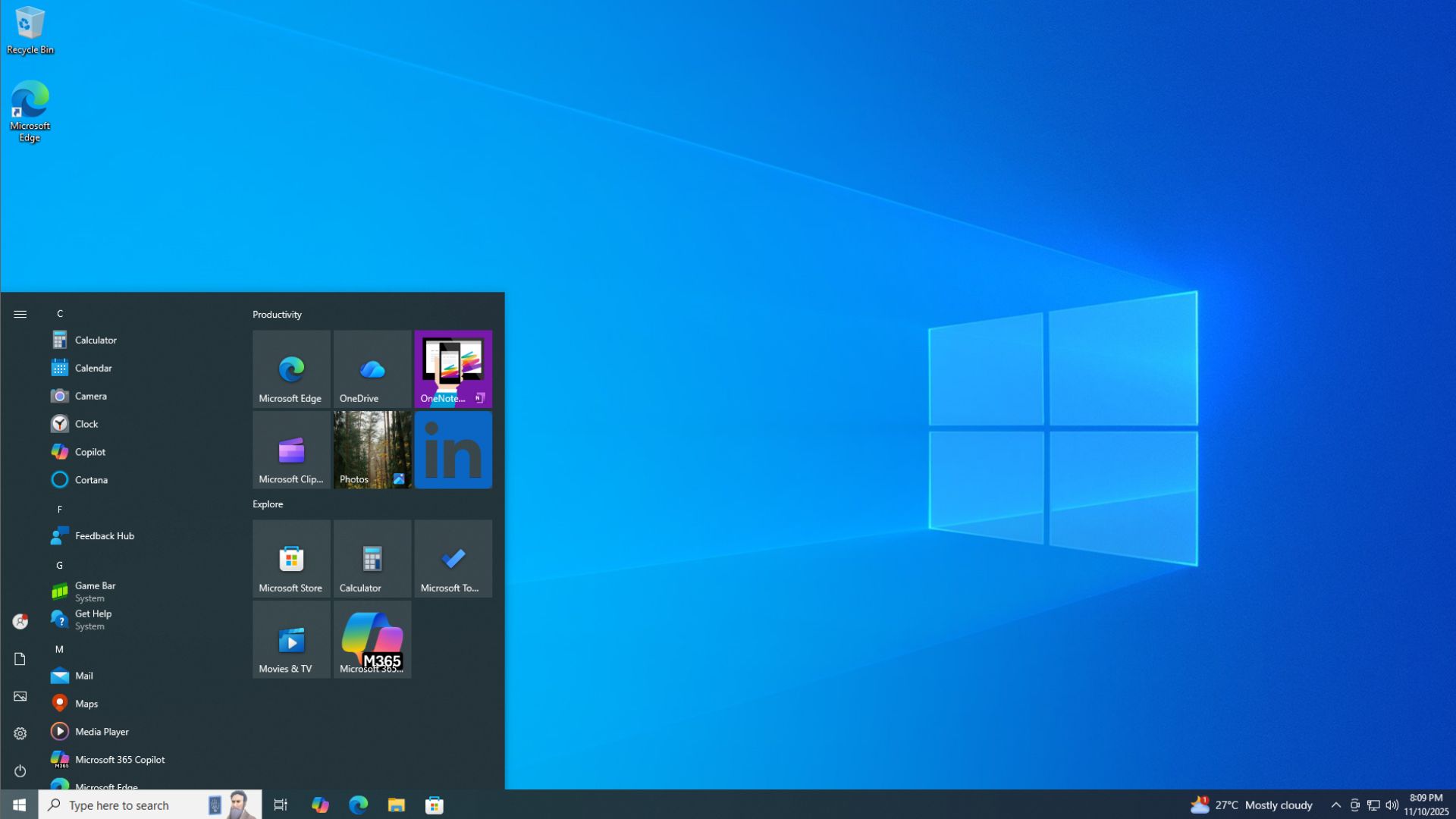
With the Controlled Feature Rollouts (CFR), Microsoft’s goal was to ship a “safe” build to everyone but only activate a risky new feature for a very low number of users to check if it crashes their systems first.
The Windows 11 Insider Program has four distinct channels, including Canary, Dev, Beta, and Release Preview, all with their distinct use cases.
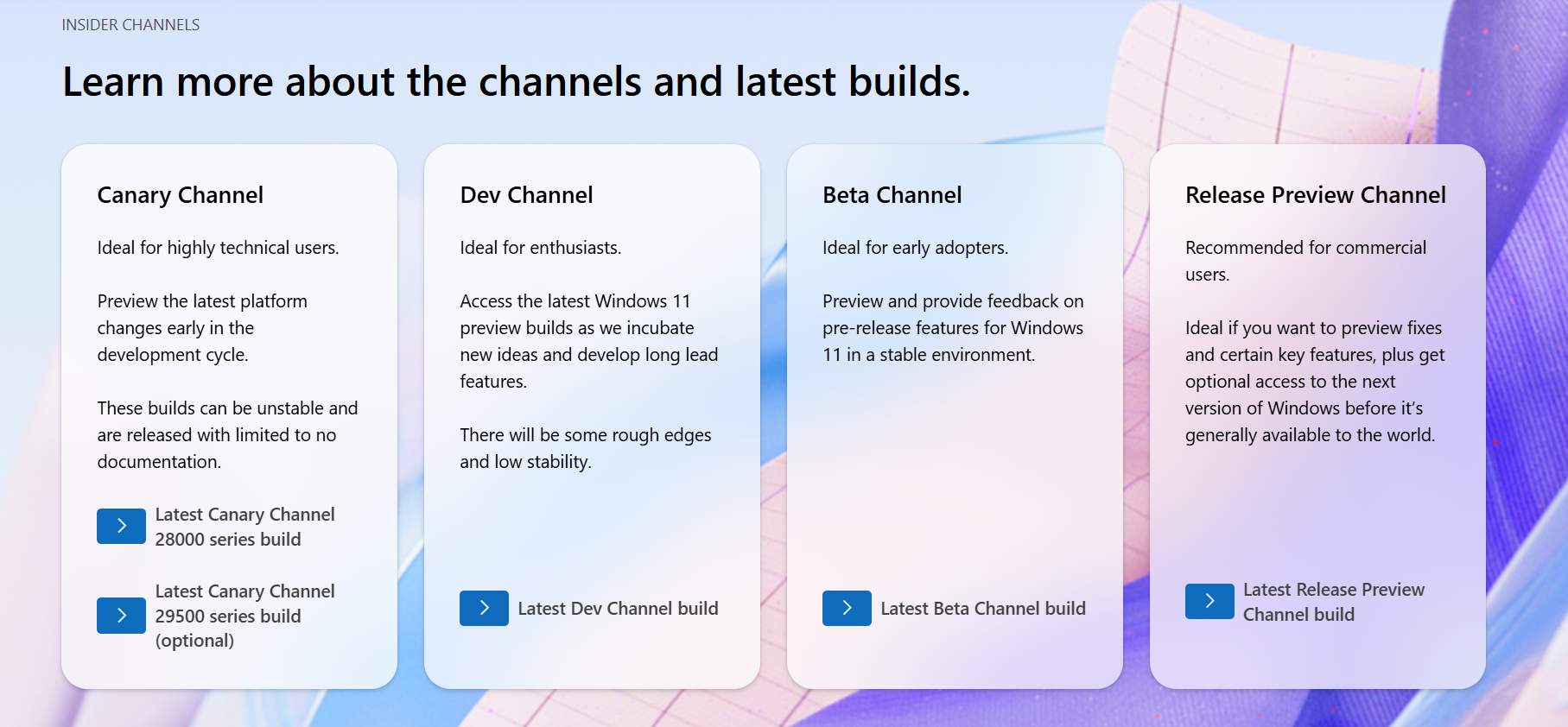
So, for enthusiasts who want to test new features, they could choose the channel that worked for them, depending on how expendable the PC they were using for experimenting with Insider builds.
The new Feature Flags page in the Windows Insider Program settings page is bringing back this ability, and the exciting part here is that Microsoft already announced their plans to bring a whole host of features, fixes, and improvements coming to Windows in April and later this year.
Feature Flags potentially enable Insiders like me to test, provide feedback, and report on even early releases of these new updates, without having to wait the whole year, as CFR already made me do.
All this makes it the best time for anyone with a secondary PC to become a Windows Insider. The more the Insiders, the more the testing data for Microsoft, and more excitement surrounding all the new features coming to Windows 11 in 2026.
Tell us in the comments if Feature Flags makes it more exciting to be a Windows Insider.