



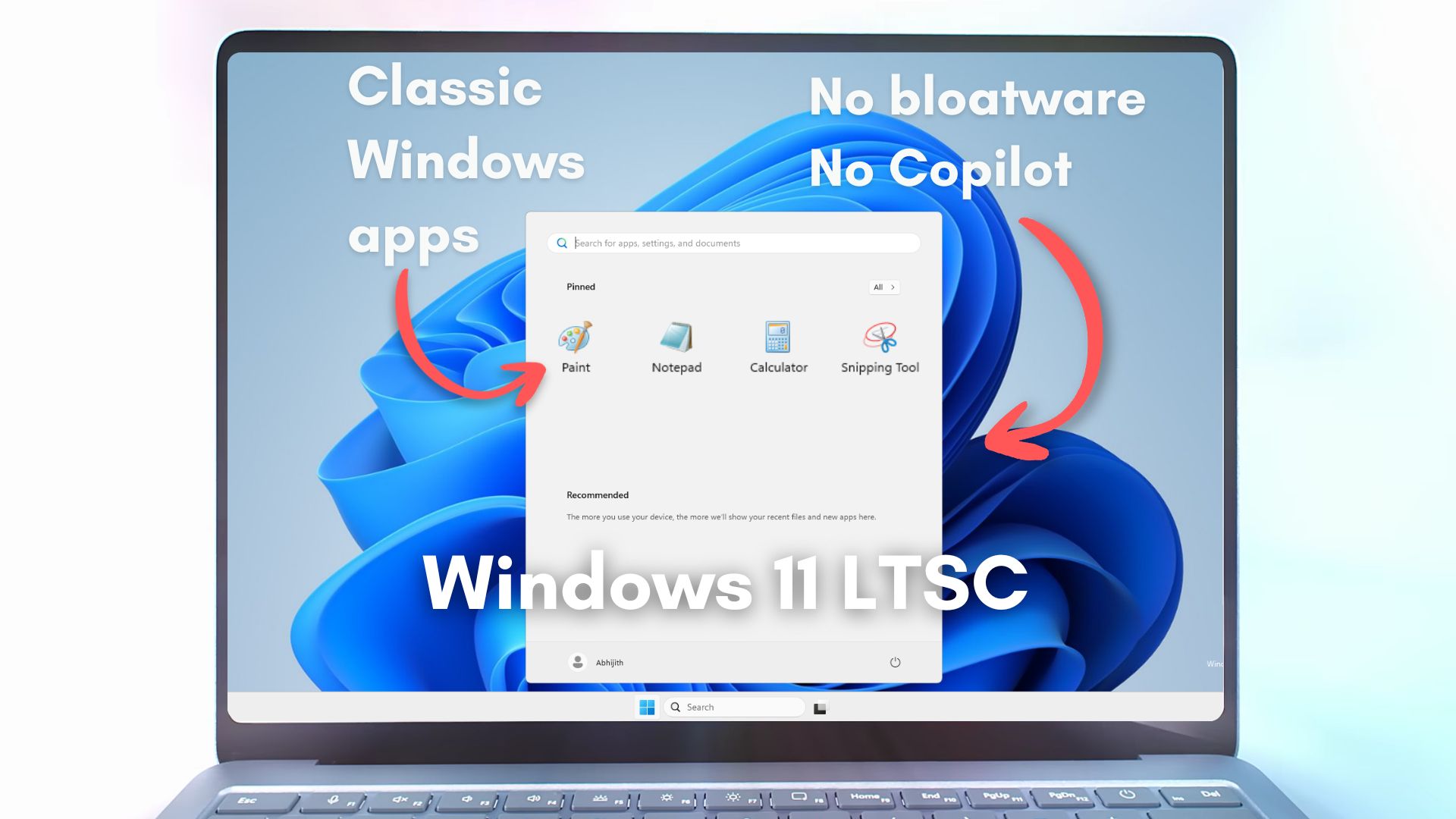
Windows 11 in 2026 is a far cry from what it was at launch. The world’s most popular desktop operating system now banks on AI, which has pretty much invaded all the first-party apps and OS features. And this happens while Windows 11 suffers from new bugs and issues with every feature update.
But what if there was a version of Windows 11, with zero bloatware, no marketing push, no frequent updates, and of course, no Copilot icon staring at you from the taskbar. It actually exists and is called Windows 11 LTSC, which is a special edition of Windows designed for stability and meant to be used in enterprises and specialized environments.
I have installed Windows 11 LTSC on my system and have been testing it for the past several days, and so far, it feels like a version of Windows that’s too good to be true.
What is Windows 11 LTSC?
Unlike macOS, Windows has several editions that Microsoft designed for different purposes. There’s the Home variant for the vast majority of regular users, Pro for professionals, small businesses, and power users, and Enterprise for corporations with an IT infrastructure.
While these are the popular ones, there’s also Windows 11 Pro for Workstations, designed for professionals who need extreme performance, and Windows 11 IoT Enterprise, made for specialized embedded devices.
Microsoft designed the last one, Windows 11 IoT Enterprise, for organizations that have no use for new features, Copilot, or any of the newer Windows 11 apps. This leaner version of the OS is called Windows 11 LTSC. It’s a part of the LTSC (long-term servicing channel) servicing model, where users can delay feature updates and get only monthly quality updates for 10 years, with optional feature updates every 3 years, which users can skip if they don’t need them.
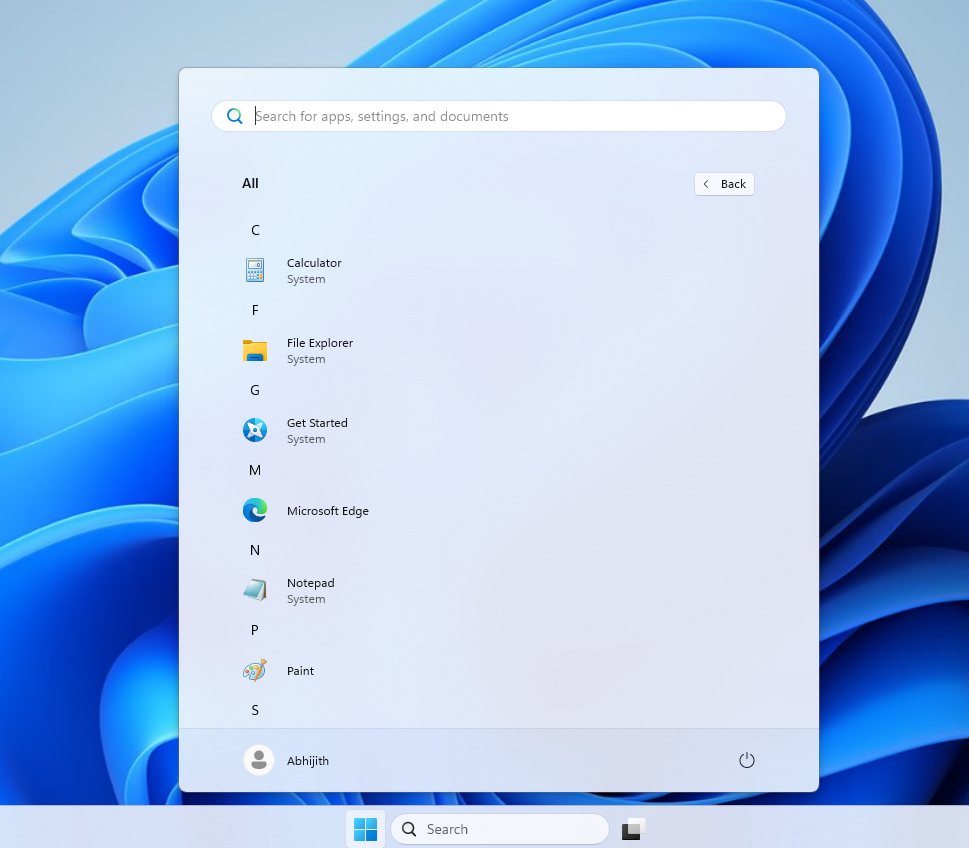
Windows 11 LTSC is so stripped down that the only modern application that comes preloaded is Microsoft Edge, with the other apps being the classic versions of Calculator, Notepad, and Microsoft Paint. Naturally, there isn’t any Copilot integration in Windows 11 LTSC, and it doesn’t come with the Microsoft Store either. Even the Widgets and Discover feed in the taskbar is unavailable.
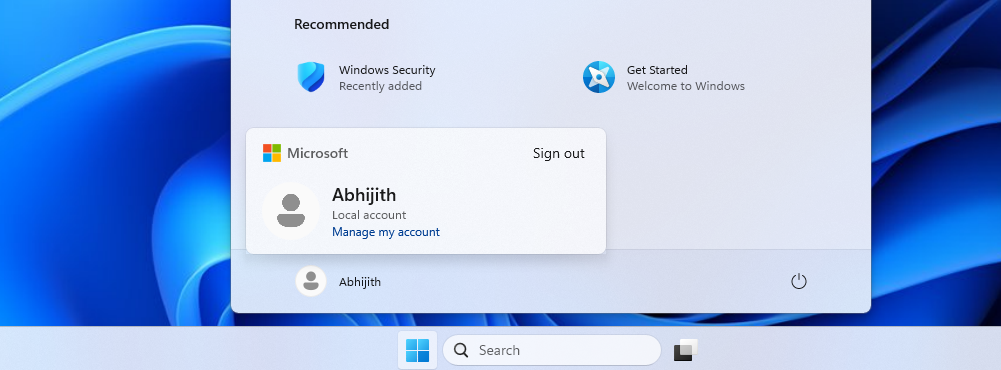
You also do not need to sign into a Microsoft account to use Windows 11 IoT Enterprise, making this the only version of Windows 11 that allows you run it with a Local Account.
LTSC did not start with Windows 11. Its roots go back to Windows 10, when Microsoft introduced LTSB, short for Long-Term Servicing Branch. LTSB was created for mission-critical systems that could not afford frequent changes.
In 2016, Microsoft renamed LTSB to LTSC. Windows 10 LTSC 2019 and later Windows 10 LTSC 2021 became popular among enthusiasts as well.
When Windows 11 launched, there was no immediate LTSC counterpart. Microsoft was leaning heavily into services, subscriptions, Microsoft 365 integration, and eventually AI. It took time before a Windows 11 LTSC build arrived, partly because Windows 11 itself was evolving rapidly. LTSC requires a stable base, and Windows 11 needed to mature before Microsoft could freeze a version for long-term servicing.
Eventually, Windows 11 LTSC was officially announced by Microsoft in April 2023. Then, as part of the Windows 11 24H2 release cycle, Microsoft launched both Windows 11 Enterprise LTSC and Windows 11 IoT Enterprise LTSC editions together under the “Windows 11 LTSC 2024” branding by the second half of 2024.
Windows 11 LTSC is intended for:
- Large organizations (banks, hospitals, government offices) that need a consistent, secure OS.
- Industrial and embedded systems (ATMs, medical devices, kiosks)
- Some IT departments that want fewer updates to manage across thousands of machines.
- IoT devices that require up to 10 years of support.
So the question has to be asked. Is it possible for regular users download and install Windows 11 LTSC?
A minimal version of Windows without AI apps and bloatware is right up the alley for a vast number of users in 2026, and fortunately, Microsoft does allow general users to download and install Windows 11 LTSC for an evaluation period of 90 days.
How to download Windows 11 LTSC ISO file
- Click here to open the official Windows 11 IoT Enterprise LTSC download page
- The language is selected as English (United States) by default. If you have anything apart from an ARM chipset, click x64 or AMD64 edition.
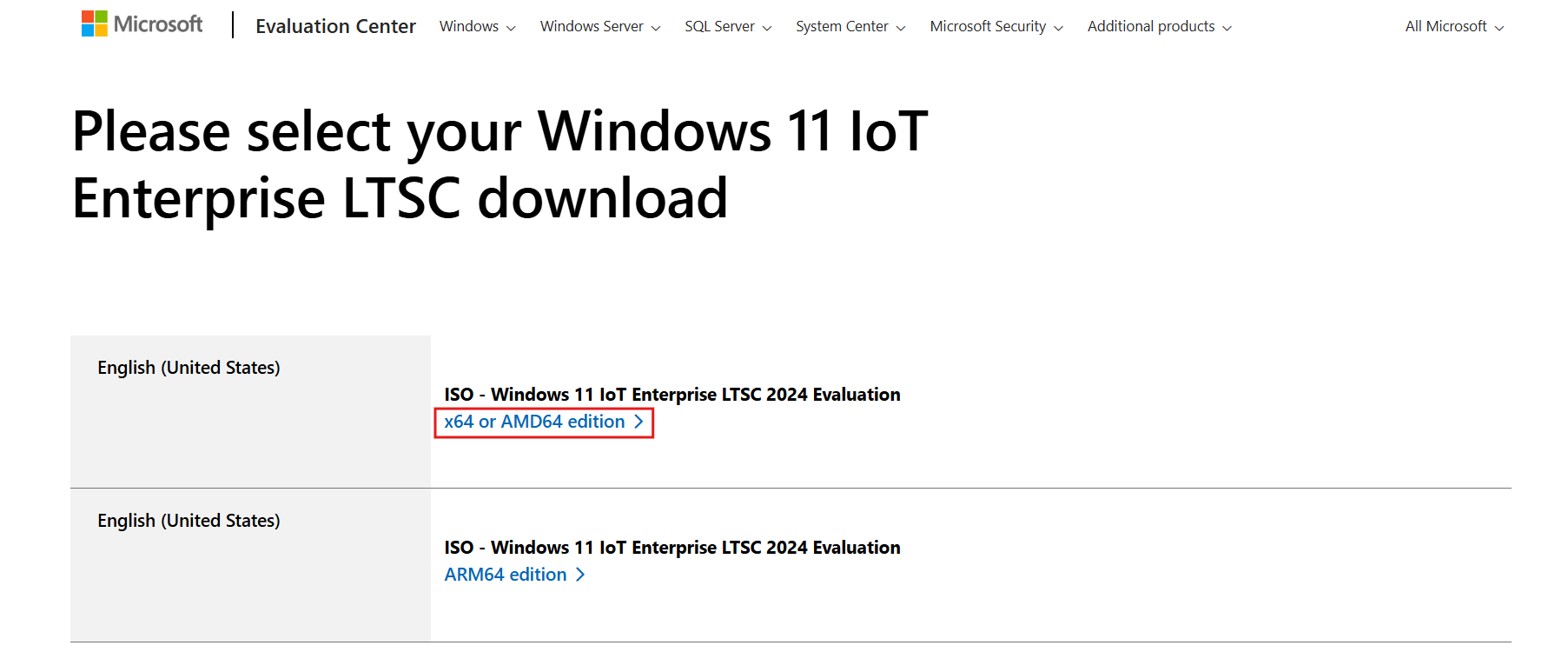
Download Windows 11 IoT Enterprise LTSC - Save the ISO file on your PC.
The file size on my PC was around 4.71 GB. However, it took longer than usual to download, with download speeds never going above 500KBps. I’m not sure if that’s always the way, so make sure you have enough time on your hands.
After downloading, you can mount the ISO file on a virtual machine as I did. Note that the LTSC versions do not come with the Media Creation Tool. So, if you want Windows 11 LTSC on a USB drive as bootable media, you can either use third-party tools like Rufus or use the command prompt by following the instructions provided by Microsoft.
Remember that the Windows 11 LTSC version will be in the evaluation period (trial) for 90 days, post which you will need to activate it with a genuine LTSC license key. Also, you cannot upgrade from Windows 11 Pro or Home to LTSC, and trying to install LTSC on your existing PC will format the drive. So, unless you’re willing to purchase from Microsoft’s Volume Licensing Service Center (VLSC), we recommend you try this on a hobby PC or VM.
Installing Windows 11 LTSC
Installing Windows 11 IoT Enterprise LTSC ISO is the same as any version of Windows 11, and it has the same hardware and processor requirements as the regular OS.
Windows 11 IoT Enterprise LTSC – Minimum System Requirements
| Component | Preferred Minimum Requirements | Optional Minimum Requirements |
|---|---|---|
| Processor | 1 GHz, 2 Cores | 1 GHz, 2 Cores |
| System Memory | 4 GB | 2 GB |
| Storage Size | 64 GB | 16 GB |
| Storage Type | Solid-State Drive (SSD) | Solid-State Drive (SSD) Hard Disk Drive (HDD) Hybrid Hard Drive (SSHD) Flash (eMMC, SD, USB) |
| System Firmware | UEFI | BIOS |
| TPM | TPM 2.0 | Optional |
| Secure Boot | Enabled | Optional |
| DirectX | DirectX 12 | DirectX 10 / None |
| Display | 9-inch diagonal, 720p HD | Custom Size / Optional |
If you have a very old system, check here to see if your processor is supported by the OS.
Load the ISO on a VM or use a bootable drive and proceed as you would normally.
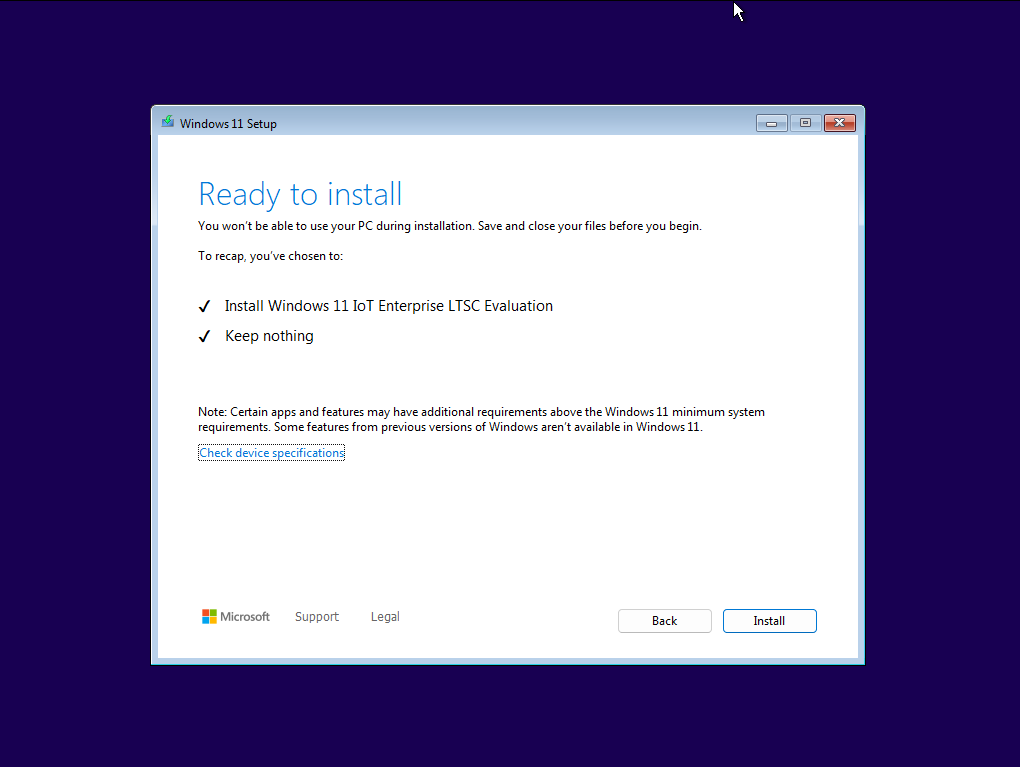
During the OOBE, you’ll be prompted to enter your work or school account to sign in. Note that you cannot sign in using a personal account. But fortunately, you can bypass signing in to Windows 11 LTSC by first clicking “Sign-in options” and then selecting “Domain join instead.”
Type your name, create a password, and the Windows 11 LTSC setup will continue, essentially allowing you to install Windows without signing in.
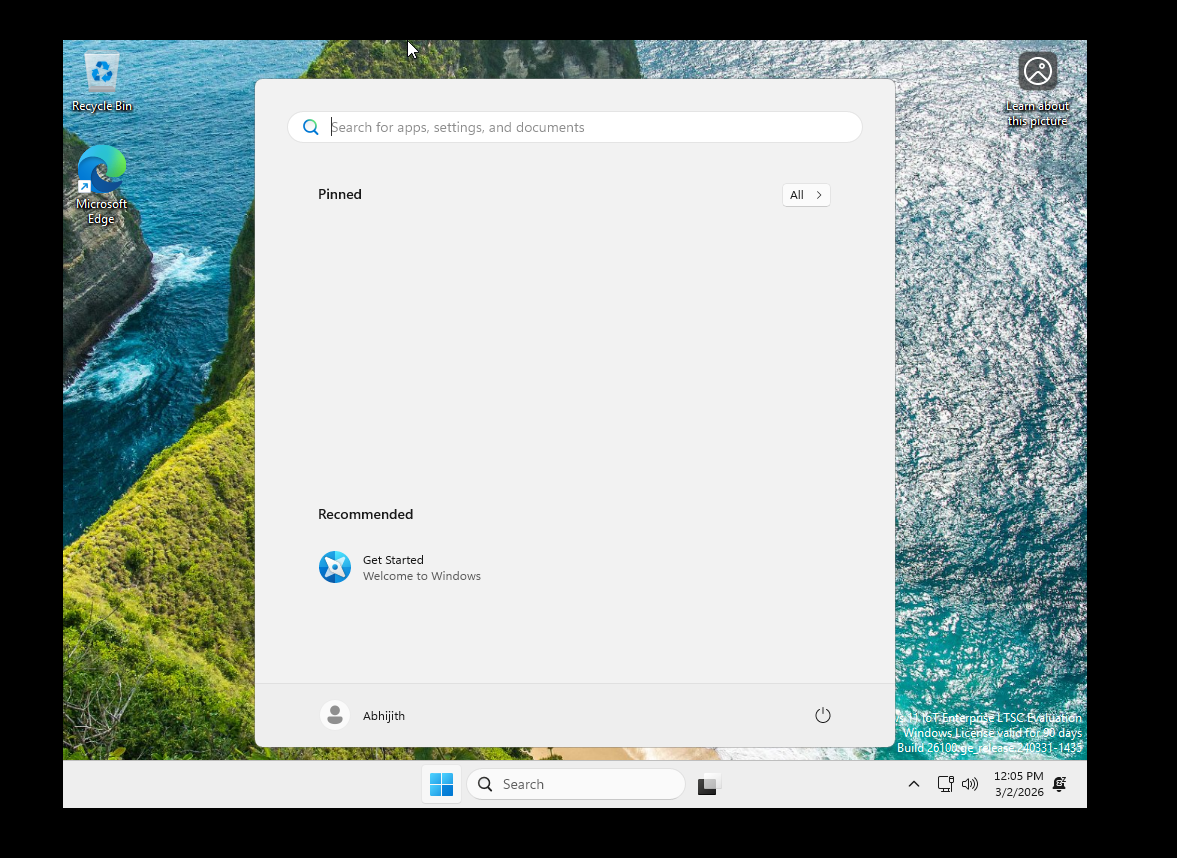
After installing, you’ll be greeted with the Windows 11 LTSC desktop, where there is virtually nothing on the taskbar or the Start menu, except Get Started.
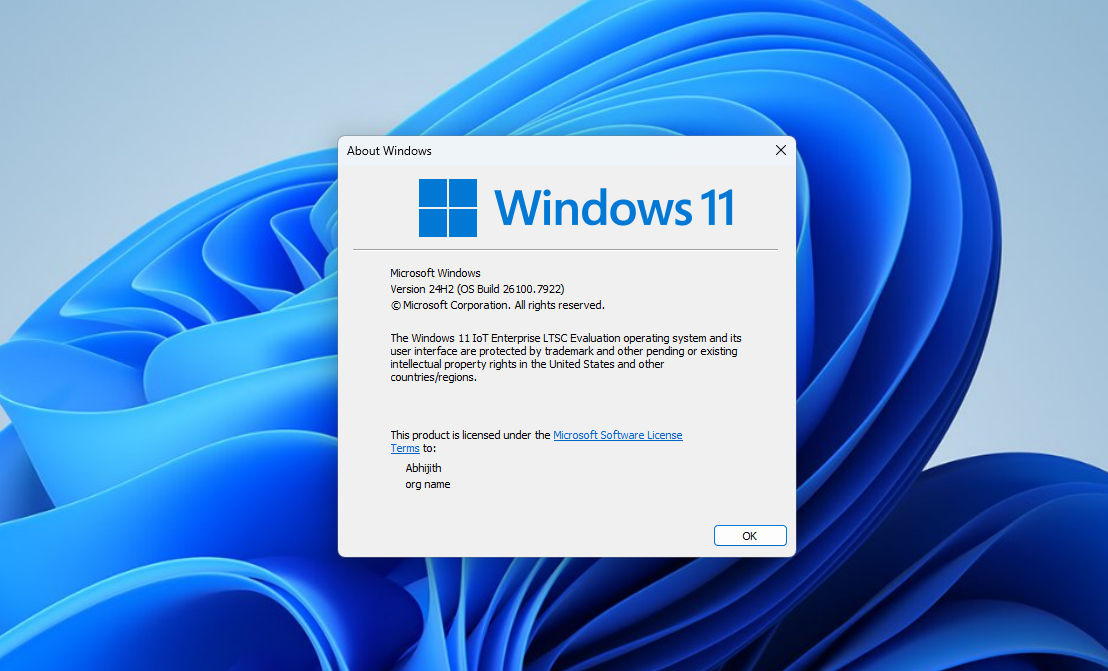
Go to Run and type winver to see the OS build and product name:
Hands-on with Windows 11 LTSC
Using Windows 11 LTSC feels like a breath of fresh air, considering that the OS has almost no apps installed. The Start menu is basically a blank space.
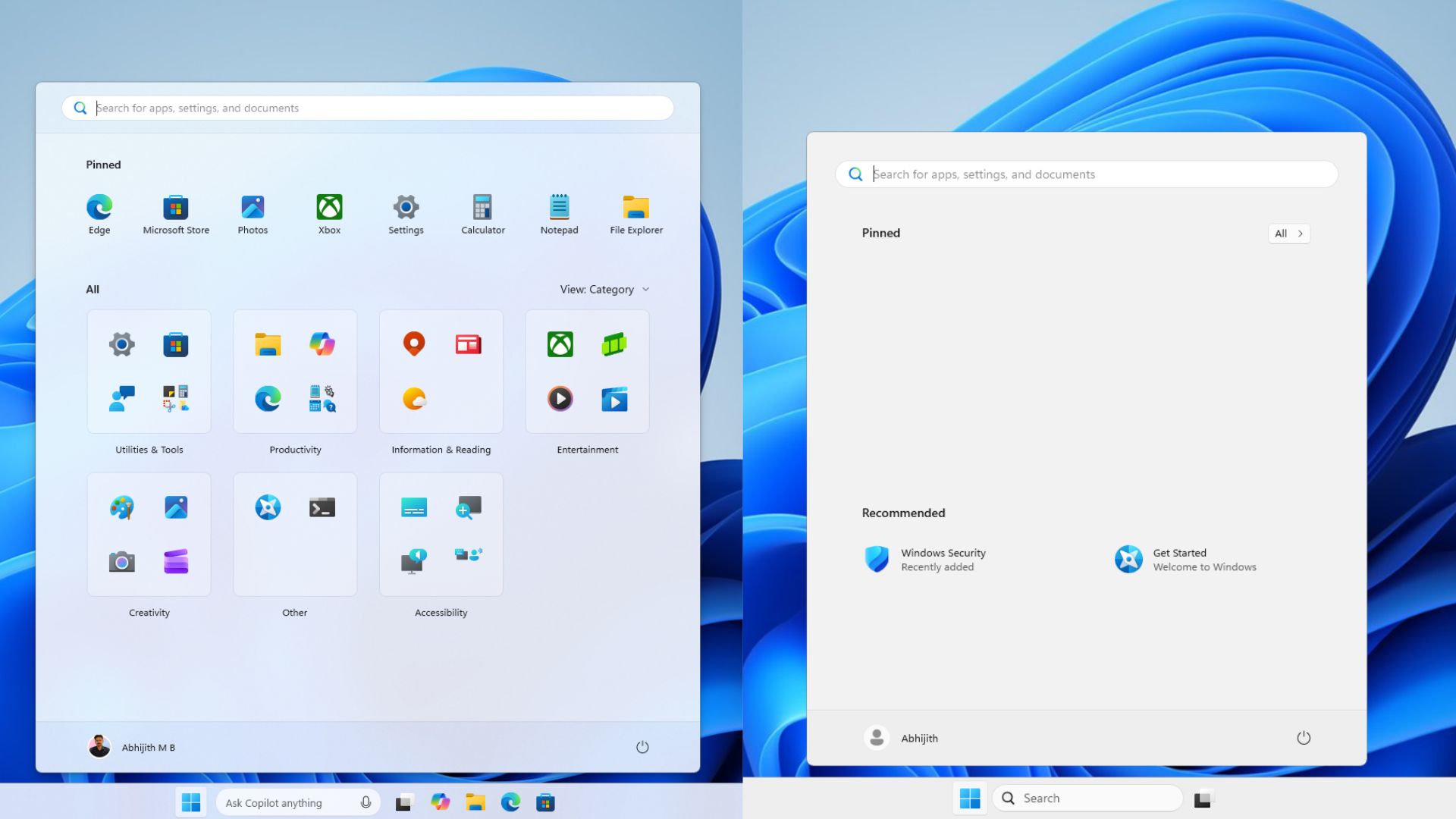
Go to all apps and you’ll come across a list of very few apps, including the classic Calculator app, File Explorer, Microsoft Edge, Classic versions of Notepad, Paint, and Snipping Tool.
This meager app list means that you can save a lot of storage, as it avoids all bloatware that comes preinstalled with Windows. In fact, the total used space is just 16.3 GB post installation, where regular Windows 11 Pro goes well beyond 20GBs.
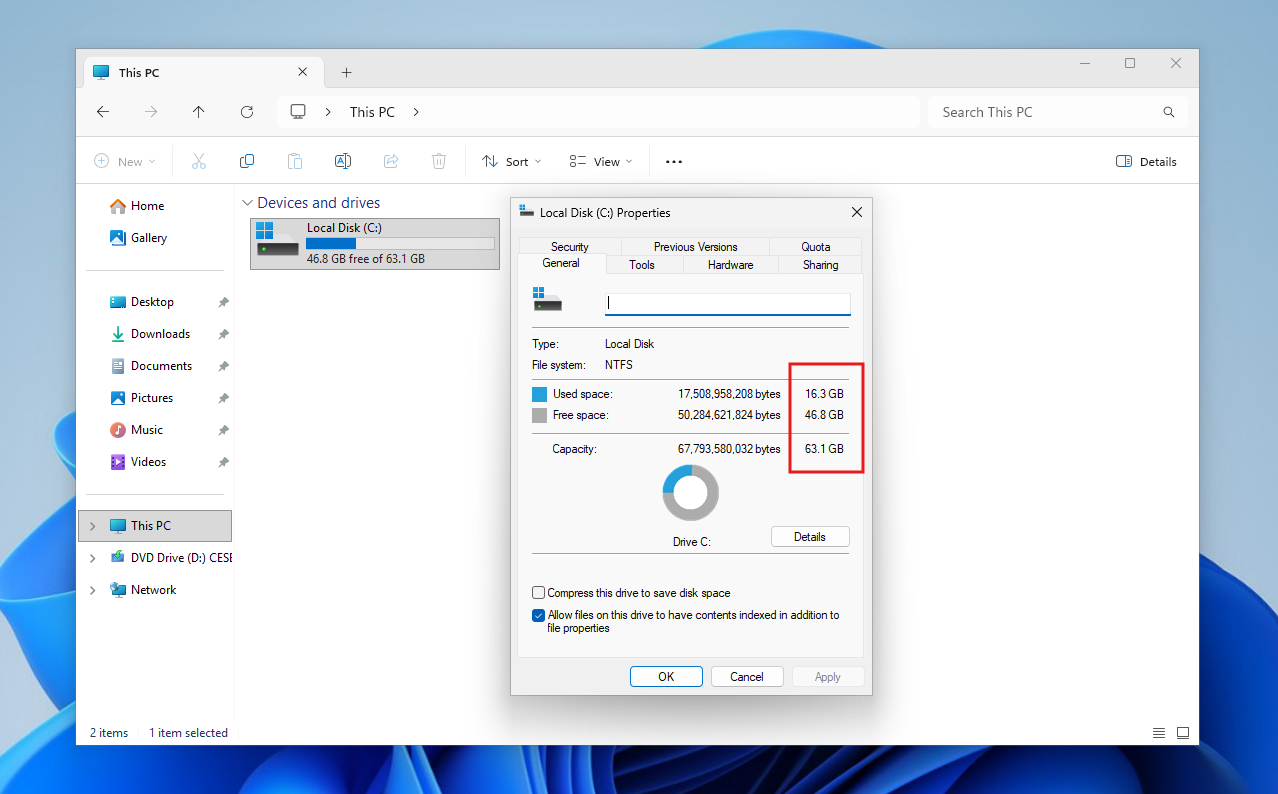
As I’m using a VM, there is no point in talking about the performance, and it largely feels the same as regular Windows, but that has likely to do with my system already having good performance.
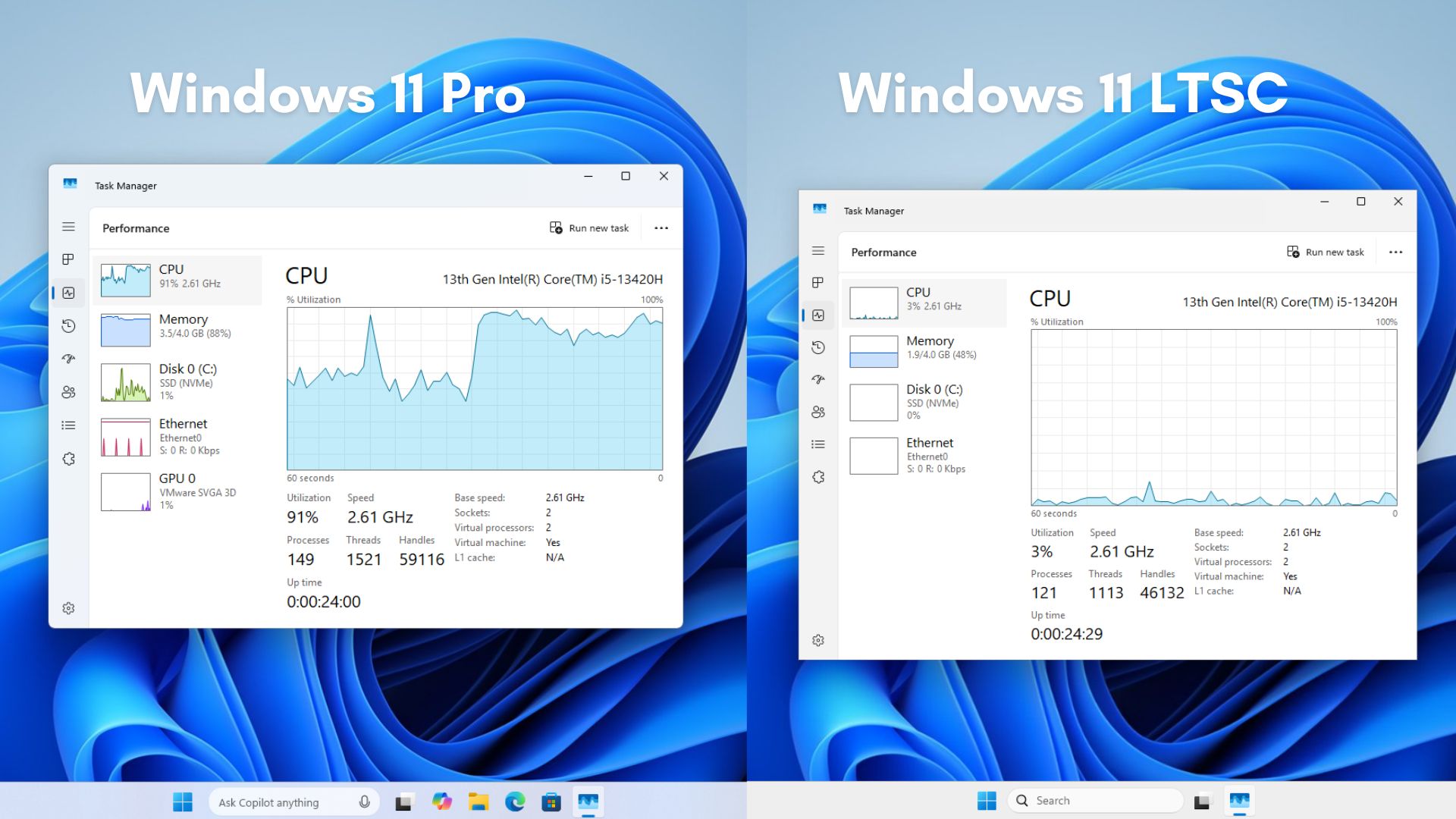
However, my curiosity got the best of me, and when I checked the CPU and memory usage, it was well beyond what we see with regular Windows. I booted up another VM running Windows 11 Pro and checked the system usage. As you can see, the difference is nothing short of astonishing. All the apps that Microsoft bundles with Windows 11 eat into both the CPU and RAM, and for some reason, we got used to it.
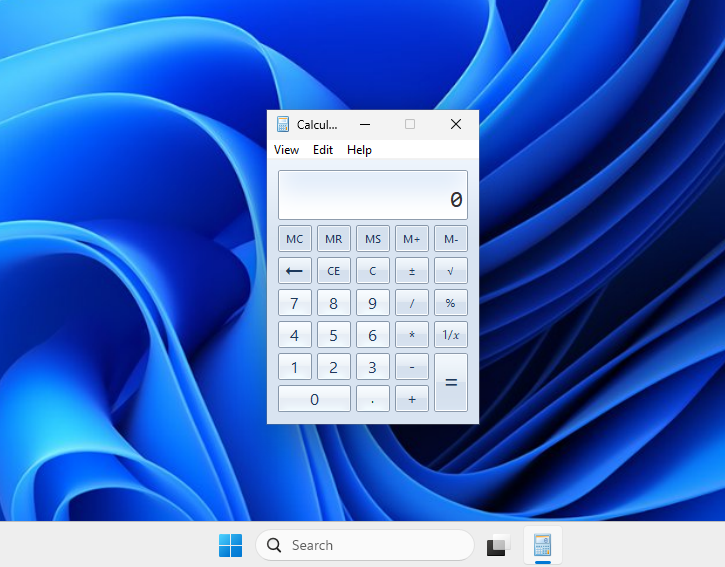
Of course, I couldn’t wait to use the classic Windows apps in Windows 11 LTSC, which include Calculator, Notepad, Paint, and Snipping Tool.
I felt truly nostalgic while opening the Calculator app in LTSC. It looks like a piece of software from decades ago, which it actually is. It can’t be resized, there are no fancy features like unit conversion, and it is just a barebones calculator.
I felt truly nostalgic while opening the Calculator app in LTSC. It looks like a piece of software from decades ago, which it actually is. It can’t be resized, there are no fancy features like unit conversion, and it is just a barebones calculator.
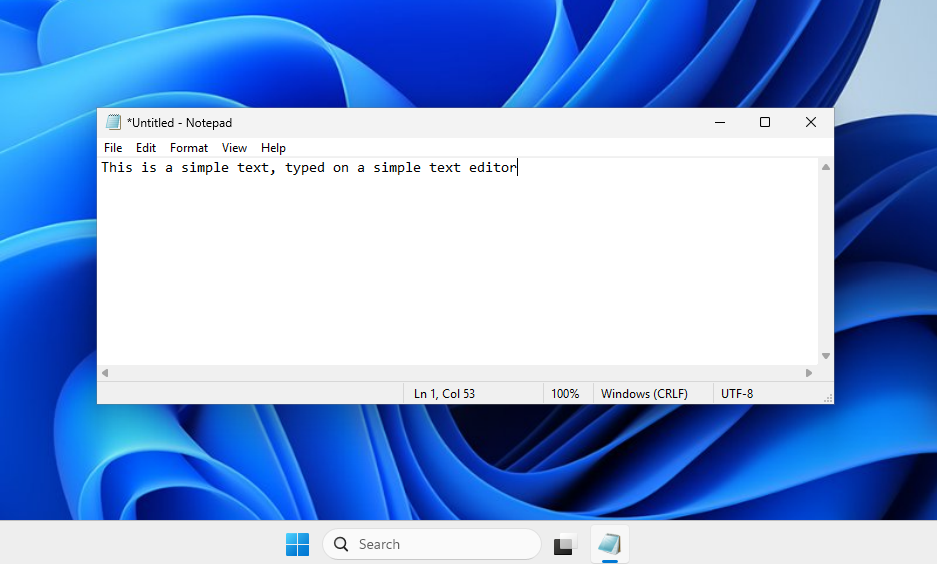
Notepad is actually a simple text editor in LTSC. It’s fast, clean, and minimal. Since this is the classic Notepad, you won’t ever get some of the recent updates to Notepad, including the ones that will arrive in the future, like support for images in Notepad.
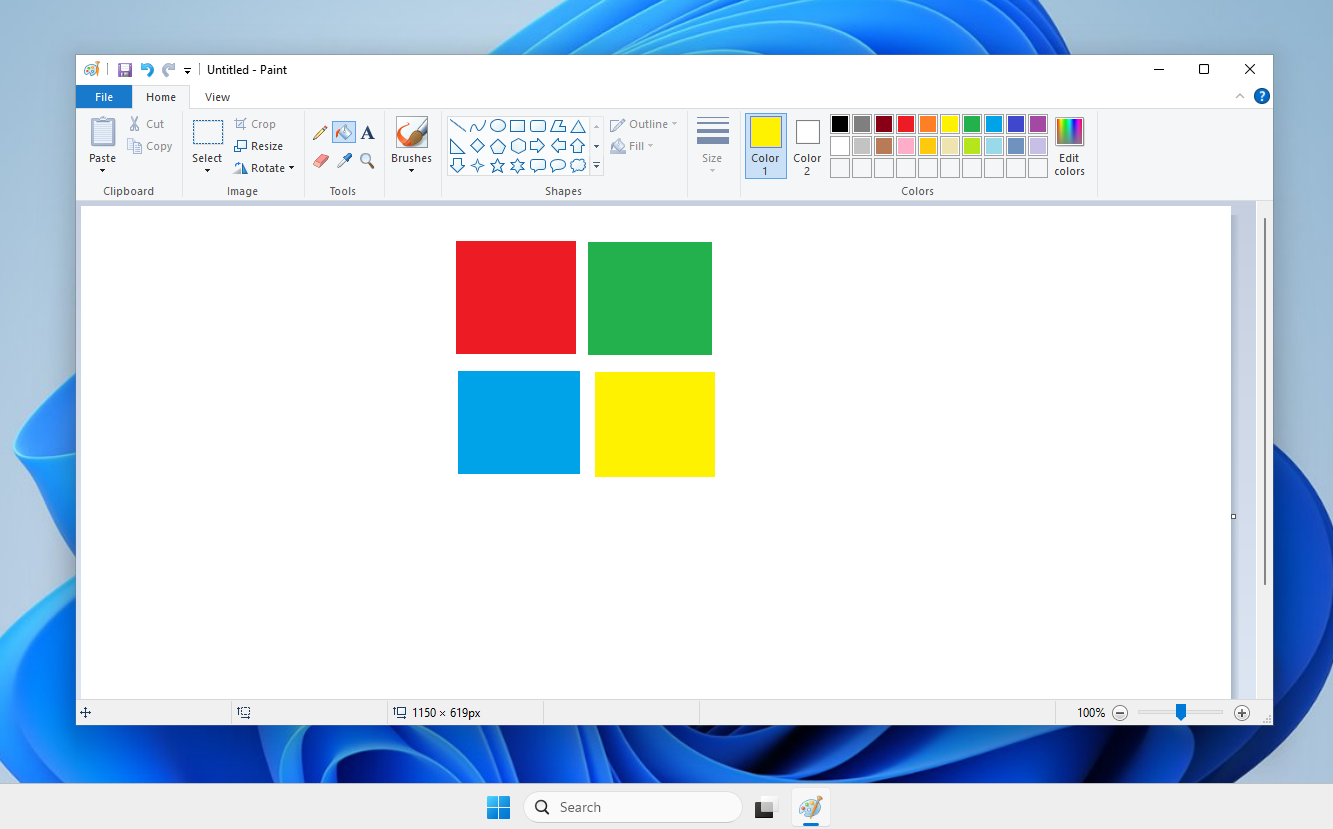
MS Paint is as beautiful as I remember it from a different time. While I like some of the features in the new Paint app, the presence of AI features takes away from the experience since it can’t be turned off.
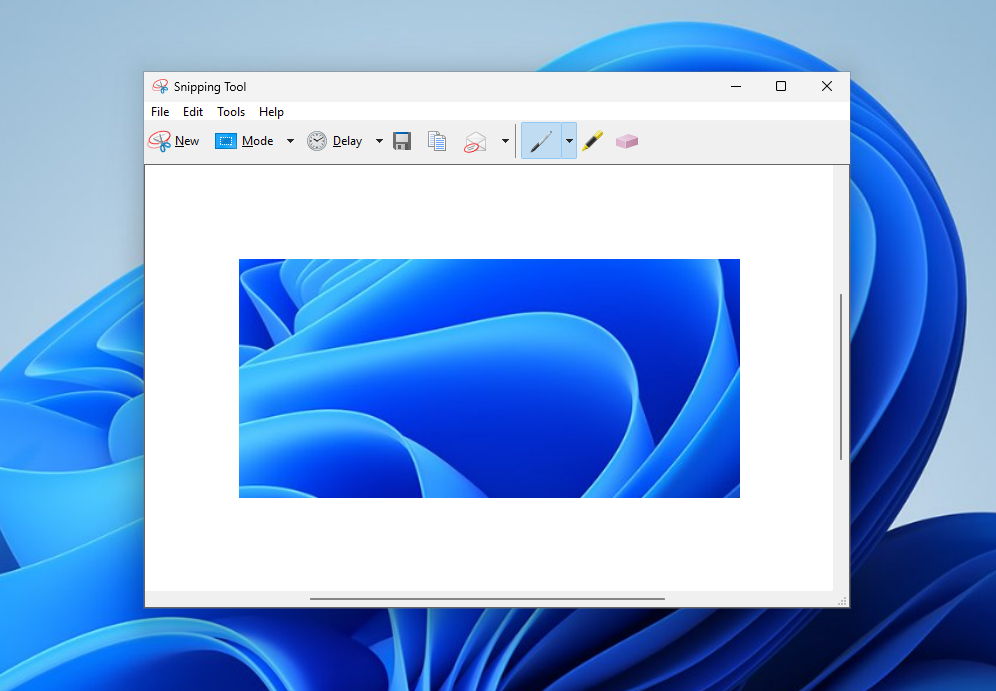
Although I’m a fan of the modern Snipping Tool, the classic one with the old icons still looks fresh.
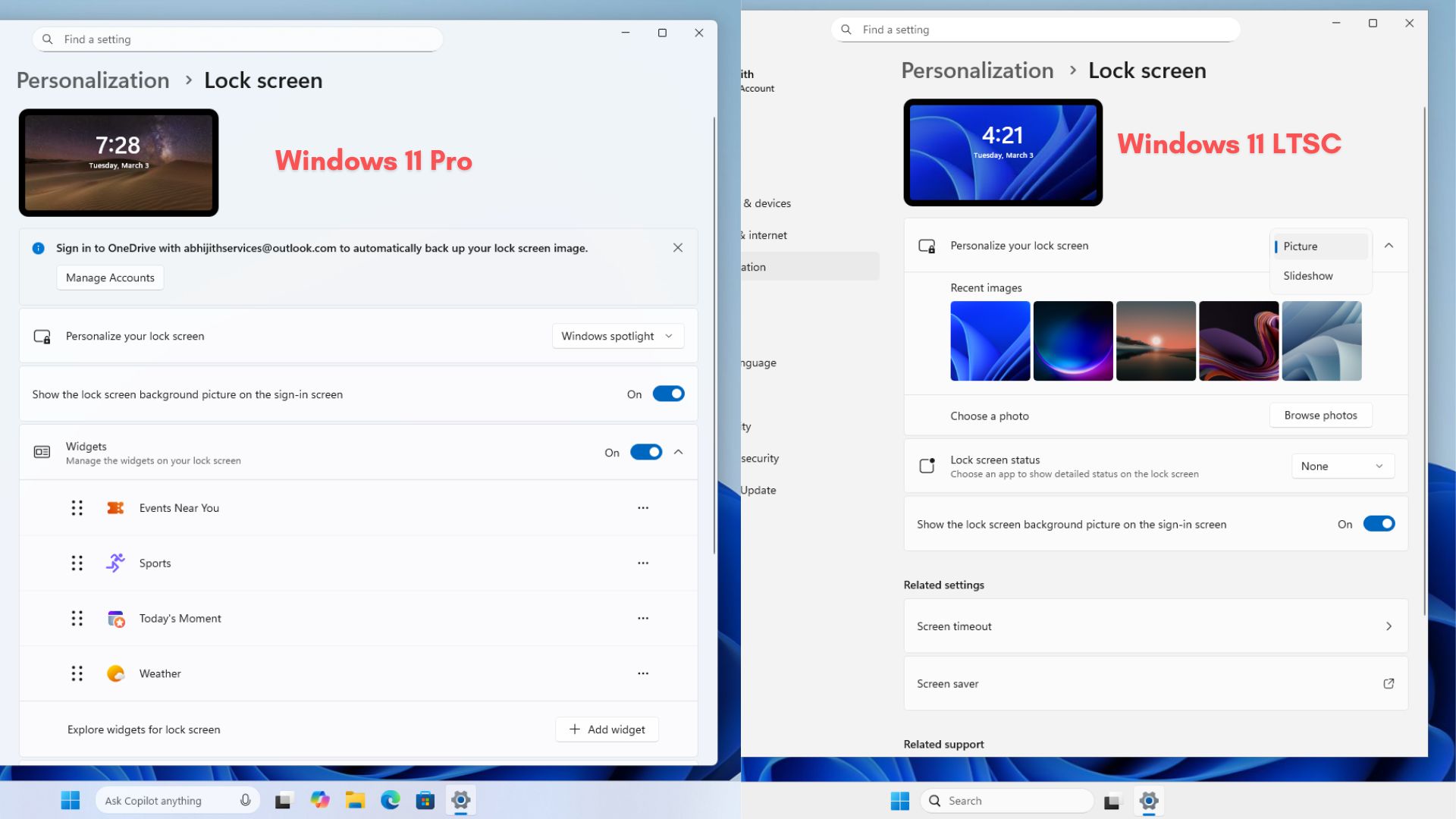
Keeping with the theme, I checked how the Lockscreen experience in LTSC was when compared to Pro. In the former, there is no option to select Windows Spotlight even if you want to. The new Widgets feature in lockscreen is also unavailable. These are all lines of code that could be avoided in Windows.
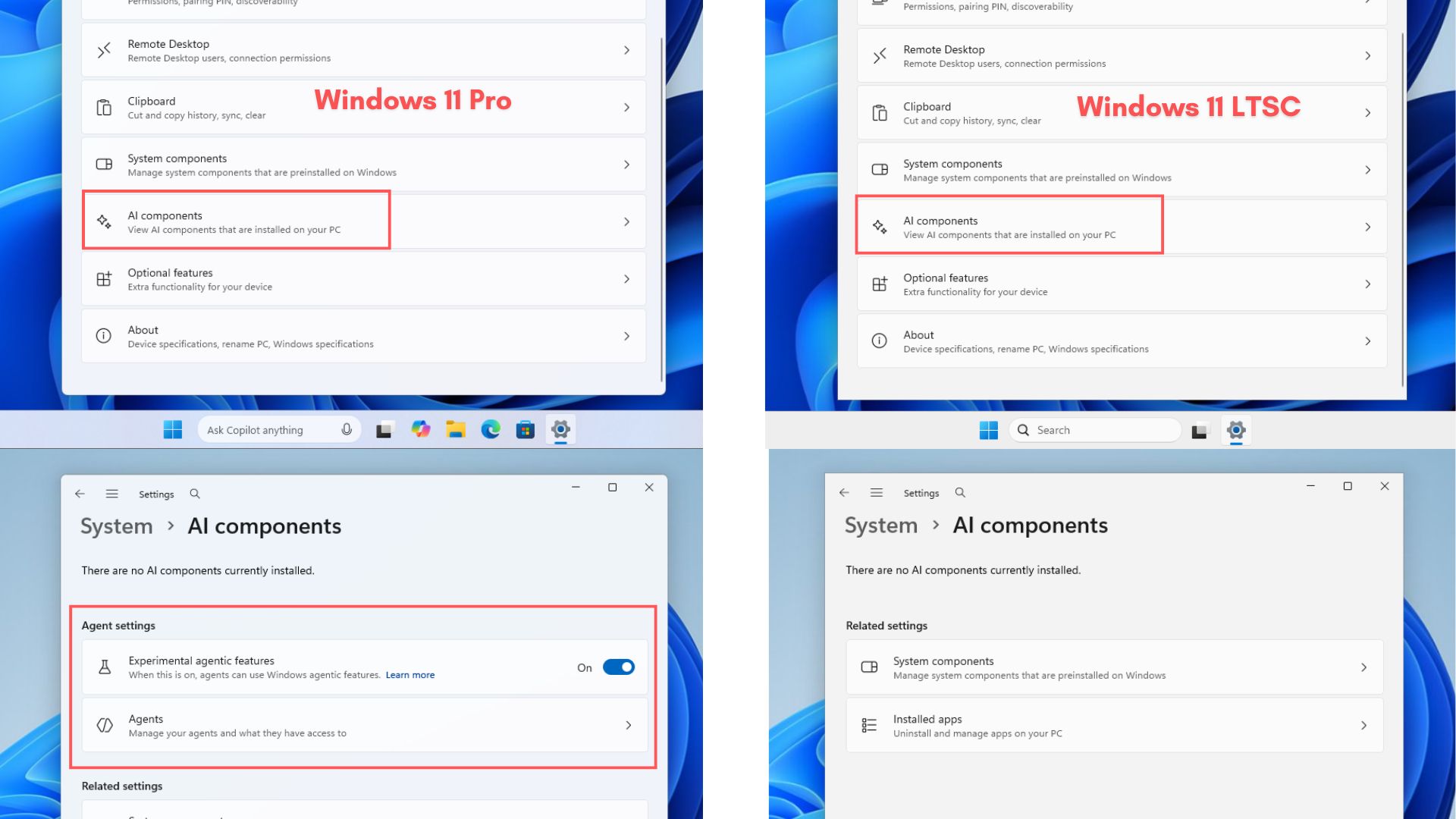
Interestingly, in the System Settings, I found that Windows 11 LTSC also has “AI components”, like regular Windows 11 Pro. However, opening it doesn’t showcase the toggle for Experimental agentic features in LTSC, although the agentic features are gradually rolling out to regular Windows 11 Pro as well.
The File Explorer performs as usual, and I don’t think the LTSC version could fix performance issues in the app. Either way, the context menu is noticeably shorter in Windows 11 LTSE when compared to the Pro version.
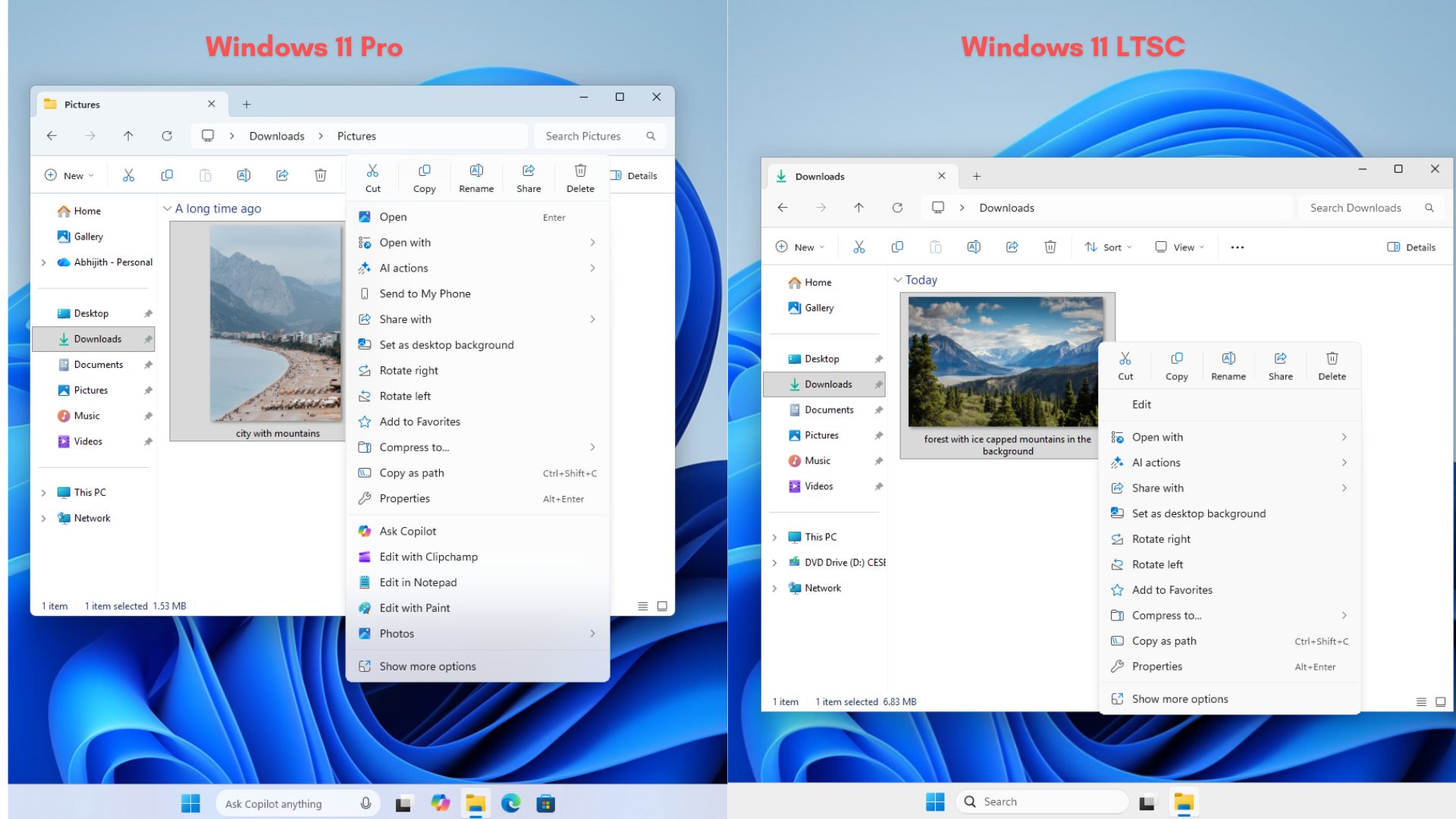
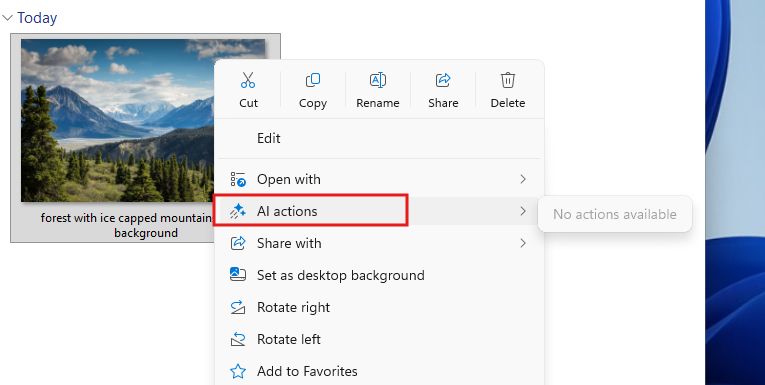
Here too, I found the AI actions submenu in the File Explorer context menu, but hovering over it doesn’t show any AI actions.
However, all the fun in LTSC came to a halt when I opened the Edge browser.
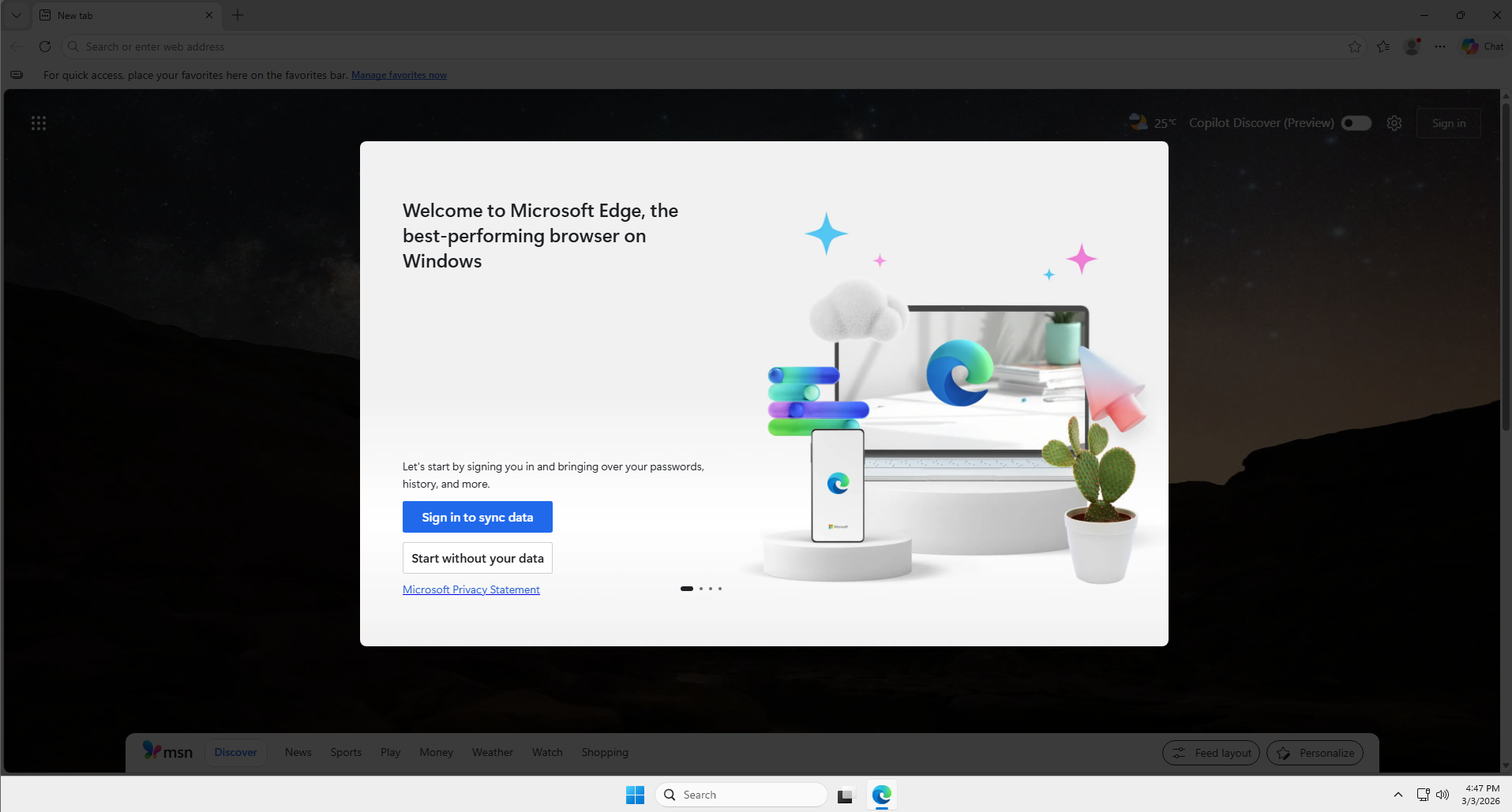
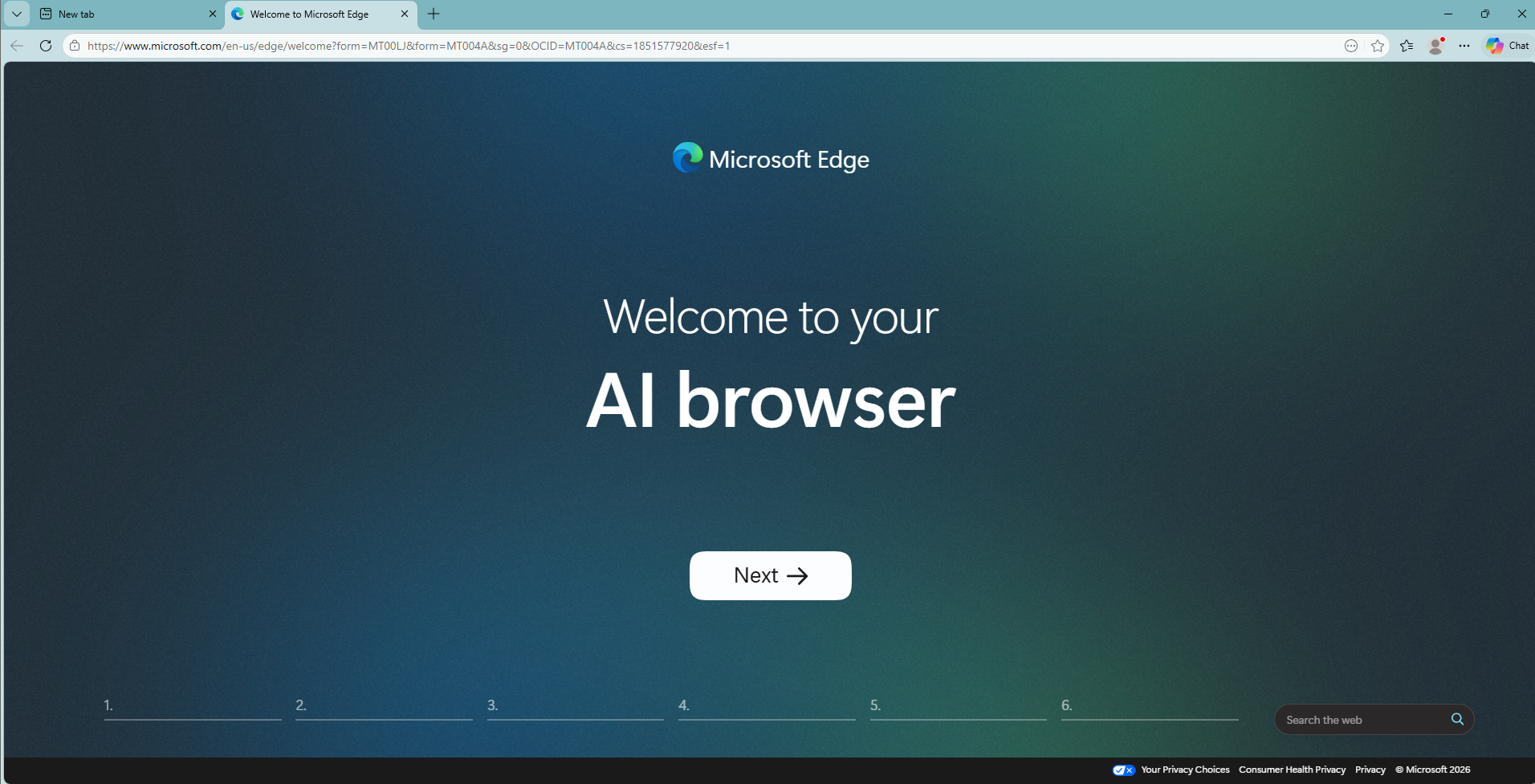
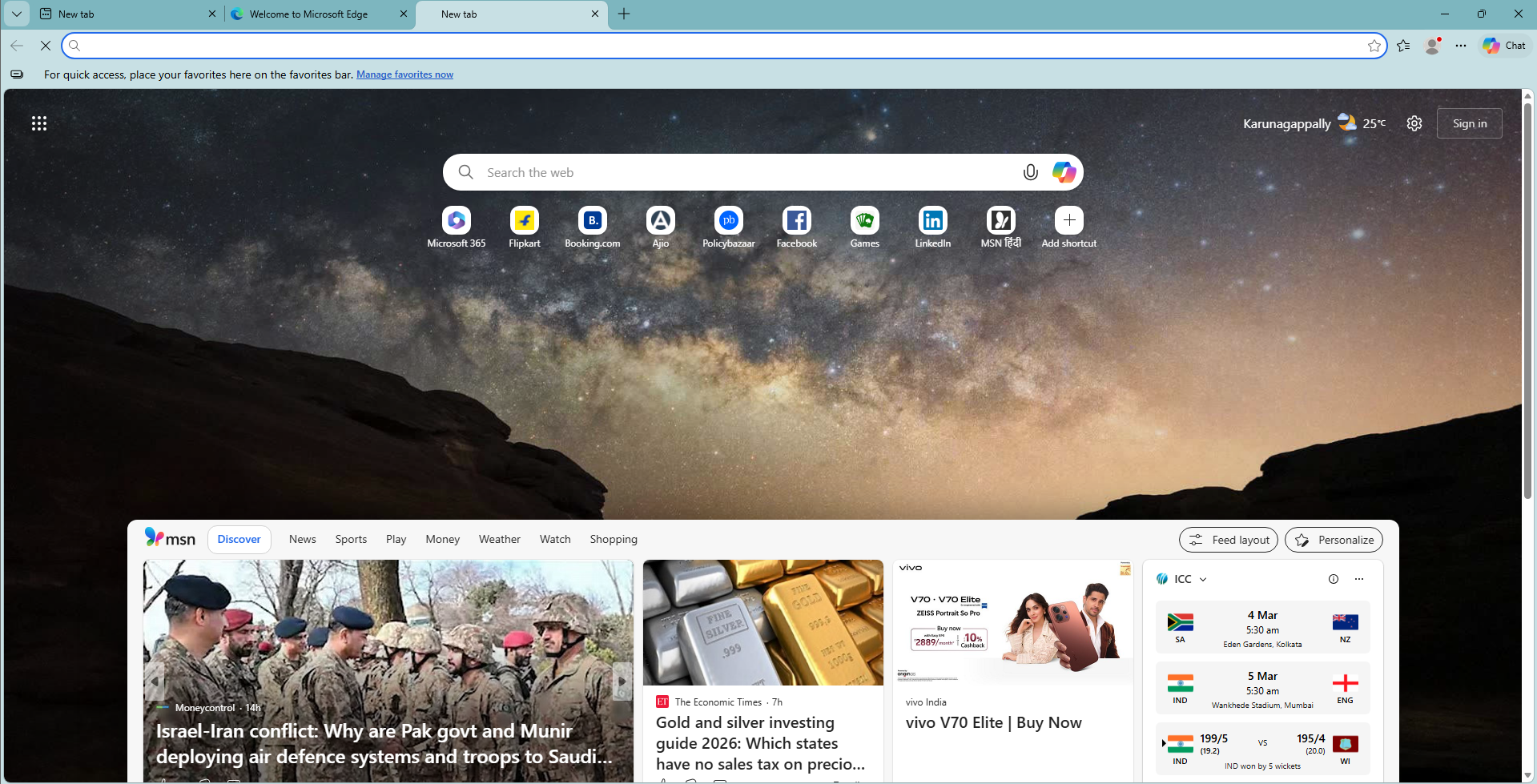
A new tab in Edge opens up to show news, Ads, sports, sponsored links, and of course, Copilot. You can turn off Copilot in Edge and remove AI features in Windows without any third-party tools, but if Microsoft continues to showcase Edge as a spammy browser, they’ll continue using Edge to download other browsers.
Fortunately, Windows 11 LTSC doesn’t feature the Drag Tray sharing UI on the top of the screen, which is turned on by default in regular Windows 11, and the Drag Tray has been a constant annoyance for several users.
Can you use Windows 11 LTSC as a daily driver?
Well, the biggest thing to keep in mind is that the trial period expires after 90 days, and since this is an enterprise version, getting a Licence for Windows 11 LTSC isn’t as easy as the regular ones. But if you managed to escape that, then there’s the question of usability. For all intents and purposes, Windows 11 LTSC is still Windows 11, and you can download any app from the internet as you’d normally do.
But if you want to install any apps from the Microsoft Store, you’d first have to download the Microsoft Store. Trying to download the Brave browser from the Store doesn’t work as expected, and I had to first download the Store.
Fortunately, downloading and installing the Microsoft Store is easy. Just search Microsoft Store download, and you’ll find the official link from Microsoft on top.
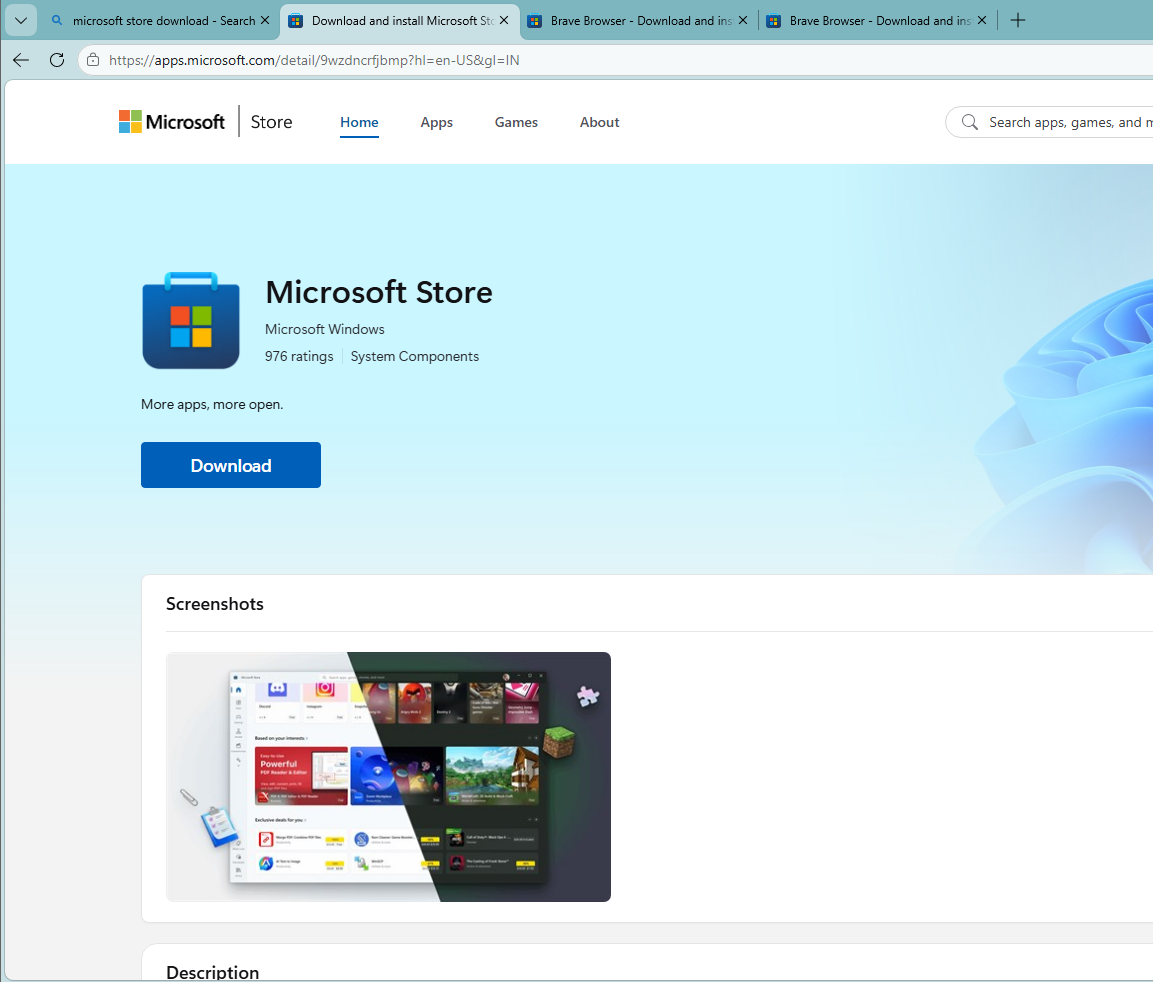
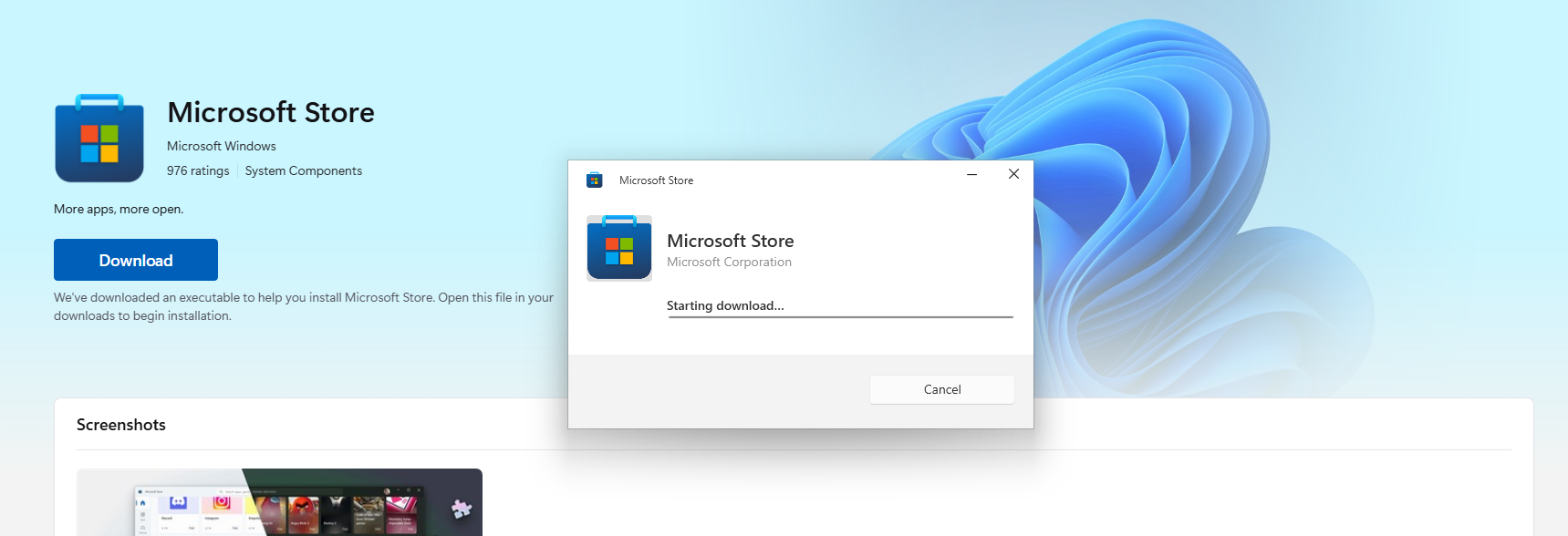
After downloading the Microsoft Store, you can download any app from it without having to need to sign in with your Microsoft Account.
Advantages and Disadvantages of Windows 11 LTSC
| Advantages of Windows 11 LTSC | Disadvantages of Windows 11 LTSC |
|---|---|
| No Copilot integration or AI features | Does not receive new Windows features |
| No bloatware or preinstalled apps | Microsoft Store not included by default |
| No ads, widgets, or promotional content | Some modern apps and services may not work out of the box |
| Stable with only security updates | Not intended for regular consumers |
| Long support lifecycle (10 years) | Requires Enterprise licensing for long-term use |
| Minimal background processes | Some drivers or features may lag behind |
| Lower storage footprint | No feature upgrades like 23H2 → 24H2 |
| Allows installation without MSA | Some enterprise policies may apply |
| Ideal for mission-critical and embedded systems | Limited access to new Microsoft technologies |
Who is Windows 11 LTSC really for?
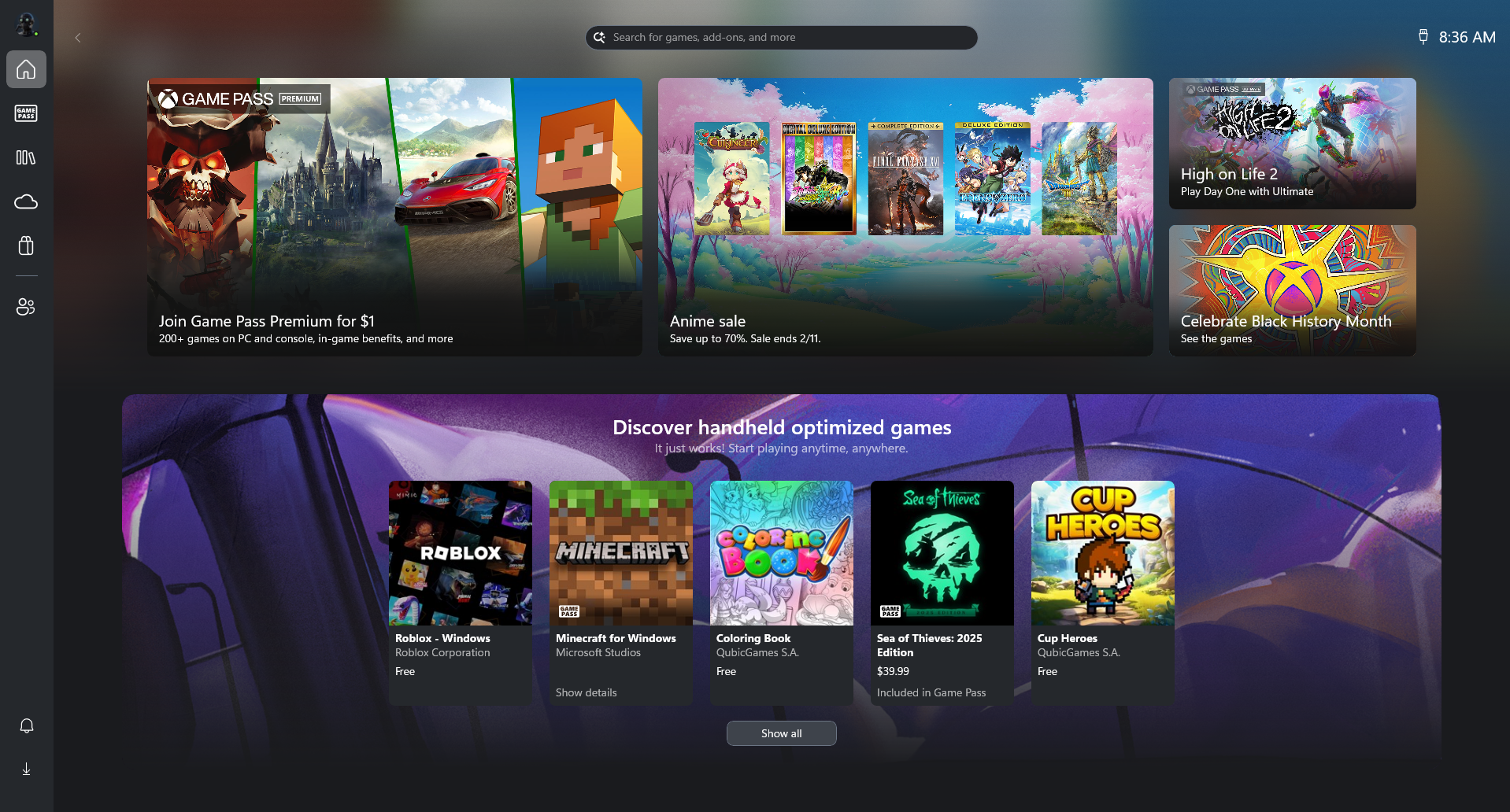
Although many gamers and power users prefer Windows 11 LTSC because of its clean environment and lack of background services, it may not always be the best choice for gaming PCs. Microsoft has already committed to improving gaming performance in regular Windows 11 through upcoming updates in 2026, including system-level optimizations and better integration with Xbox features. Since LTSC does not receive frequent feature updates, those improvements may not arrive quickly, which means gamers might benefit more from sticking with the standard version of Windows.
Where Windows 11 LTSC truly shines is in environments that value stability over new features. It can be a great option for elderly users who just want a quiet computer without constant UI changes or new features appearing every few months. The same applies to older systems that still meet Windows 11 requirements but struggle with the growing list of background services in regular editions.
Windows 11 LTSC basically feels like Windows 7, with the aesthetics of 11. As tempting as it sounds, I’ll be staying with my regular Windows 11, as I have grown used to some of the modern features and apps, including the new Notepad, Photos and more. Also, if Microsoft’s promises are to be believed, 2026 maybe the best year for Windows 11, and I can’t wait to experience it first hand.