





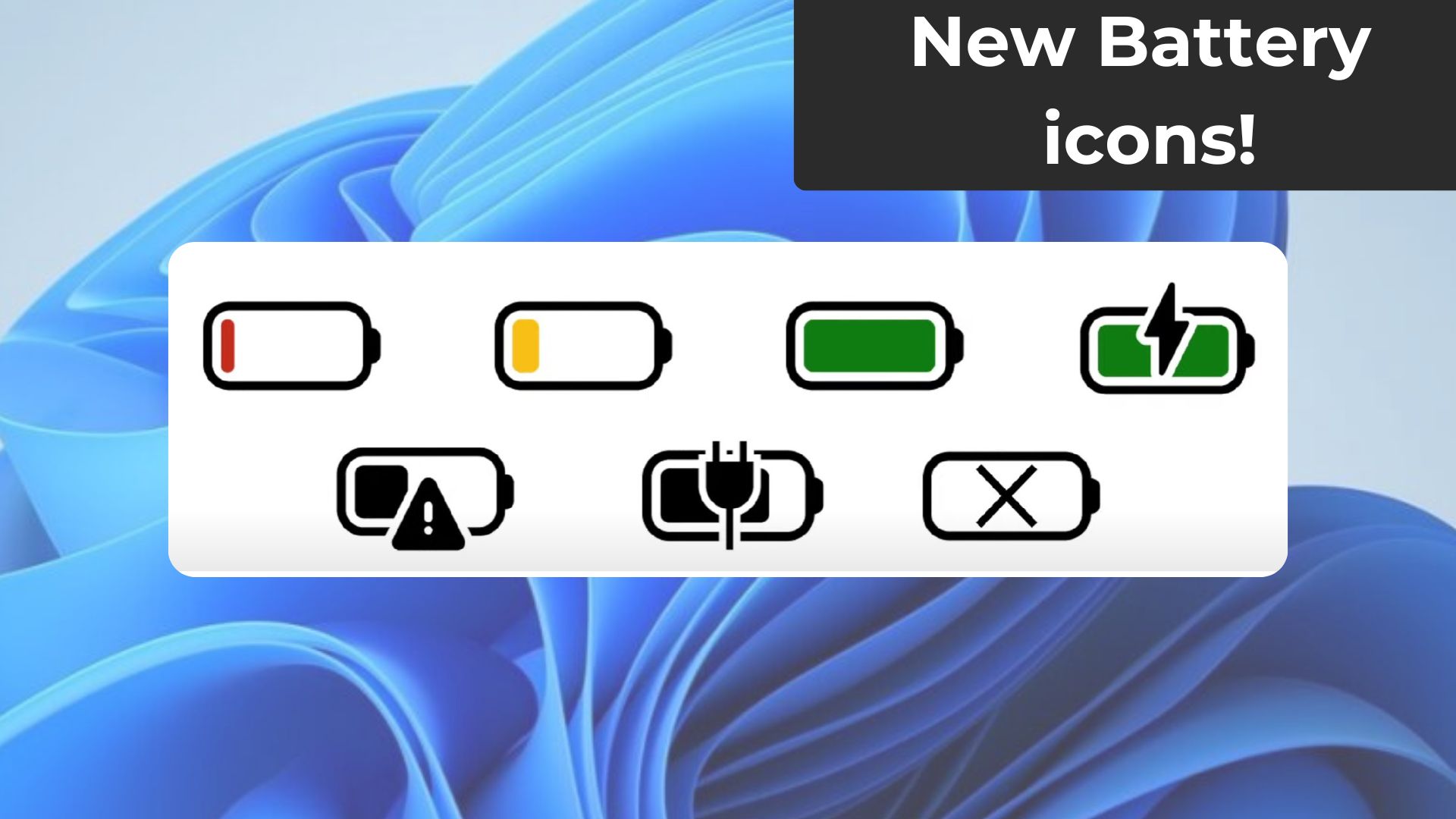
Windows 11’s new colorful icons for the battery bar on the taskbar should show up on more PCs now, according to a statement from Microsoft. Microsoft also reaffirmed that it’s still widely rolling out the new Start menu on Windows 11, and if you don’t have it yet, you might see it after installing Windows 11 KB5077241.
Microsoft really cannot release Windows 11 features to everyone without months or even years of delay. If you’ve been following taskbar development, you might be aware that Microsoft has been testing colorful icons for the battery bar on the taskbar for approximately two years now.
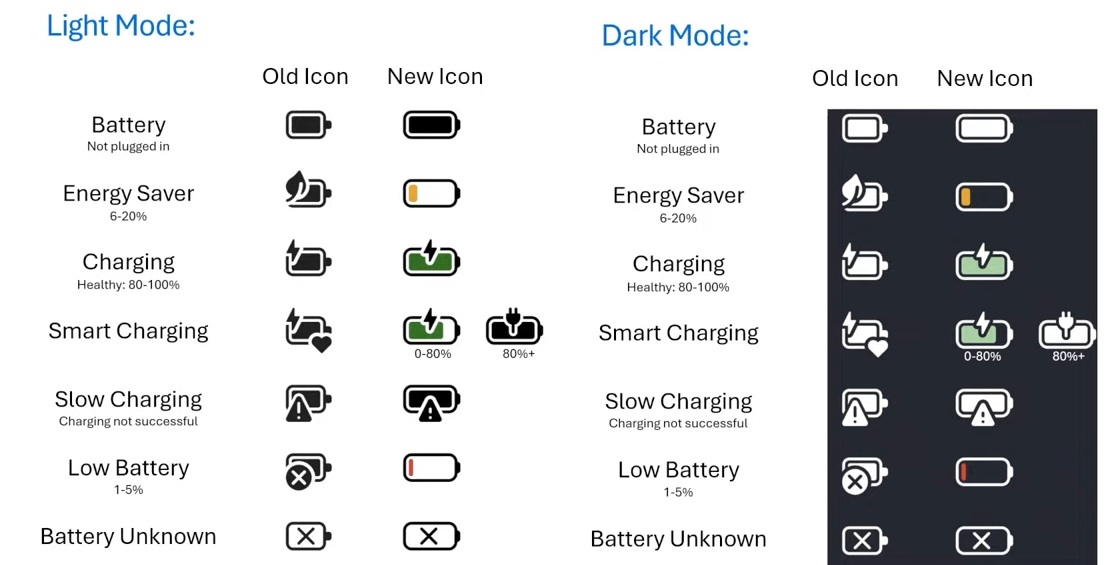
Colorful battery icons for the taskbar have been in development since late 2024, and they finally began rolling out last year, but they’re still not available on all PCs.
Microsoft told Windows Latest that February 2026’s optional update (KB5077241) adds updated battery icons to more Windows installations. Not just the battery icons, but the Start menu will also be turned on for more PCs.
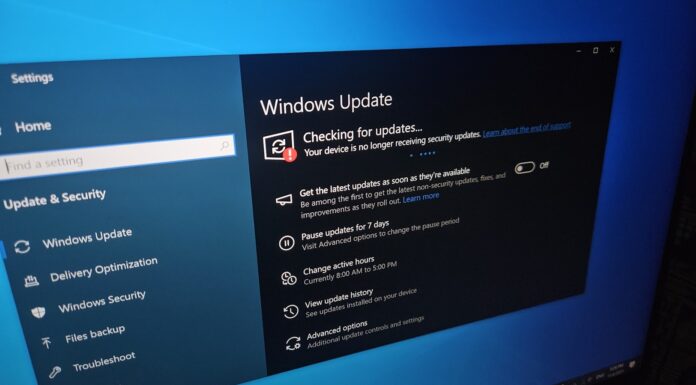
If you don’t see the changes, we recommend turning on the “Get latest updates…” toggle on the Windows Update page.
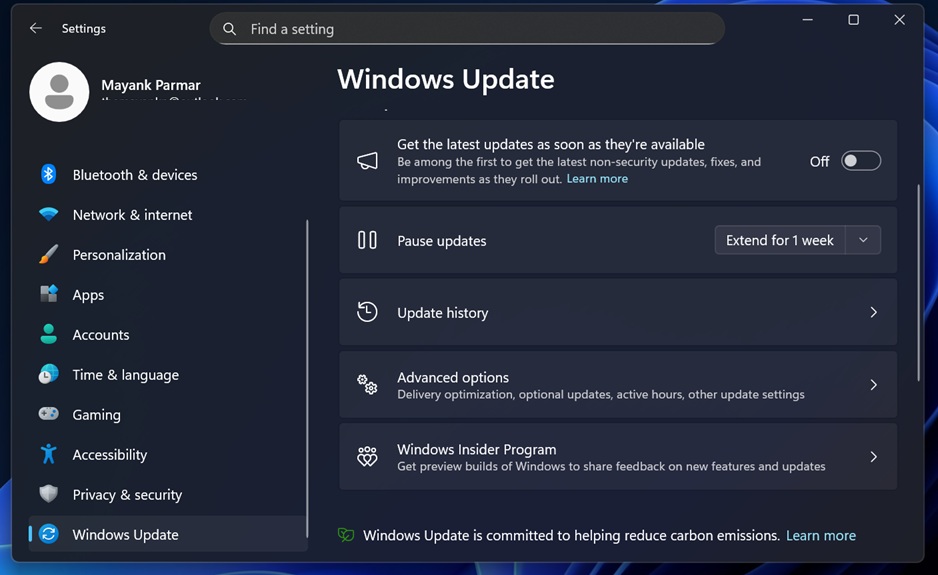
The “Get the latest updates…” toggle is not some nuclear solution, as it ultimately comes down to how Microsoft’s A/B test approaches your hardware. When the toggle is turned on, Windows rolls out changes faster, or at least comparatively faster than when it is disabled.
I tested the new battery icons on the taskbar, and they’re decent
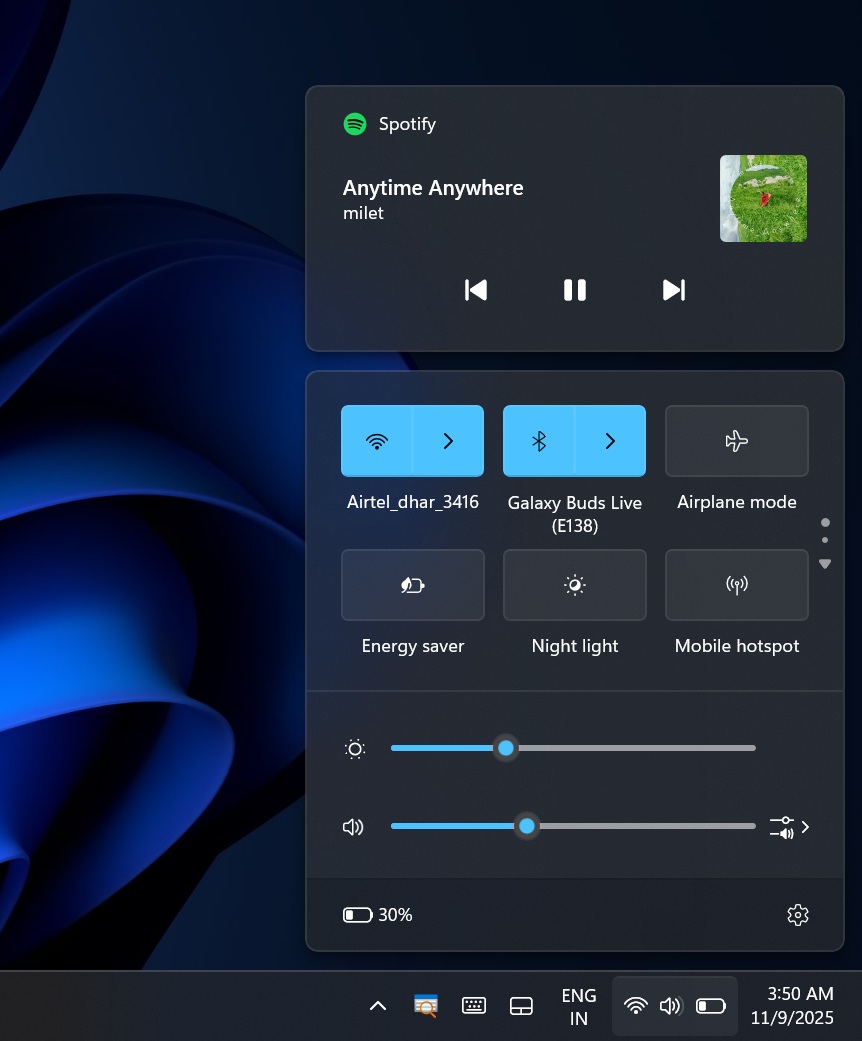
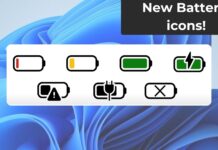
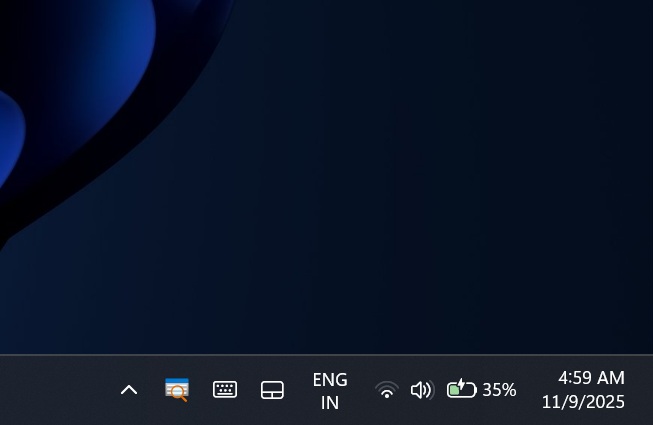
After installing Windows 11 KB5077241, you’ll notice that the taskbar’s battery icon is no longer a “white” bar. Instead, the battery icon uses a green color when it’s charging, and the icon also takes up more space to help you better understand where the battery percentage stands.
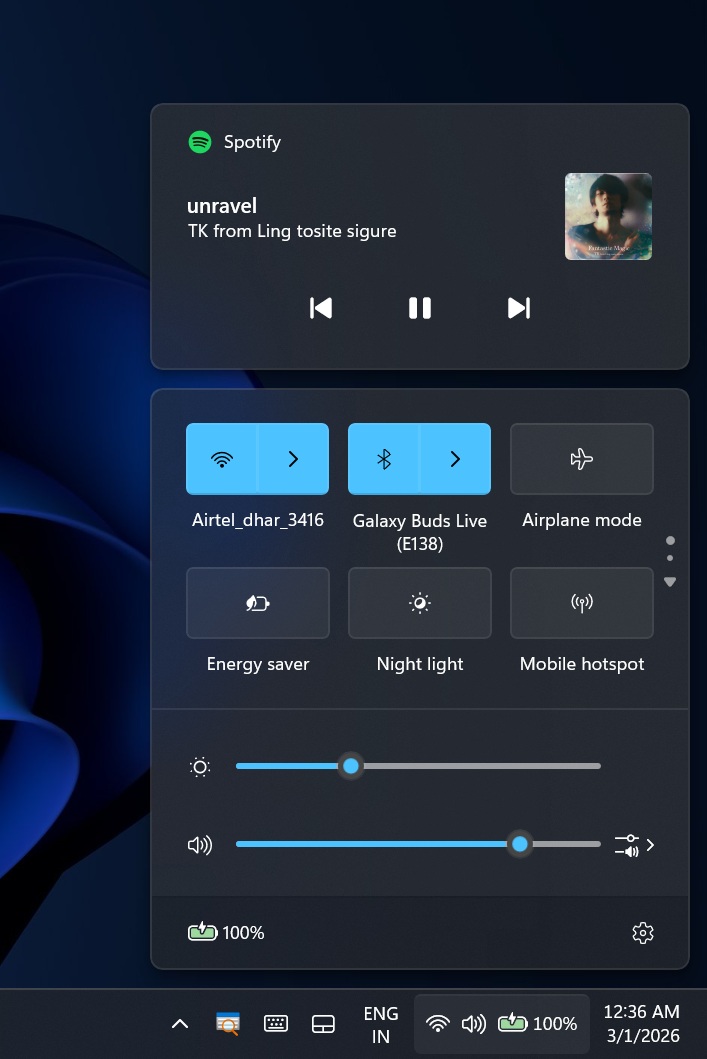
In addition to green, there’s a charging bolt icon, which makes it obvious the device is being charged. When you unplug the adapter, your battery bar automatically turns white.
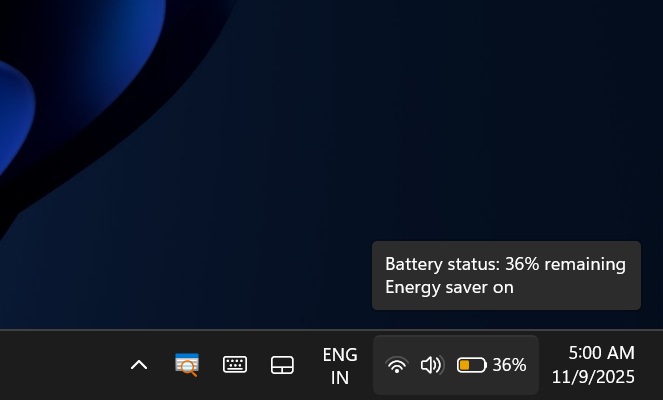
When the battery drops to 30%, the energy saver is turned on, and the battery bar color changes to orange. You can also turn on energy saver manually, and that will change the colour as well.
Finally, if the battery percentage drops below 6%, the icon turns red.
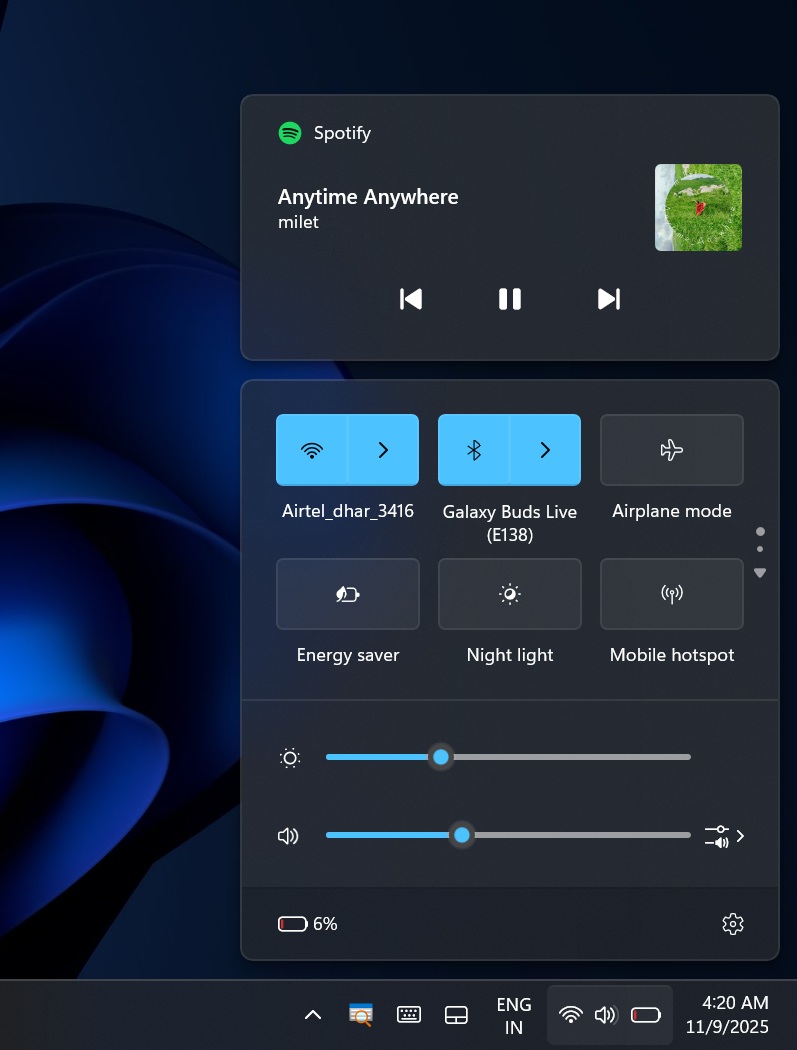
We also noticed that you can now show battery percentage on the taskbar.
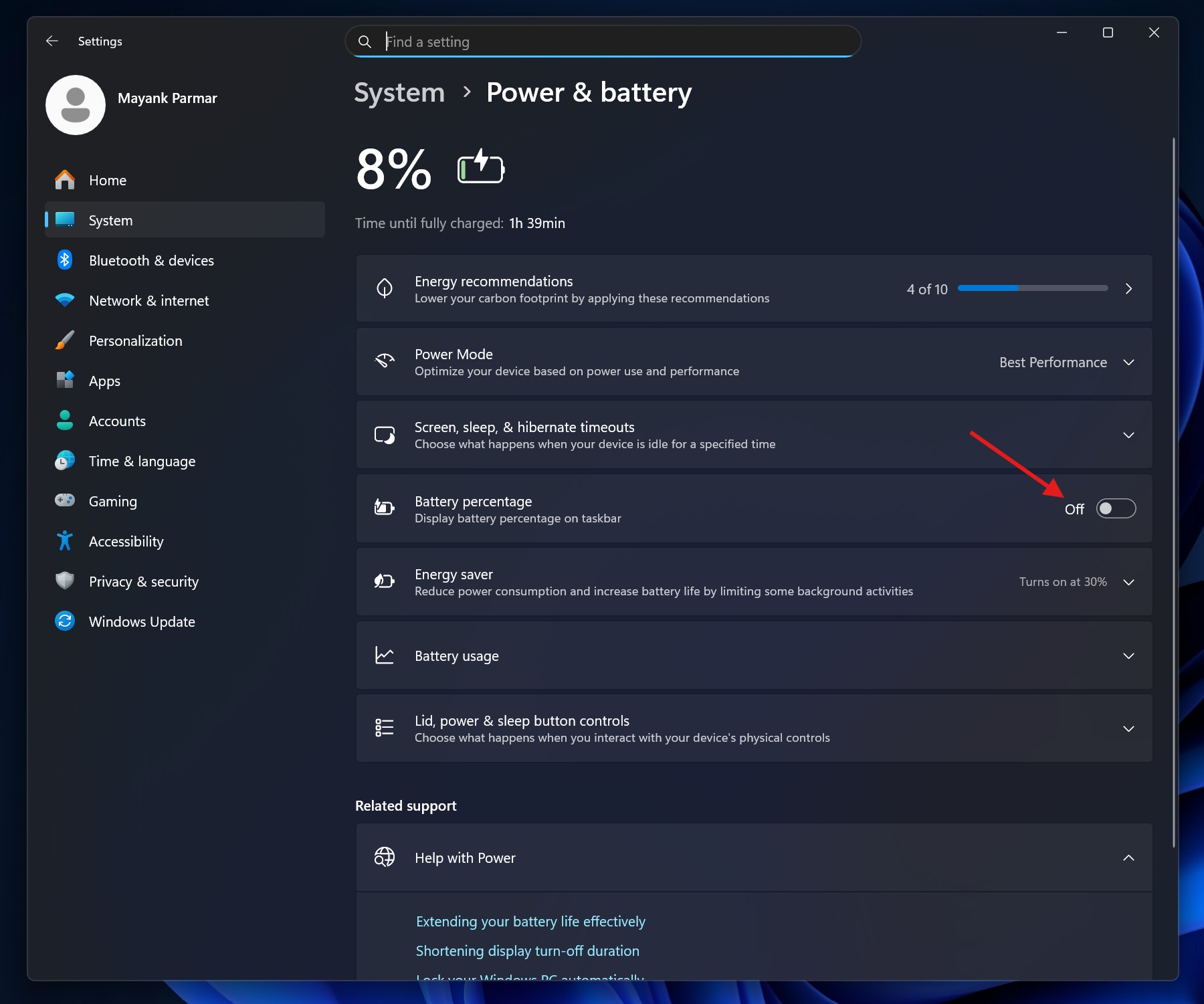
To enable battery percentage, open Settings > System > Power & Battery page, and enable “Battery percentage.”
The Windows taskbar has improved dramatically over the past several months
Granted, Microsoft is bringing back features it removed in the original release of Windows 11, but those still count as improvements.
For example, Microsoft added back the ability to drag and drop files to the taskbar, restored the ability to make the taskbar smaller when it’s crowded, and we have credible reports that you’ll be able to move the taskbar soon.
In addition to the wider rollout of the new Start menu and battery icons, Windows Latest observed that Secure Boot certificates, which are set to expire in June 2026, are now being replaced on more PCs.
Microsoft has confirmed that it began seeding fresh Secure Boot certificates issued in 2023 to more customers, including consumers. If you haven’t received the updated certificates yet, you might see them today.
But how do you verify if the fresh certificates are applied to your PC? We have a detailed tutorial that explains how to use Event Viewer and a simple PowerShell script to verify the current state of the Secure Boot certificates.
One more thing, don’t worry if you don’t see the new Secure Boot certificates. It’s still rolling out, and Microsoft will cover all PCs by the June 2026 deadline.
I have the new Start menu and colourful icons, but I do not have the Secure Boot certifcates yet. What about you? Do you see the new Start menu, colourful battery icons, and updated Secure Boot? Let me know in the comments below.