







As the world’s most popular desktop OS for decades, Windows has managed to garner a very diverse user base who have trained themselves to use their PCs with muscle memory. So, every time Microsoft comes up with a brand new, innovative UX, it almost always causes immense frustration to these users.
Windows 8 ditching the Start menu for a whole lot of live tiles might be the perfect example of this. But lately, Windows 11 has taken the crown for being a persistent source of annoyance for many, and we’re not talking about Copilot for once.
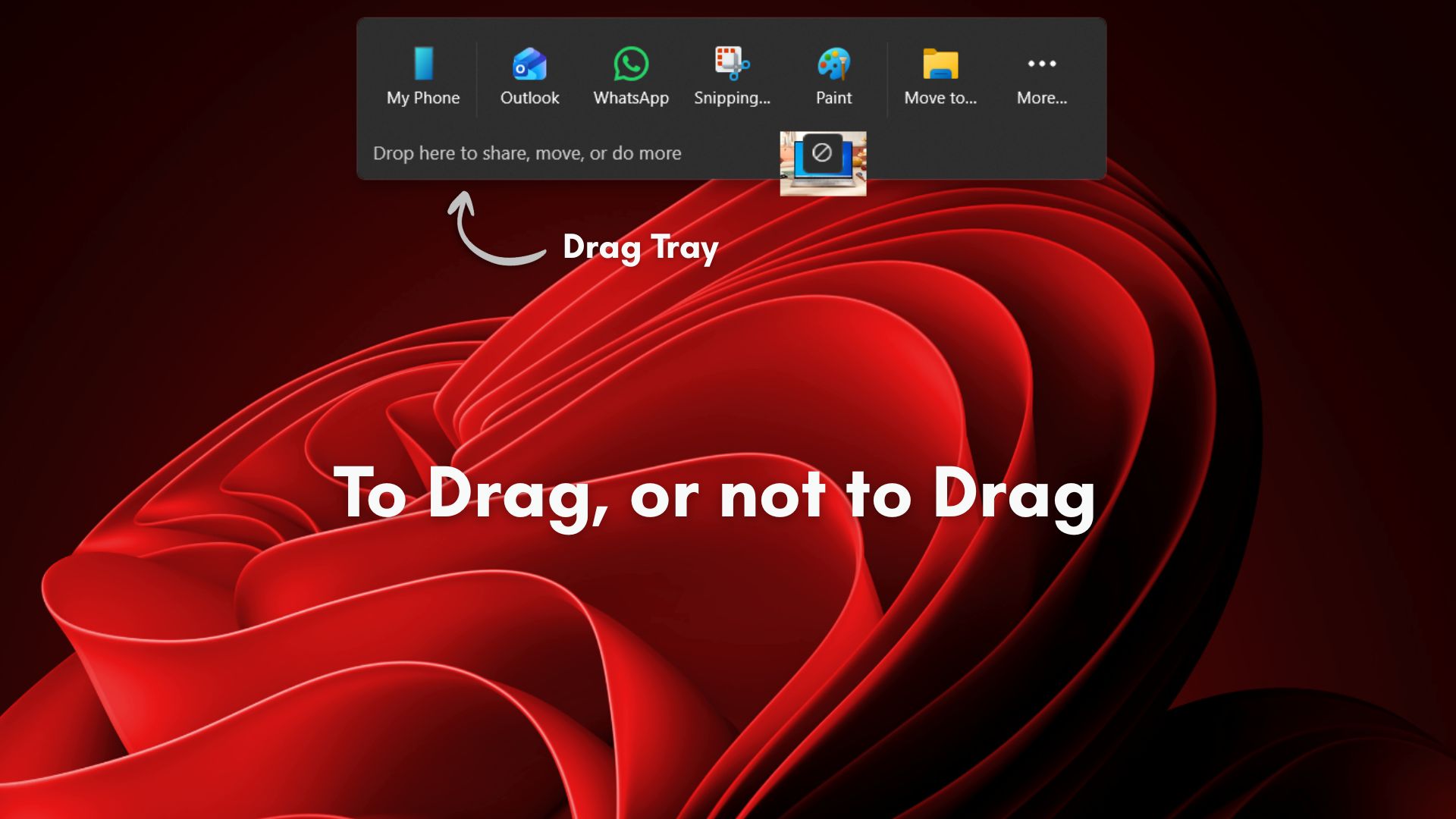
About a year ago, Microsoft introduced Drag Tray, which is a feature that lets you share or move files and folders easily by dragging them to the top of the screen.
However, people who organize their desktops with a bunch of files and folders would have a hard time getting used to the Drag Tray in Windows 11, just like this Reddit user:
Fortunately, the Drag Tray can be turned off. But, if you prefer having it around, it can be a nifty feature when you get the hang of it.
Issue with the Drag Tray pop-ups on the top of the screen in Windows 11
Drag Tray in Windows 11 appears at the top of the screen immediately when you start dragging a file, and it doesn’t even have to be on top of the screen. Note that it is turned on by default. As you drag a file, a floating tray appears that lets you share, move, or send the file to another app without opening menus.

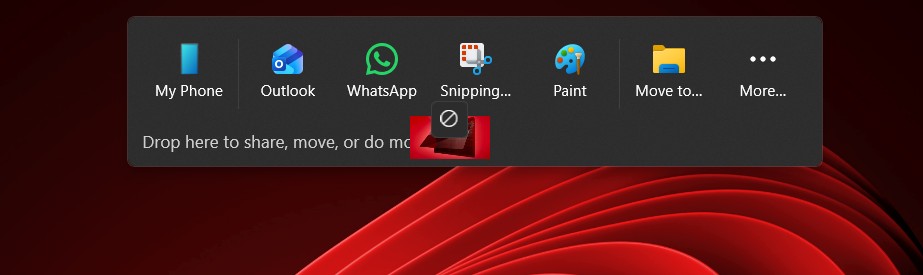
In theory, it is supposed to be faster than right-clicking, choosing Share, or manually dragging content between windows.
But because the tray appears every single time you drag something, it may interrupt completely normal actions like reorganizing desktop files or dropping items into folders placed along the upper row.
Users report that the tray pops up even when they are clearly not trying to share anything, blocking the target location and forcing them to retry the action. For people who treat the desktop as an active workspace, this becomes even more annoying. Most of these users are designers, developers, and power users who have built a habit around using Windows in a particular way.
Personally, I like the feature, but I forgot that it existed and haven’t yet used it because the tray itself is not very flexible. You cannot customize which apps appear there. There is no way to add tools like Google’s Nearby Share for Windows, KDE Connect, Snapdrop, or other third-party cross-platform sharing tools.
Why Drag Tray exists and who it is for?
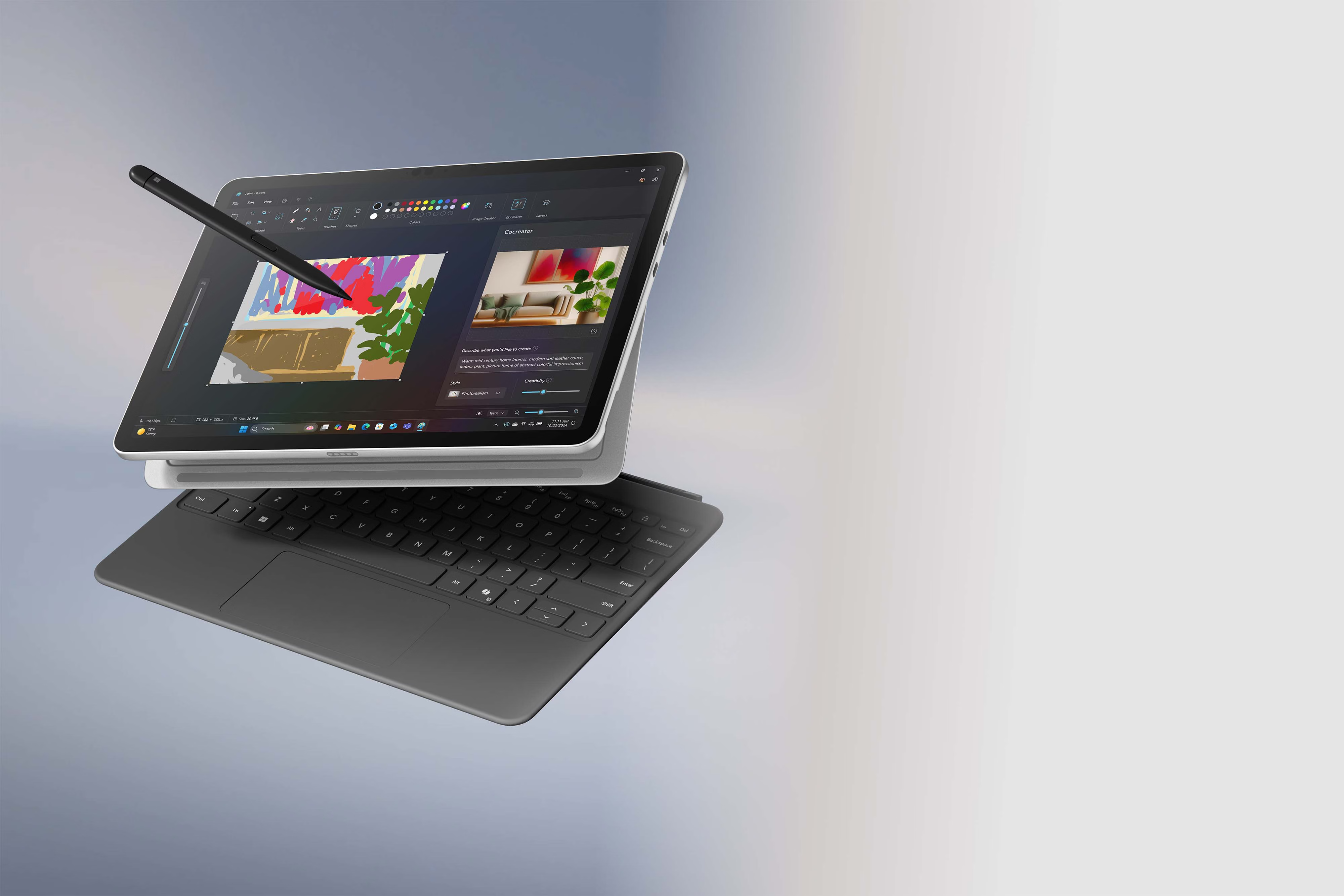
Drag Tray makes sense when you look at the type of devices Microsoft is increasingly designing Windows around. The feature is clearly aimed at touchscreen laptops and convertibles, where dragging toward the edge of the screen acts more like a gesture.
On those devices, the tray is meant to speed up actions such as quickly sharing a photo to another app, sending a document to a nearby PC, or moving files without juggling overlapping windows.
Under the hood, the feature works with Windows’ Connected Devices Platform, the same system that powers Nearby Sharing and cross-device experiences. Because that platform monitors drag activity globally, the tray cannot currently tell the difference between someone organizing icons and someone trying to initiate a share. If the cursor crosses the activation zone, the UI appears. There is no contextual awareness yet, and there are no per-app controls to refine when it should activate.
If the feature clashes with how you use Windows, you can disable it
How to disable the Drag Tray in Windows 11
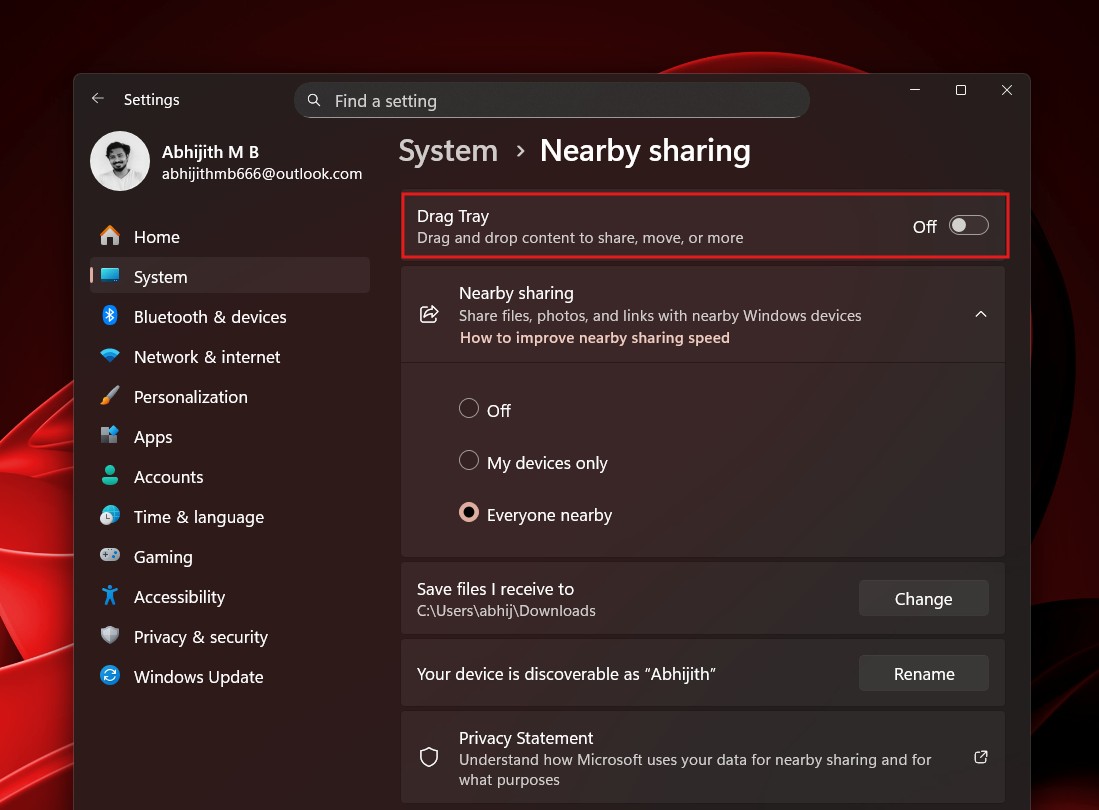
Earlier, there wasn’t an easy way to disable Drag Tray, and we had to resort to some good old registry tweaks. But with the December 2025 Security Update for Windows 11, Microsoft has generously added a simple toggle to turn off Drag Tray in Windows 11. So first, make sure you have Windows 11 updated, then here are the steps to turn it off:
- Press Win + i to open the Settings app
- Click System.
- Find Nearby sharing and click it.
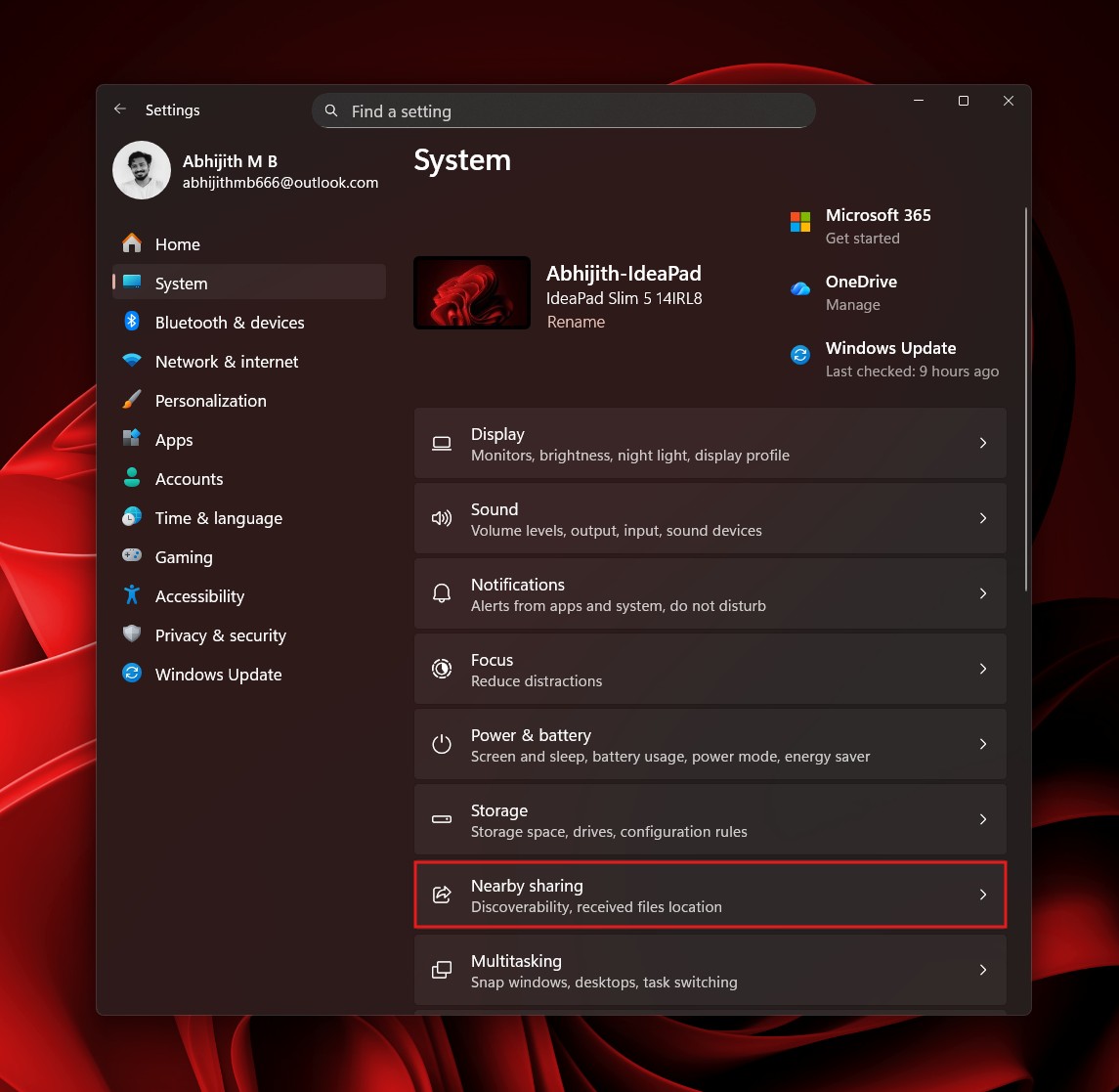
- At the top of the Nearby sharing page, you’ll see the toggle for Drag Tray. Turn off the toggle.
The fact that Microsoft decided to give a simple toggle to turn off the feature is commendable, and it goes to show how the company can add new features that may appear useful for mass users, while giving options for power users and developers who prefer the old-school Windows.
How to actually use Drag Tray effectively if you keep it enabled
If you decide to leave Drag Tray on, it helps to approach it the way Microsoft intended. It is not designed to replace the traditional drag-and-drop, and it works more like a gesture shortcut.
To trigger it properly, drag a file deliberately toward the top edge of the screen and pause for a split-second. The tray will slide down with available targets. From there, you can drop the file directly into your phone, listed app, or move to a different folder in the File Explorer, all without opening another window.
As of now, my favourite way to use Drag Tray is to drag a file from anywhere to the top of the screen and drop it on My Phone, which automatically uses Phone Link to send it straight to my phone.
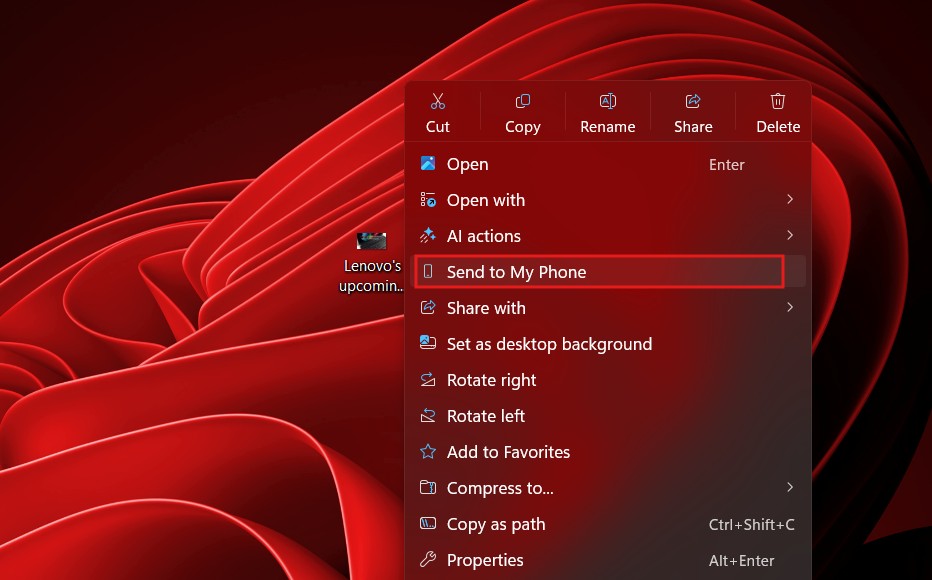
It’s as easy as that, and I prefer using the Drag Tray to right-clicking and choosing “Send to My Phone”. It is fast and works as expected. Of course, it just takes two mouse clicks, but the gesture feels more natural to me.
The other thing I like is the ability to move files to a particular folder in the File Explorer through the Drag Tray. It prevents having to switch to different File Explorer windows.
My only gripe with the feature is the lack of customization. Currently, the list of apps changes based on the file you choose. For example, dragging on a PDF would show Copilot and Microsoft 365 Copilot. But I would like to pin some communication apps I use regularly, like Telegram. Of course, you can also choose More option in the Drag Tray to see all apps to which you can share.
Drag Tray is another example of Windows balancing innovation with habit
Windows sits in a difficult position that very few platforms face. It has to support decades-old mouse-and-keyboard muscle-memory that millions of power users have etched onto their brains, while also trying to be a modern operating system that caters to the masses.
Last year, the company tried to sell the idea of an Agentic OS and was faced with severe backlash, but in 2026, Microsoft promises to fix Windows 11 with performance and reliability improvements, all while adding features that are genuinely valuable to a billion users, including the ability to resize and move the Taskbar in Windows 11.
Drag Tray is part of that experimentation. The idea itself is not flawed, but in its current form, it lacks the contextual awareness needed to stay out of the way when users are organizing files.
If the feature disrupts how you work, turning it off is a perfectly reasonable choice. If it speeds up the way you share content, it can be a useful addition once you build new habits around it, as I did.
Either way, it is another reminder that even small UX changes in Windows can feel enormous when they collide with years of muscle memory.