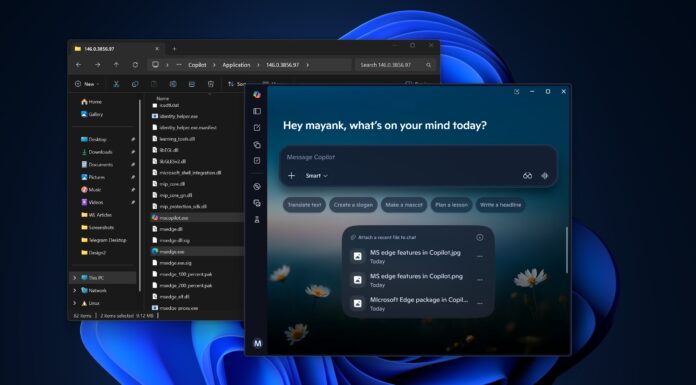








Microsoft just showed off “agents” on the taskbar via “Ask Copilot,” which is an optional feature that replaces Windows Search. Microsoft also confirmed Microsoft 365 Copilot integration in File Explorer and shared other details. These features will begin rolling out to everyone in the coming weeks, and Microsoft argues they will make you more productive.
“Stay productive without changing how you work with new Microsoft 365 Copilot and AI experiences on any Windows 11 PC,” says Jeremy Chapman, Microsoft 365 Director, in a video.
“Access Copilot and agents right from the taskbar; find answers across your files, email, and meetings, and turn ideas into polished content using voice or text. AI is right there where you already work, so you can move faster, stay in your flow, and make better decisions without switching context, opening other apps, or moving to the browser,” Microsoft added.
Microsoft is reportedly planning to cut back Copilot in Windows 11, but that does not mean the company is giving up on AI. In fact, Microsoft has confirmed it is working on multiple new AI experiences, including new taskbar agents that can be triggered with “@” in the Ask Copilot window.
Microsoft says it’s adding AI to Windows 11’s taskbar, and here’s a closer look
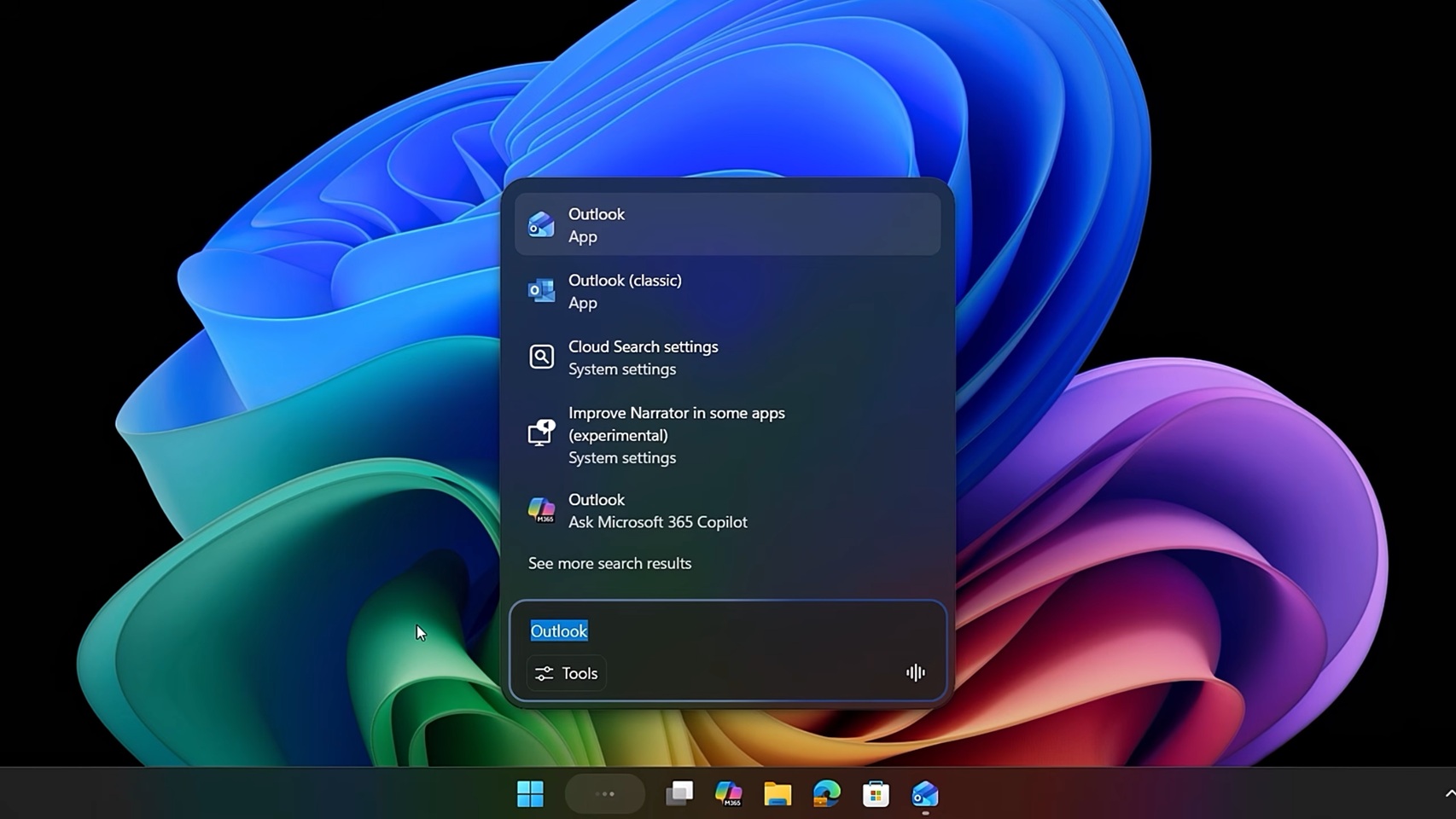
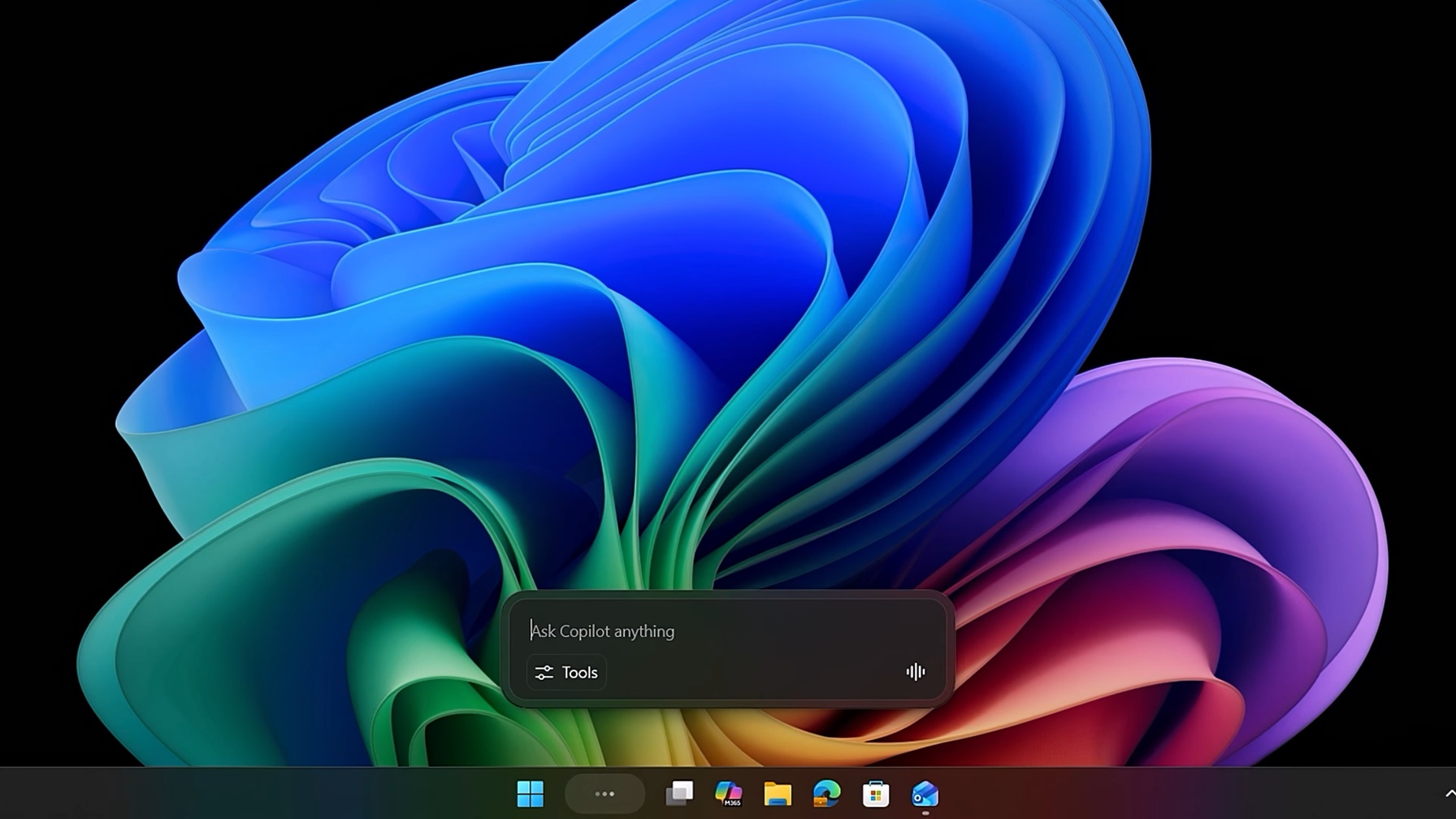
Microsoft is testing “Ask Copilot” in the taskbar search box, which lets you find files and settings on your computer using prompts. It will also power the forthcoming agents feature.
Ask Copilot is an optional feature that replaces Windows Search when it is turned on, and it is not as bad as Windows Search. While it is based on the same search index that powers Windows Search, Ask Copilot is faster, uses fewer resources, and makes searching on Windows easier.
For example, if you type “When is my performance review due?” in Windows Search, it will not be able to find anything on your PC or even on Bing.com.
On the other hand, if you use “Ask Copilot,” Copilot can pull information from Microsoft Teams and your Outlook calendar, identify a performance review meeting, and more. That is one use case. Another could be “how do I make my cursor look bigger?” which will surface the correct setting.
Microsoft cannot integrate AI agents into the existing Windows Search interface, so it built this new “Ask Copilot” interface, which uses new Windows shell integration.
“Now, this uses new Windows shell integration, so that long running agents can be viewed similar to apps. So I just need to start with the @ symbol to pull up my agents. Now I can find, open, monitor and work with my agents directly from the taskbar,” says Jeremy Chapman, Microsoft 365 Director.
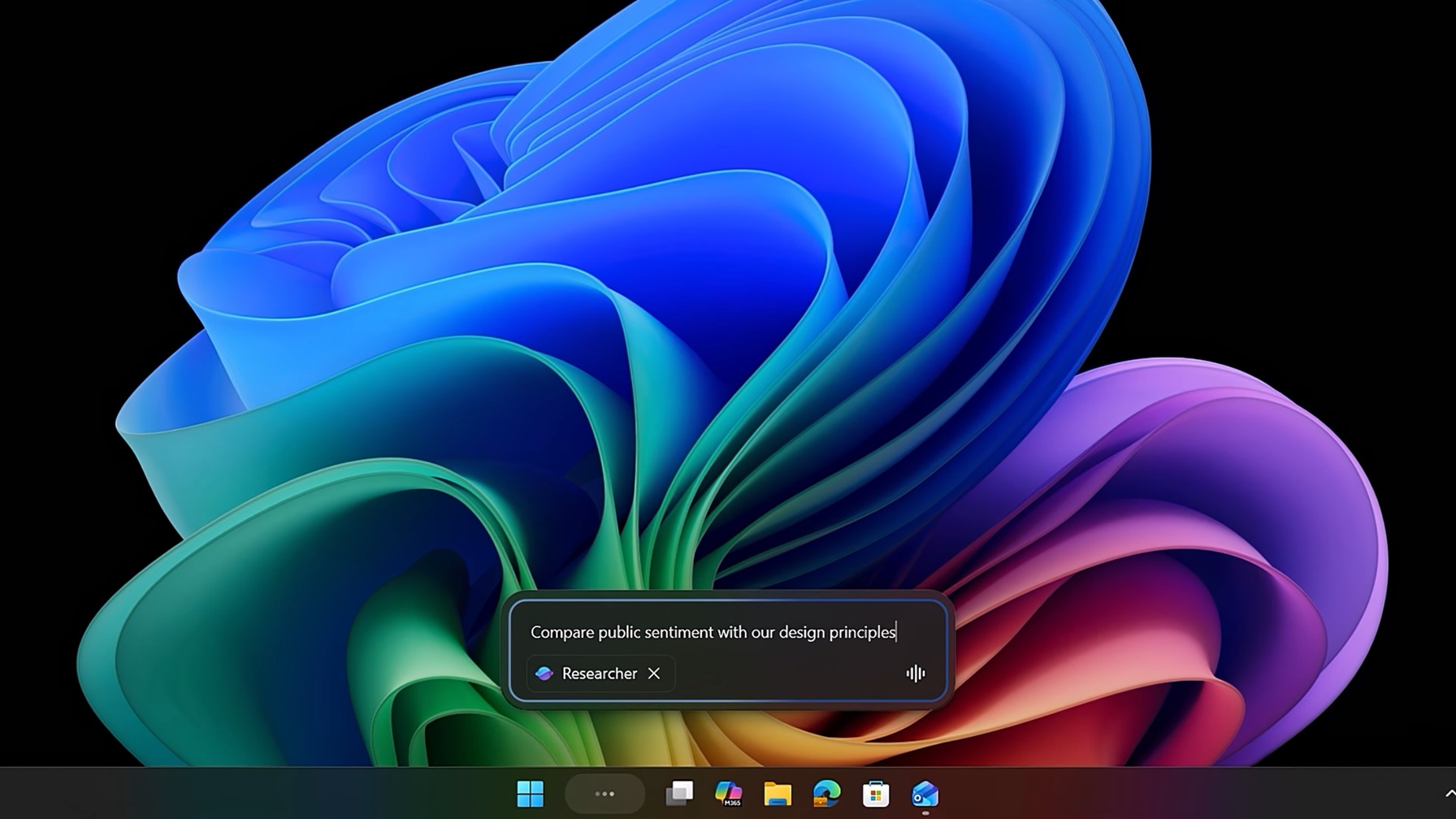
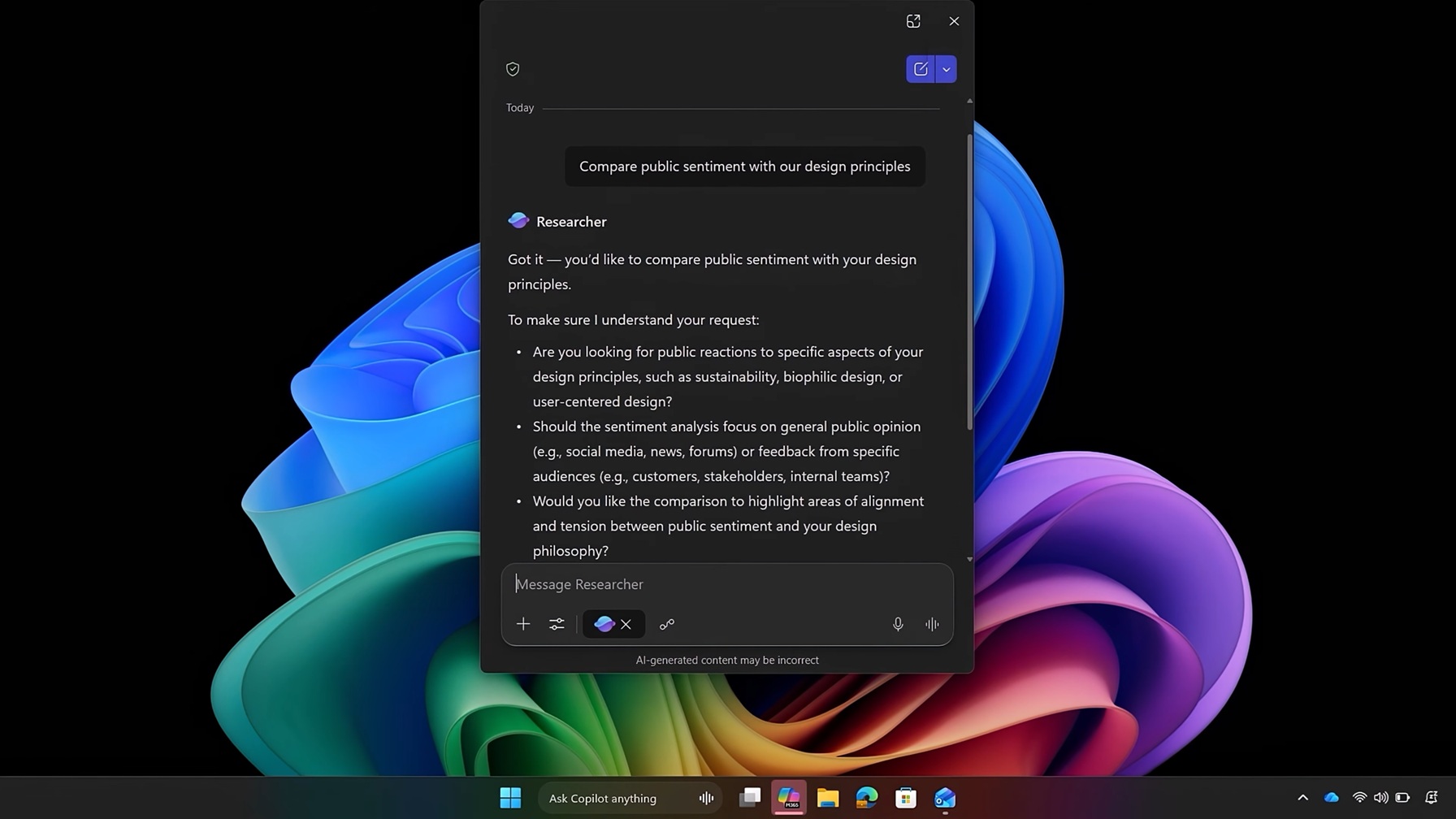
In Ask Copilot, you can use “@” to tag different AI agents, such as the Microsoft 365 Researcher agent, which can help you perform deep AI research directly from the taskbar.
The Researcher agent can run for 10 minutes or more, as it is powered by ChatGPT’s Deep Research feature. These agents can keep running in the background, and taskbar indicators show how the agents are progressing.
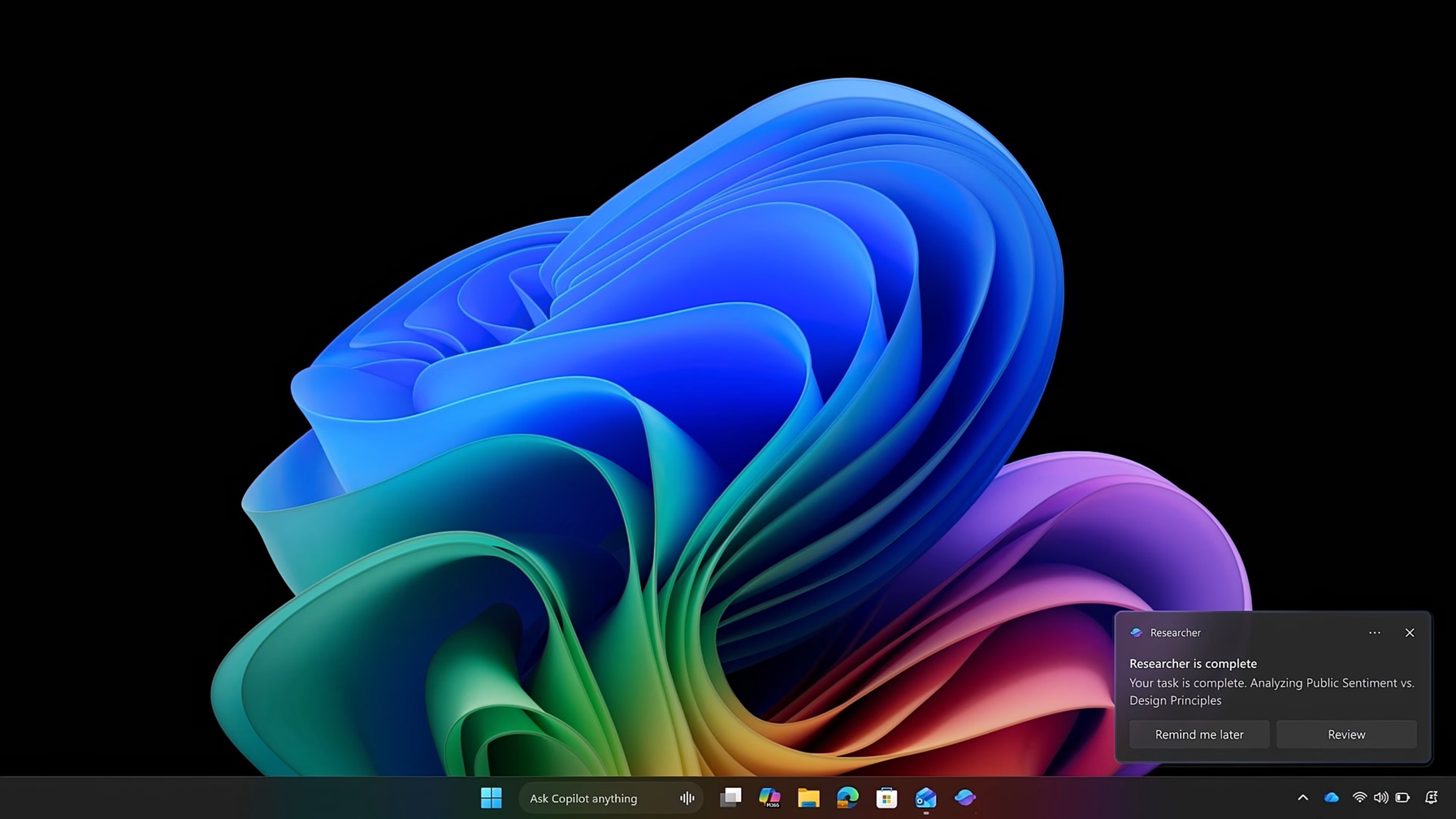
“As agents run, there are status indicators directly on the taskbar, similar to when you download large files, where you can track progress and see once it’s complete. So, your agents stay visible and easy to check on as you work, not buried in browser tabs,” Microsoft noted.
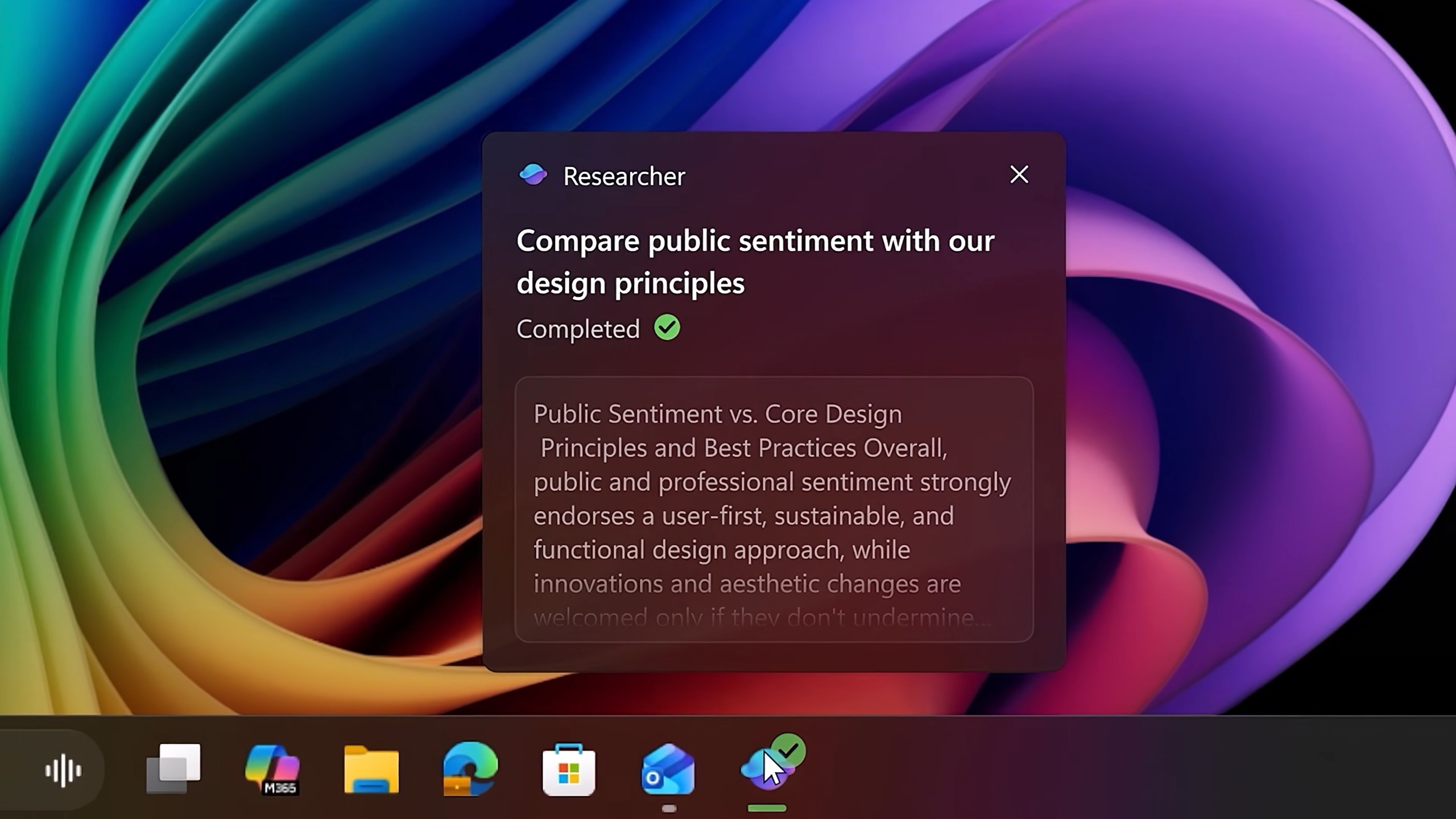
In the above case, you can see a green checkmark on the Research icon, which means it has finished the assigned task, and a short summary is ready. You can jump straight into the Microsoft 365 Copilot app to dive deeper, but for most users, the Researcher Agent’s AI summary will be useful.
Copilot in File Explorer
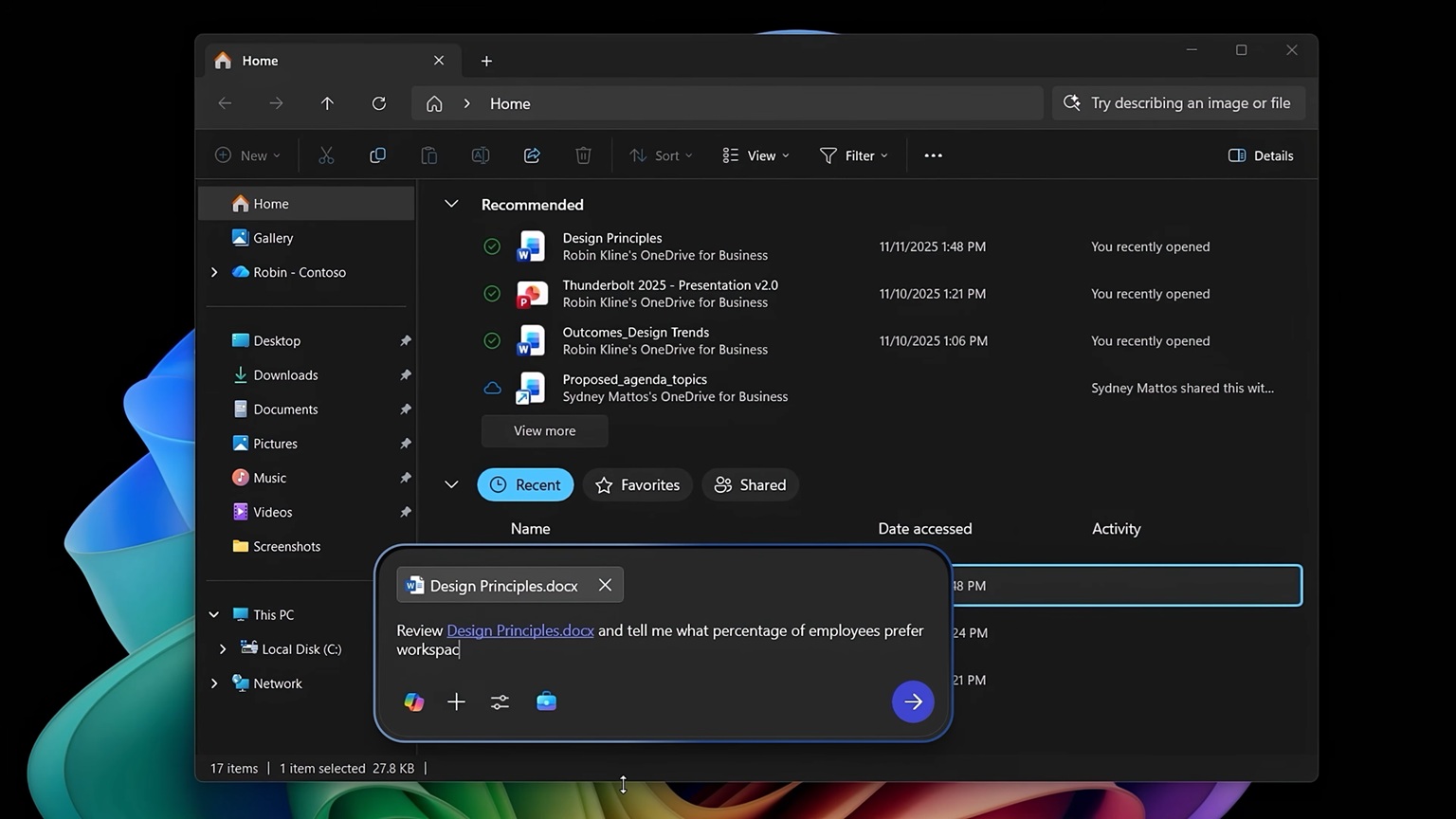
Microsoft is rolling out a new “Ask Microsoft 365 Copilot,” which should offer insights for shared files. If you select a synced file, it can provide insights such as summaries, context, or next steps for documents.
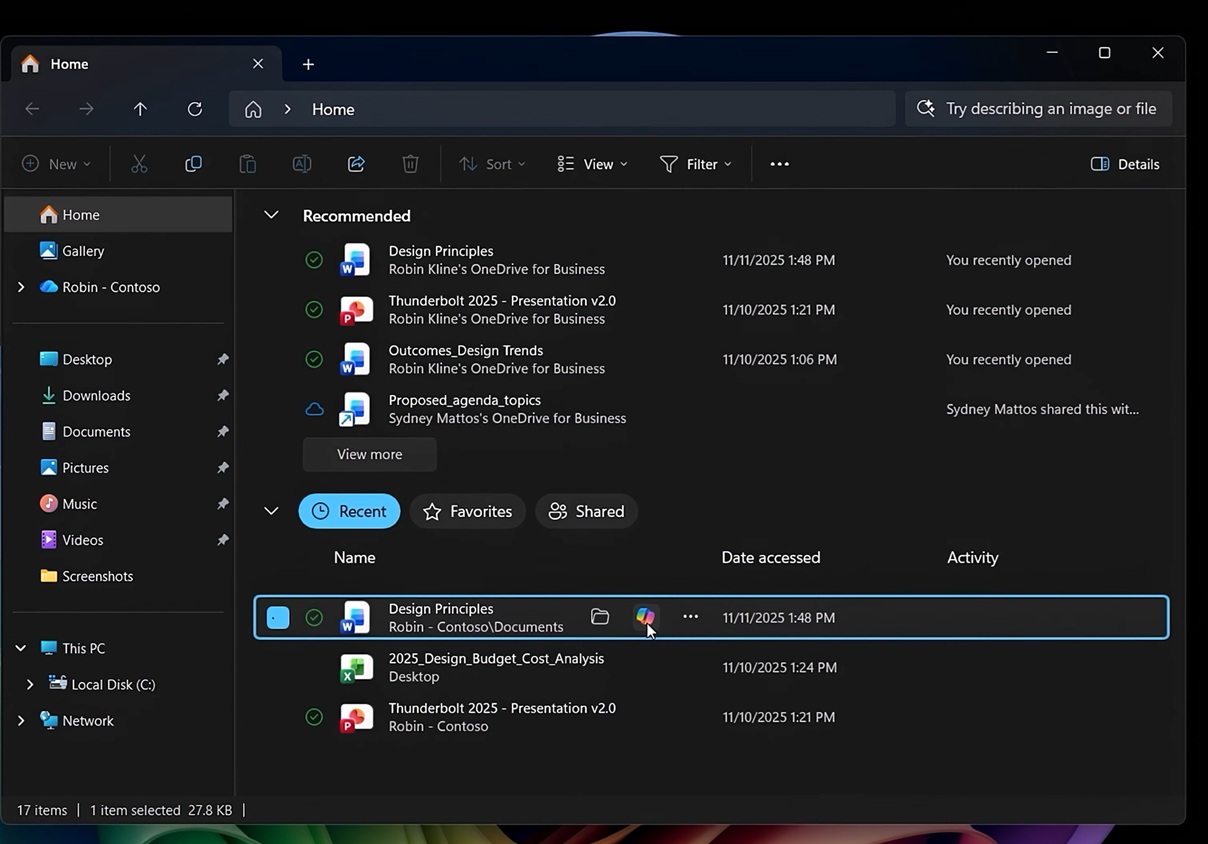
For example, when you click the MS 365 icon, it opens the app and gives you a brief overview of the selected file.
As I mentioned, these features will begin rolling out in the coming weeks.