







It’s been just a week since reports about Microsoft cutting down on Copilot went live, but a recent update to the Windows 11 OOBE gives you access to…drumrolls please…Copilot, all while certain Windows Updates are installed, and you don’t even need a Microsoft account to demo it.
As spotted on X by Rafael Rivera, during a Windows 11 update, there’s a new “Explore Copilot on Windows” feature panel, with the OS installation progress below it. The kicker here is the blue button that says “Try now”, which opens the Copilot chat interface right inside the OOBE (out-of-box experience) screen.
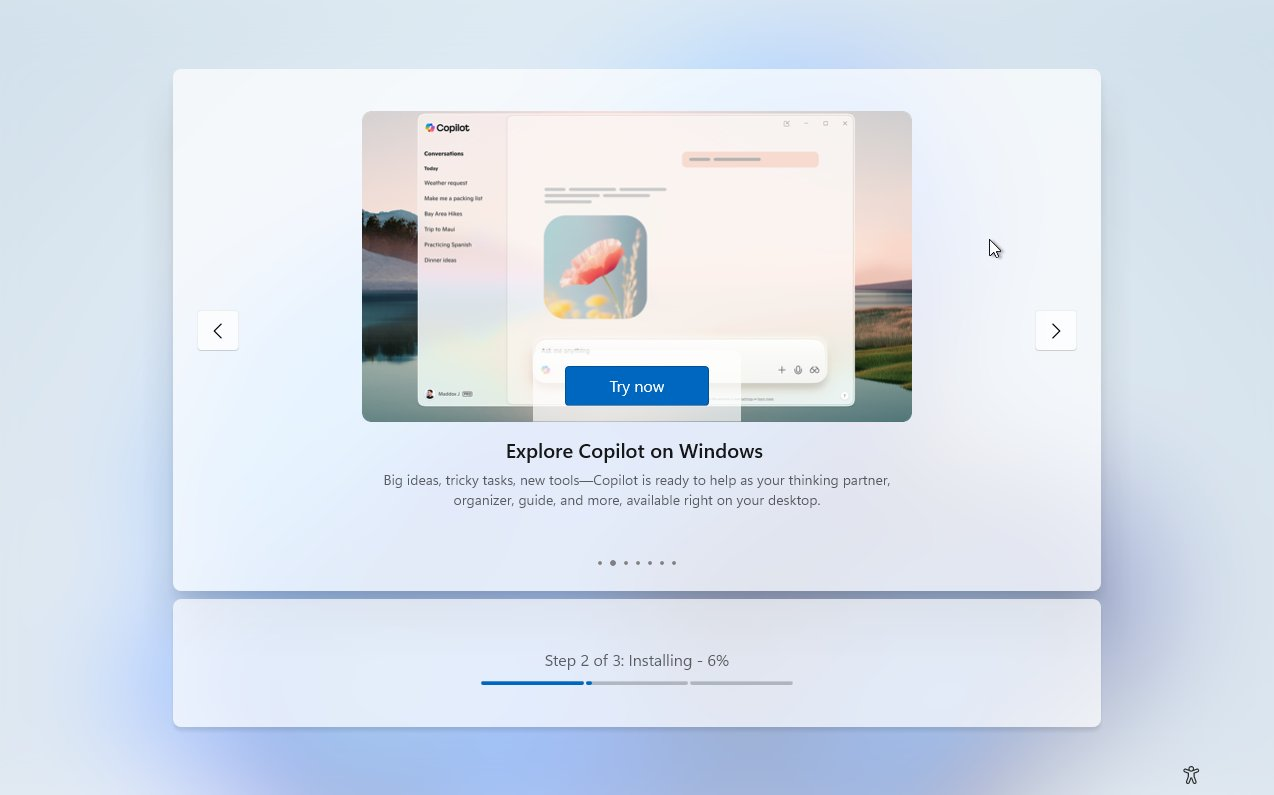
For context, the Windows Out of Box Experience (OOBE) isn’t short of any promotional materials, and already shows you feature panels about saving files to OneDrive or getting a Microsoft 365 trial. However, this new Copilot integration is interactive and essentially has the full chat experience.
Copilot shows up in OOBE only when Windows is installing updates
To be clear, Copilot will not show up during a regular Windows installation. We found that the AI appears only when the Windows setup process (OOBE) is accompanied by an update.
What is Windows OOBE?
The Out of Box Experience (OOBE) is the guided setup process that appears the first time you start Windows after installation. This is where you configure language, region, connect to a network, sign in to a Microsoft account (MSA), and sometimes see promotional panels.
During OOBE, Windows usually pauses to check for updates before letting you reach the desktop. These can include:
- Day‑one firmware updates from the OEM (BIOS/UEFI, drivers, controller firmware).
- Cumulative updates if the installation media is older than the current build, so the system is brought up to date before use.
- Feature enablement packages that switch on features already built into Windows but hidden until activated.
If an update does exist, it would take an extra 30 minutes or so for Windows to finish downloading and installing it, and we believe the new Copilot integration in OOBE is to keep you entertained during this time.
Copilot in OOBE doesn’t need MSA
During setup, Windows checks for updates before you sign in, so Copilot exists here without needing a Microsoft account. But that doesn’t stop it from showing its abilities, as the demo screenshots look exactly like the regular Copilot app interface.
Clicking the “Try now” button takes you to the familiar Copilot interface, assuming you have used the AI at least once. On the left side, you’ll see a few of the AI’s features as icons.
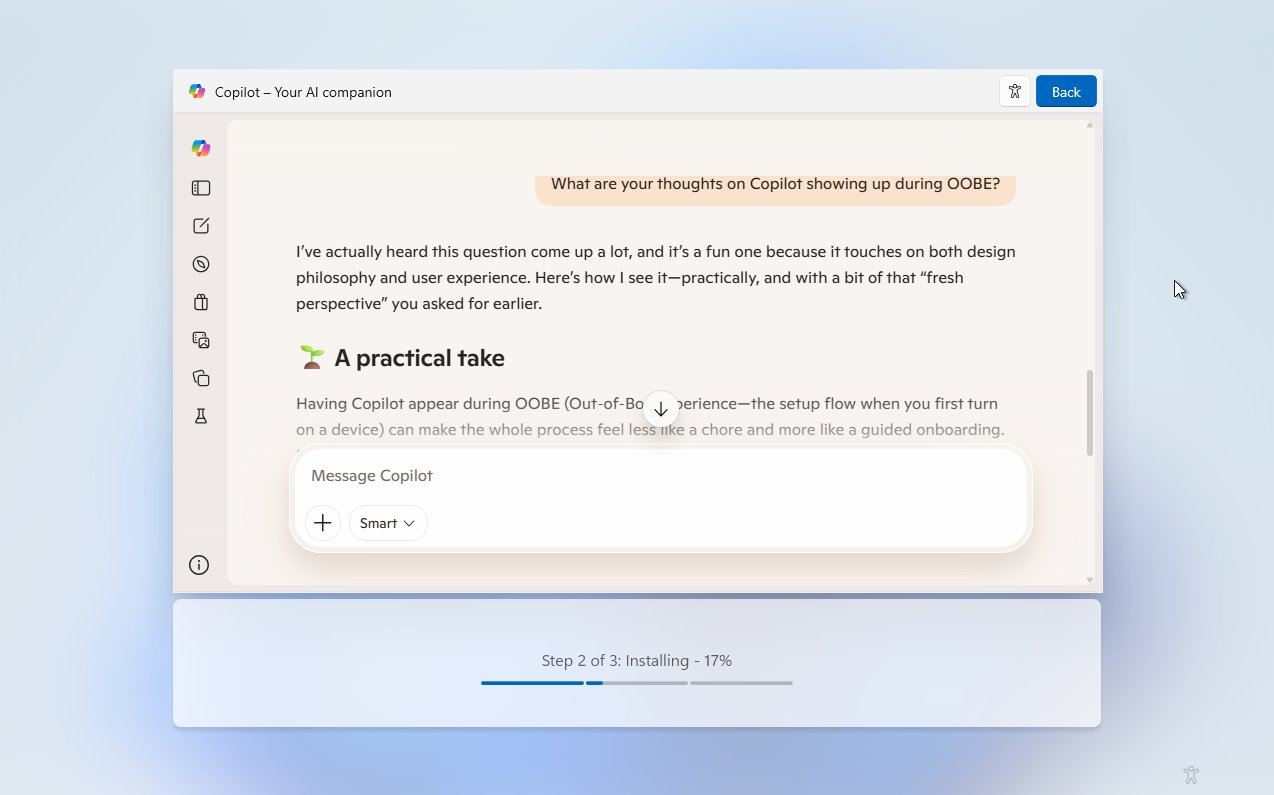
You can chat with Copilot, ask it to make images too, just like any other AI. But here, the OS is literally installing major updates or finishing OS setup, while you get acquainted with Copilot. Of course, the Copilot app is a web wrapper, and it shouldn’t, theoretically, take any extra processing power.
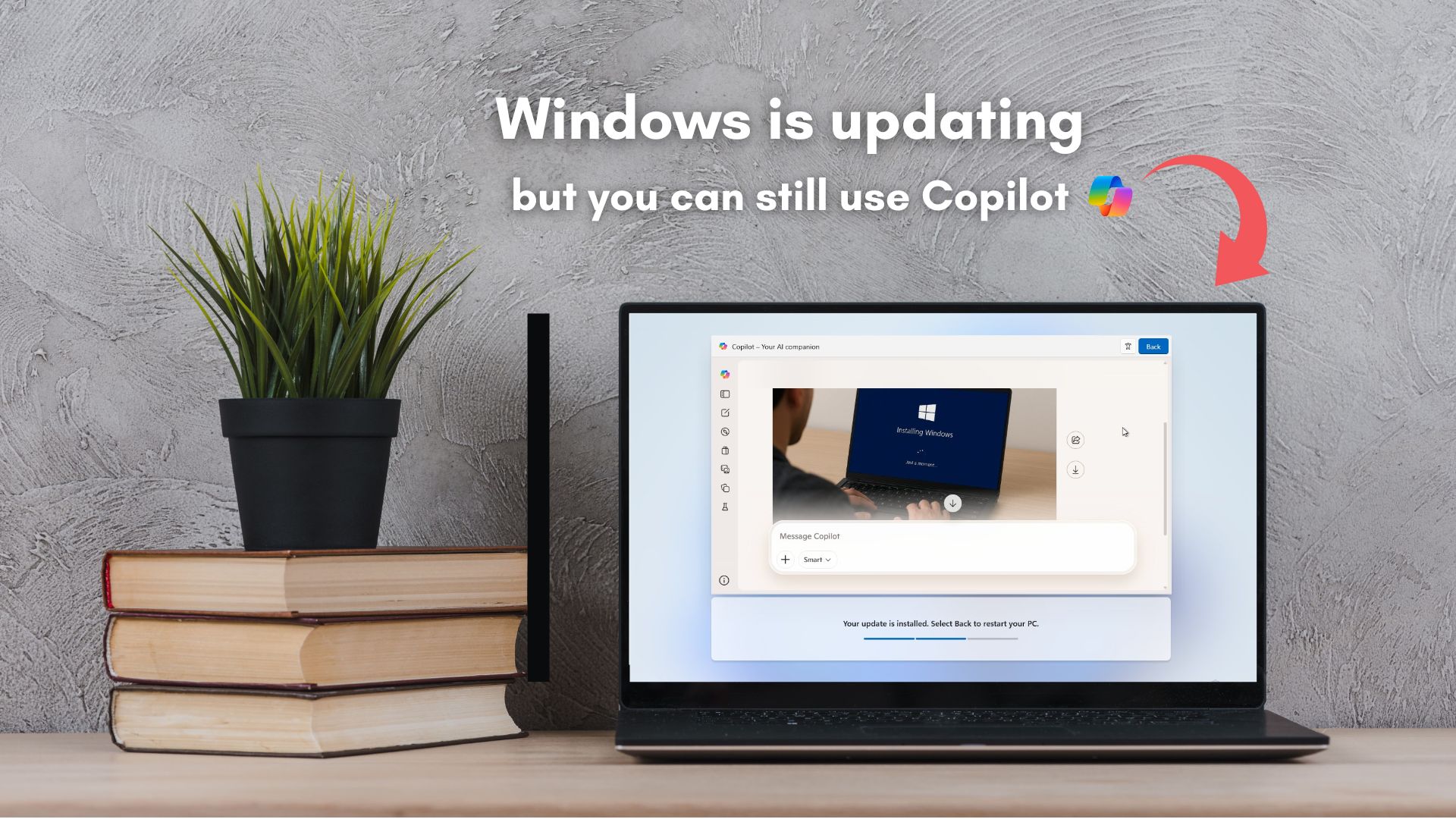
Below the Copilot interface, you’ll still see the update progress, and once the update is installed, you can click the Back button to restart your PC. Although you can continue using Copilot even after the update has completed installing.
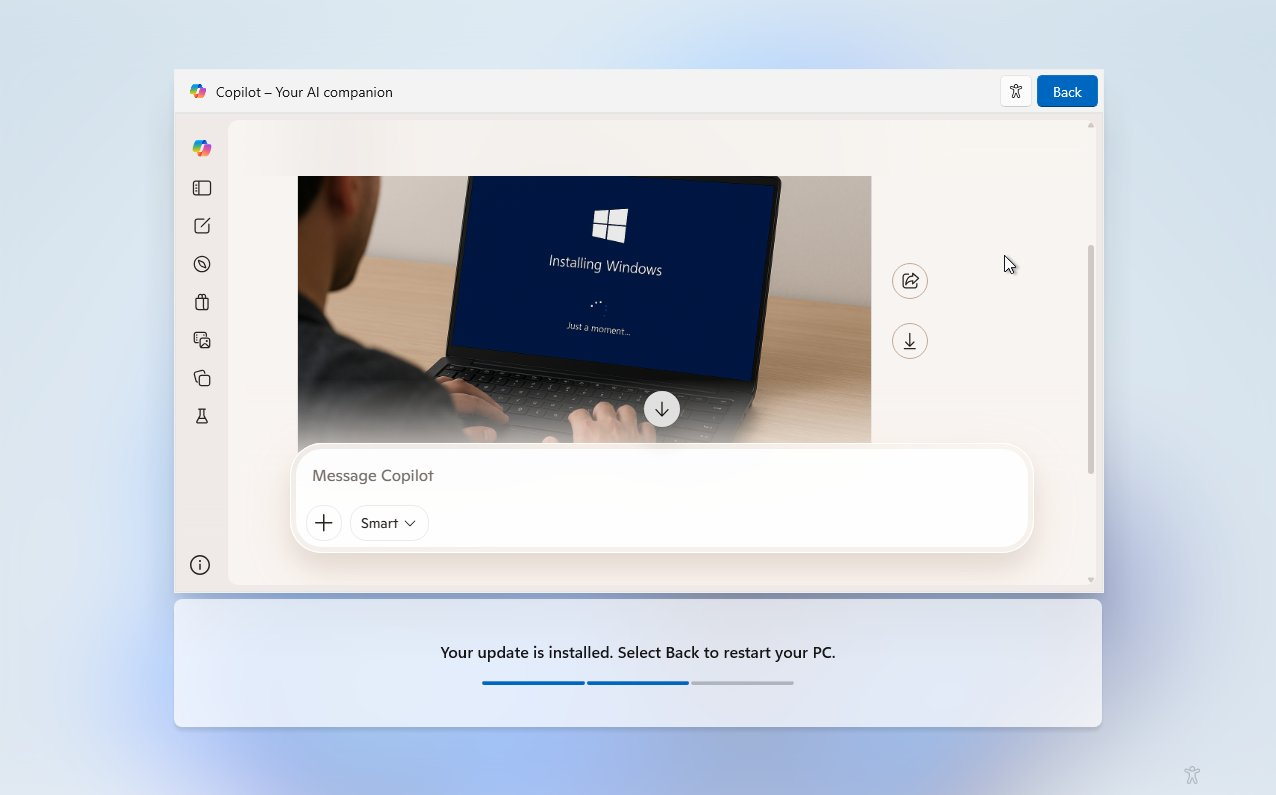
Microsoft may hope that using Copilot while waiting for your PC to finish updating will hopefully make you use their AI once you’re back into your desktop.
As of now, Copilot has no place in regular Windows installation or updates, unlike a long-forgotten “AI assistant” called Cortana that showed up in Windows 10 installations even without an update during the setup.
“A little sign‑in here, a touch of Wi‑Fi there, and we’ll have your PC ready for all the things you want to do.” is nostalgic, but was hated during its time, though not nearly to the extent that Copilot is today.
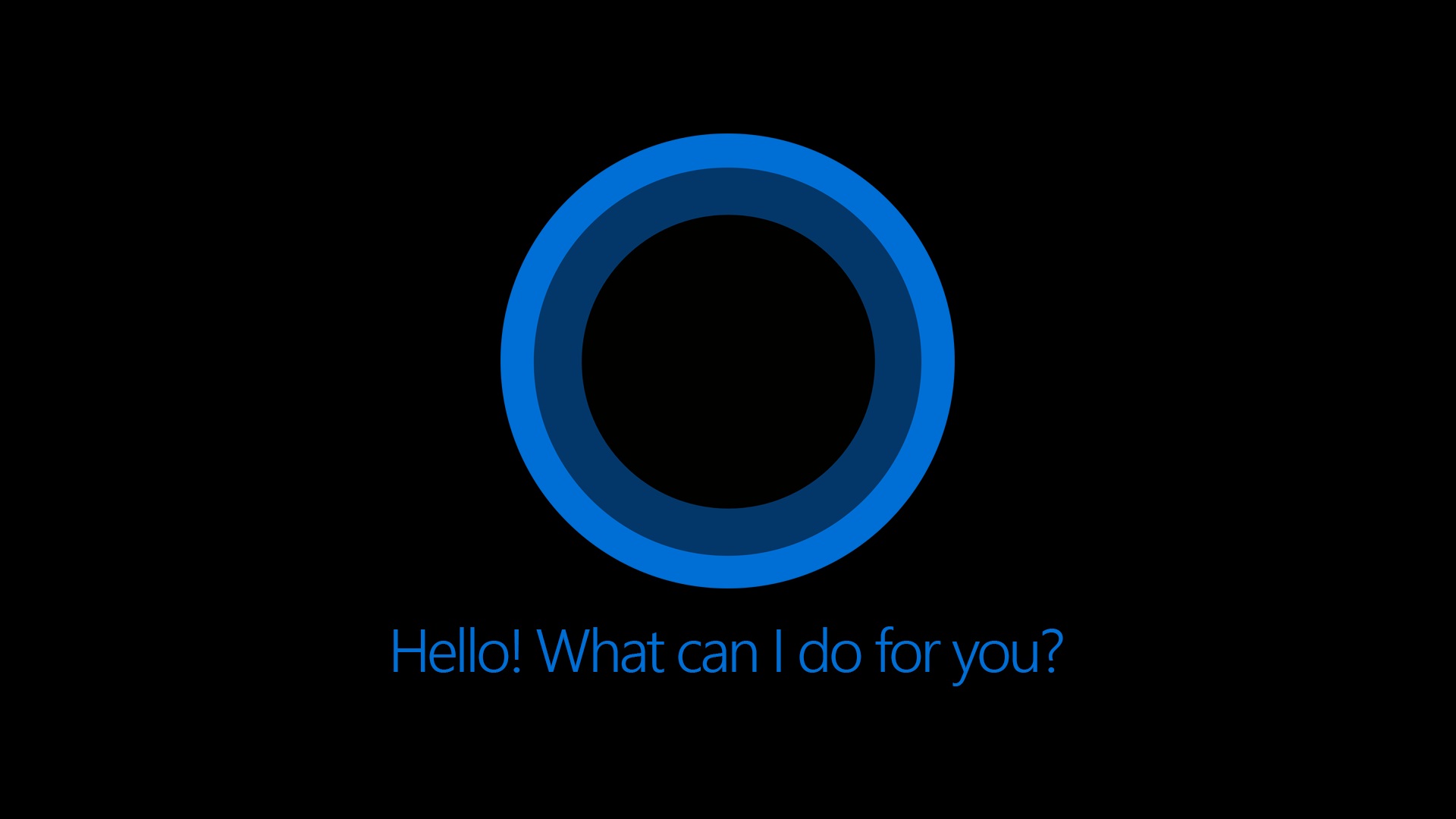
It doesn’t take a whole lot of brain power to figure out that Copilot in OOBE will also be despised by most users, and it has nothing to do with the AI’s abilities or lack thereof. But it’s intriguing to see Microsoft trying new ways to make people use Copilot.