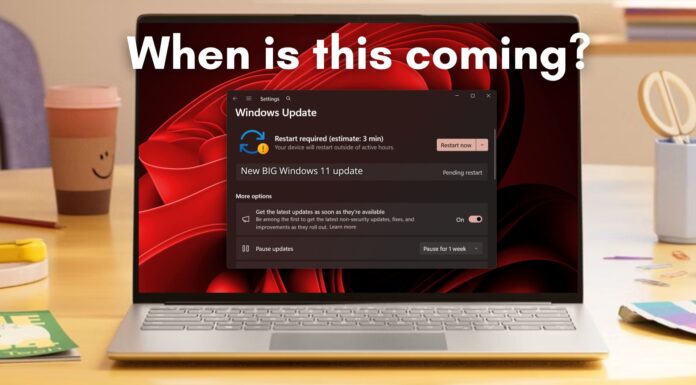







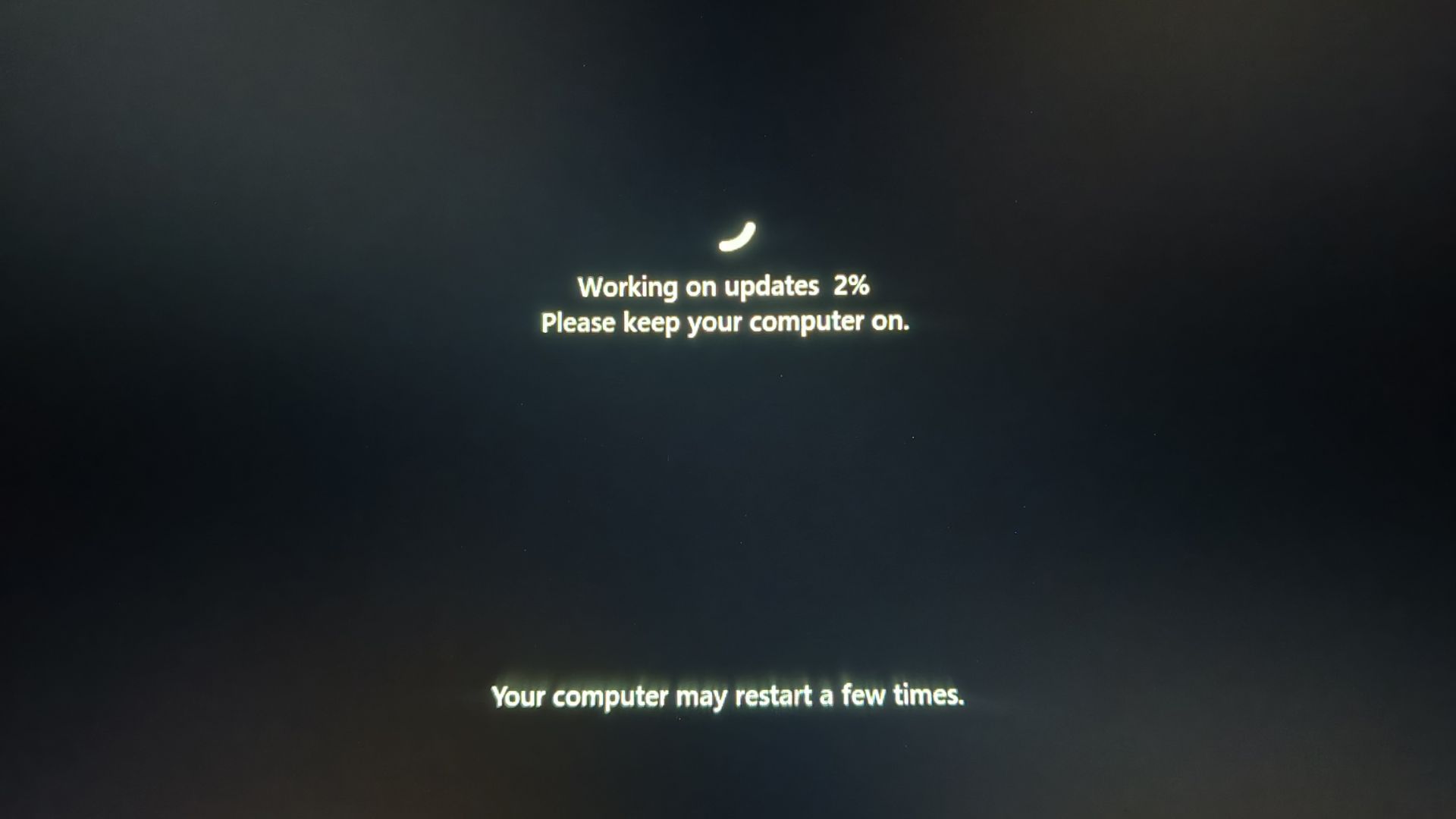
Windows PCs getting a software update during important work has been a long-standing joke on social media, to the point where it even made its way to a popular Netflix series. Now, Microsoft has finally decided to take action. Not by making Windows updates seamless, but by reminding people how to stop their PC from restarting when they don’t want it to.
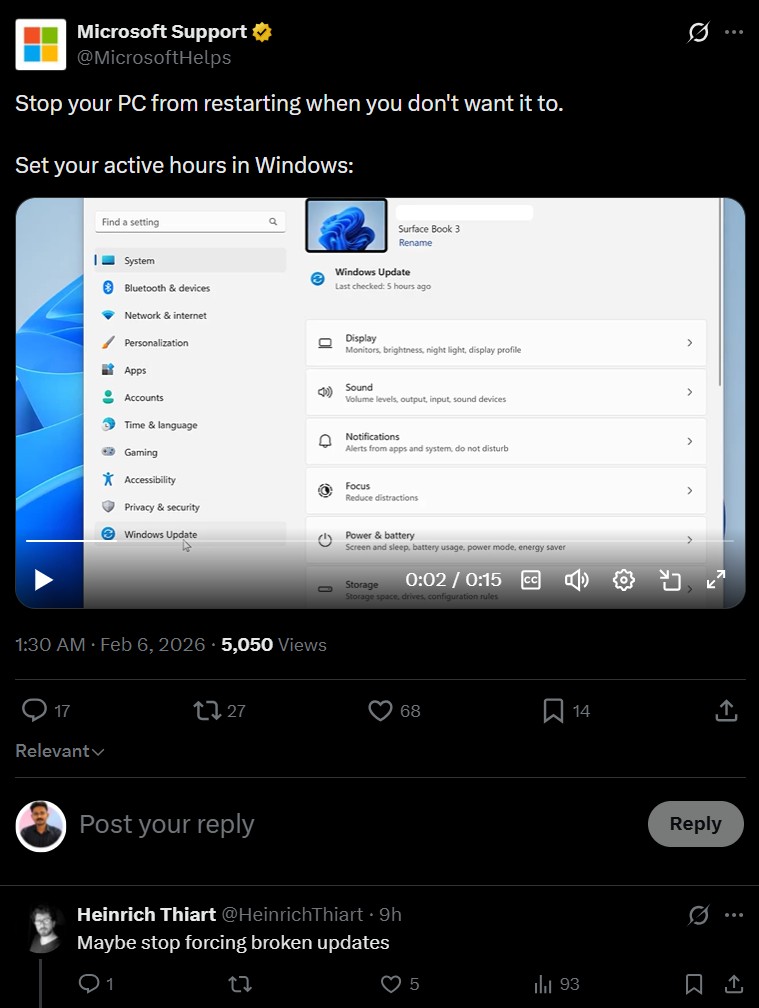
Yesterday, Microsoft’s customer service and support team posted a 15-second tutorial video on their official X handle about setting your active hours in Windows.
The ability to set active hours in Windows is anything but new, and while the tutorial was a helpful reminder, it’s the first sentence in the post that made people go haywire in the comments sections.
“Stop your PC from restarting when you don’t want it to”, said Microsoft’s support team, but the top comment in the X post retaliated with, “Maybe stop forcing broken updates”, bringing the blame back to Microsoft.
Active hours in Windows 11 explained
The “Active hours” feature is now almost 10 years old, and it was first introduced in Windows 10. The feature allowed users to set specific hours during which Windows would avoid restarting for updates.
Of course, the purpose of Active Hours was to reduce frustration from unexpected restarts caused by Windows Update.

Users could specify a time range (initially up to 12 hours, later expanded to 18 hours) during which they typically used their PC. Windows 10 would then avoid rebooting during those hours.
However, with Windows 11 in 2021, Microsoft added automatic adjustment of Active Hours based on device usage patterns. The manual option still exists, but “Automatically” is set as the default.
On my PC, the Active hours are “Automatically” set from 7:00 am to 1:00 am, which is an 18-hour window. But funnily enough, I’m writing this article at 2:30 am, and I’ll probably be sleeping well past 7:00 am.
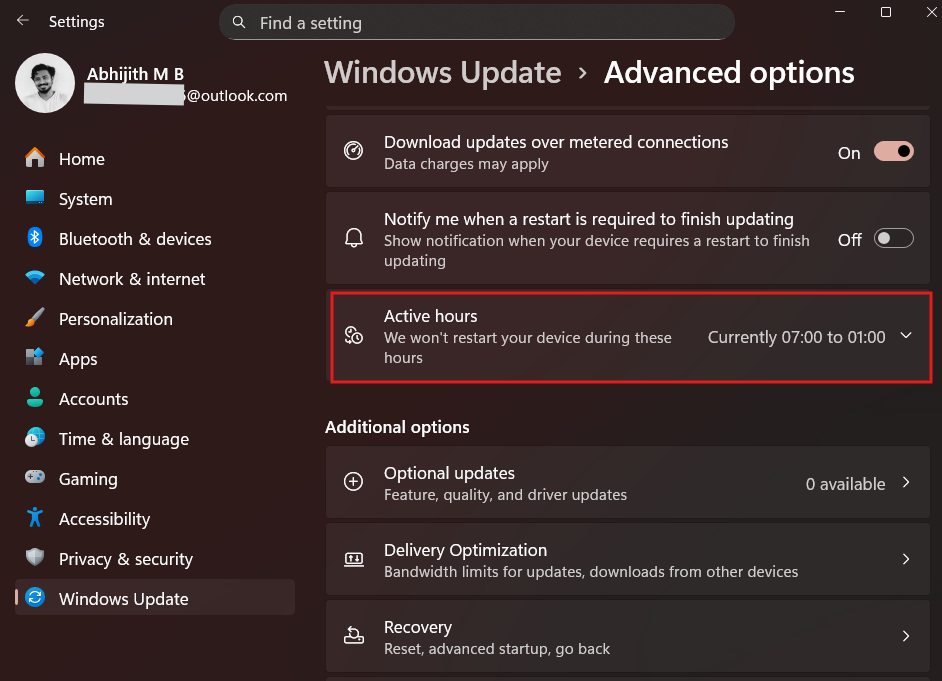
It’s not that Windows wrongly calculated my usage patterns; it’s just that I don’t have a set pattern for work, which might be the case for many others out of the 1 billion Windows 11 users.
In theory, this could force updates even when you are in the middle of work, although I haven’t ever personally faced a situation where Windows forced an update on me. There would be a ton of notifications before that happens.
That being said, such a large user base means that there would be people who avoid such notifications as long as they can, and might have had to experience the dread of seeing Windows take over their PC with an important Security Update.
Also, the auto update complaints from users existed well before Windows 11, and the automatic Activity hour setting might have been Microsoft’s way of fixing the issue. But the memes never slowed down, and neither did the complaints. The company is now telling users to manually set active hours to prevent their PCs from restarting while they are being used.
Microsoft shows how to set active hours in Windows
In the X post, Microsoft’s social team shows how to change active hours from the default automatic mode to manual mode.
Go to Settings > Windows update > Advanced options > Active hours
Then change the option from “Automatically” to “Manually”, following which you’ll be able to select the Start time and End time. During this interval, your PC won’t restart on its own to finish installing an update, unless you’ve turned on the toggle “Get me up to date”.
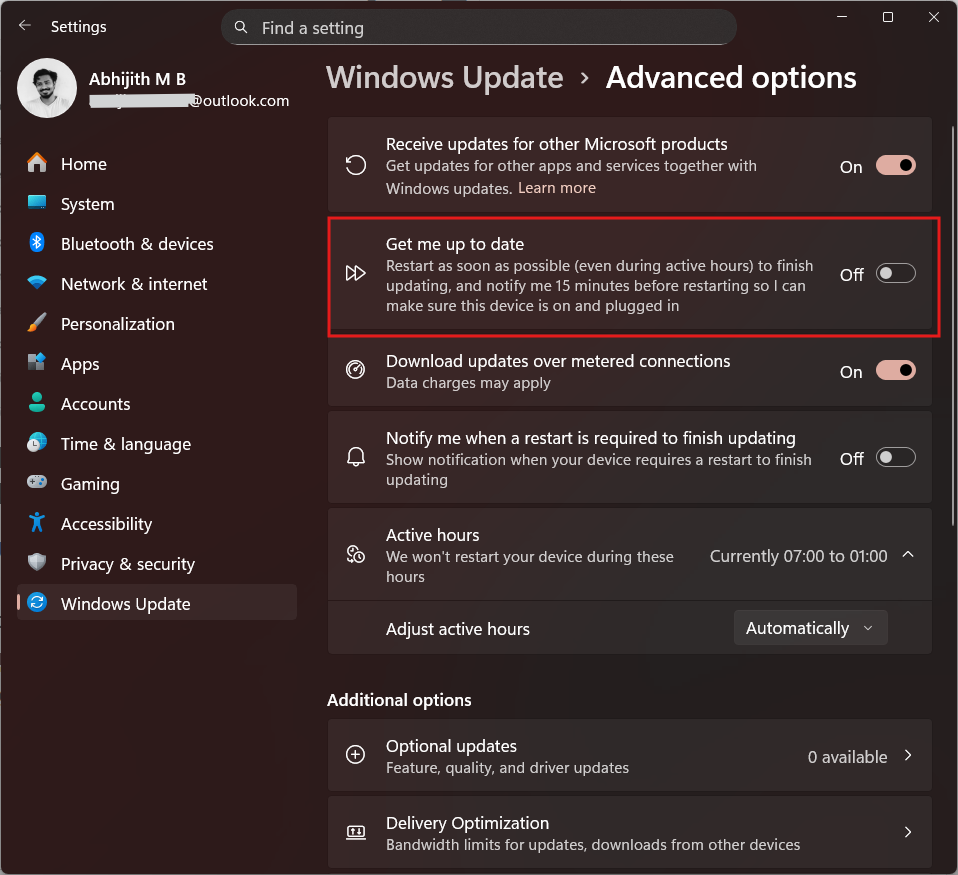
What the “Get me up to date” option does is that it will restart your PC to finish installing an update, even if you’re in your Active hours, be it set manually or automatically. Yes, it can be confusing for some, and it is totally unnecessary, just as a user from Russia has commented on the Microsoft Support post.
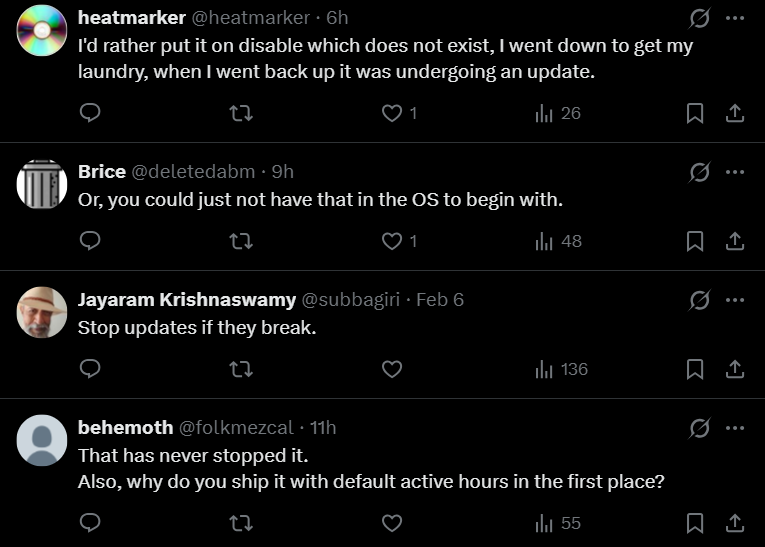
Speaking of comments, most of them are criticizing Microsoft for continuing to push broken updates, and the hate here is so enormous that the company has now promised to fix Windows through 2026, especially in terms of performance and reliability. People also ask Microsoft to give a direct “disable” option to stop updates from coming in the first place.
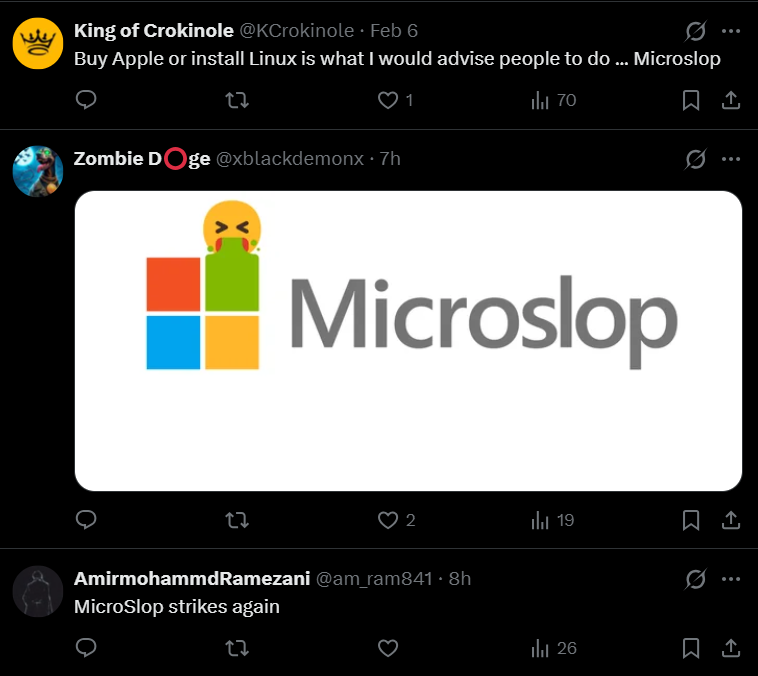
Another set of comments targets the company with the recently viral nickname “Microslop”, even though the post has nothing to do with AI, which explains the deep hatred that Microsoft has managed to garner through their aggressive AI push.
Fortunately, things will turn around in 2026, as the company announced that they’ll be taking steps to reduce AI intrusiveness throughout the OS.
Meanwhile, if you wish to take matters into your own hands and remove up to 13 AI features from Windows 11, you can do so without the need for any risky third-party tools.