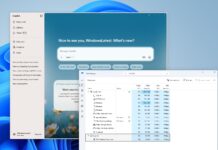






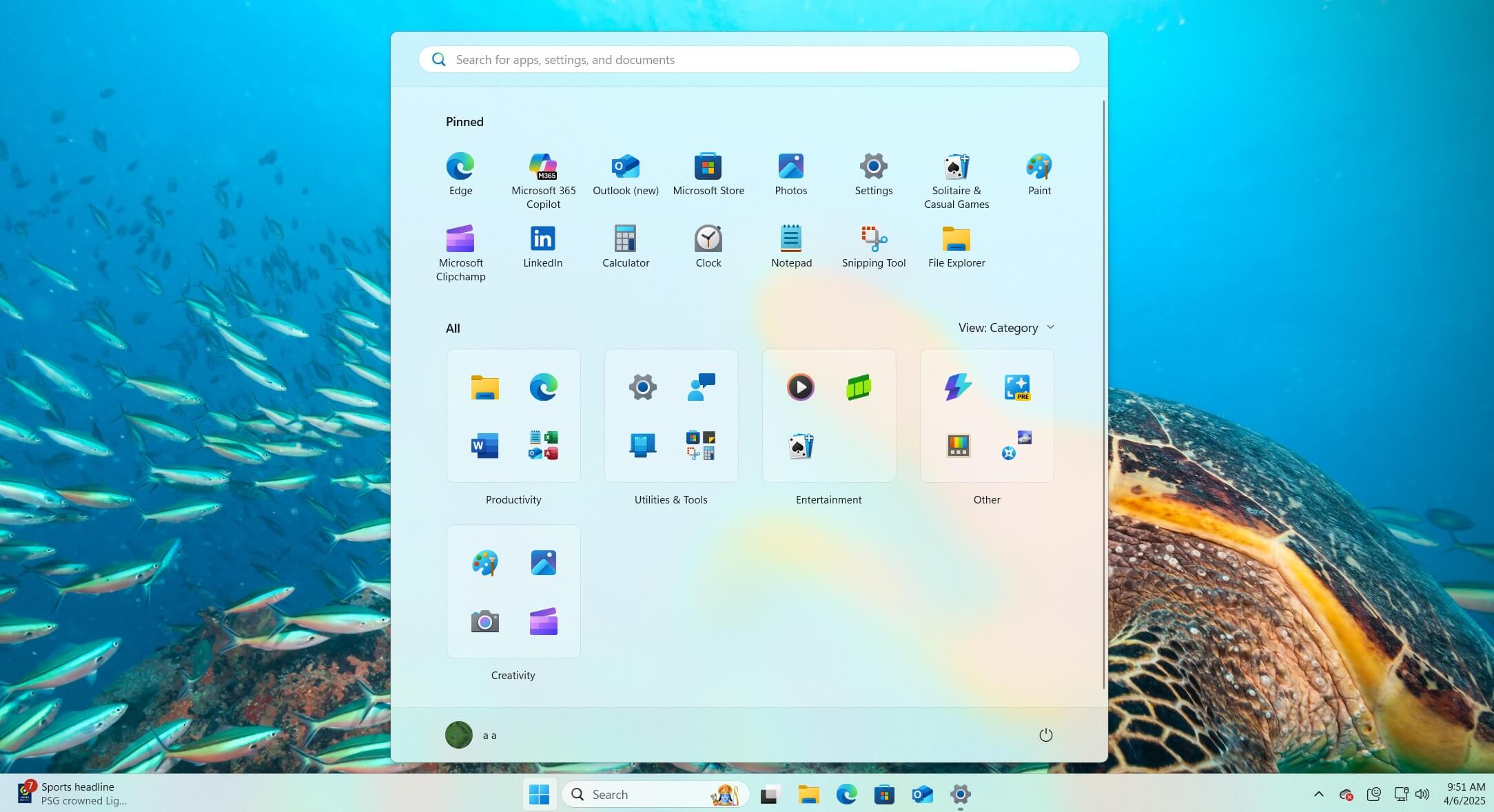
Microsoft told Windows Latest that the new Windows 11 Start menu is now widely rolling out as part of the January update. If you still don’t see it, you can turn on the toggle that says “Get the latest updates…” on Windows Update. This will help with the rollout. In all other cases, the new Start menu should show up in the coming days or weeks.
“The redesigned Start menu is now available to more devices. More users should begin seeing it gradually,” Microsoft told Windows Latest. This change began rolling out over the last week.
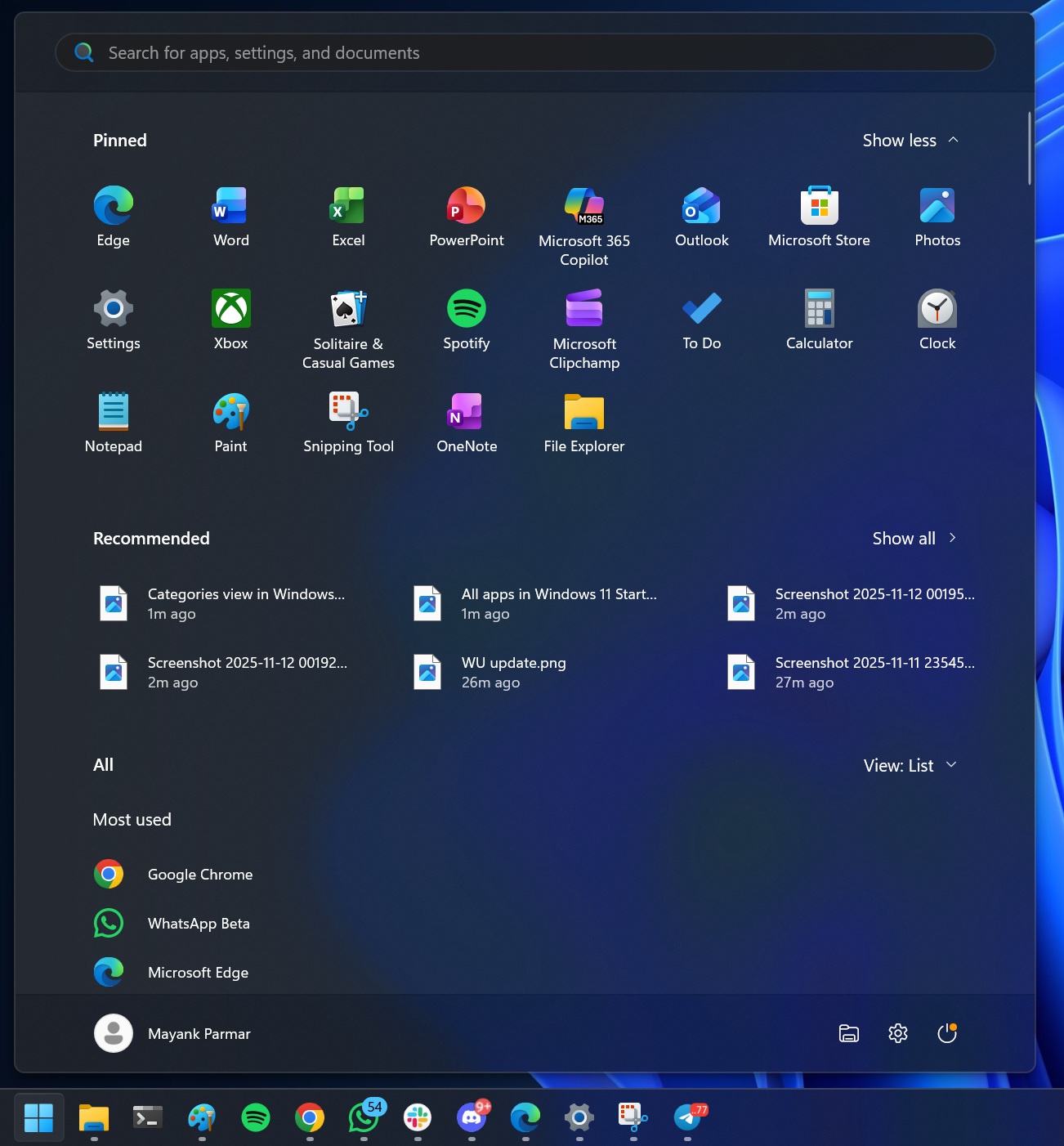
Microsoft has been working on the new Start menu for nearly a year now and has settled on the design after rejecting dozens of radical ideas. Thankfully, this new Start menu isn’t dramatically different from what we have, but if you truly dislike the existing version, odds are you won’t prefer this UI either.
Why this specific Start menu design?
Microsoft says it wanted to keep the original Start promise but make it work in a faster, noisier world.
The company argues that it reads all user feedback in the Feedback Hub and has reached a few conclusions. First, the Start menu should be quicker as it’s the place where you “begin” on Windows 11. At the same time, it should feel more “personal” and “calm,” which is why it has those recommended items turned on by default.
Also, there’s a clear hierarchy. First, we have a search bar, then your fixed shortcuts, then recommended items, and finally everything else.
The search bar is at the top because it allows you to quickly search and jump straight to your app, file, or image. Then, we have the pinned apps, and finally, one of the most hated “Recommended” feeds. Microsoft argues that it added a recommended feed to the Start menu because users wanted “smart suggestions.”
“Recommendations made just for you that learn in real time and a way to hide them if you don’t find them helpful,” the company said.
Previously, it was not possible to hide the Recommended feed, but now you can. Here’s the new Start menu without the Recommended feed:
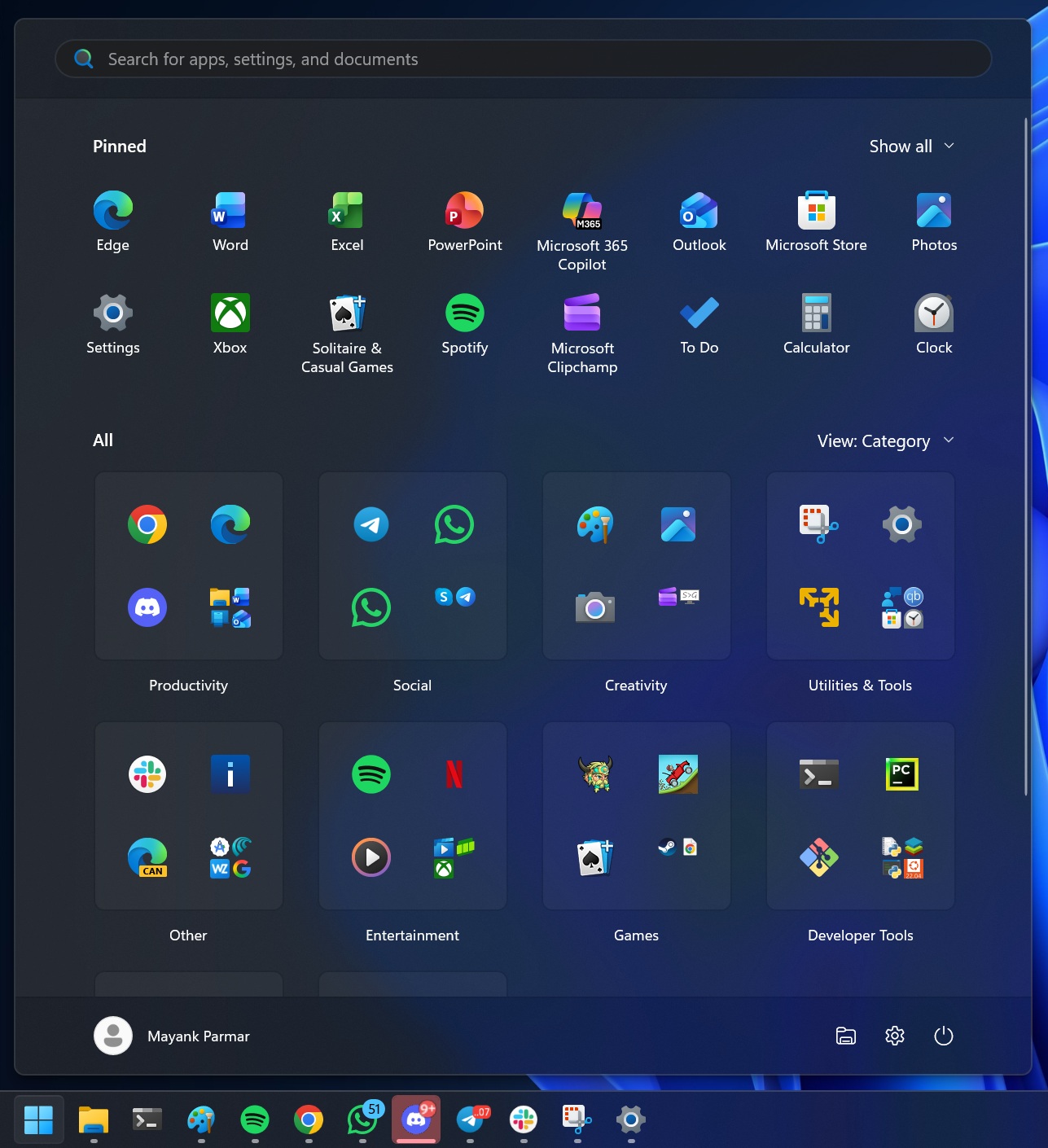
If you want to disable the Recommended feed in the new Start menu, go to Settings > Personalization > Start, and turn off the following toggle:
“Show recommended files in Start, recent files in File Explorer, and items in Jump Lists.”
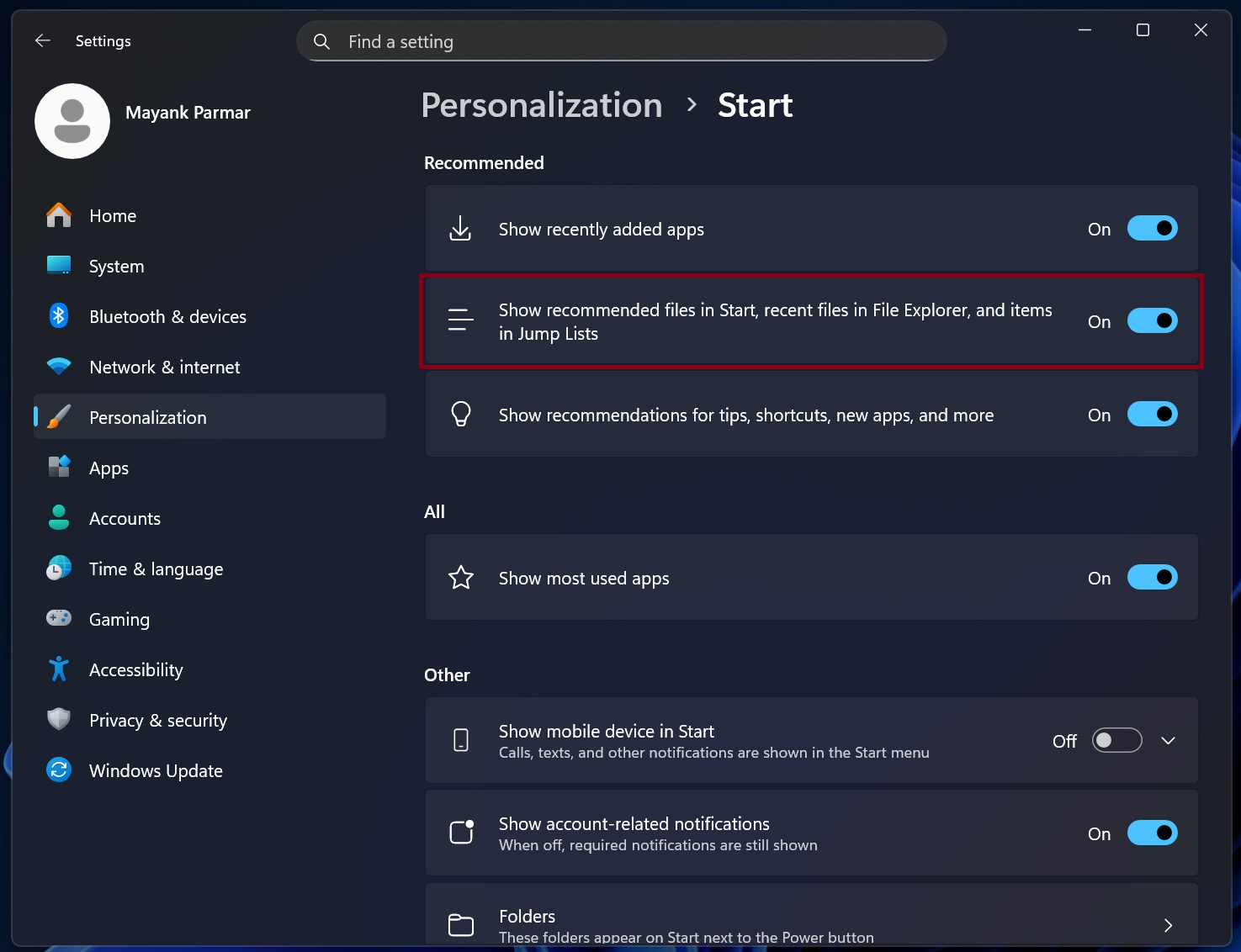
The catch is that the toggle also turns off recent items in File Explorer and jump list (taskbar right-click menu).
Next, Microsoft says it moved the apps from the “All” list to the home of the Start menu because users asked for easier app discovery. The company also created a new category view, so you could see all your apps at once without scrolling through a long list, which is something users hated.
At the same time, Microsoft admitted that it wanted the Start menu’s apps list to be “reminiscent of your phone,” which is why some of you might find the new category UI similar to iOS.
“All apps brought up to the top level, in three views, including a category grid view that prioritizes your most used apps—reminiscent of your phone, no more marathon scrolling,” Microsoft says.
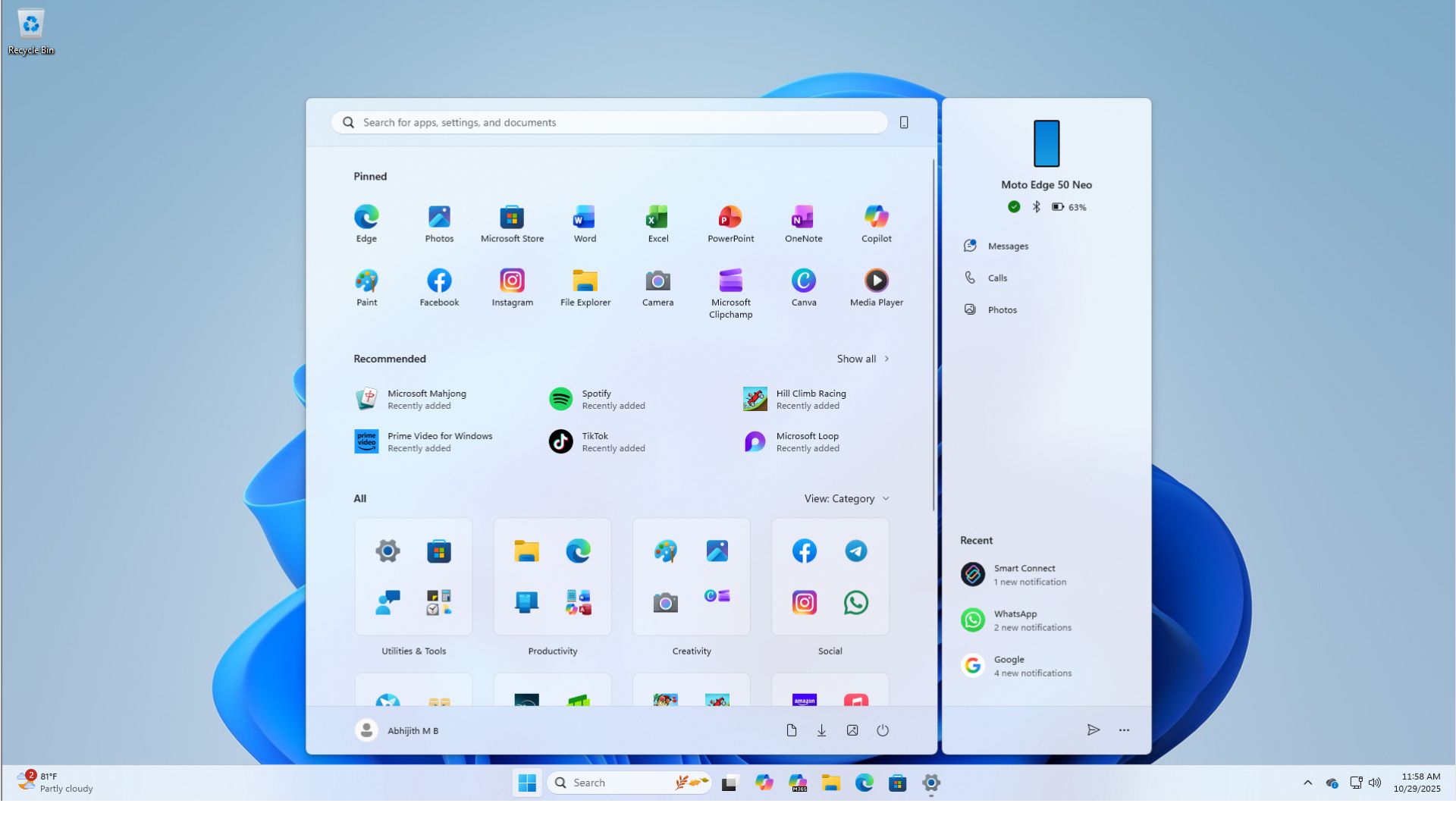
Finally, Microsoft made the Phone Link panel an optional panel that glides in and stays out of the way.
“A slim ‘phone sliver’ that glides in from the edge—there when you need it, gone when you don’t,” the company said in a document.
Again, Microsoft made all these changes based on feedback from testers, but the company won’t tell us why it wouldn’t listen to other feedback, including the most upvoted feedback that demands the ability to move the taskbar. In fact, Windows giant says that it won’t let you move the taskbar because that would break the animation or UI/UX flow.
Regardless, you can’t go back to the old Start menu unless you manually disable it with a third-party open-source tool, which will eventually stop working.
Do you like the new Start? Let me know in the comments.