





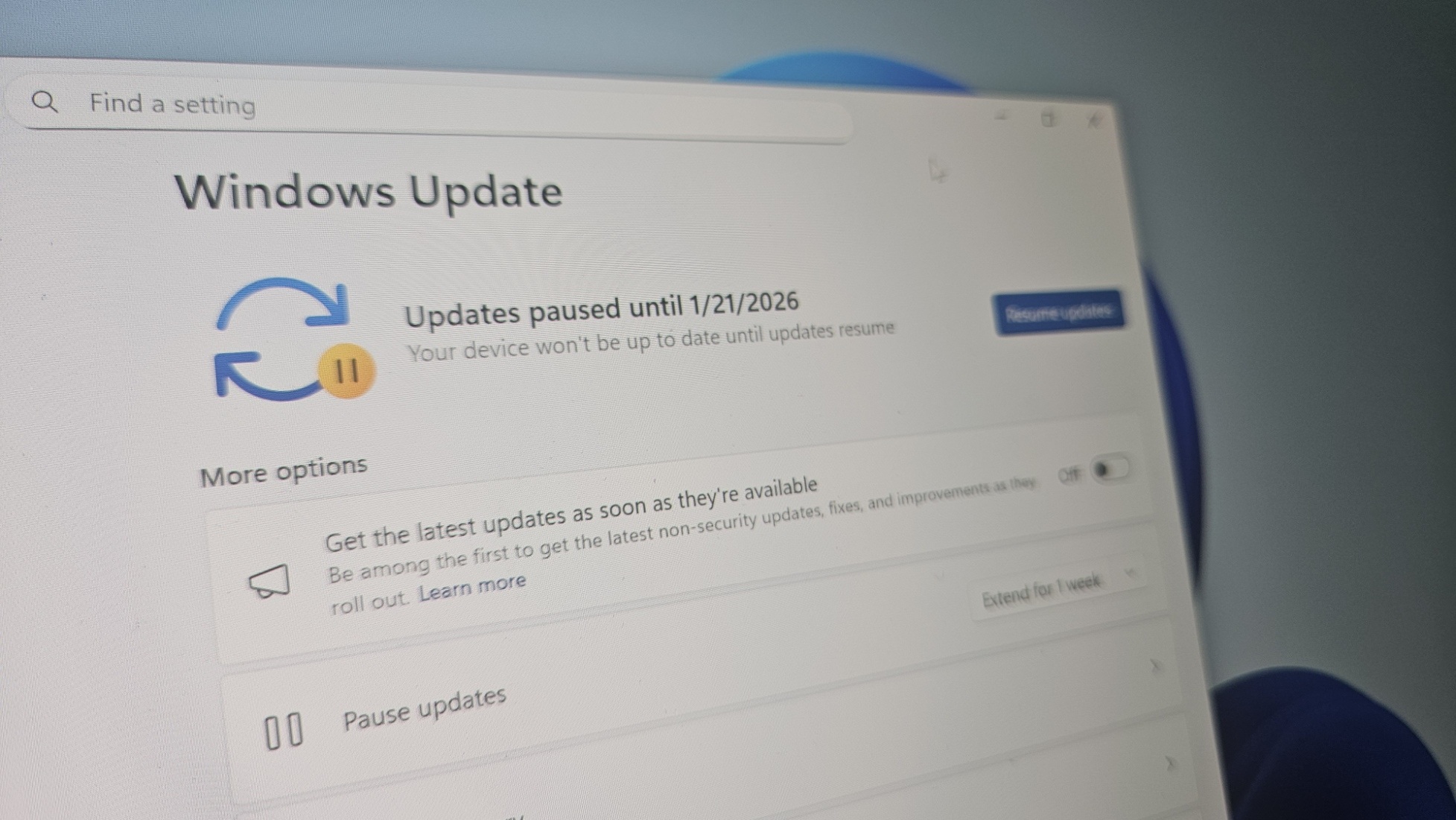
Windows 11 KB5074109 causes a black screen on some PCs, including those with an Nvidia GPU, and also freezes Outlook if you use POP, which downloads emails from a server to a local device, among other problems. Windows Latest can also confirm that the File Explorer no longer respects desktop.ini settings, specifically ‘LocalizedResourceName.’
January 2026 Patch Tuesday was released on January 13, 2026, for everyone, including Windows 11 KB5074109 for 25H2 and 24H2. This advances OS to Build 26200.7623 or 26100.7623. However, as is often the case, any software update, not just Windows Update, can introduce new problems that affect a small subset of users.
Sadly, this year’s first Windows update is a mess, and if you’re affected, you’ll need to uninstall the patch or try some of the workarounds tested by Windows Latest.
Black screen issue after January 2026 Update
There’s a black screen problem in Windows 11 KB5074109, and it’s either due to the update itself or some compatibility issues with GPU drivers. I can’t pinpoint any specific configuration, but I can confirm the black screen issue has been observed on a small subset of PCs with both Nvidia and AMD GPUs.
After you install the January 2026 Update, Windows triggers random black screens where the desktop freezes for a second or two, the display goes black, then everything comes back.
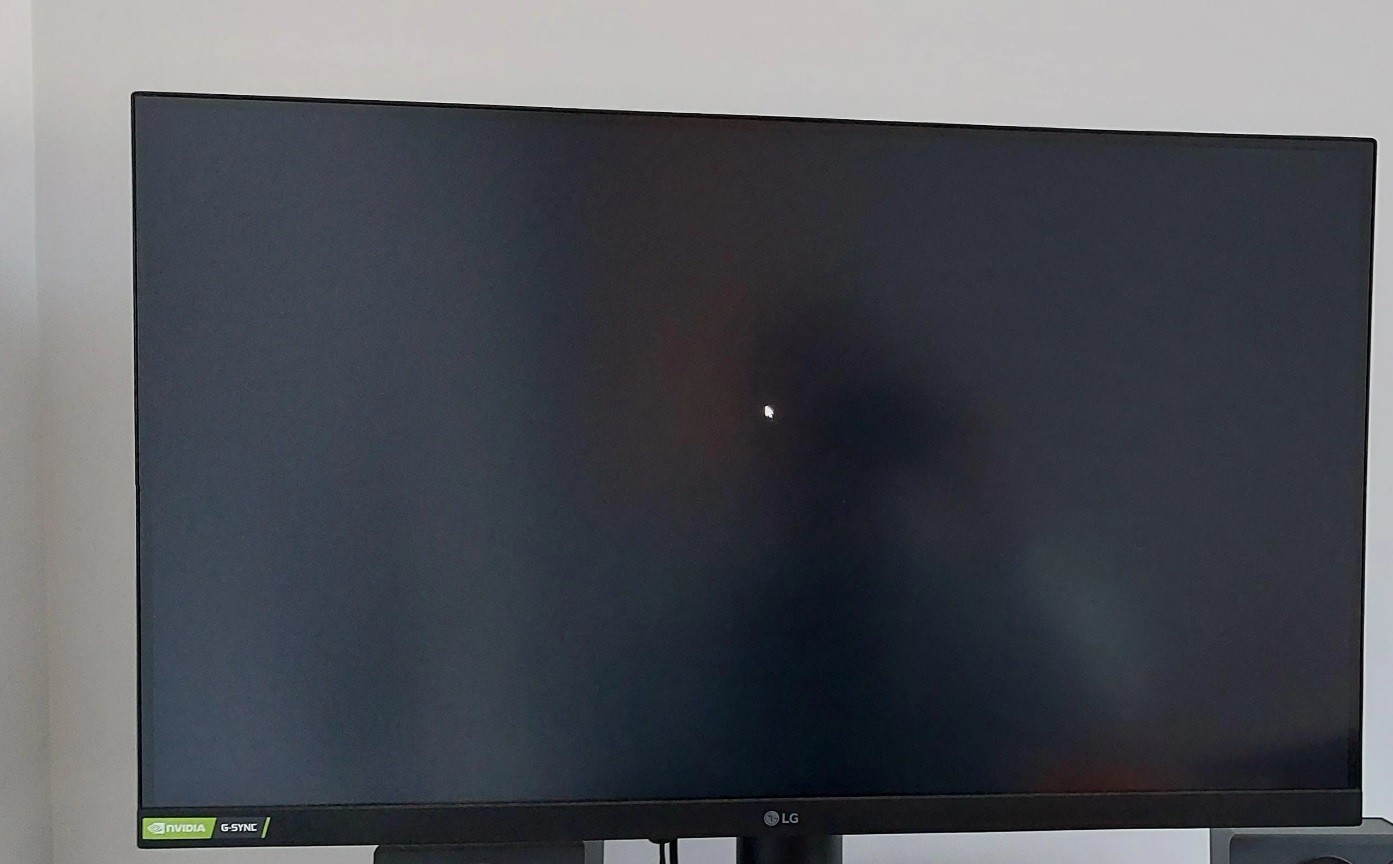
One user told Windows Latest that switching their monitor’s DisplayPort mode (for example, dropping to 1.2, then later returning to 1.4) helped.
In most cases, you would not run into the problem more than once, but if you frequently see a black screen briefly before the desktop appears, you can either try removing Windows 11 KB5074109 or updating GPU drivers.
This update does not cause FPS drop or other gaming issues for any hardware, including handheld.
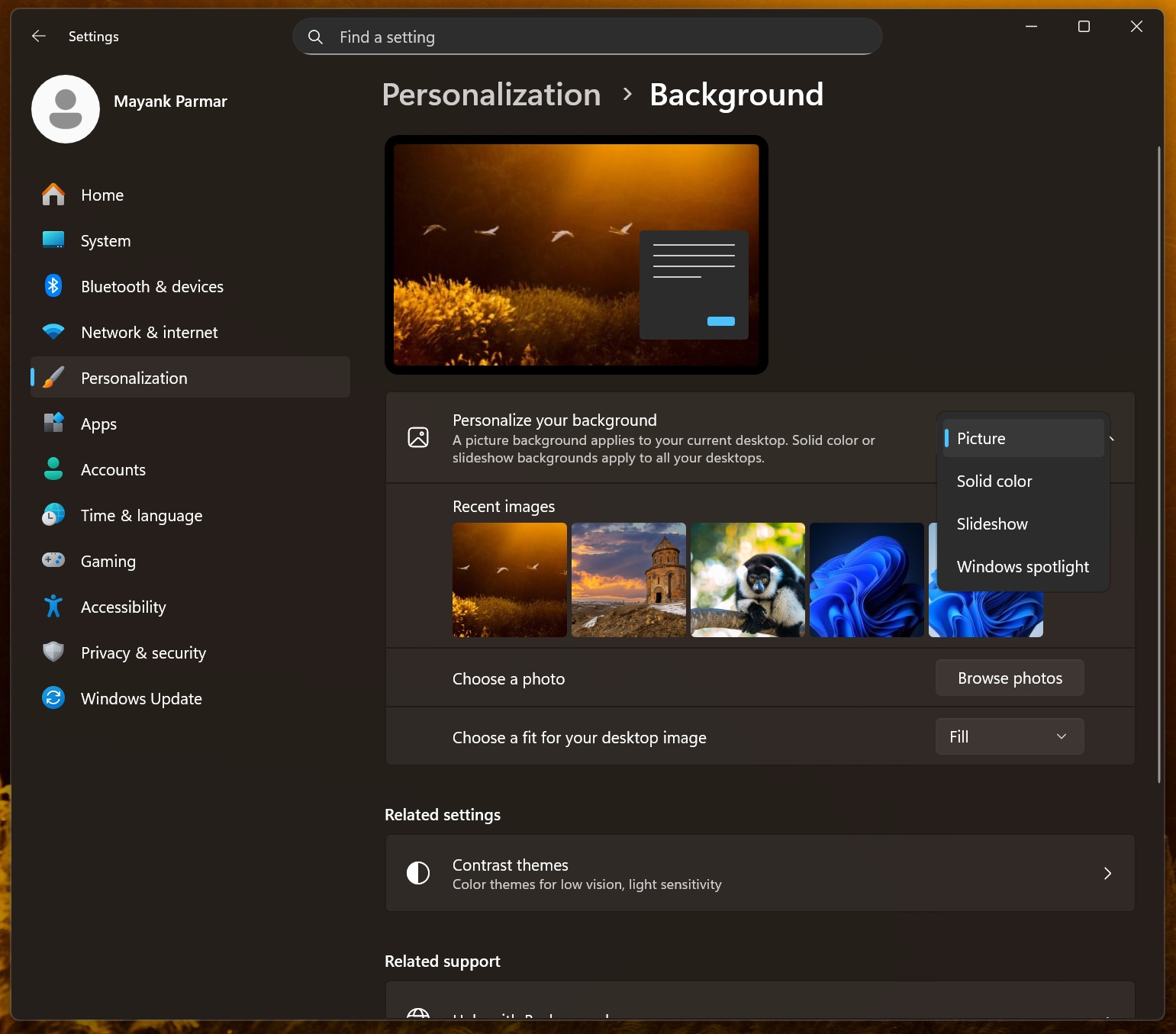
We also observed a ‘related’ black screen issue after the January 2026 Update. In some cases, your desktop wallpaper might be black regardless of what you use for the background. If you use Spotlight or your own custom wallpaper, it could “reset” after the patch.
If your wallpaper has been reset after updating to Windows 11 Build 26200.7623 (25H2) or 26100.7623 (24H2), you need to open Settings > Personalization, and select the background again.
Outlook Classic won’t open or exit, save sent mails when you use POP, and install Windows 11 KB5074109 (Build 26200.7623)
Microsoft says it’s aware of an issue where Outlook appears “closed” or won’t close at all if you use POP accounts. This could sound odd, as if you are affected, you might have noticed that Outlook simply does not open, and Microsoft’s statement is pointing to an issue where Outlook does not close. Are these two issues related? Well, yes.
Windows 11 KB5074109 has a bug where Outlook Classic looks closed, but the outlook.exe process keeps running in the background. And since the process never fully exits, if you try to open Outlook again, it’ll either not open or show an error that Outlook is already open. You can reopen only after ending Outlook in Task Manager or rebooting.
In my case, it just gets stuck at loading, and then it never loads, even the Outlook logo does not appear:
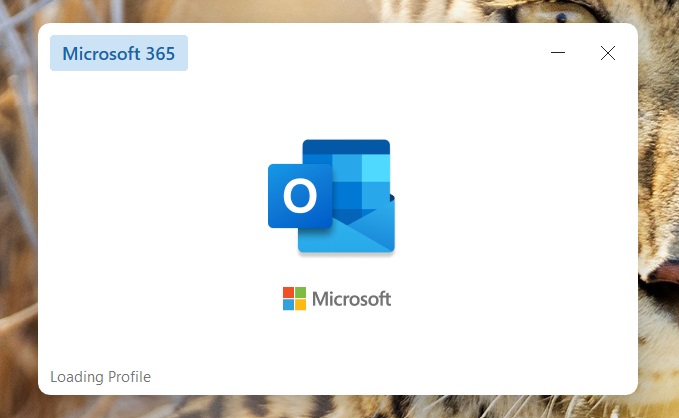
Only Outlook Classic with POP/SMTP accounts is affected.
“After the Patch Tuesday update, classic Outlook in POP mode opens, but within 5-10 minutes, it freezes and gets the ‘Not Responding’ white screen. Repeatedly. I did a quick repair, an online repair, used the PST repair tool (which could not continue due to an error), made a new Outlook profile, but nothing seemed to help until I uninstalled KB5074109,” one user wrote in a Feedback Hub post spotted by Windows Latest.
Microsoft is investigating the problem, and it does not have a workaround to share, but Windows Latest understands that the company might try to fix the POP account profile issue with a new Outlook update. Or if that doesn’t work, we’ll get another out-of-band update to patch Outlook problems.
What to do if Outlook hangs or freezes and won’t open or close after the January 2026 Update?
You’ll need to open Task Manager and try killing the Outlook.exe process, but you should avoid force-killing Outlook unless you have to.
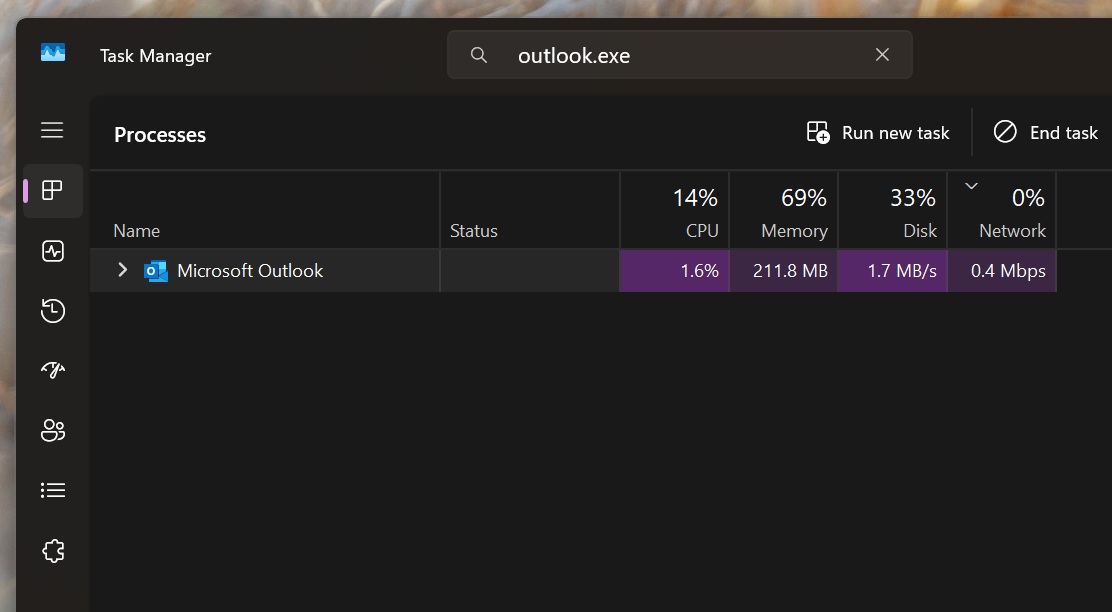
If that doesn’t help and it’s annoying that Outlook won’t open a second time, my recommendation is to roll back Windows 11 KB5074109 or wait for the next Windows/Outlook update.
Windows 11 KB5074109 breaks Azure Virtual Desktop
Microsoft has confirmed that all updates rolled out as part of January 2026 Patch Tuesday can break Azure Virtual Desktop (AVD), which is used for remote desktop protocol (RDP). If you’re affected, you might start running into sign-in failures or credentials prompts after installing Windows 11 KB5074109.
This particularly affects Azure Virtual Desktop (AVD) and Windows 365, especially when you click Connect, and it fails immediately before a session is established, because the authentication prompt flow is broken in the January 2026 Update.
In a post on Feedback Hub, one user found “Unable to Authenticate” error and a Remote Desktop dialog with “An authentication error has occurred (Code: 0x80080005).”
In a support document, Microsoft confirmed that it’s aware of credential prompt failures after Windows 11 KB5074109.
“The issue affects Windows App on specific Windows builds, causing sign-in failures,” Microsoft noted in an updated support document.
However, I asked Microsoft for more details, and it told Windows Latest that affected customers should either use the windows.cloud.microsoft (Windows App web client) or Remote Desktop client as a temporary workaround.
“We detected this issue through automated service monitoring after identifying an increase in failed connection attempts,” Microsoft told Windows Latest in a statement. “Our investigation has confirmed that this issue is caused by a recent Windows security update, which introduced a regression resulting in credential prompt failures during Remote Desktop connections on some Windows client devices.”
Microsoft says sign-in failures happen client-side, so that means your data, synced to the cloud, is not affected.
“We are actively coordinating with the Windows Update team to remediate the issue and prevent further impact,” the company said.
What to do if Azure Virtual Desktop / Remote Desktop is not working after the January 2026 Update?
Microsoft says it has published a Known Issue Rollback (KIR), which fixes the AVD failures in Windows 11 KB5074109 by turning off a feature that caused the problem. You can find KIR in your Microsoft admin portal, or download it from the company’s website (I copied the download URL if you don’t have access to the portal).
I extracted the Known Issue Rollback for Windows 11 KB5074109, and it appears to turn off some features that caused Remote Desktop failures:
<policies>

<policy name="KB5074109\_260114\_0745\_1\_KnownIssueRollback" class="Machine" displayName="$(string.KB5074109\_260114\_0745\_1\_KnownIssueRollback)" explainText="$(string.WUKnownIssue\_Help)" key="SYSTEM\\CurrentControlSet\\Policies\\Microsoft\\FeatureManagement\\Overrides">

<parentCategory ref="KnownIssueRollback\_Win\_11\_24H2\_25H2" />

<supportedOn ref="SUPPORTED\_Windows\_11\_0\_24H2\_25H2\_Only" />

<enabledList defaultKey="SYSTEM\\CurrentControlSet\\Policies\\Microsoft\\FeatureManagement\\Overrides"><item valueName="1387134606"><value><decimal value="1" /></value></item><item key="SYSTEM\\CurrentControlSet\\Policies\\Microsoft\\FeatureManagement\\Overrides\\Metadata\\1387134606" valueName="ChangeTime"><value><decimal value="3" /></value></item></enabledList>

<disabledList defaultKey="SYSTEM\\CurrentControlSet\\Policies\\Microsoft\\FeatureManagement\\Overrides"><item valueName="1387134606"><value><decimal value="0" /></value></item><item key="SYSTEM\\CurrentControlSet\\Policies\\Microsoft\\FeatureManagement\\Overrides\\Metadata\\1387134606" valueName="ChangeTime"><value><decimal value="3" /></value></item></disabledList>
If you don’t want to apply this KIR, you can either uninstall the KB5074109 update (or wait for an out-of-band patch, which is coming next week.
Microsoft breaks LocalizedResourceName (desktop.ini) in File Explorer
In our tests, Windows Latest verified that Windows 11 KB5074109 (Build 26200.7623) has a bug where File Explorer stops respecting the LocalizedResourceName directive inside desktop.ini.
It is also no longer possible to hide certain folders, such as Saved Games, by setting the hidden attribute. The hidden attribute can be applied, but is ignored.
For those unaware, some use desktop.ini to customize File Explorer, especially folder names. For example, I’ve configured a desktop.ini to show my folder name as “Custom folder,” but Windows ignores it and displays the original name of the folder. This is a known issue:
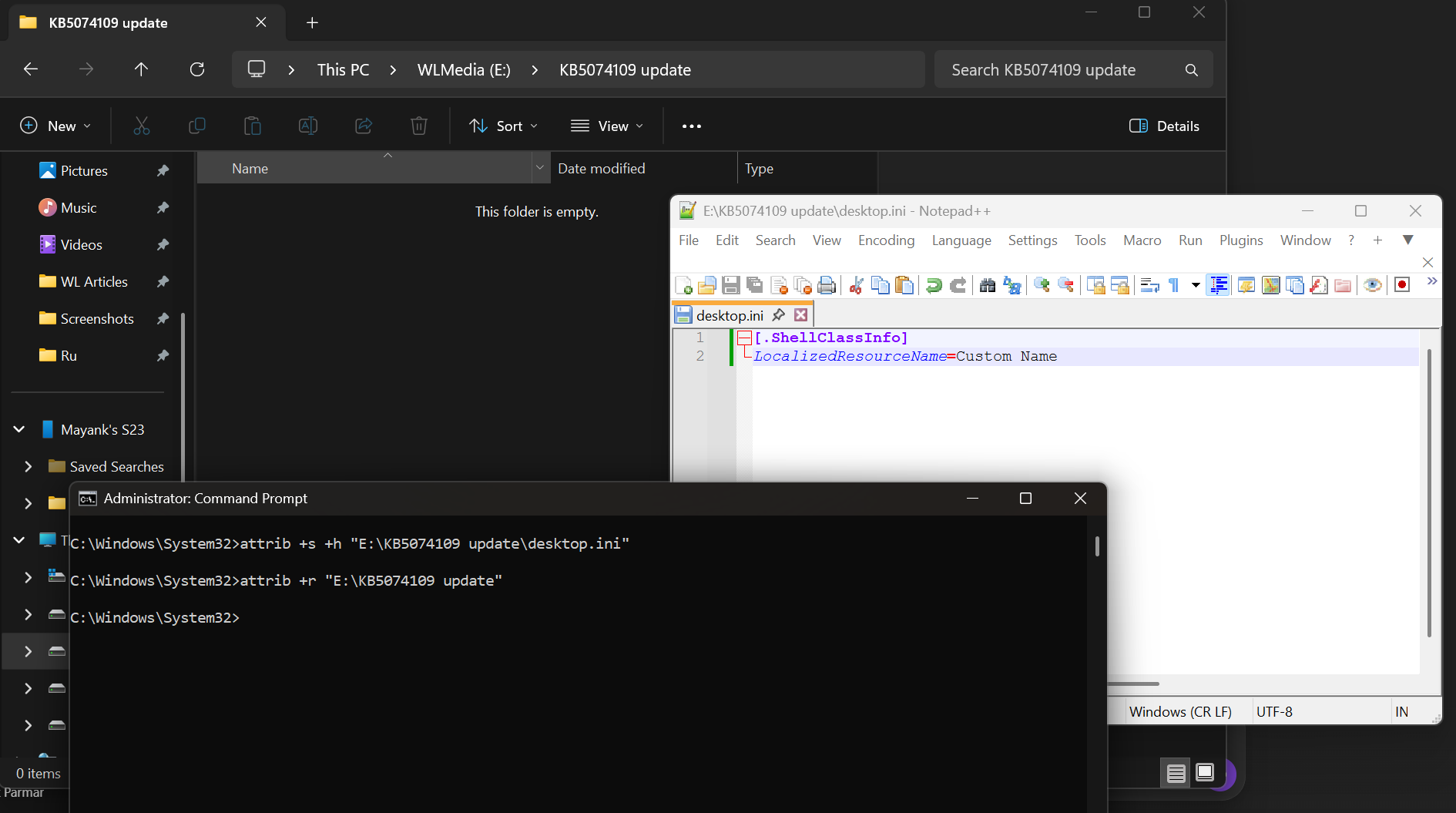
Normally, Explorer reads [.ShellClassInfo] and uses LocalizedResourceName to present a friendly (or localized) display name, as long as the file or folder attributes are set correctly. However, after Windows 11 KB5074109, File Explorer still sees the folder, but it ignores the LocalizedResourceName value, and the custom name never appears.
It’s unclear what causes issues with LocalizedResourceName (desktop.ini), but it’s possible that Microsoft updated certain Windows components. This issue could happen if Microsoft accidentally (partially) broke any of these components:
- windows.storage.dll
- shell32.dll
- ExplorerFrame.dll
- Windows.FileExplorer.Common.dll
- or even explorer.exe
Microsoft hasn’t acknowledged the reports yet, but I’ve reached out to the company with all my findings, and we’ll likely see a fix in the next cumulative update.
How to uninstall Windows 11 KB5074109
We don’t have a workaround for most of the issues in the January 2026 Update, so if you’re affected, your best bet is to uninstall the Windows 11 KB5074109 by following these steps:
- Open Settings > Windows Update > Update history.
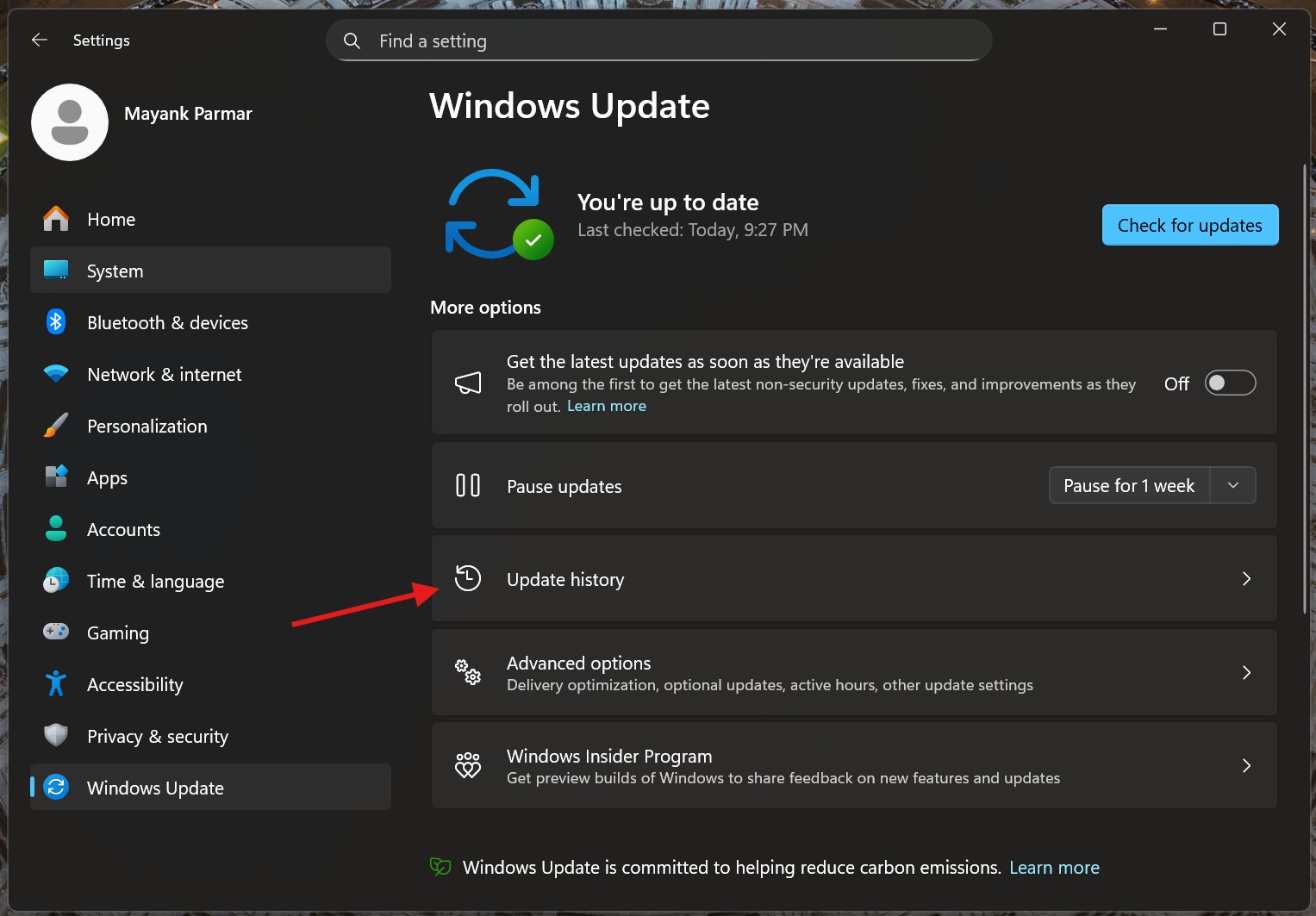
- Now, scroll a bit, and you will come across ‘Uninstall updates.’ Select Uninstall updates.
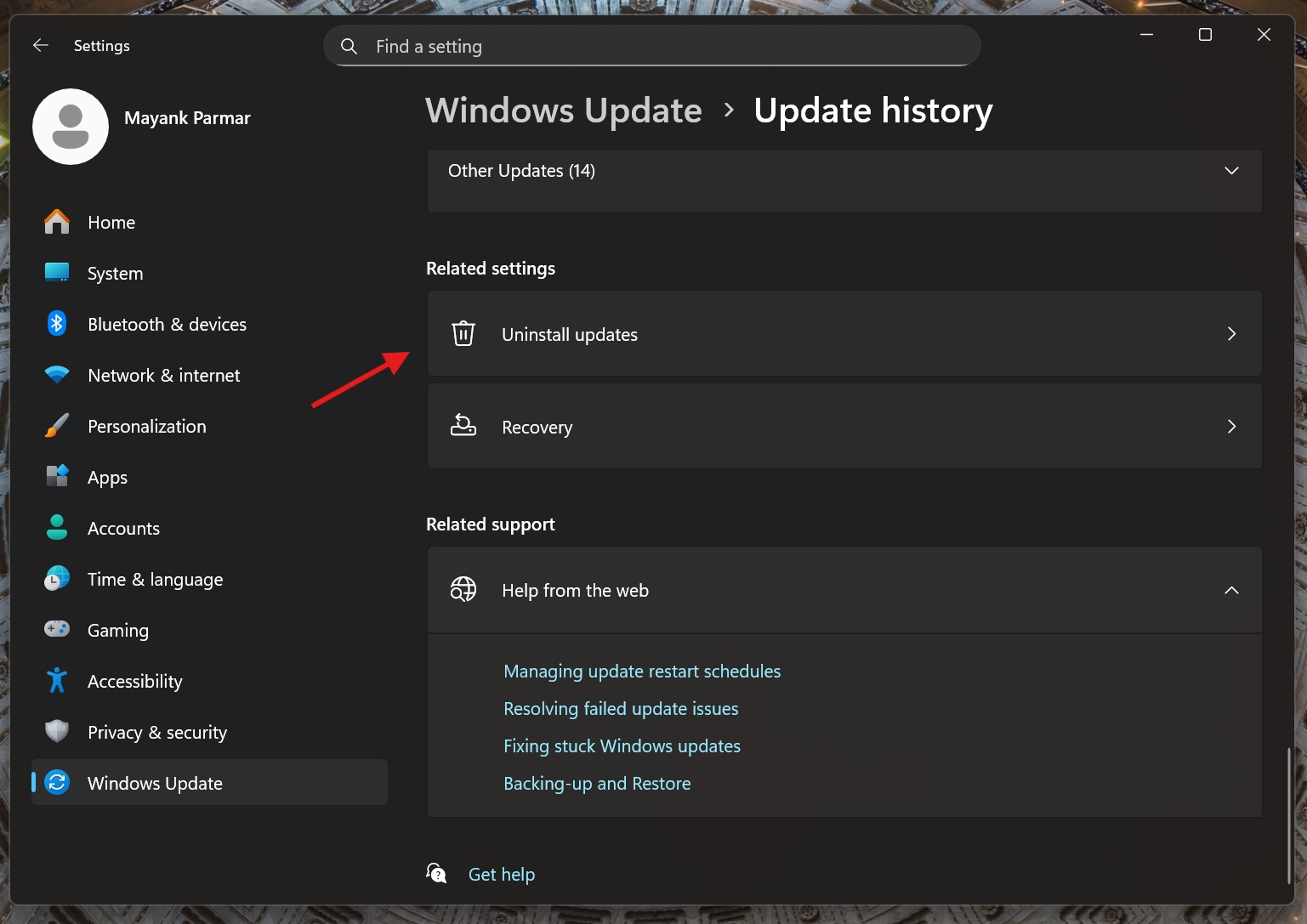
- Find KB5074109 in the list of installed updates, and select ‘Uninstall.’
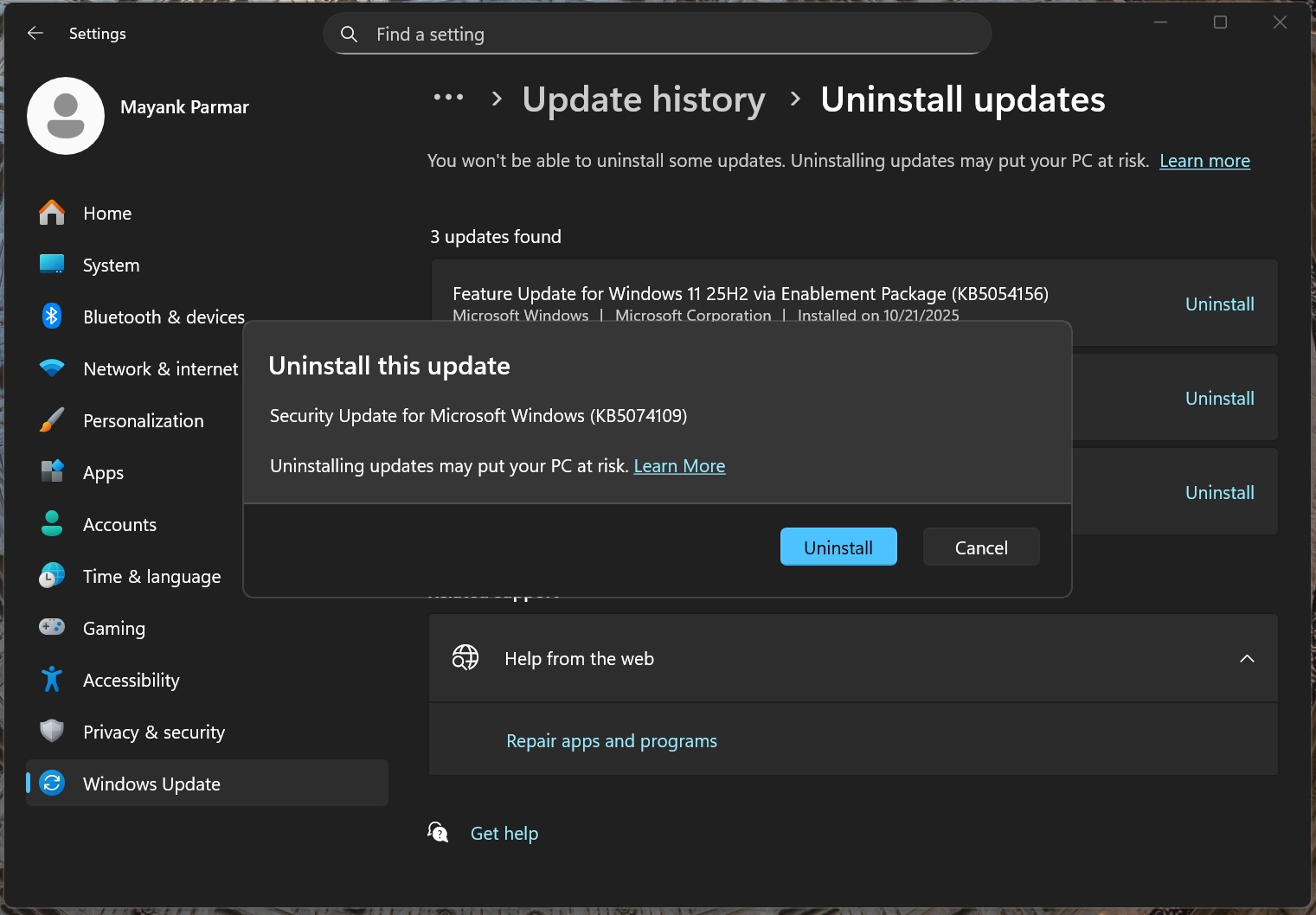
- “Uninstall this update” pop-up will appear, and you need to confirm your decision by selecting ‘Uninstall’ again. This removes the update and undoes the changes, and it requires a single reboot.
However, as Windows Latest previously reported, the January 2026 Update patches up to 100 security issues, including three zero-day issues. You’ll miss out on these important fixes if you uninstall the update. That’s one of the trade-offs.
I’ve reached out to Microsoft with my findings. If you come across other bugs, please let me know in the comments below, and we’ll investigate.