




On December 8, Microsoft quietly started rolling out a big upgrade for “Link to Windows” on Android. After version 1.25102.140.0, you can now remotely lock your computer, send files between the phone and Windows 11, and even share the clipboard. Windows Latest first spotted the development earlier this week.
Hands-on with the new Link to Windows experience
Link to Windows has been around for a decade, and it’s integrated into phones made by companies like Samsung.
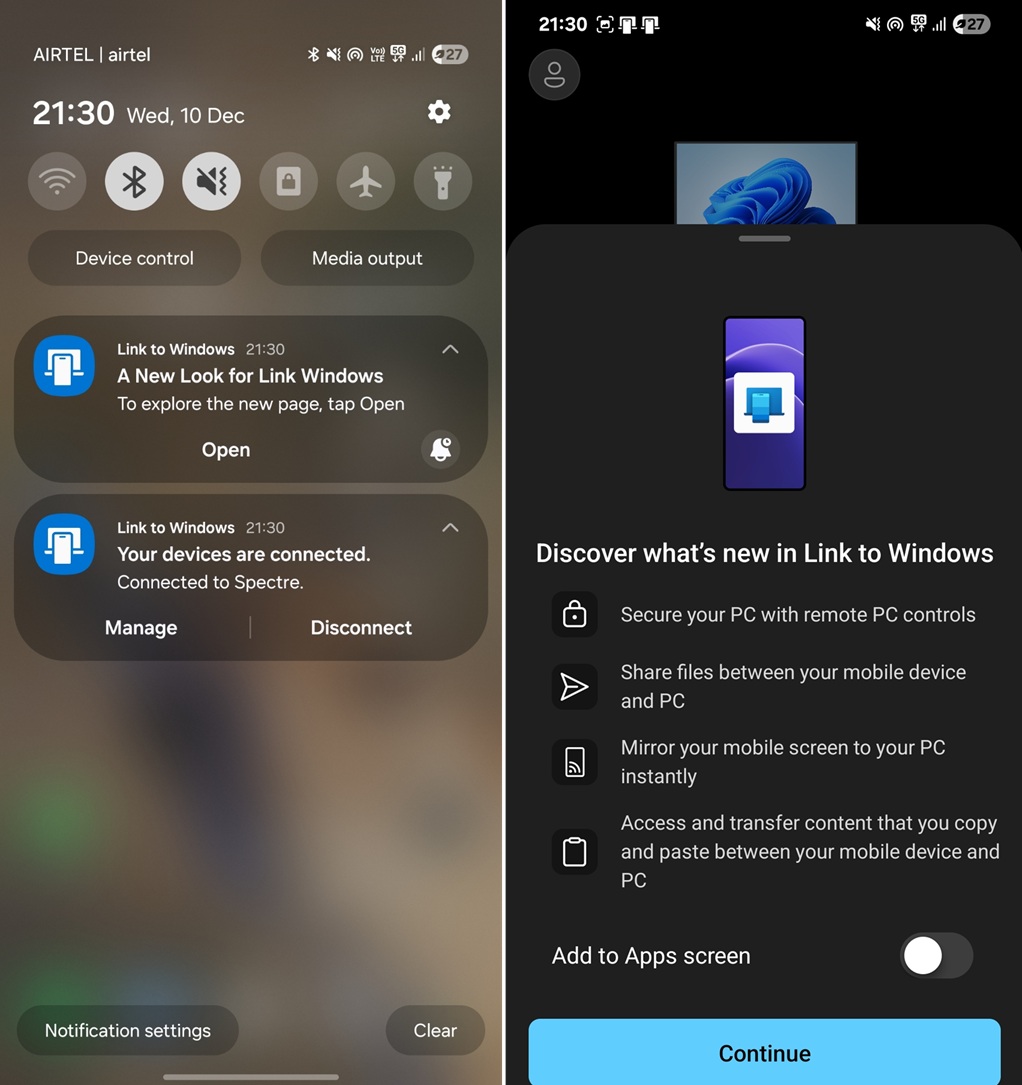
Up until now, the Link to Windows interface has been quite basic, as it would only let you manage your connected PCs. For example, you could connect or disconnect your PC. And that was all. You couldn’t control Windows 11 from Link to Windows, as all features were managed directly on the PC.
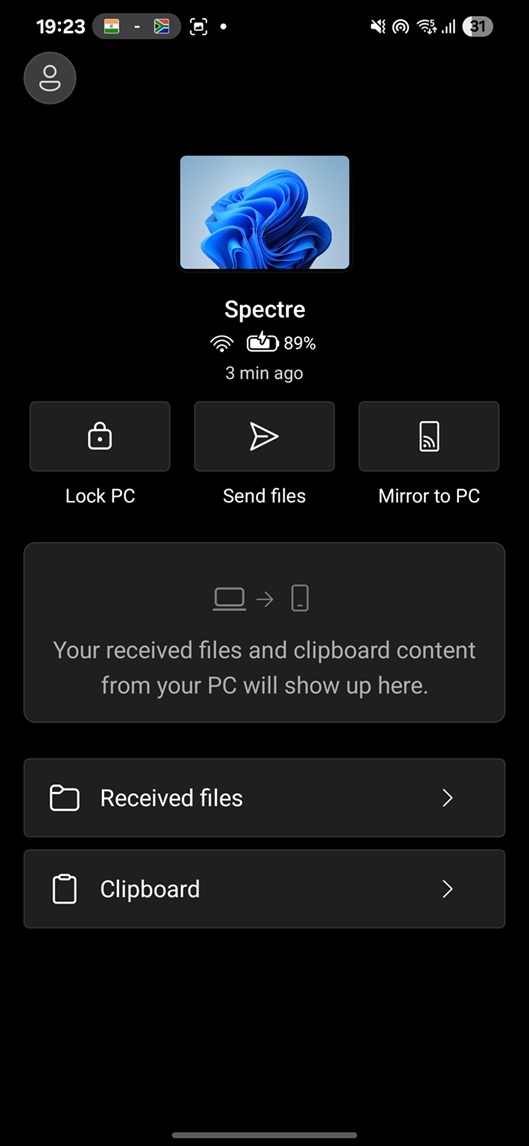
This changes with version 1.25102.140.0. In our tests, Windows Latest observed that Link to Windows on Android has a new interface and several controls to manage the connected computer.
You don’t have to join the Windows Insider Program or download any beta app to try the new experience, as it’s rolling out to everyone.
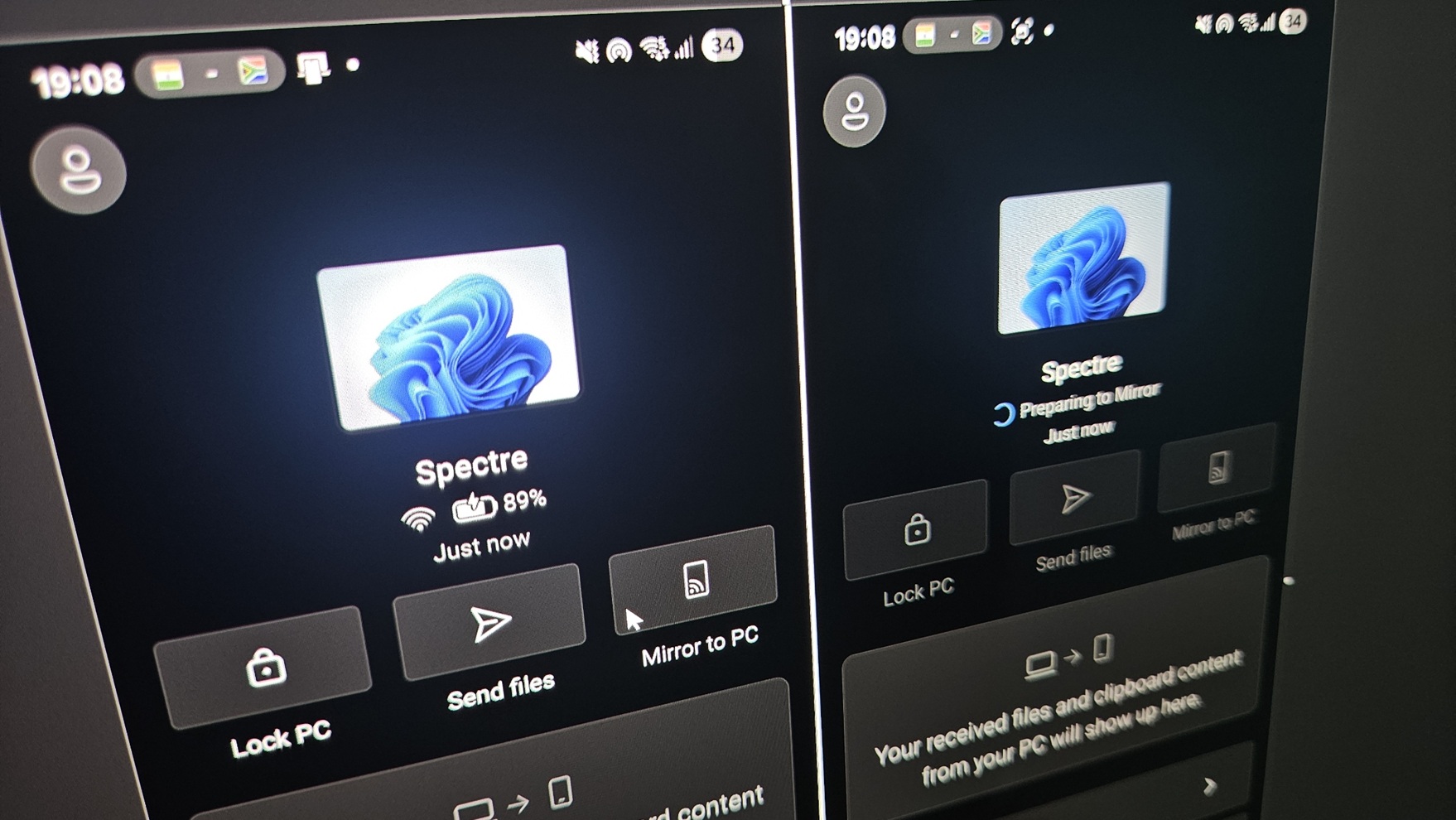
You can now see your PC’s battery and internet strength from your phone
If you have a laptop, you can now see your PC’s current battery level. It syncs to Link to Windows almost every minute. You can also see the network strength, but you can’t manage features like PC’s volume level or Bluetooth and other advanced features like night light.
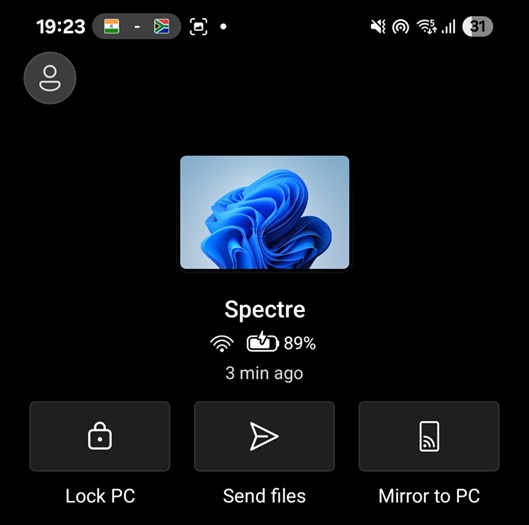
I assume these features will be added at some point because I don’t see any reason preventing Microsoft from doing that.
New Recent activity feed
There’s a new “Recent Activity” section in the Link to Windows app, and it has all your recent interactions. For example, if you sent files to your PC using the new “Send files” feature, they’ll appear inside the Recent Activity. Likewise, if you opened File Explorer on Windows 11, right-clicked on a file and used “Send to my phone,” it’ll also appear here.
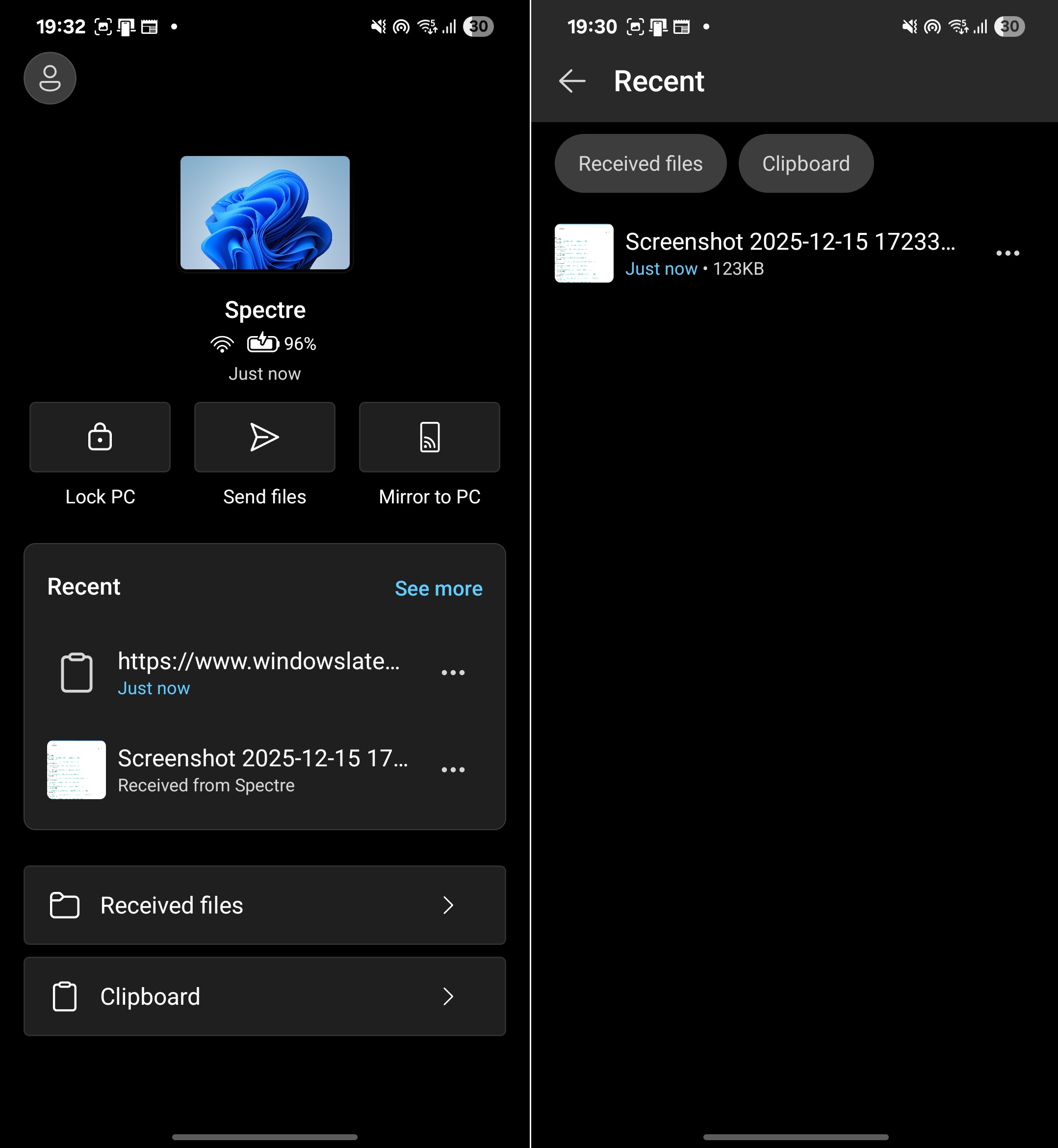
It’s not just limited to files, because clipboard items on your PC will also sync to the Link to Windows on Android and appear in the Recent section.
You can now lock the PC remotely from Android
There’s a new “Lock PC” toggle in the Link to Windows app that allows you to remotely lock your computer as long as it’s connected to the phone.
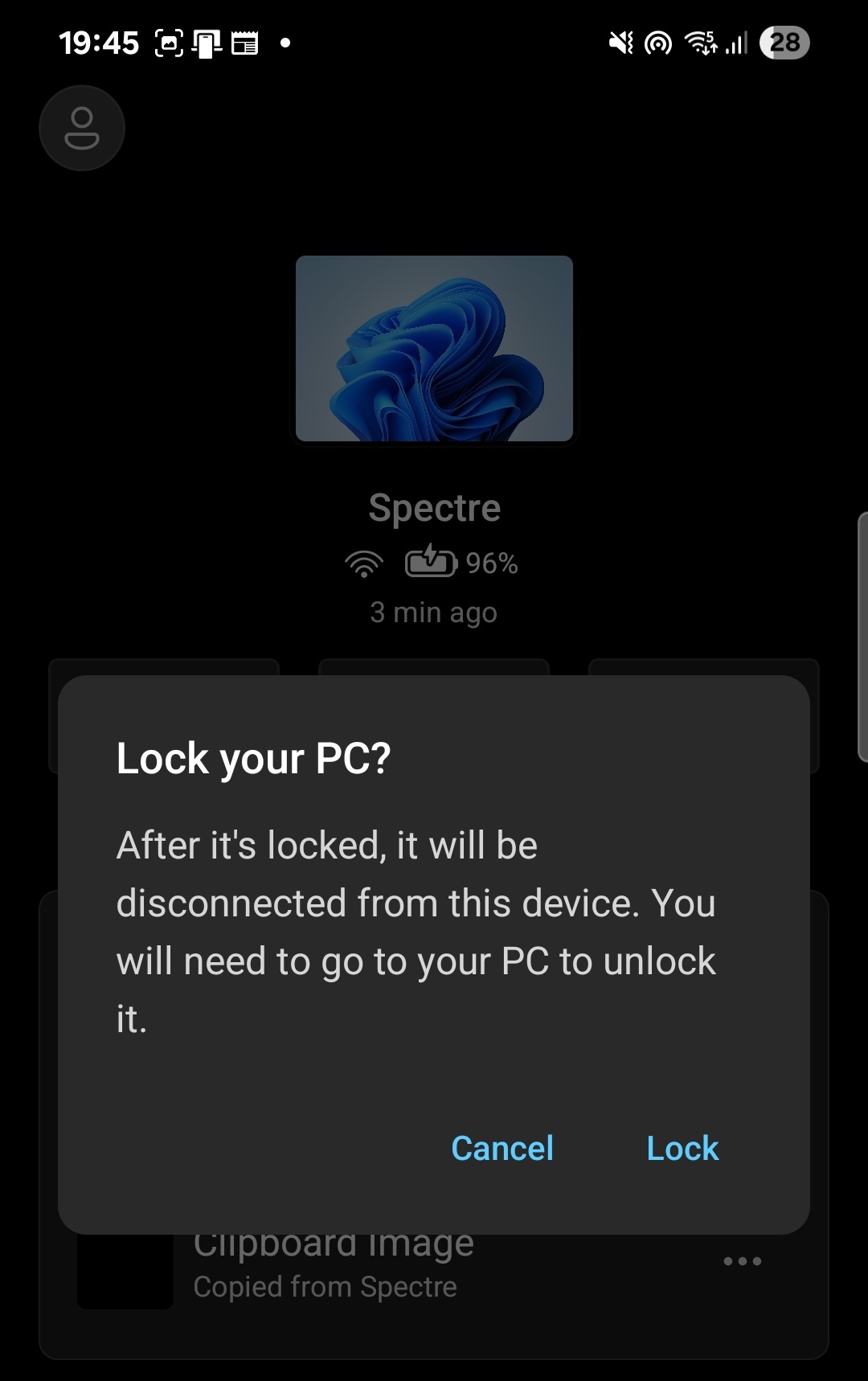
When you click “Lock PC,” Link to Windows warns that it’ll also disconnect the devices, but if you still choose to proceed, it’ll go ahead and lock your computer. In our tests, Windows Latest observed that your Android phone can lock your PC in less than three seconds, which is near instant.
You can unlock your PC, and it’ll automatically connect to your mobile. This is a handy feature if you step away from your PC and want to lock it remotely.
You can now send files to your PC from an Android phone
Phone Link has always allowed us to transfer PC files to phones, but now you can also easily send files to a PC. Overall experience is as good as you’d expect from any wireless file transfer feature, such as Google Nearby.
In my tests, I transferred dozens of files to my PC from my Android phone, and the transfer speed was decent, but it also comes down to your internet speed.
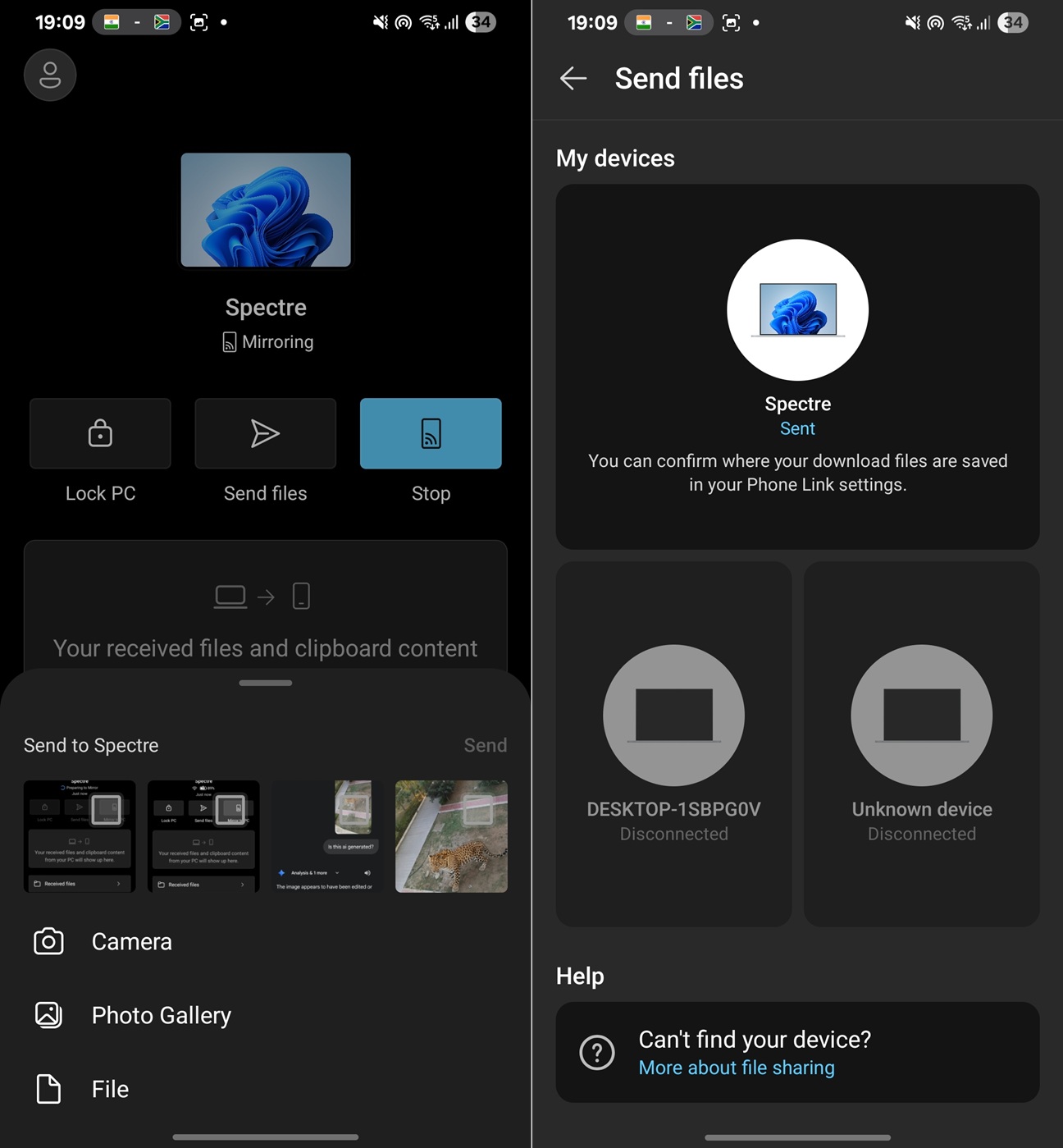
If you want to send or receive files between two devices, simply click “Send files” and a tray will allow you to choose files from your gallery and file manager app. You can also capture an image using your camera. Finally, select one of the files, and it’ll instantly transfer to your PC.
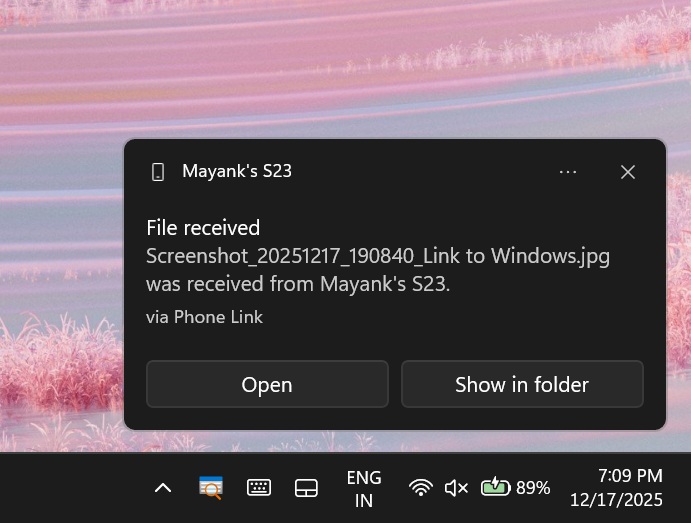
For example, I tried transferring one of the images, which is approximately 3MB in size, and it showed up on my PC in less than one minute. My internet speed is 500 Mbps, so that’s pretty decent. Windows 11 displays a “file received” notification with options to open it in the Photos app (if it’s an image) or locate it in File Explorer.
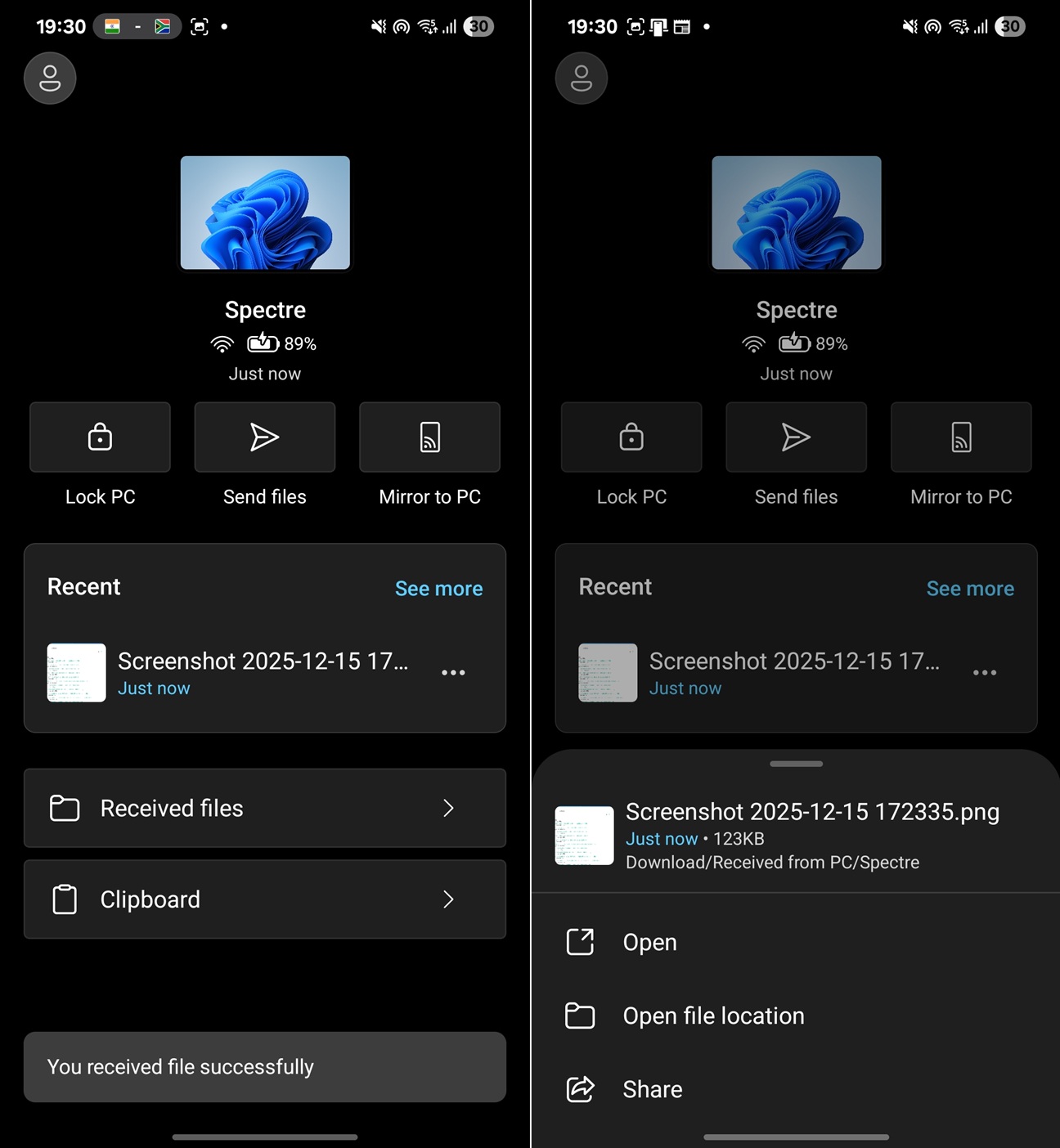
You can also send files to your phone from your PC, but that is not a new feature. What’s new is that files received from PC will now appear on the homepage of the Link to Windows app, and you can easily find where they’ve been saved.
To transfer files to your phone from your PC, right-click any file in File Explorer, choose “Send to phone,” and the file or image will instantly appear on your mobile device.
You can now easily access the Windows 11 clipboard content on your Android phone
This new Link to Windows on Android also has a ‘clipboard’ feature, which enables cross-device copy and paste.
When you turn on the feature, you’ll be able to access your PC’s clipboard from this device, and that includes images that you copied on your PC. For example, if you capture a screenshot on Windows 11, you’ll be able to access it via your phone’s clipboard. You don’t have to use SwiftKey or any particular keyboard on Android.
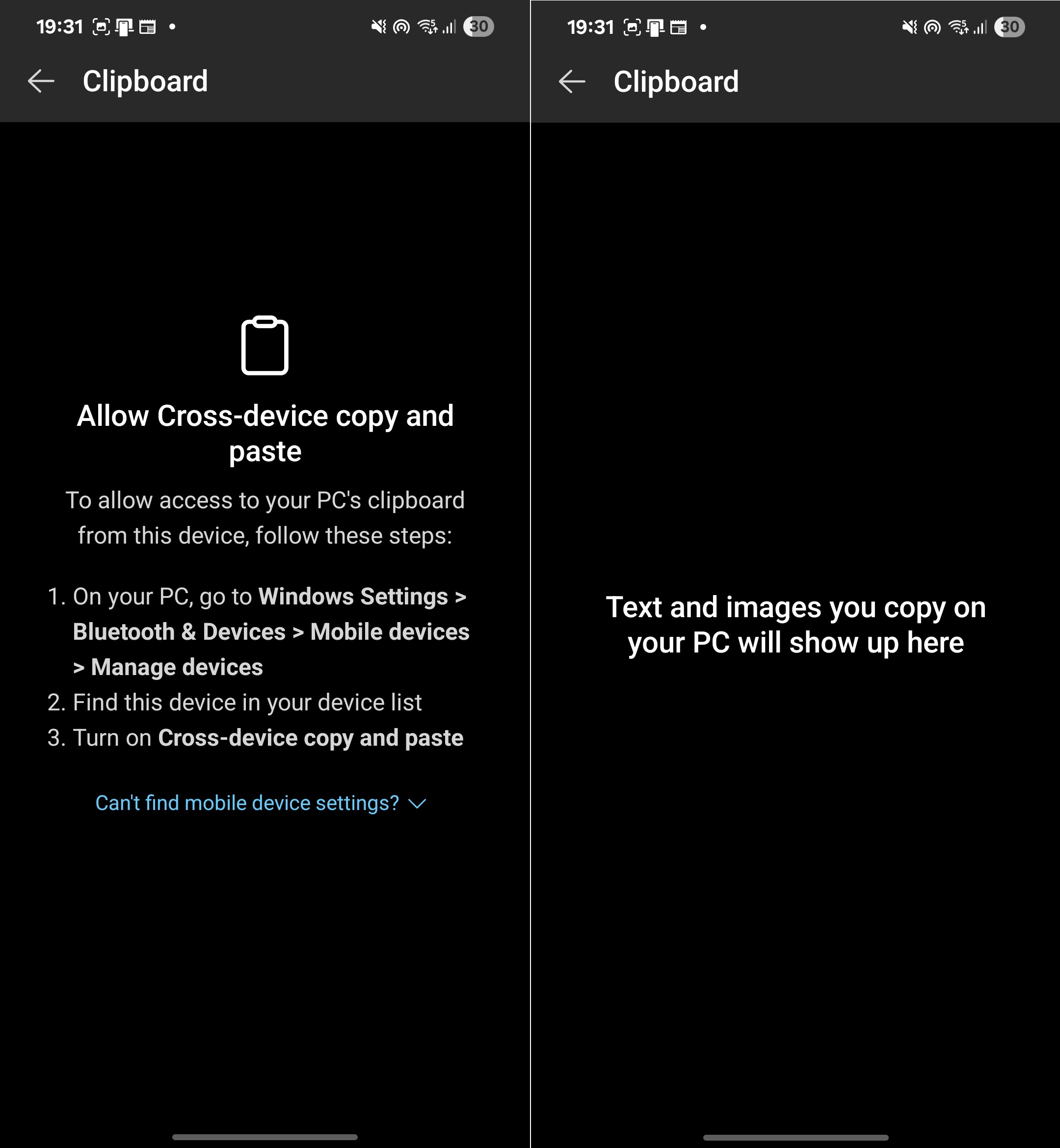
To enable the feature, you need to allow cross-device copy and paste from Windows Settings > Bluetooth & Devices > Mobile devices > Managed devices.
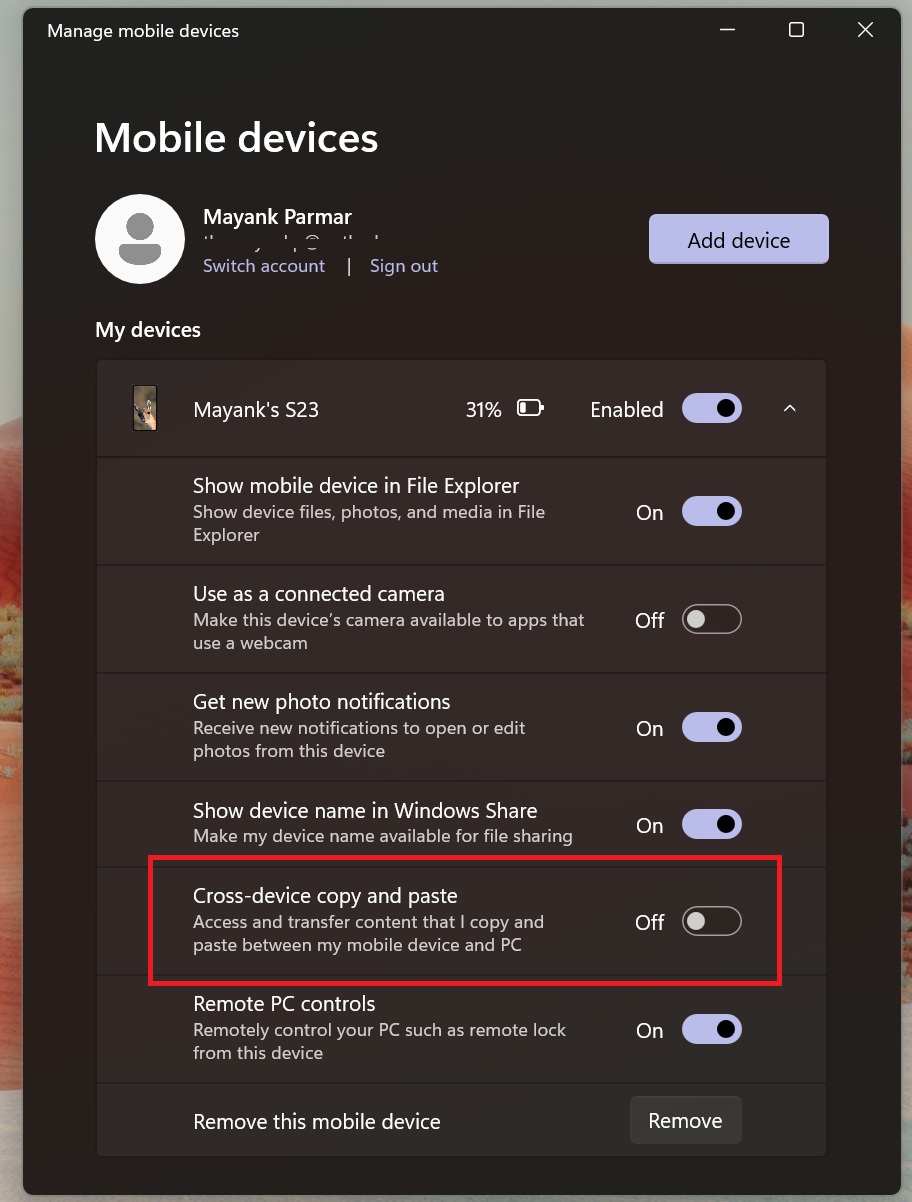
Once turned on, anything you copy on Windows 11 will automatically be copied to your mobile device’s clipboard. You don’t need to open the Link to Windows app to copy your PC’s clipboard every time, as the most recent copied item from your PC is automatically synced. However, the Link to Windows app maintains a clipboard history.
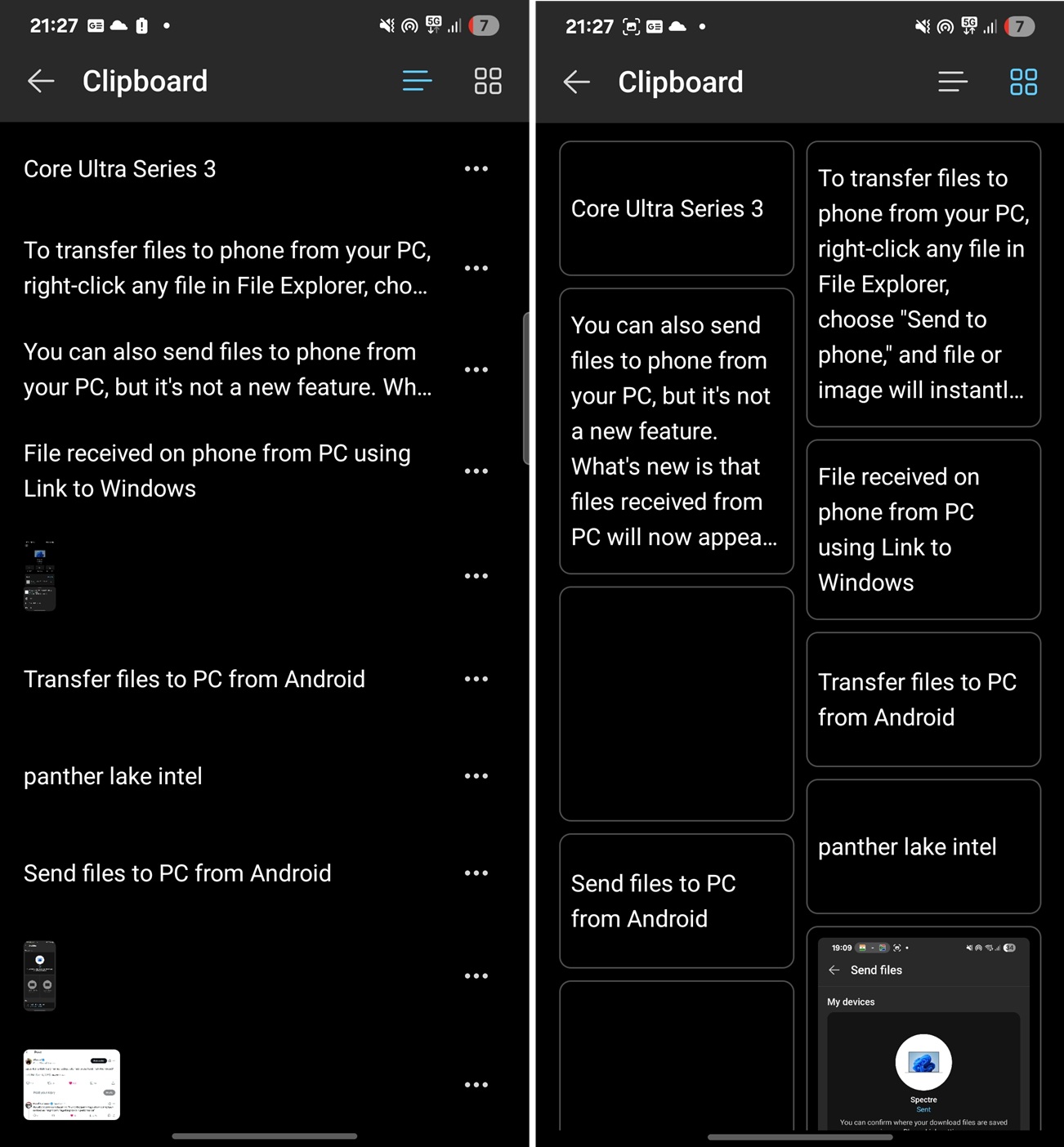
You can delete a synced clipboard item or even share it with one of the apps, such as WhatsApp or Telegram.
You can now mirror Android’s screen to PC easily
Up until now, if you wanted to mirror Android’s screen to Windows 11, you would need to open the Phone Link app, then go to the Apps section, and start screen mirroring or stream one of the Android apps.
Now, you’ll see a new “Mirror to PC” or “Cast to PC” toggle in the Link to Windows app for Android. This lets you quickly mirror phone’s screen to your PC.
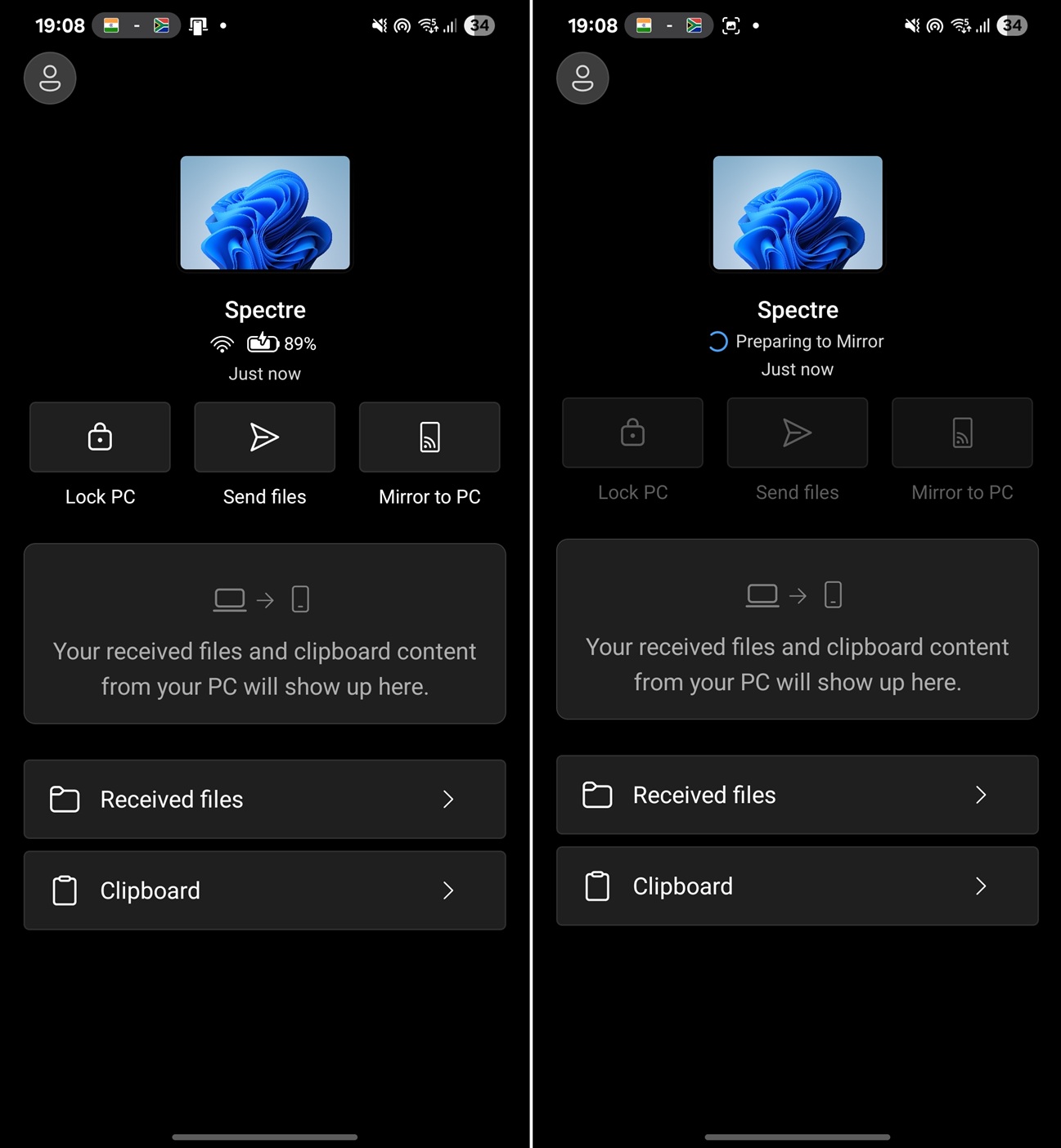
It’s the same screen mirroring experience we have right now, but the only difference is that it can now be triggered directly from your mobile device.
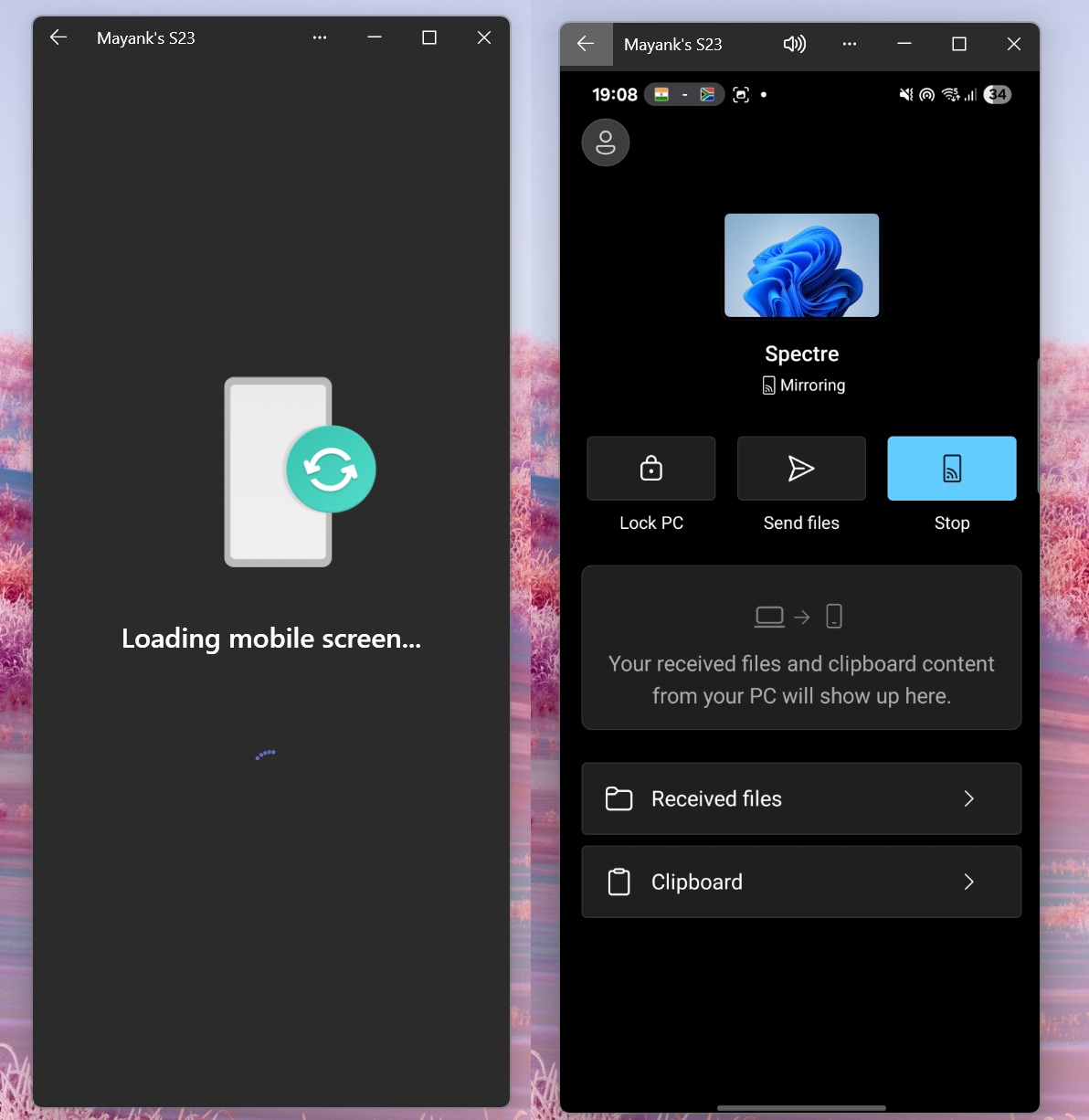
Microsoft is also testing a new feature that allows you to enter “Expanded” mode when you’re mirroring Android’s screen to a PC.
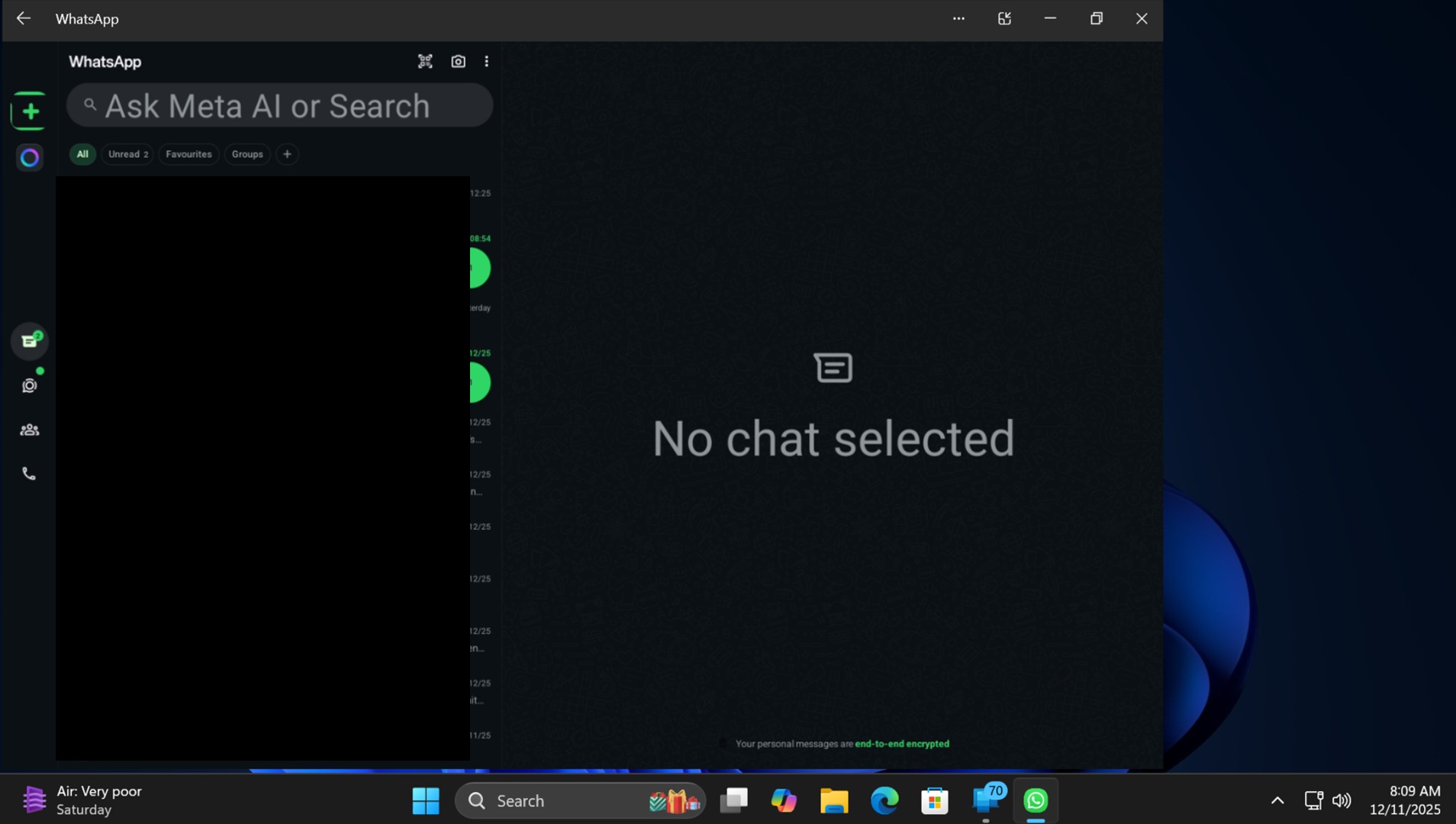
In “Expanded” mode, your Android apps can take more screen space. It’s particularly useful when the app supports tablet UI, which allows you to have a full-screen-like experience. But it’s not exactly full screen because the app cannot be maximized yet.
Is Microsoft slowly moving away from a “Phone Link-only” experience on Windows 11
It looks like Microsoft is slowly shifting away from a “Phone Link app-only on the PC” approach and moving toward a more balanced, two-sided experience where your phone can control and manage parts of the Windows connection, too.
It also looks like Microsoft is reducing the dependency on the Phone Link app for a more native experience, as you can manage some of the advanced features directly from the Windows Settings. All of that makes more sense as Android’s Link to Windows finally has some control.
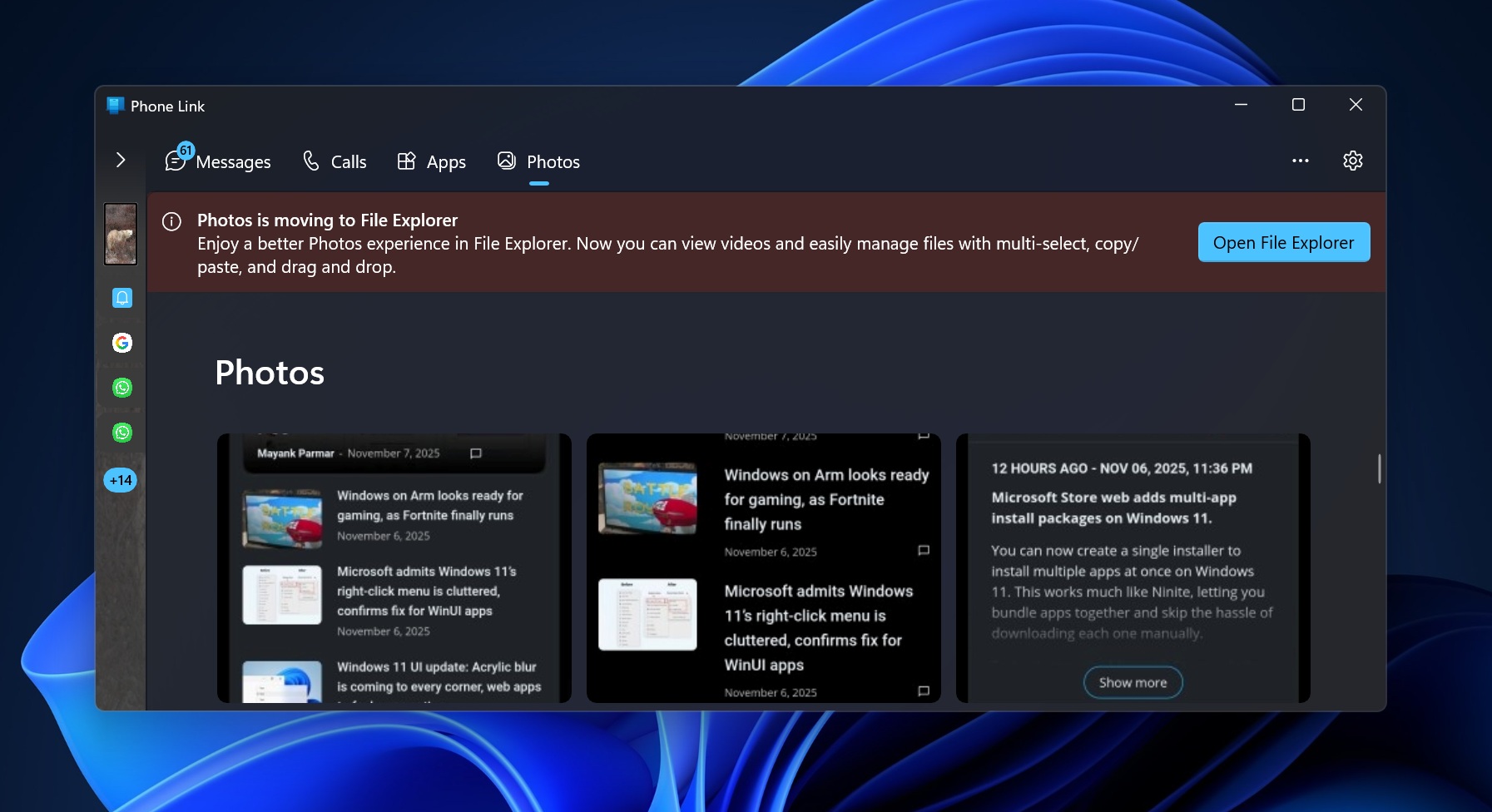
However, that doesn’t mean Phone Link is going away, but it’s certainly losing features, such as the Photos section, which is now moving to File Explorer.
You should be able to try new features in Link to Windows for Android version 1.25102.140.0 and Windows 11 24H2 or 25H2.