





Windows 11 KB5070311 is now rolling out for 25H2/24H2 after a week’s delay. This release introduces dark mode for File Explorer dialogs, such as the ‘delete’ confirmation, and matches Search UI height with the Start menu. Microsoft has also posted direct download links for the KB5070311 offline installer (.msu) for x64 and Arm64.
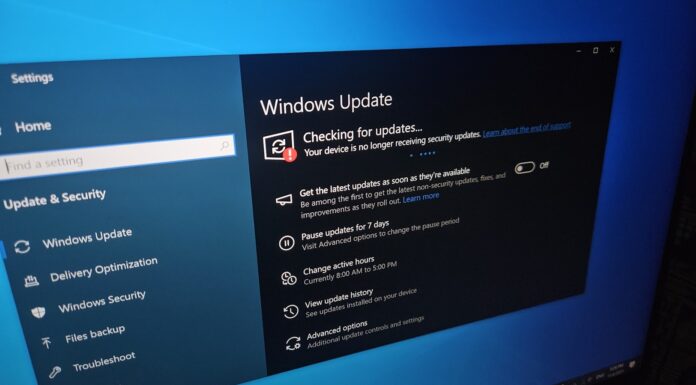
KB5070311 is an optional update. It’ll not download or install automatically unless you turn on the toggle that says “Get the latest updates as soon as they’re possible…” on the Windows Update page. This update is titled “2025-11 Preview Update (KB5070311) (26200.7309).”
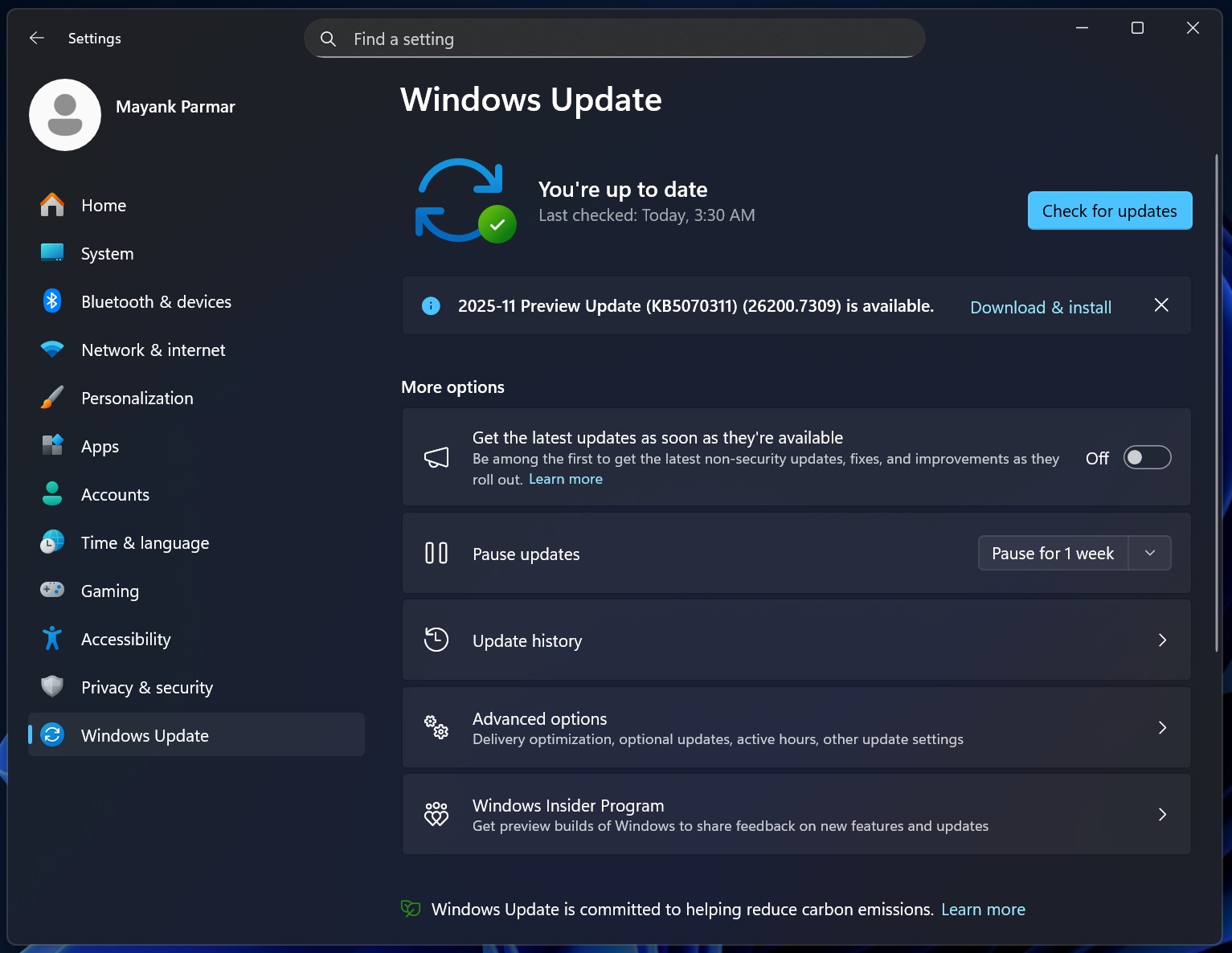
If you’re on version 25H2, the update brings Windows 11 Build 26200.7309. On version 24H2, it’ll bump the OS to Build 26100.7309. While the build numbers are different, the two are the same version of Windows. To install the update, select “Download & install” on Windows Update page.
Download Links for Windows 11 KB5070311
Windows 11 KB5070311 Direct Download Links: 64-bit and ARM-64 | Once you’re on the Update Catalog, you need to identify the OS version, and select the ‘Download’ button, which opens a pop-up window. In the window, click the URL to download and save an .msu package.
This optional update is as big as the previous releases. If you’re on x64-based hardware like Intel or AMD, it’s going to be a 4.2GB download, and 3.9GB on Arm64, such as the Snapdragon X.
| Build Number | Size | OS Version | Architecture |
|---|---|---|---|
| 26200.7309 | 4278.0 MB | Windows 11 25H2 | x64-based |
| 26200.7309 | 3933.1 MB | Windows 11 25H2 | arm64-based |
| 26100.7309 | 4278.0 MB | Windows 11 24H2 | x64-based |
| 26100.7309 | 3933.1 MB | Windows 11 24H2 | arm64-based |
In our tests, Windows 11 Build 26200.7309 takes about 20 minutes to finish downloading and installing. Only a single reboot is required to complete the installation. Personally, I’ve not run into issues after the update, but we’re testing it across our 100+ virtual machines, and we’ll have the result soon.
What’s new in Windows 11 Build 26200.7309 (25H2) / Build 26100.7309 (24H2)?
All new features are rolling out gradually, which means they won’t show up immediately.
1. Dark mode finally expands to legacy dialogs
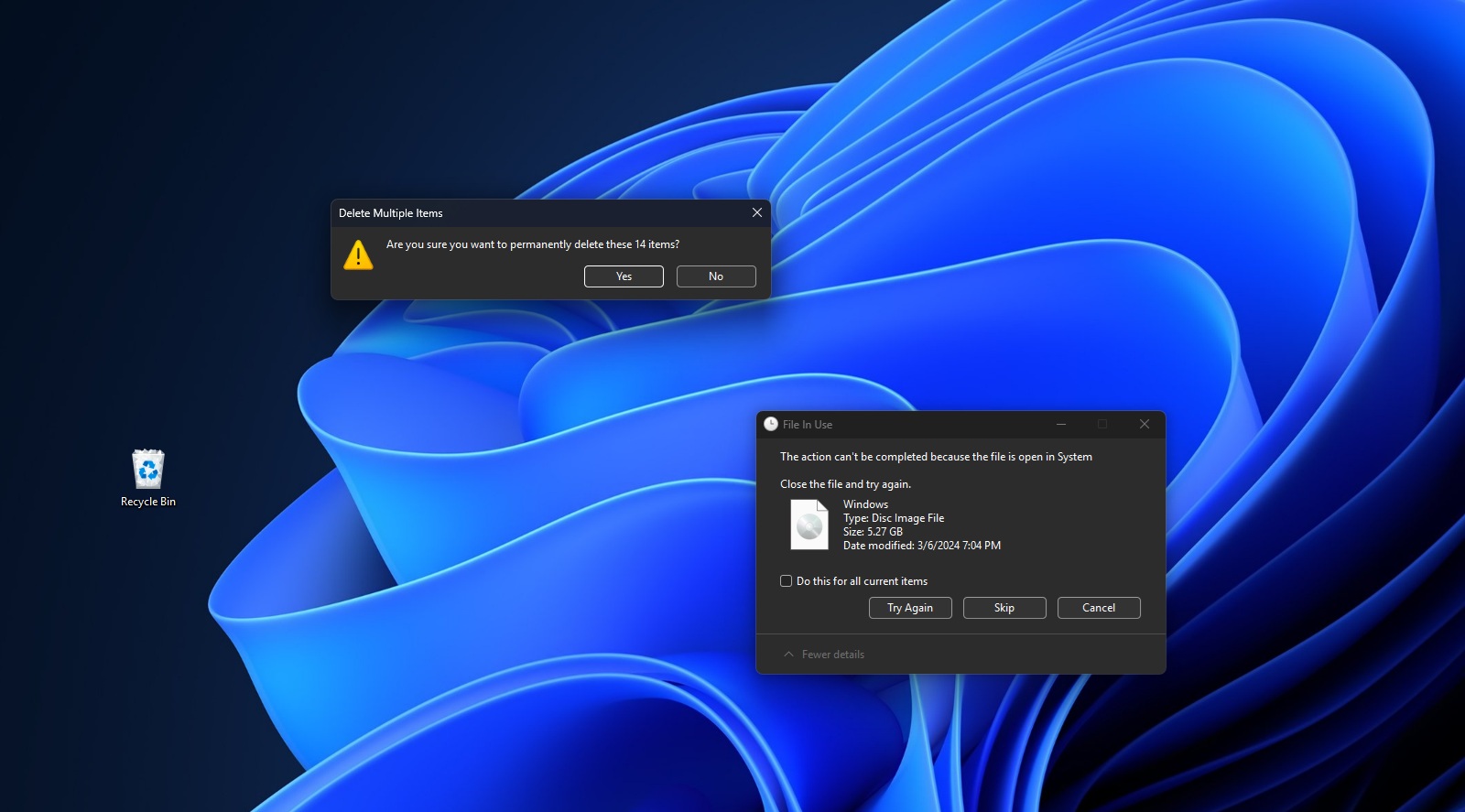
Windows has had a dark mode for about a decade now, but it’s far from perfect. In fact, you’ll always run into a light-themed dialog even if you’re using dark theme in Settings > Personalisation. This changes with Windows 11 KB5070311, which applies the dark theme to all operation-related dialogs.
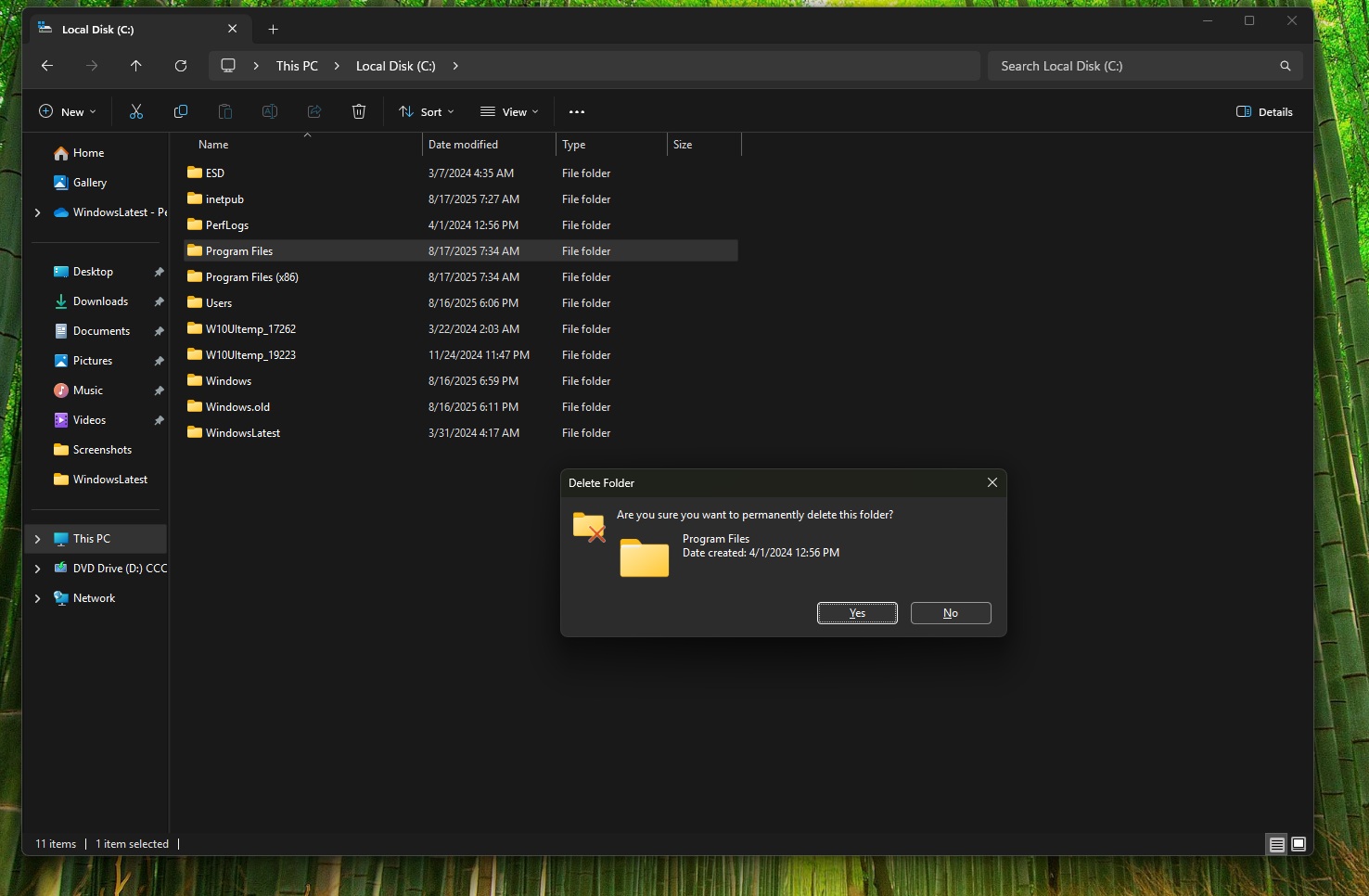
For example, if I now open the Windows drive, and try to delete the Program Files folder, you can see how the ‘Delete folder’ dialog that asks “Are you sure you want to permanently delete this folder’ now uses dark mode. If you have not installed the update yet, open File Explorer and try doing the same thing. You’ll see light dialog.
In Windows 11 Build 26200.7309, if I try to copy and move all my app data from one location to another, Windows triggers the progress bar, which also uses dark theme now.
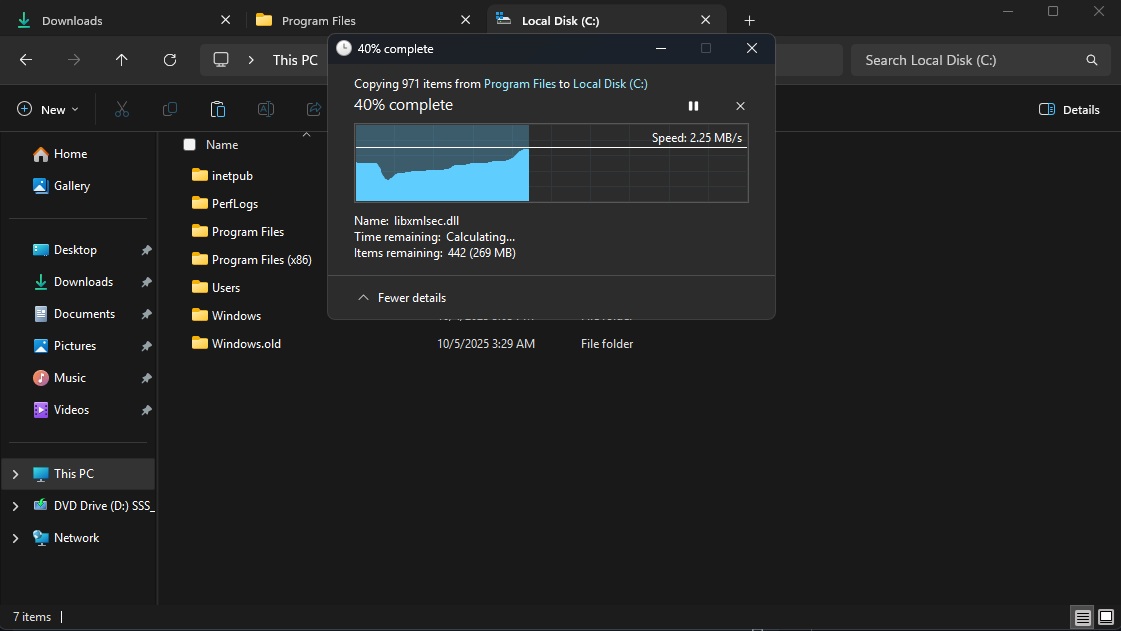
The progress bar is using a shade of blue (not the OS accent colour) for the chart in dark mode.
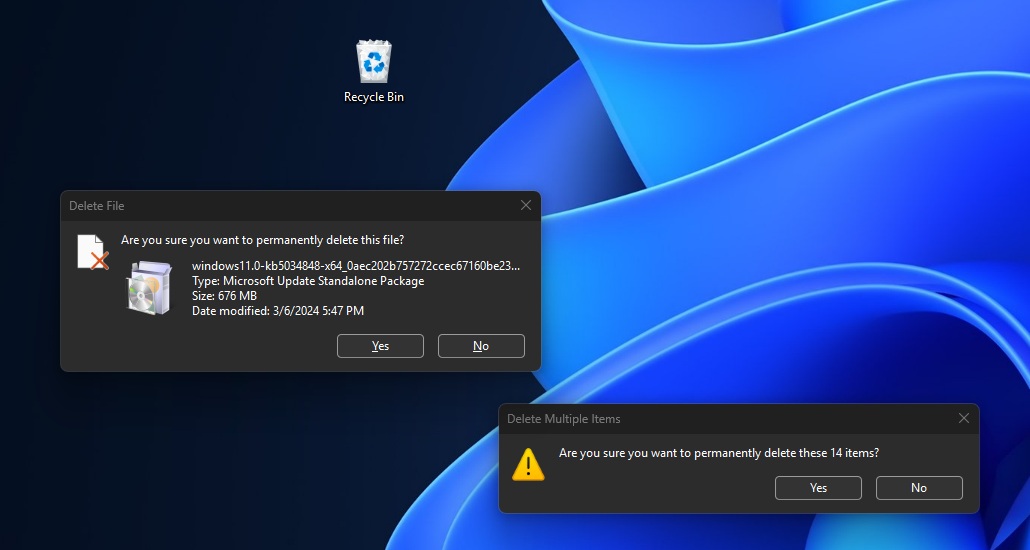
Next, I tried to delete a large file, and the ‘Delete file’ confirmation also showed up with dark mode. I get the same dark-themed dialog when I try to purge multiple files. And yes, there’s dark mode support for the ‘File In Use‘ dialog.
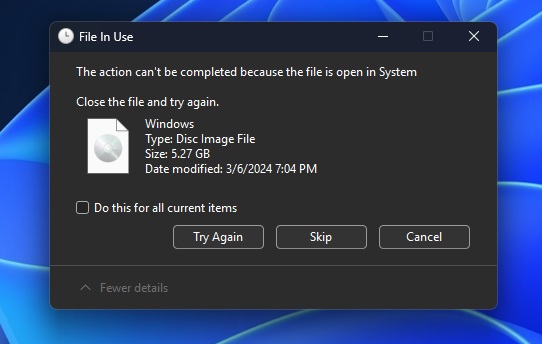
Microsoft told Windows Latest that today’s update is part of the larger plan to make dark mode more consistent in Windows 11, but the company had nothing to share when I asked about the Properties tab and other legacy areas.
However, Windows Latest understands that the dark-themed Properties tab is already being tested internally.
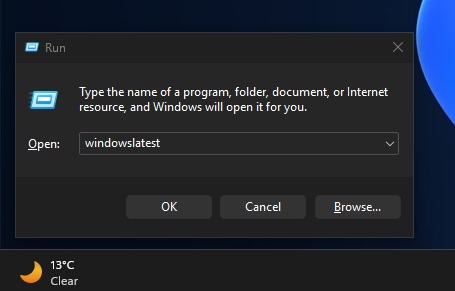
For those unaware, we already have a dark-themed Windows Run, but it’s not included in today’s update:
The context menu has now been simplified
Microsoft says options like Share, Copy, and Move now appear in a single menu, so the menu feels less cluttered. However, it’s rolling out to select PCs only, as Microsoft is hoping to get early feedback before wider rollout.
In addition to dark mode and context menu improvements, Windows 11 KB5070311 fixed an issue where explorer.exe crashes when you receive a new notification. If explorer.exe crashes, the taskbar or Start menu would disappear. I’ve personally experienced the issue on one of my PCs, but if you restart the Explorer process, you’ll be fine.
Here’s a list of other File Explorer fixes:
- A bug has been fixed where File Explorer could not show thumbnails for videos.
- A bug has been fixed where the toolbar shows up in File Explorer when it’s not enabled.
- If you’re viewing a specific file format that a particular app supports, and you right-click, a bug blocks the appropriate app icon from showing inside ‘Open.’ This has now been fixed.
2. Windows Search height now matches the Start menu
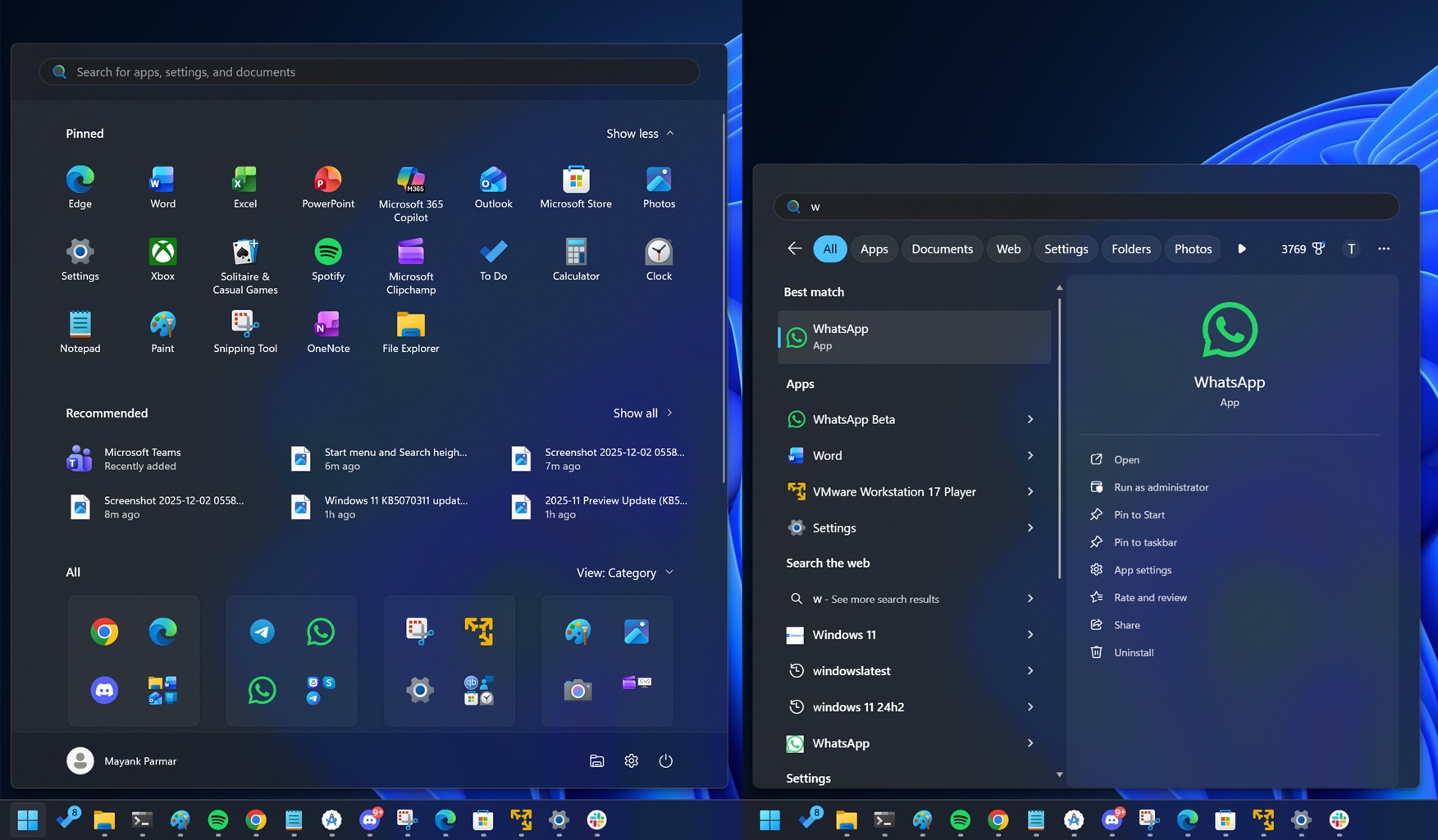
Windows Search UI has always been smaller than the Start menu. While that does not limit the functionality, the transition from the Start menu to Search has always felt odd due to size differences. On my PC, Windows Search is approximately 70% shorter than the Start menu.
Thankfully, Windows 11 KB5070311 finally updates the Search UI to match the height of the Start menu. This means the Search UI is now taller.
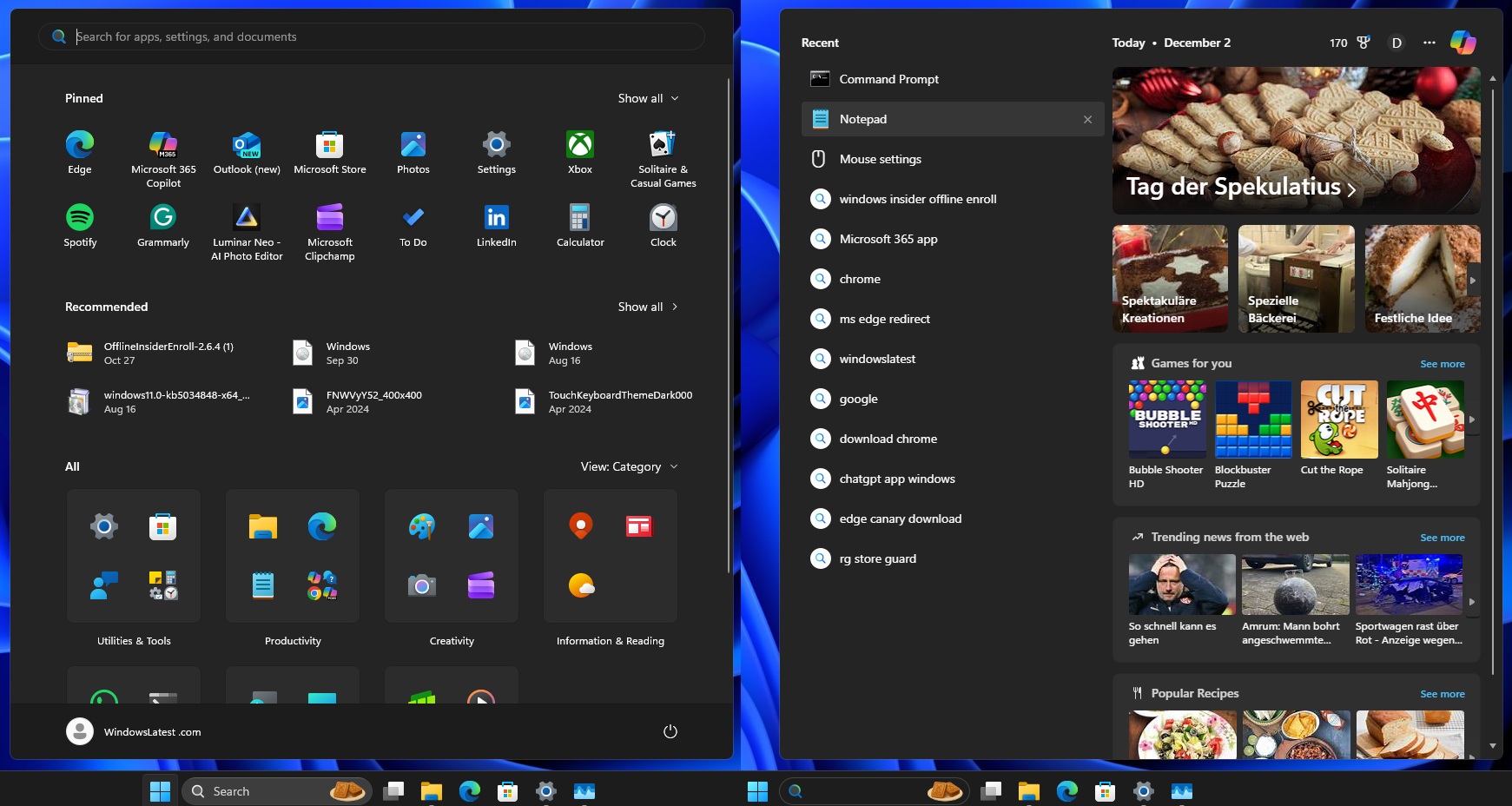
While it’s a welcome change, the new Start menu still feels larger, and you can’t manually resize it, as you could do on Windows 10. For now, you need to change your screen resolution or scaling settings if the Start menu feels huge or covers more than 80% of the screen height. These settings also update the Search UI size.
3. Advanced Settings now lets you manage Windows Sandbox and more
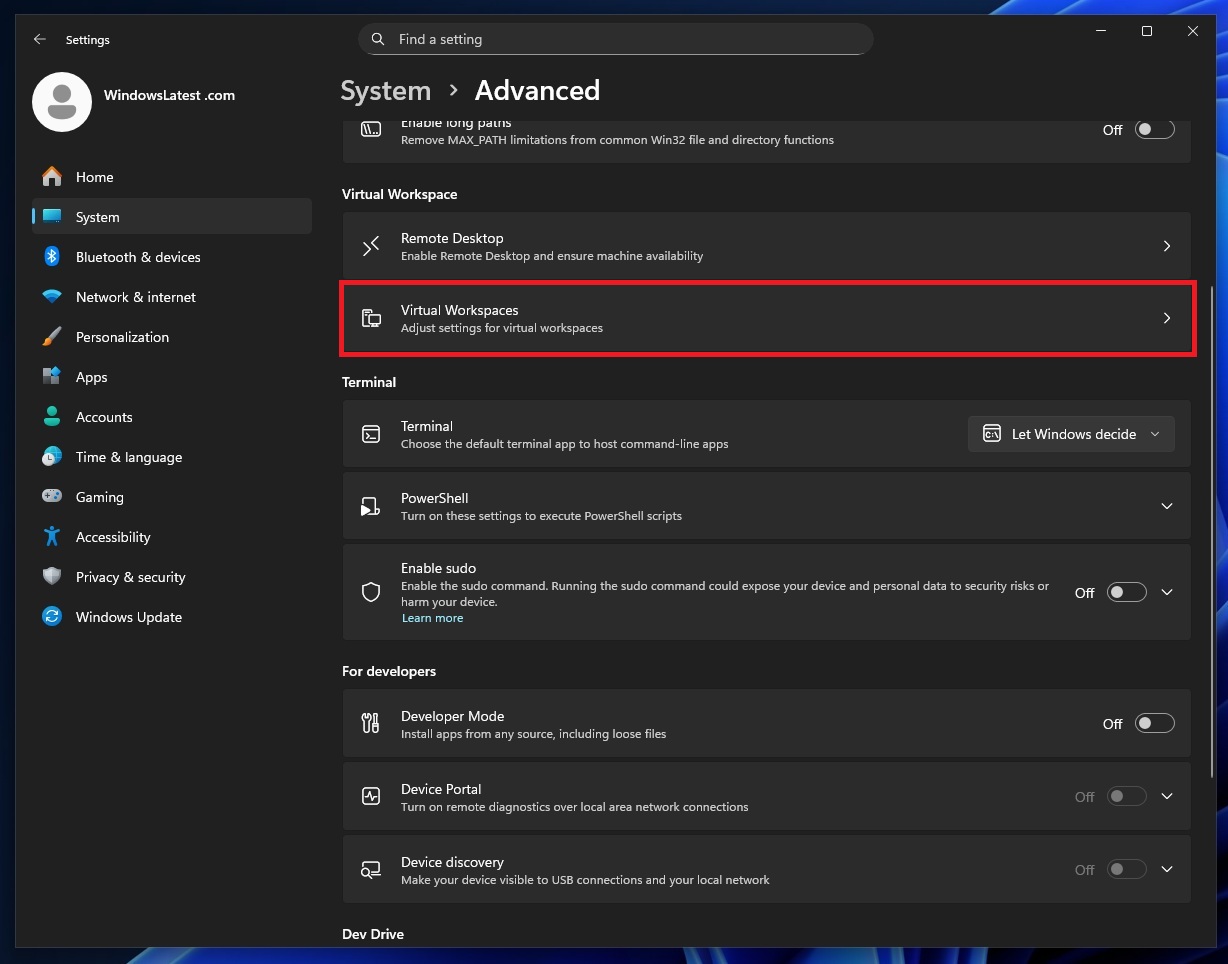
Microsoft previously renamed the “For Developers” page to “Advanced Settings,” and Windows 11 KB5070311 is now adding a new “Virtual Workspaces” page to the same page.
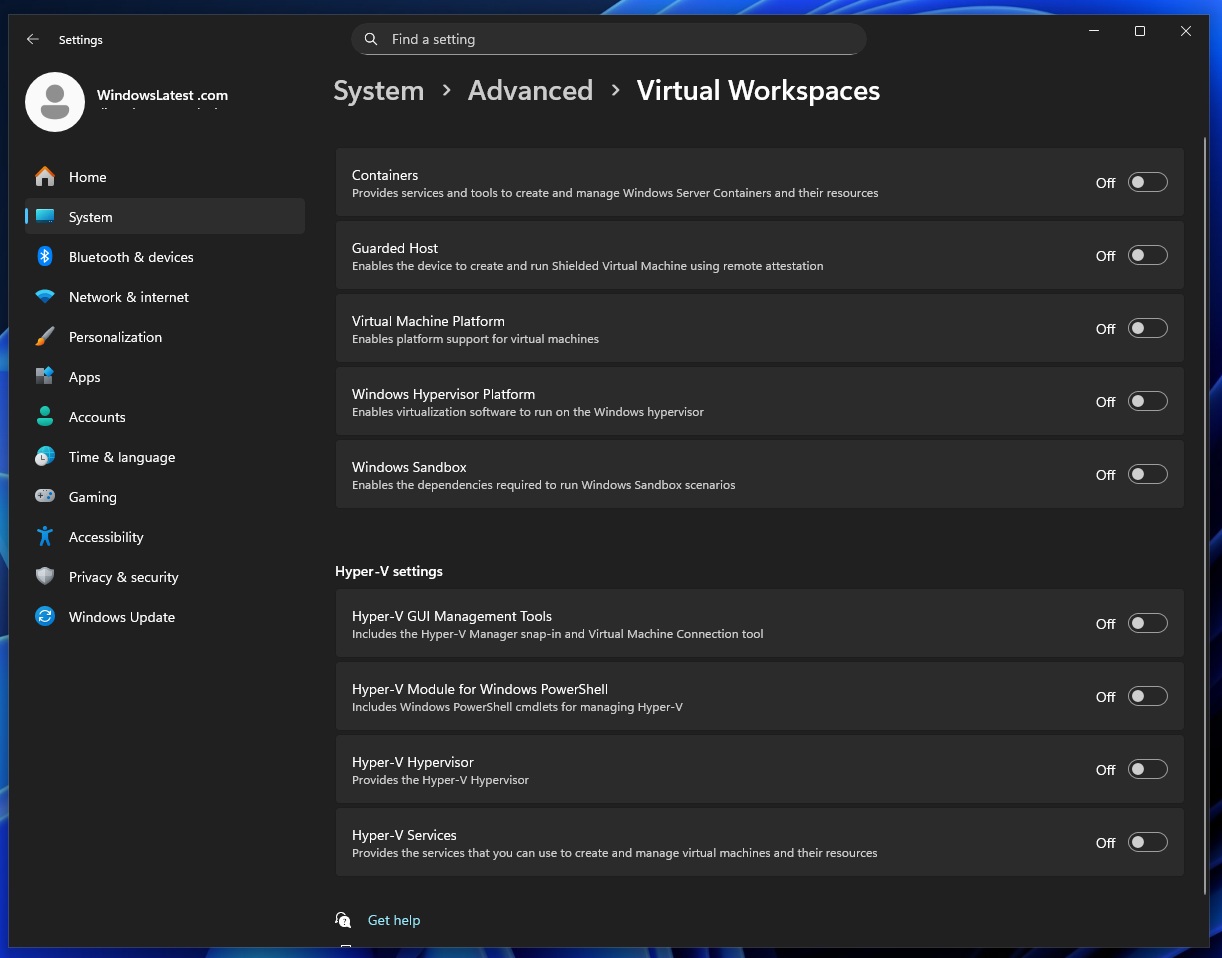
You can open Settings > System > Advanced Settings > Virtual Workspaces and turn on or off features like “Hyper V.” Up until now, these features were exposed via the Control Panel-managed Optional features dialogue, but now they’re being incorporated into the Settings.
For example, you’ll be able to enable a feature called ‘Containers,” which basically allows you to create and manage Windows Server Containers and their resources. Likewise, you can now turn on Windows Sandbox. This was previously buried inside the Control Panel’s optional features dialog.
Here’s a list of features that can now be managed from the Advanced Settings page:
- Containers, Guarded Host (Shielded Virtual Machines), and Virtual Machine Platform.
- Windows Hypervisor platform.
- Windows Sandbox (this lets you run apps or other stuff in an isolated environment).
- Hyper V settings like GUI management tools, PowerShell module, Hypervisor, and Hyper-V Settings.
4. Full-screen experience (FSE) now arrives on all handhelds
Windows 11 has a new full-screen experience (FSE) for gaming, particularly on handhelds, but it was previously limited to Xbox ROG Ally. After today’s update, you can now turn it on on all handhelds.
FSE enables console-style UX, optimizes performance for gaming, and hides Windows-related features, so you can focus on gaming.
FSE is also coming to regular PCs in the next update, and you can turn it on from Settings > Gaming > Full screen experience.
5. QMR now works better on Windows 11
QMR (Quick Machine Recovery) is a new feature that allows you to recover the PC when it’s unable to boot, likely due to BSODs. It was added to Windows 11 after CrowdStrike outrage trashed millions of PCs, including those at the airport. With QMR, Windows connects to Microsoft’s cloud to initiate a recovery process.
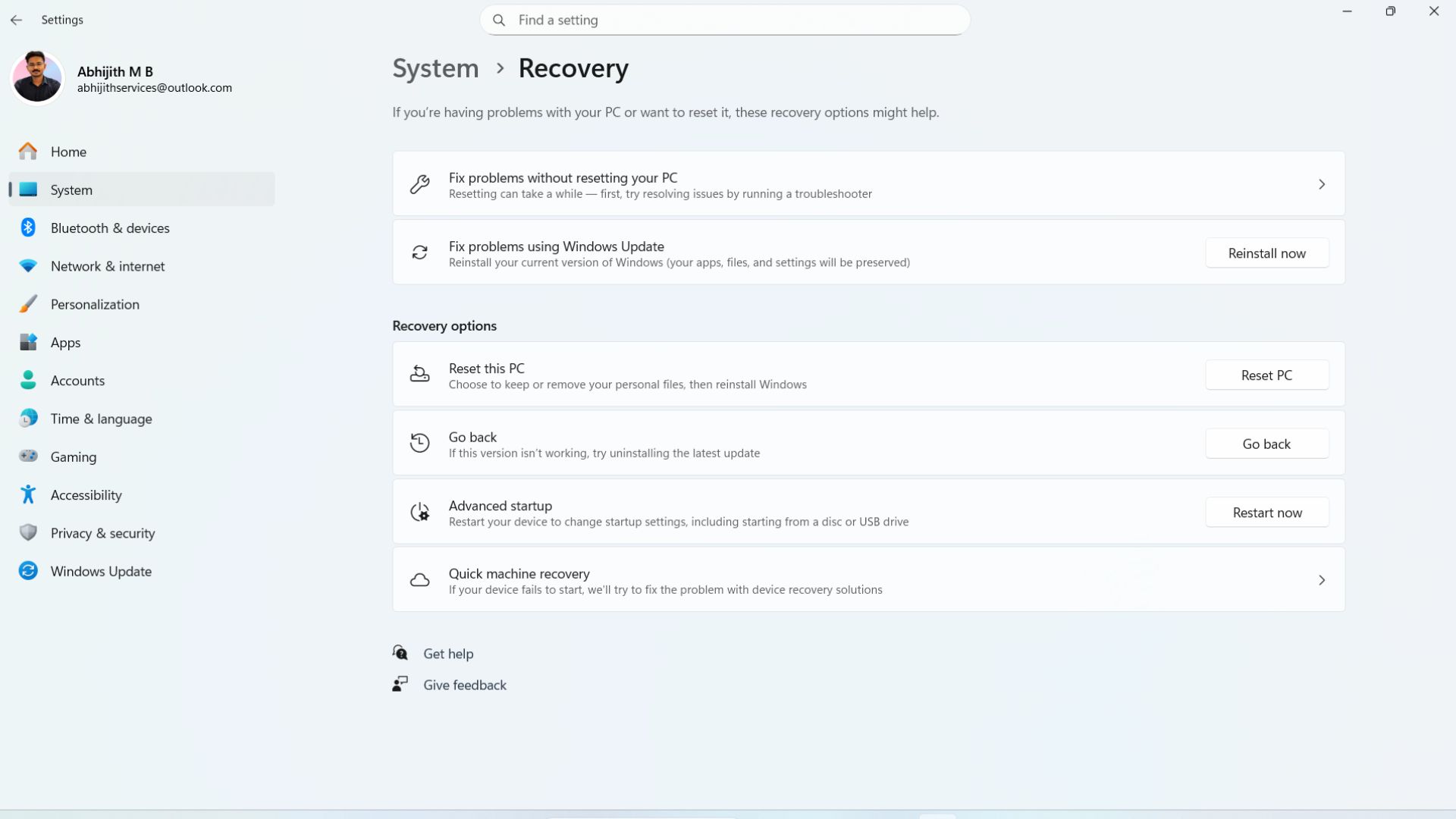
QMR typically works in most situations, unless it’s a hardware issue beyond Microsoft’s control. Now, it’s getting even better.
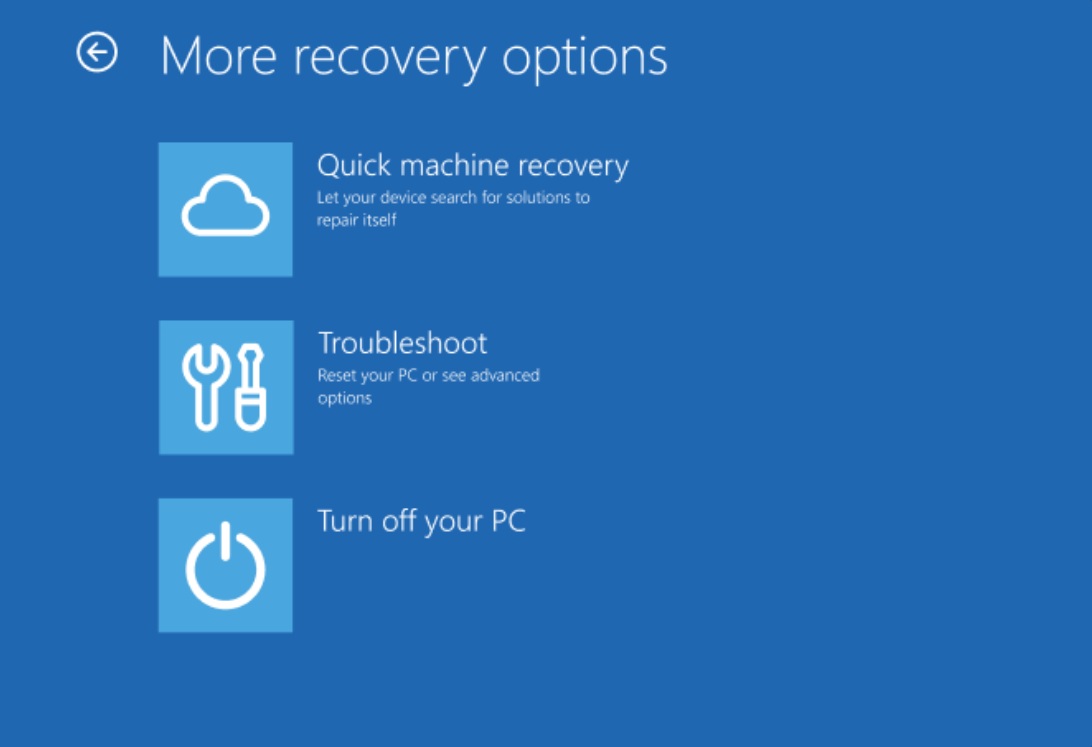
After installing Windows 11 KB5070311, Microsoft says QMR will run a one-time scan on PCs and automatically check for solutions. However, if Microsoft does not have a fix for your issue, it’ll now redirect you to other recovery options instead of getting stalled.
6. You can now share the app’s screen with Copilot directly from the taskbar
If you’ve several apps open, just hover over one of them on the taskbar, and you can now see a new “Share with Copilot.”
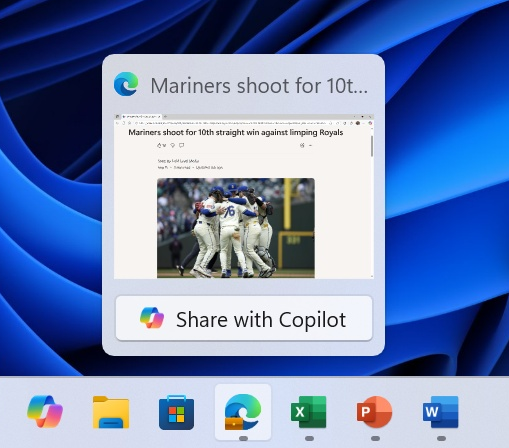
When you use this toggle, you’ll begin sharing the app’s screen with Copilot, so you can ask questions, analyze the content in the app, and Copilot will offer insights.
7. Windows 11’s drag tray is getting better
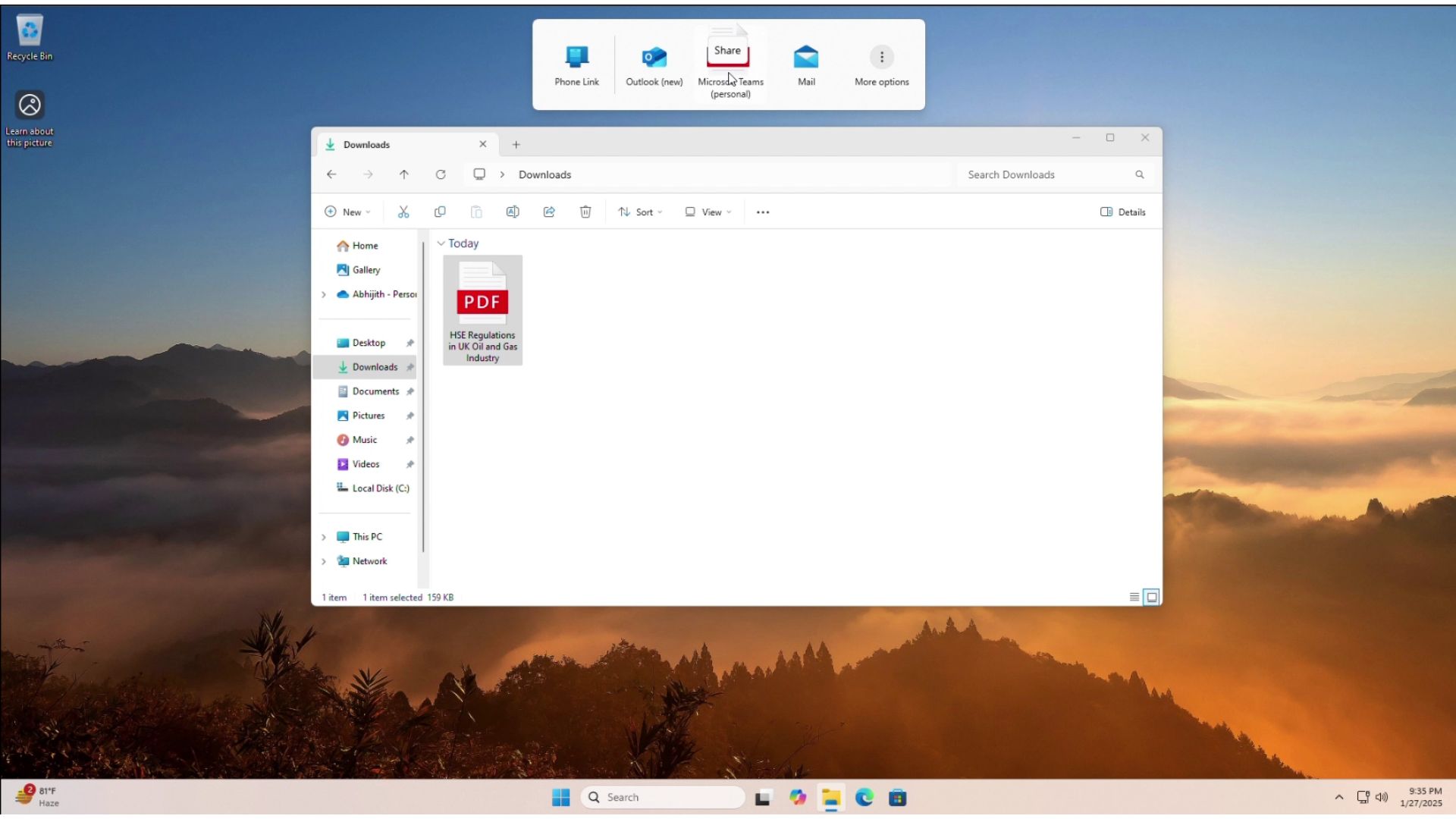
I am sure you have already noticed it, but if you drag a file from File Explorer to the top of the screen, you will see a ‘Drag tray.’ This lets you instantly share files using your favourite app, such as WhatsApp, Telegram, Outlook, etc. Up until now, you could only share a single file, but Windows 11 KB5070311 turns on multi-file sharing support.
This means you can select multiple files and drag all to the top of the screen and drop them into one of the apps to share. Also, Dray Tray now automatically detects the most appropriate apps based on the file format.
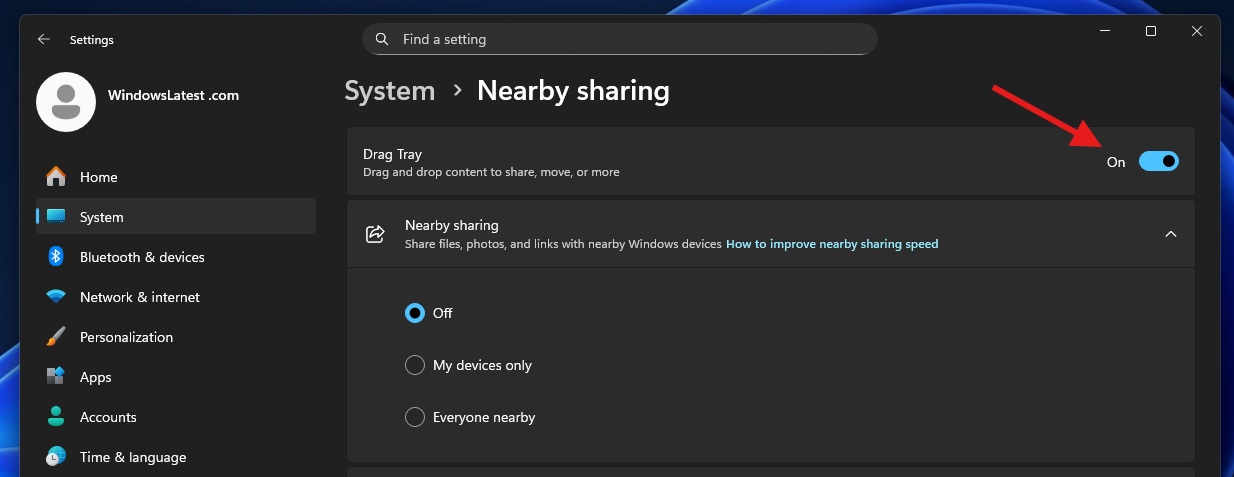
If you don’t like the Drag tray because it gets in the way, you can turn it off from Settings > System > Nearby sharing.
Here is a list of features, improvements, and fixes in Windows 11 KB5070311:
- You can now right-click on the Spotlight icon to learn more about the background or change the wallpaper. For those unaware, Spotlight is a Bing-powered feature that rotates the desktop background.
- If you’ve a stylus (pen) and it comes with a haptic motor, you will now feel small vibrations when you interact with Windows. Haptic subtle vibrations were previously limited to trackpad, controller, or mouse, but now they’ll also work with a pen, such as the Surface or HP Pen.
- Microsoft has improved keyboard backlight performance, so if you’ve HID-compliant keyboards, you will notice brighter light.
- You can now manage linked mobile features like “Camera” from Bluetooth & Devices > Mobile Devices.
- You’ll notice some neat animations when apps are grouped on the taskbar, and you hover or switch from one group to another.
- A bug that turned off the “hide the taskbar” setting automatically has been fixed.
- Taskbar icons scaling would have felt a bit odd, but now it’s fixed.
All these new features are rolling out gradually with the optional update. If you skip the update, you’ll get all these changes on December 9, as part of the Patch Tuesday cycle, but even then, the changes won’t show up immediately.
What are the known issues in Windows 11 KB5070311?
Microsoft is not aware of any major issues, except for a bug where Windows hides the password icon on the login screen, but it also affects the older versions, so it’s not isolated to today’s optional update.
However, there’s another bug that might upset some people. In our tests, Windows Latest observed that File Explorer now shows a white flash when you use it in dark theme. Worse, you might also see a white flash inside the File Explorer when you open a new tab, a new window, or navigate to the Gallery or Home section.
You will also see a white flash when you turn the ‘Details’ tab on or off. It looks like Microsoft has completely botched up the implementation of dark theme in File Explorer while trying to add dark colours to operation dialogs.
Microsoft says it’s working on a fix, which will be included in the next update, but we don’t know if that next update is going to be December 9’s Patch Tuesday.
For now, skip installing Windows 11 KB5070311 if you use dark mode and are uncomfortable with white flashes in File Explorer.